How to post a test to Google Classroom and get the marks back
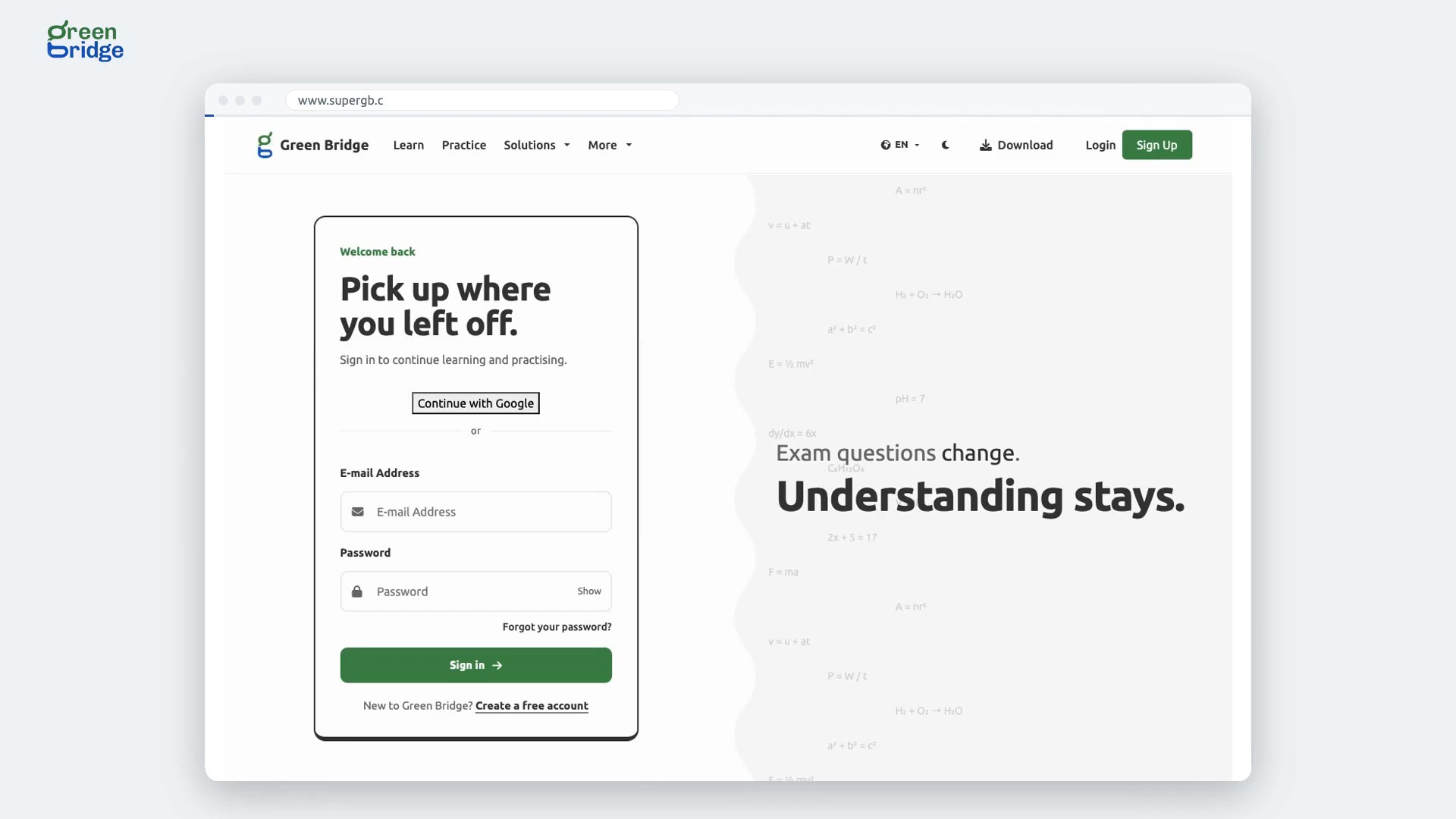
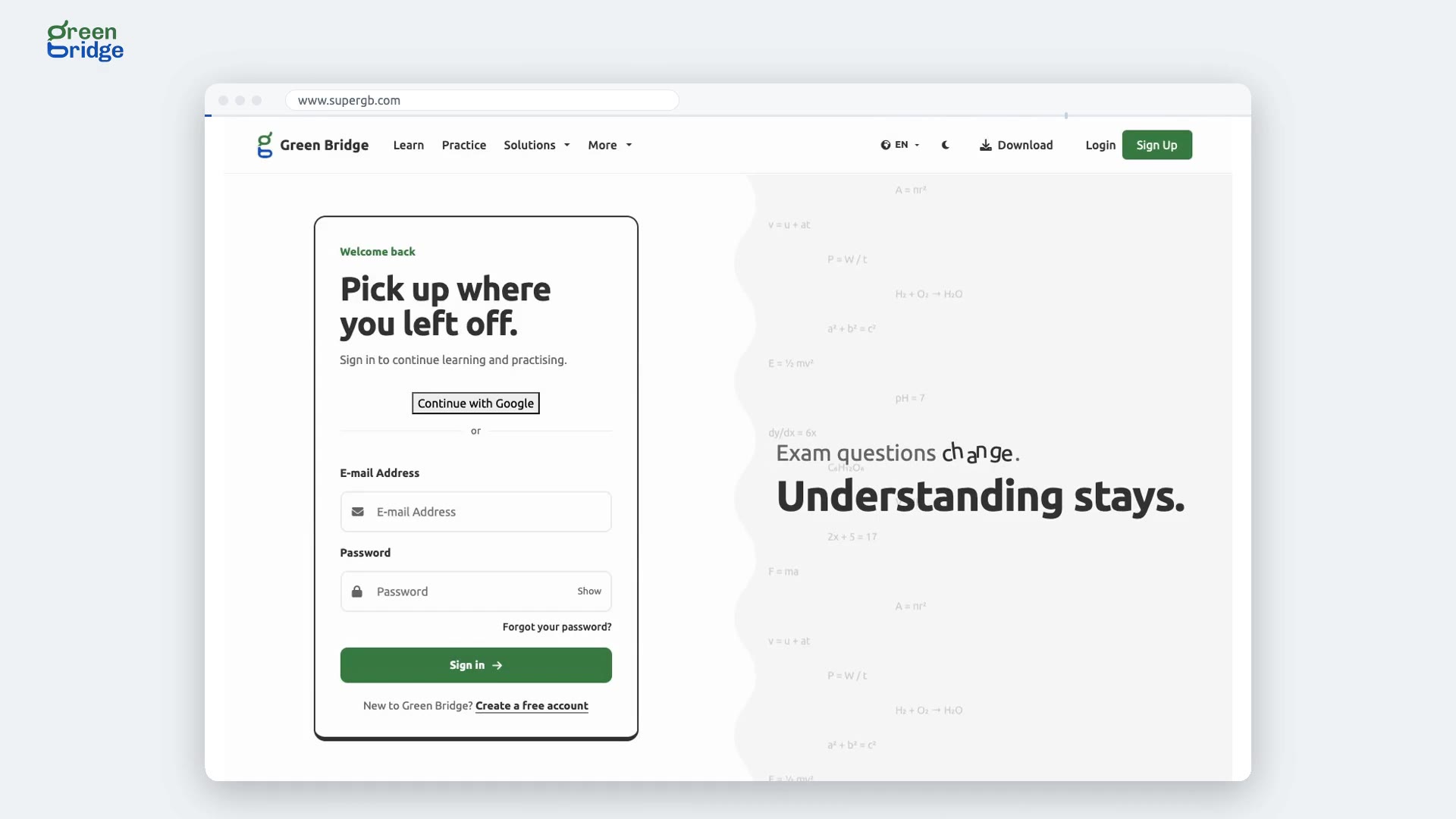
In your school dashboard, open Assessments and click the test. Open the menu at the top and choose Post to Google Classroom. The first time, click Connect Google Classroom and allow Google's permissions. Choose your classes, add a due date if you want, click Continue, check the summary and click Post. Students open it from Classroom and sit it on Green Bridge, and their marks go to the Classroom gradebook by themselves.
Transcript
Copying marks into Google Classroom by hand? Not any more. Here's a test going from Green Bridge to Google Classroom, and the mark coming back. A school admin signs in. From Assessments, they open the test. And post it to Google Classroom, connecting their Google account first. They pick the class, and post. Classroom now has it as coursework worth three points. The student follows the link from Classroom. They sign in with their Green Bridge password. They start the test, answer each question, and submit. Three out of three. And that mark is already in the Google Classroom gradebook. So: post the test to Classroom, students sit it on Green Bridge, and the mark goes back by itself. Connect Google Classroom at www.supergb.com.