How to post a test to your Microsoft Teams class
Your school needs to have connected Microsoft 365 first, and the test must be open. Open Assessments, open the test, then choose Post to Microsoft Teams from its menu. Click Sign in with Microsoft, and Microsoft brings you back to choose your classes. Tick the Teams classes you teach, review and click Post. The test appears in Teams as an assignment, and marks go back to it.
Àkọsílẹ̀ ọ̀rọ̀ fídíò
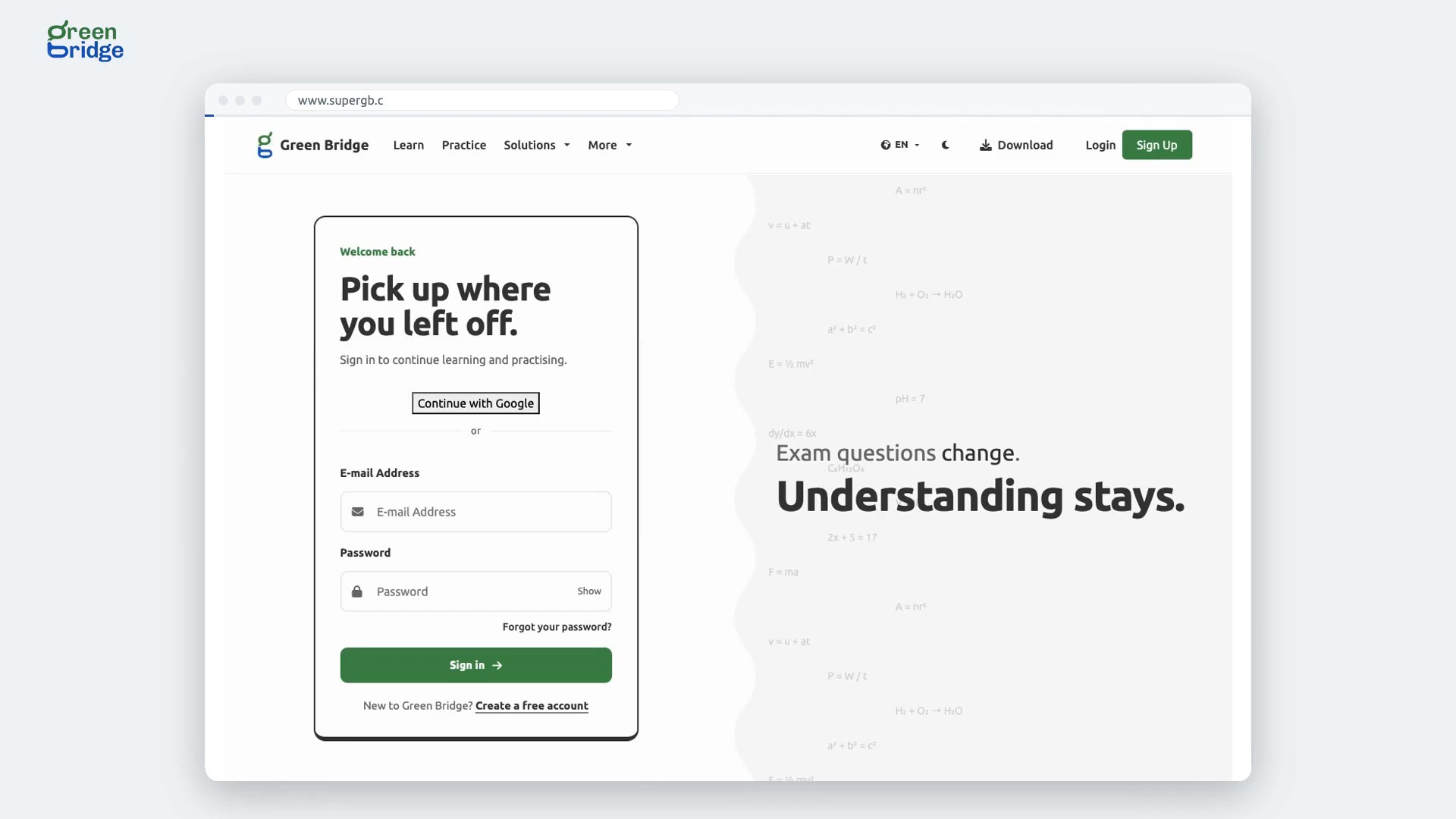
Your class lives in Teams. Your test can go there too. Here's how a teacher posts a Green Bridge test to their Teams class. The teacher signs in. From Assessments, they open the test, and choose Post to Microsoft Teams, signing in with Microsoft first. They pick their Teams class, and post. Teams now has the test as a published assignment. So: sign in with Microsoft, pick your Teams class, and the test arrives as an assignment. Connect Microsoft 365 at www.supergb.com.