Como funciona o Green Bridge
Explicações curtas e simples do que pode fazer no Green Bridge, muitas com vídeo. Escolha quem é e a sua plataforma, ou pesquise.
349 guias, 277 com vídeo
Guias encontrados: 30 Limpar filtros
-
 0:54
How to run a paper as a timed exam on your website
Open Embed assessments and choose the paper. Pick Exam, which is timed like the real exam, and click Copy code. Paste the code into your website: visitors get the exam even if they ask for practice.
As provas no seu site
-
 0:56
How to make a list of papers for your website
Open Embed assessments, then Catalogues, and click New catalogue. Name it, choose the exam and the board, search for the papers you want and click Feature on the one to show first. Save the catalogue, and it appears in your lists with the number of papers it holds.
As provas no seu site
-
 0:53
How to delete a list of papers
Open Embed assessments, then Catalogues. Click Delete next to the list and confirm. It is removed from your paper lists.
As provas no seu site
-
 0:46
How to connect a learning platform with one link
Open Learning platforms, choose One link, pick Test while you try it out and click Make a registration link. Paste the link into your learning platform, such as Moodle, and it registers itself with LTI 1.3.
A sua plataforma de aprendizagem
-
 1:32
How to connect a learning platform by hand
Open Learning platforms and choose Step by step. Enter the platform ID, client ID and deployment ID, then the platform's sign-in, access token and keyset addresses and its web address. Choose Test and click Connect platform. To pause it, click Disconnect and confirm; click Reconnect to switch it back on.
A sua plataforma de aprendizagem
-
 0:40
How to resend a mark your learning platform refused
Open Learning platforms. A refused mark is listed with the error the platform gave. Once you have fixed the cause, click Send again, and the mark is no longer listed as refused.
A sua plataforma de aprendizagem
-
 0:46
How to create a server key
Open Connect your website or app and click Create key. Name it, choose Test while you build, and create it. Copy the secret straight away: it is shown only once. The key is then listed by its first few characters.
Ligar o seu próprio sistema
-
 0:50
How to revoke a server key
Open Connect your website or app, click Revoke next to the server key and confirm. It is listed as revoked and stops working at once.
Ligar o seu próprio sistema
-
 1:25
How to add a webhook and test it
Open Connect your website or app and click Add webhook. Type your system's address, add it and store the signing secret. The webhook is listed as active. Click Send test event: your system receives it and the delivery is listed as delivered.
Ligar o seu próprio sistema
-
 0:50
How to turn off a webhook
Open Connect your website or app, click Turn off next to the webhook and confirm. It is listed as turned off, and nothing more is sent to it.
Ligar o seu próprio sistema
-
 0:40
How to resend a failed webhook delivery
Open Connect your website or app. A failed delivery is listed with the error your system gave. Once your system is ready, click Send again: the delivery is queued and reaches your system.
Ligar o seu próprio sistema
-
 0:39
How to download your test's results
Open Tests, open your test and click Download results. The spreadsheet is named for the test and has a column for each question.
Ligar o seu próprio sistema
-
 1:56
How do practice paper marks reach my learning platform's gradebook?
Once your learning platform is connected to Green Bridge with LTI 1.3, you can set a Green Bridge practice paper as an activity. Learners open the activity and the paper opens right there, with no separate sign-in. When they submit, they see their score, and the gradebook receives it as a percentage. Set up the connection from Learning platforms in your dashboard.
Plataformas de aprendizagem (LTI 1.3)
-
 2:27
How to set your school's own test through Moodle or another LMS
A school admin connects your learning platform from Learning platforms in the school dashboard, using LTI 1.3. Add your Green Bridge test as an activity in a course. Students open it there, start the test and submit, and their mark goes into the platform's gradebook. Students must be on your class list with the same email address they use in the platform, or they're asked to speak to their teacher.
Plataformas de aprendizagem (LTI 1.3)
-
 0:27
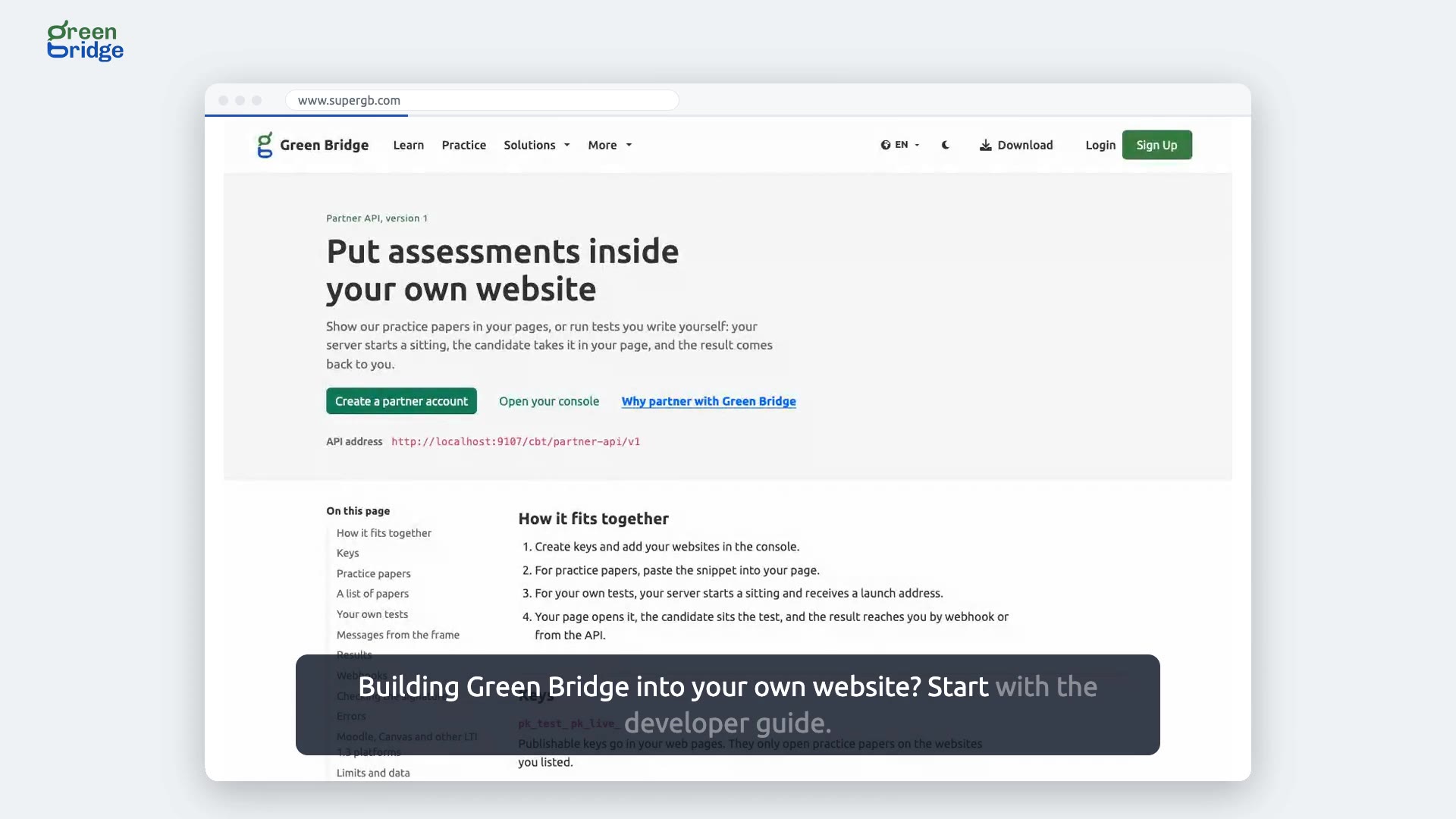
How to build Green Bridge assessments into your own website
Send your developers to the developer guide, Green Bridge for developers. It covers your keys, showing a list of practice papers, putting your own tests on your pages and collecting the results. Later sections explain webhooks and how to check their signature, errors, limits and your data, and how to connect Moodle, Canvas and other LTI 1.3 platforms.
Integrar o Green Bridge no seu site
-
 1:07
How do visitors practise past papers on my website?
As an approved partner, you can place the Green Bridge catalogue inside a page on your own site. Visitors choose an exam and a subject and pick a paper to practise, and it opens right there, without them leaving your website. They can click View answer after each question, and when they submit, their score appears inside your page.
Exames de prática no seu site
-
 0:50
Are premium IGCSE answers safe when visitors practise on my website?
Yes. Partners on the Growth and Institution plans can offer premium Cambridge IGCSE papers, and these play in a protected player. The page holds none of the answers. When a visitor answers a question and clicks View answer, only that one answer is sent, and their choice is locked so it can't be changed. Every screen also carries a watermark naming your organisation.
Exames de prática no seu site
-
 0:42
What your partner console home page shows
Sign in to your partner console. The home page names your organisation and shows that it is approved, the plan you are on, and the steps left before you go live, with each finished step ticked off.
A sua conta de parceiro
-
 0:43
How to add another website to your partner account
Open Websites and keys, type the website's address and click Add website. The new website is listed beside the ones you already had, and the practice papers can run there too.
A sua conta de parceiro
-
 0:47
How to remove a website from your partner account
Open Websites and keys and click Remove next to the website you no longer use. The papers stop running there, and your other websites stay as they were.
A sua conta de parceiro
-
 0:45
How to create a test key for your staging site
Open Websites and keys and click Create key. Give the key a name, choose Test as the key type and create it. Test keys are free, so you can try the papers on a staging site before going live.
A sua conta de parceiro
-
 0:47
How to revoke a key you no longer use
Open Websites and keys, click Revoke next to the key and confirm. The key is listed as revoked and stops working straight away.
A sua conta de parceiro
-
 0:49
How to let candidates save their results to Green Bridge
Open Account settings and switch on saving results to a Green Bridge account. Candidates can then keep their results in their own account. Switch it off again whenever you like.
A sua conta de parceiro
-
 1:00
How to download your monthly usage
Open Usage, choose the month and click Download CSV. The file is named for the month and lists the practice visitors did on your website, key by key.
A sua conta de parceiro