How to sit the school test on your home page
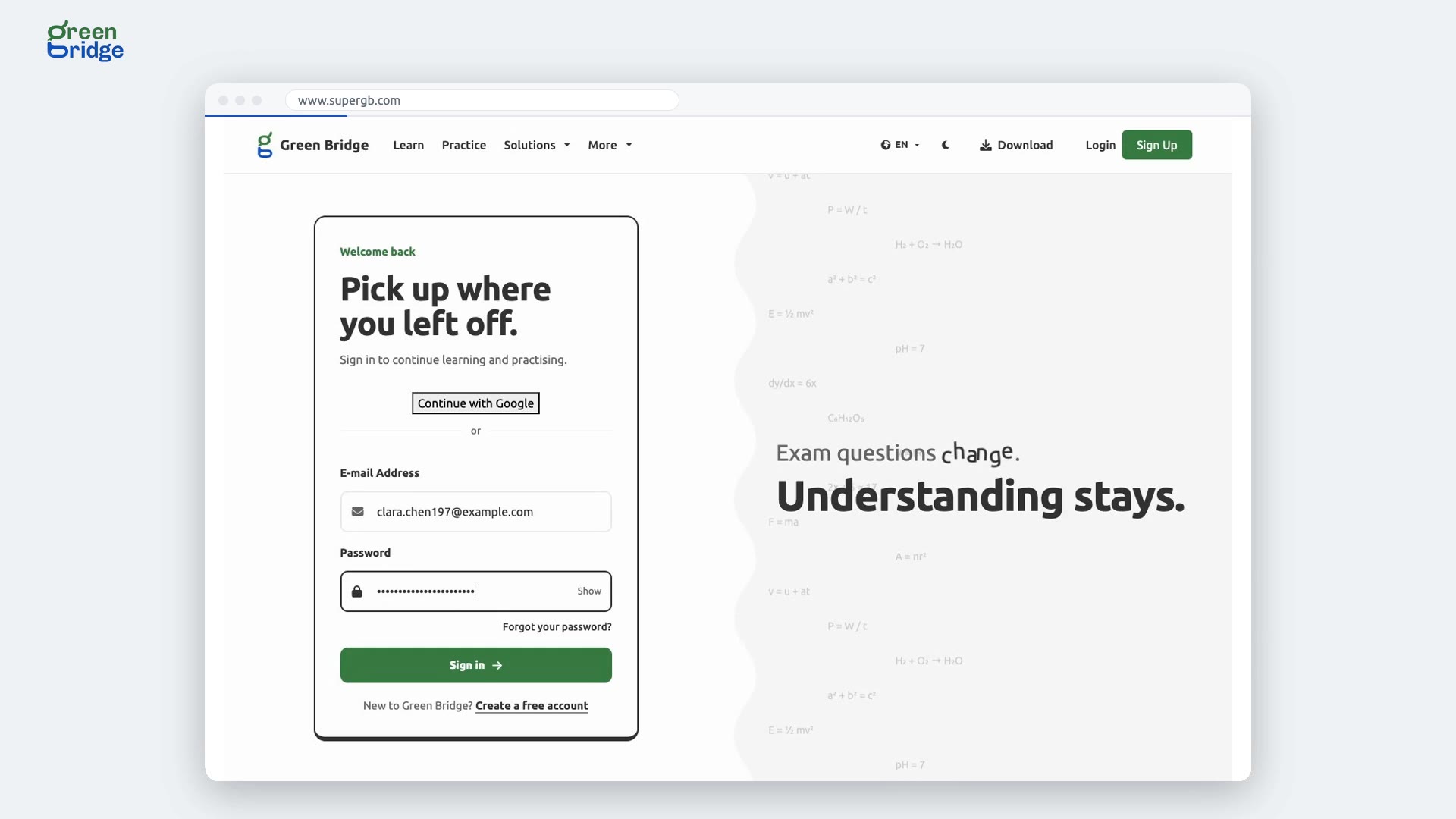
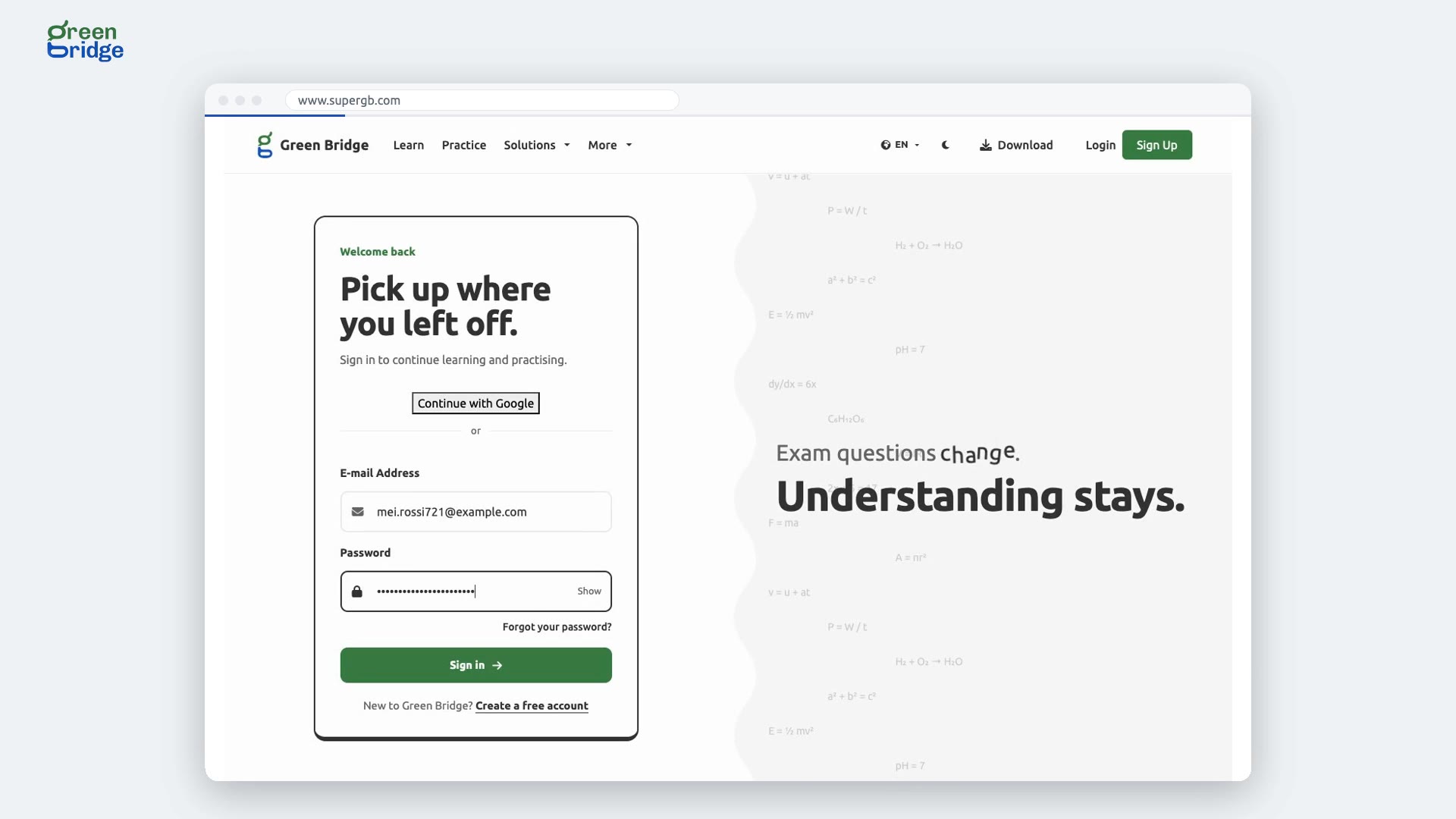
Sign in and the test is on your home page under A school test to take. Click Start test and type the code your school emailed you. Read the instructions and click Start Assessment. Answer each question, then click Submit and confirm. You'll be thanked for handing it in, and the test leaves your home page.
Transcrição
When your school sets a test, you shouldn't have to go looking for it. Here's how to find your school's test on Green Bridge, sit it, and hand it in. Sign in to your dashboard. Your school's test is right there on your home page, with a button to start it. Start it, and type in the code your school emailed you. Read the instructions, and begin. Pick an answer, then go on to the next question. Written answers go straight into the box. When you're done, submit. You're thanked for handing it in. Back on your home page, the test is no longer waiting for you. So: your school's test waits on your home page, you enter the emailed code, and you submit when you're done. Sign in and find your school's tests at www.supergb.com.