Hoe Green Bridge werkt
Korte, eenvoudige uitleg van wat je met Green Bridge kunt doen, vaak met een video. Kies wie je bent en je platform, of zoek.
349 gidsen, 277 met een video
Gevonden handleidingen: 24 Filters wissen
-
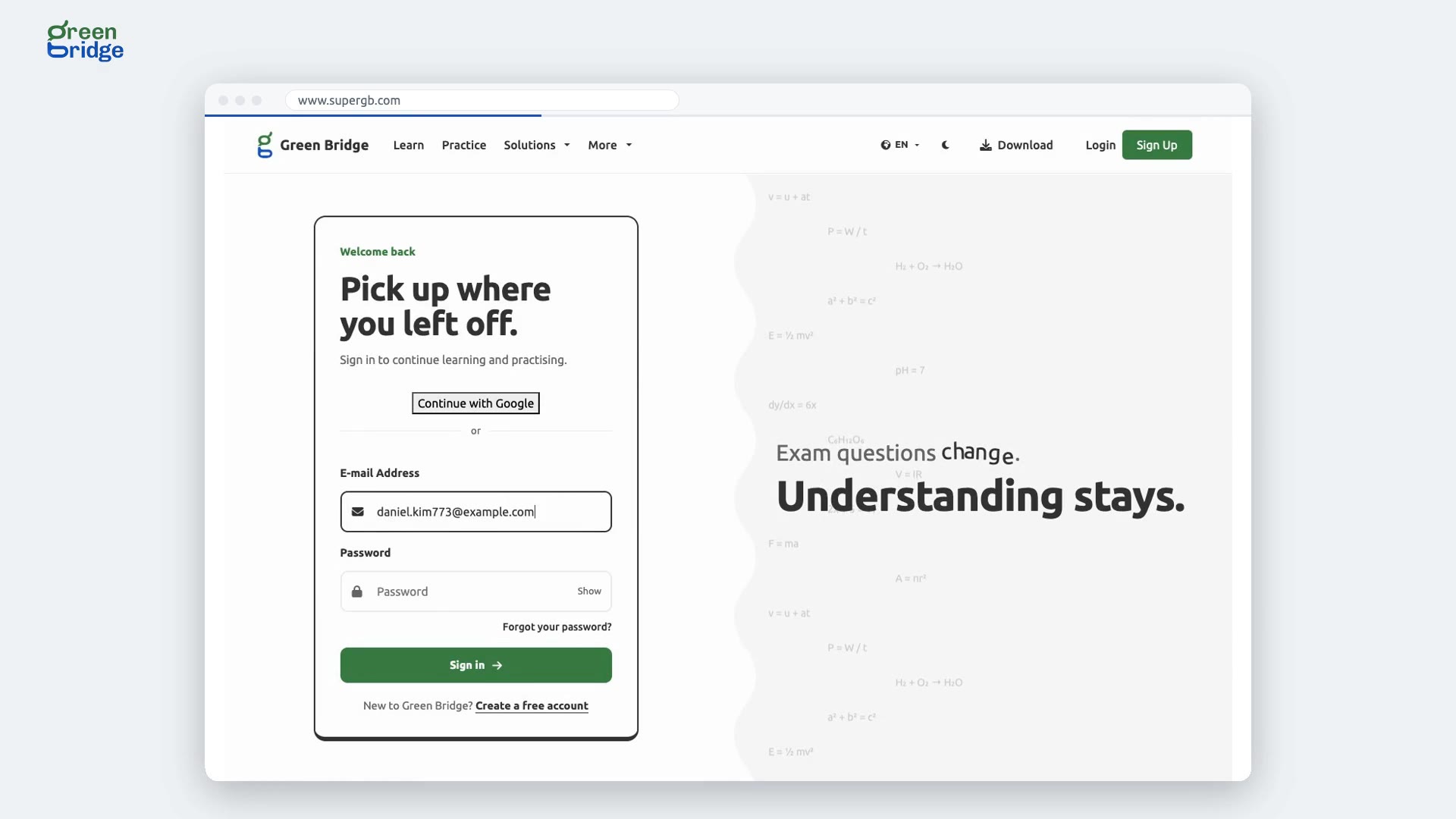 0:36
How to get started as a parent on Green Bridge
Sign in to your parent dashboard. Until you link your child, it asks you to do that first. Click Link your child, enter your child's share code and send the request. Once your child accepts, their practice appears on your dashboard.
Uw kind volgen
-
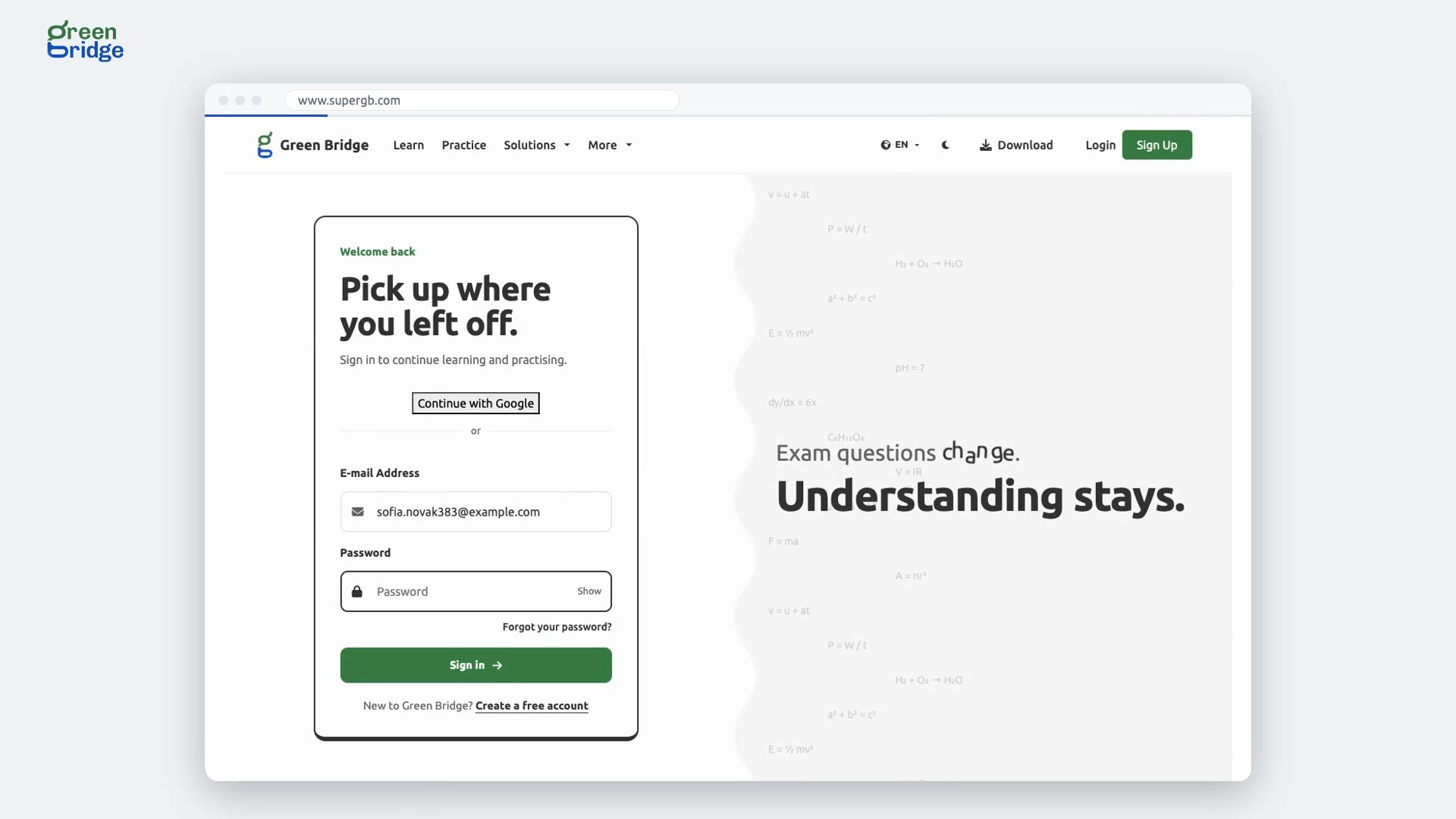 1:13
How to link your child to your parent account
Ask your child for their share code. It's on their Profile page in Green Bridge, or in the app under More, then Connect with Parents and Schools. In your parent dashboard, open Children, enter the code and click Send request. Your child gets an email asking them to accept. Once they do, they appear under Children you follow.
Uw kind volgen
-
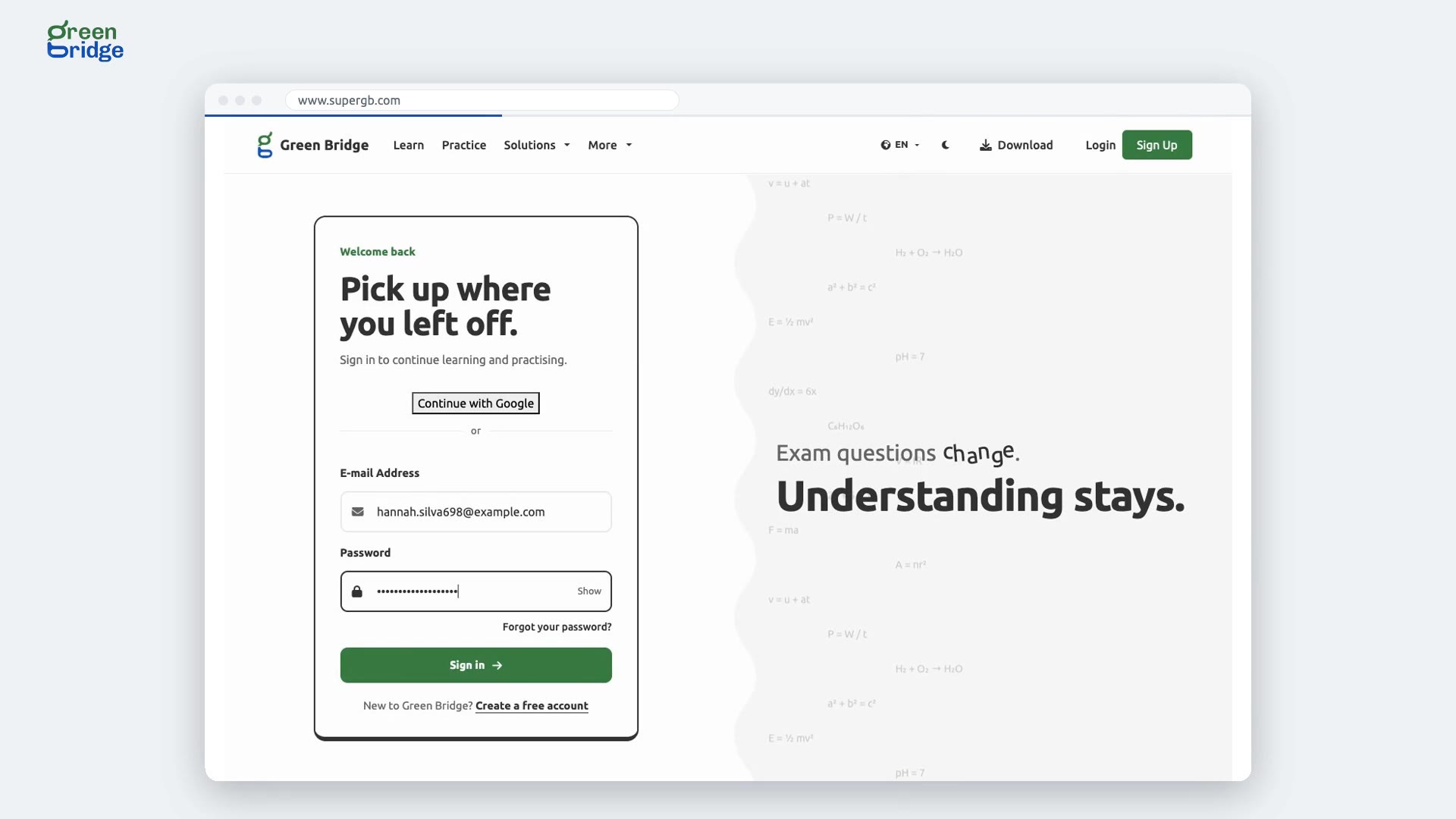 0:42
Why won't my child's share code link?
If no one has the code you entered, you're told so: check it with your child, as it has 7 characters. If you entered your own share code, you're asked for your child's code instead. Your child's code is on their Profile page in Green Bridge.
Uw kind volgen
-
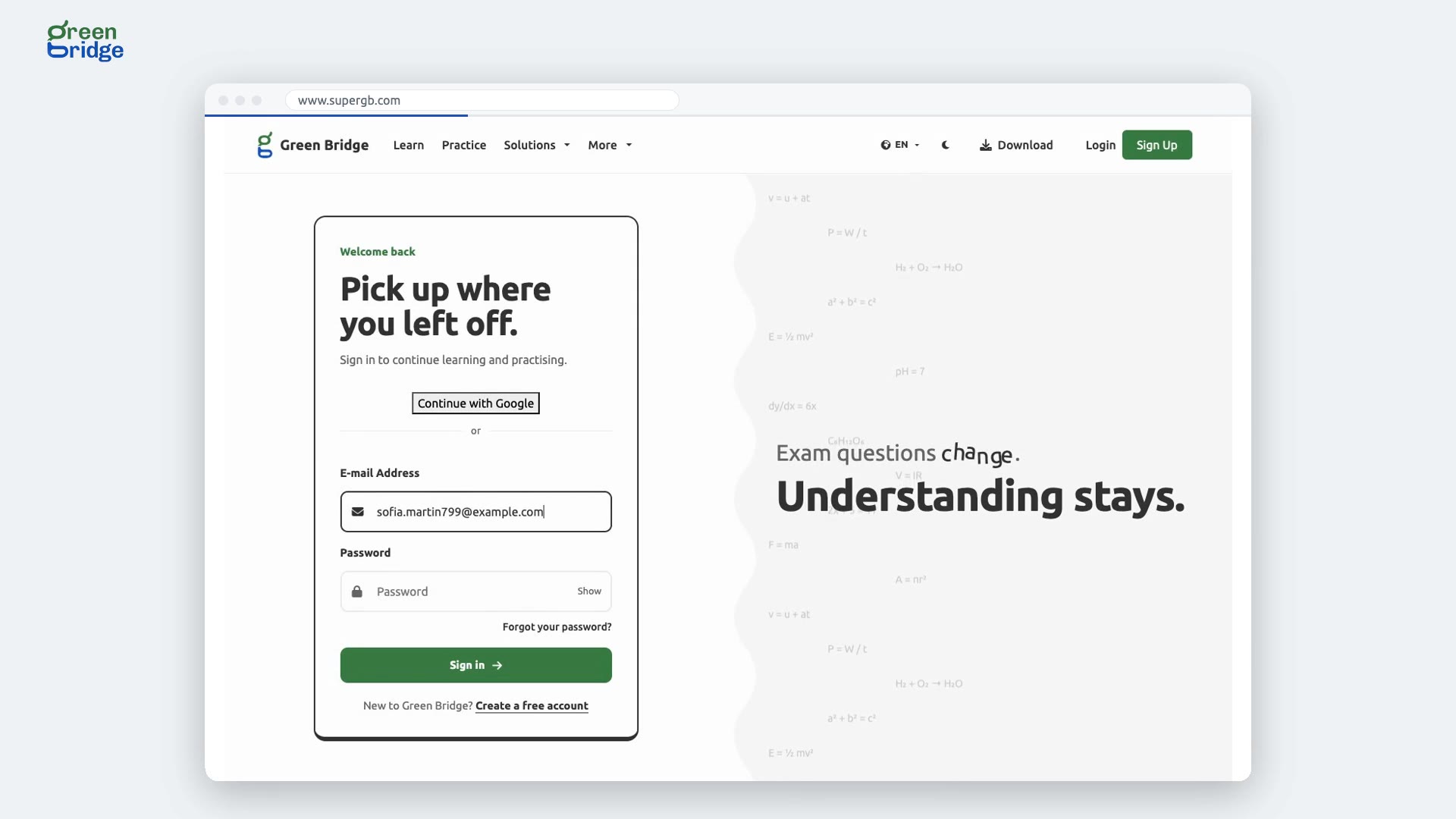 0:48
How to see how your child's week went
Sign in to your parent dashboard. The home page shows how many of the last seven days your child practised and how many papers they did, with each day ticked. Below it, What to do next suggests one thing, such as a subject they haven't practised for weeks.
Uw kind volgen
-
 0:52
How to send your child a reminder to practise
On your parent dashboard's home page, click Send a nudge under What to do next. A reminder is already written for you; change it if you like, then click Send. It appears on your child's phone if notifications are on for the Green Bridge app, and it's listed with the nudges you've sent.
Uw kind volgen
-
 0:54
How to see your child's progress in every subject
In your parent dashboard, open Progress. You'll see how ready your child is for their exam board, six weeks of practice day by day, and every subject from weakest to strongest. Each subject shows its average score, whether it's going up or down lately, and when it was last practised. A subject left alone for two weeks or more is marked in red.
Uw kind volgen
-
 0:46
How to send your child a message of encouragement
In your parent dashboard, open Nudges and choose Custom. Write your message, then click Send. It appears on your child's phone if notifications are on, and it's listed under the nudges you've sent.
Uw kind volgen
-
 1:03
How to set a study plan for your child
In your parent dashboard, open Study plans and create a plan. Give it a name and the exam date. For each subject, choose how many papers your child should practise each day or each week, and click Add Goal. When you're done, click Create Plan. Each goal starts at nought and fills in as your child practises.
Uw kind volgen
-
 0:45
Why can't I save my study plan?
A study plan needs at least one goal. If you click Create Plan without adding one, you're asked to add a goal first and nothing is saved. Choose a subject, how many papers and how often, click Add Goal, then create the plan.
Uw kind volgen
-
 0:58
How to delete a study plan
In your parent dashboard, open Study plans. Next to a plan you set, click Delete and confirm. The plan and its goals are removed, and this can't be undone. You can start a new plan any time.
Uw kind volgen
-
 0:38
How to switch between your children
If you follow more than one child, their names appear at the top of your parent dashboard. Click a name to see that child's week, progress, study plans and nudges.
Uw kind volgen
-
 0:43
How to stop following a child
In your parent dashboard, open Children. Next to your child, click Remove and confirm. You'll no longer see their practice. You can link again later with their share code.
Uw kind volgen
-
 0:51
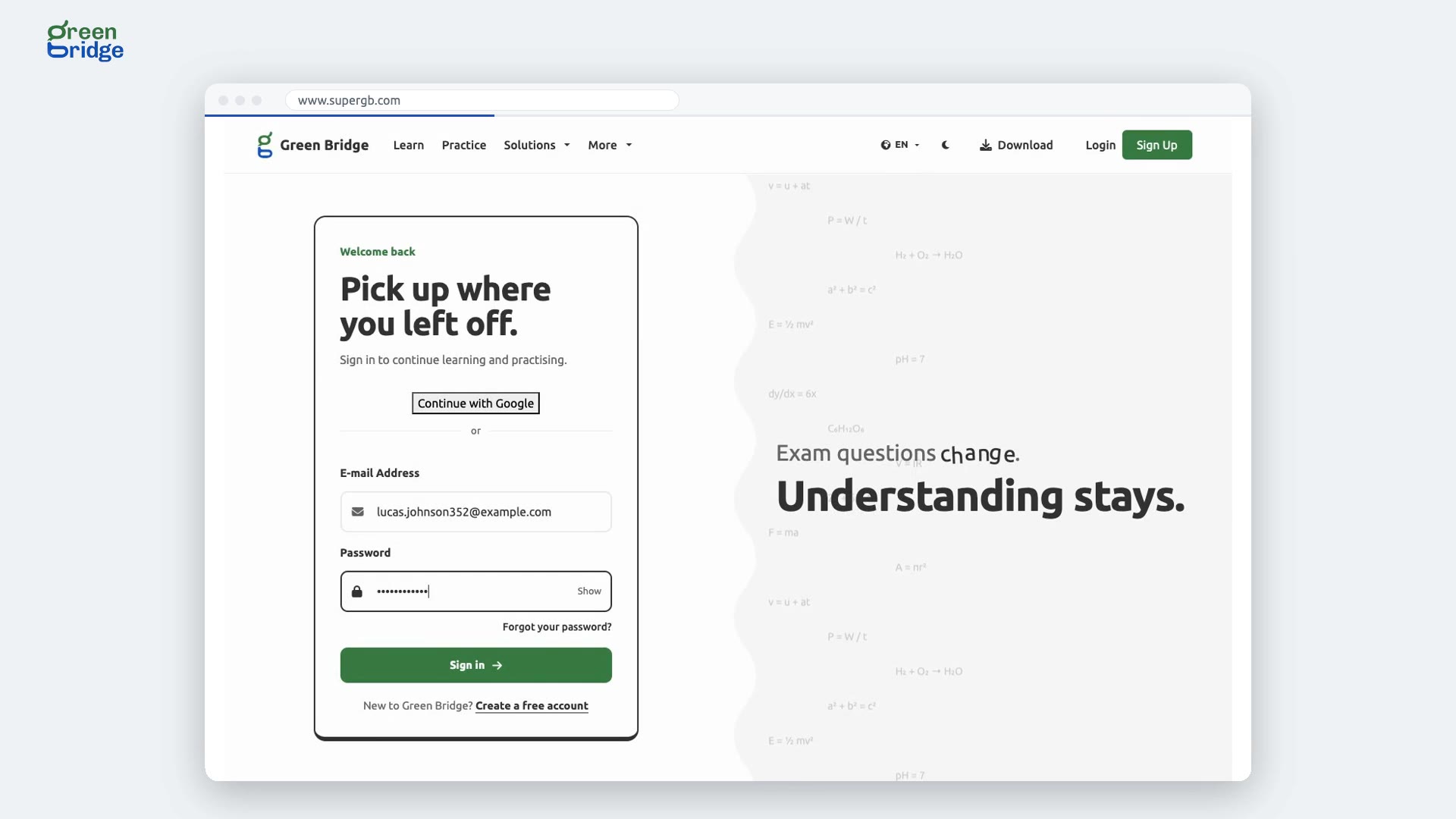
How to let your child's teacher see their practice results
In your parent dashboard, open Teachers to see the teachers your child is connected with on the Teachers' Network. Tick Let them see practice results under a teacher, so they know where to help. You can untick it at any time.
Uw kind volgen
-
 0:43
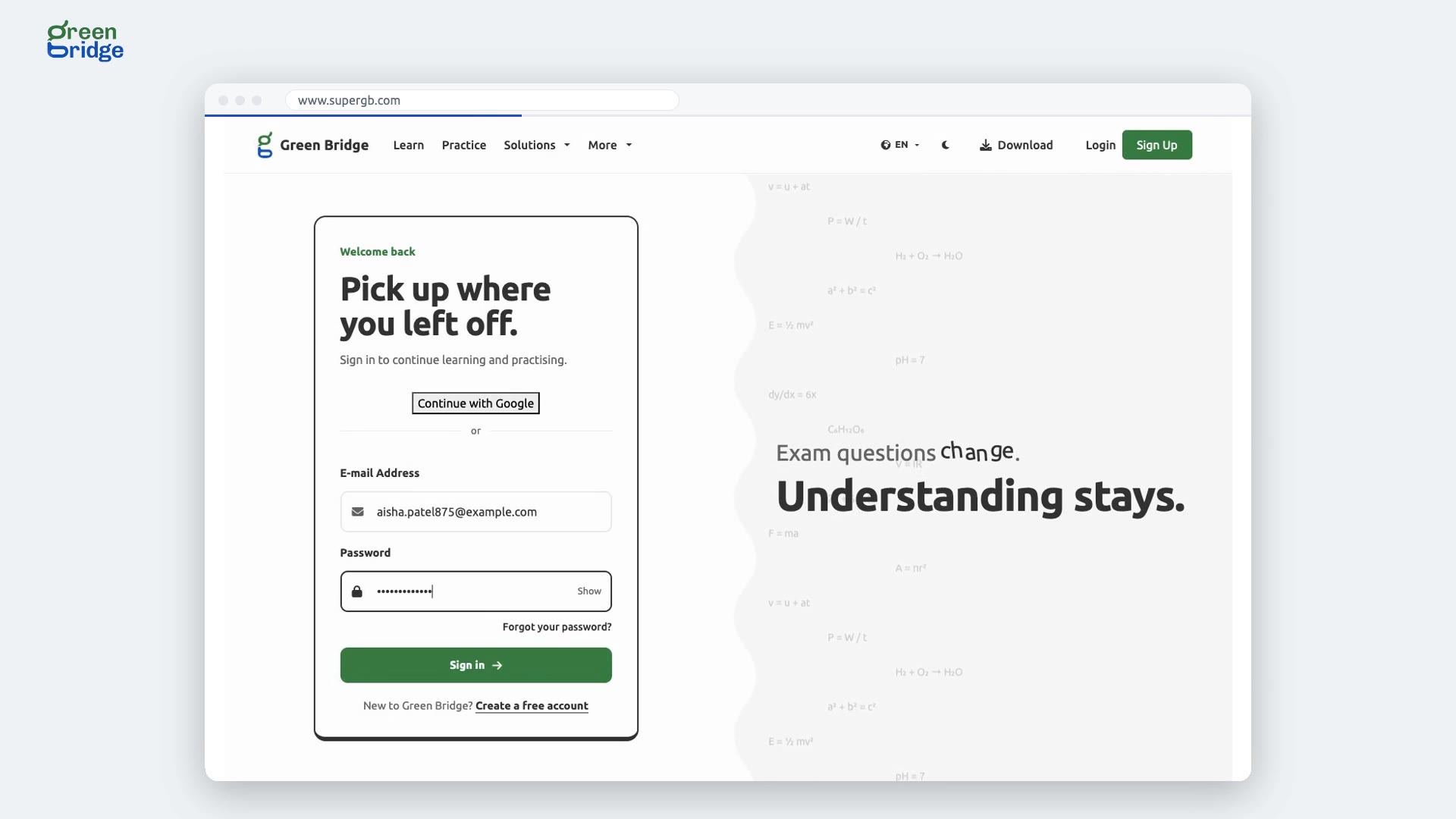
How to end your child's connection with a teacher
In your parent dashboard, open Teachers. Under the teacher, open End connection, pick a reason and click End connection. The teacher is then shown as Ended and can no longer teach your child through Green Bridge.
Uw kind volgen
-
 1:08
How to pay for premium your child asked for
When your child asks you to pay for premium, we email you a link. It opens a page with your child's name, the plan and the price. Click the Pay button and finish on the secure checkout page. You'll come back to Green Bridge and be thanked, your child's premium starts and you both get an email. Opening the link again later just says thank you, so you can't pay twice by mistake.
Premium betalen voor een kind
-
 0:54
Can I pay for my child's premium in US dollars?
Yes. If your child's request is priced in US dollars, the link we email you shows the price in dollars. Click the Pay button and pay with a card on the secure checkout page. When you're back on Green Bridge, your child has premium and you both get a confirmation email.
Premium betalen voor een kind
- How to pay for your child's Network lesson From your parent dashboard, open your child's teachers and find the Network lesson waiting for payment. Choose to pay for the lesson and complete the payment. When you return to Green Bridge, you'll see "Thank you, your payment is in". Go back to your child's teachers to see the lesson marked as paid. Uw kind volgen
- How to watch your child's live Network lesson From your parent dashboard, open your child's teachers and find the Network lesson happening now. Choose to watch the lesson to join its video call as an observer. Uw kind volgen
- How to cancel your child's Network lesson From your parent dashboard, open your child's teachers and find the Network lesson scheduled for tomorrow. Cancel the lesson. You'll see it listed as cancelled. Uw kind volgen
- How to report a problem with your child's lesson From your parent dashboard, open your child's teachers and find the lesson you want to report. Report a problem with the lesson and explain that the teacher did not attend. You'll see that the lesson is being looked into. Uw kind volgen
- How to report your child's teacher From your parent dashboard, open your child's teachers and choose the teacher you want to report. Choose the option to report them, select the reason and explain what happened, then send your report. You'll see confirmation that your report was sent. Uw kind volgen
- How to withdraw your approval for your child to work with teachers From your parent dashboard, open your child's teachers and find the approval shown as given by you. Withdraw your approval. It will then be shown as withdrawn. Uw kind volgen
- How to decline a parent's request to link from the email When a parent uses your share code to request a link, you receive an email. Open the email and use the option to decline the request. You'll see confirmation that the request was declined. The parent will still be asked to link their child when they return to their dashboard. Uw kind volgen
- How to stop daily teacher round-up emails While signed in to your parent dashboard, open the stop link in one of your daily teacher round-up emails. Confirm that you want to stop the daily emails. The page confirms that they have stopped. Opening the same link again leaves the emails switched off. Uw kind volgen