How to use the AI marker's suggested essay marks
Open Grading and click Grade next to the student's submission. Each essay shows the AI suggestion: a mark, what went well and how to improve. Read the answer, and if you agree, click Accept with the suggested mark. If you don't, type your own in Your mark and click Save score. Nothing counts until you accept it or set your own.
Transcripción
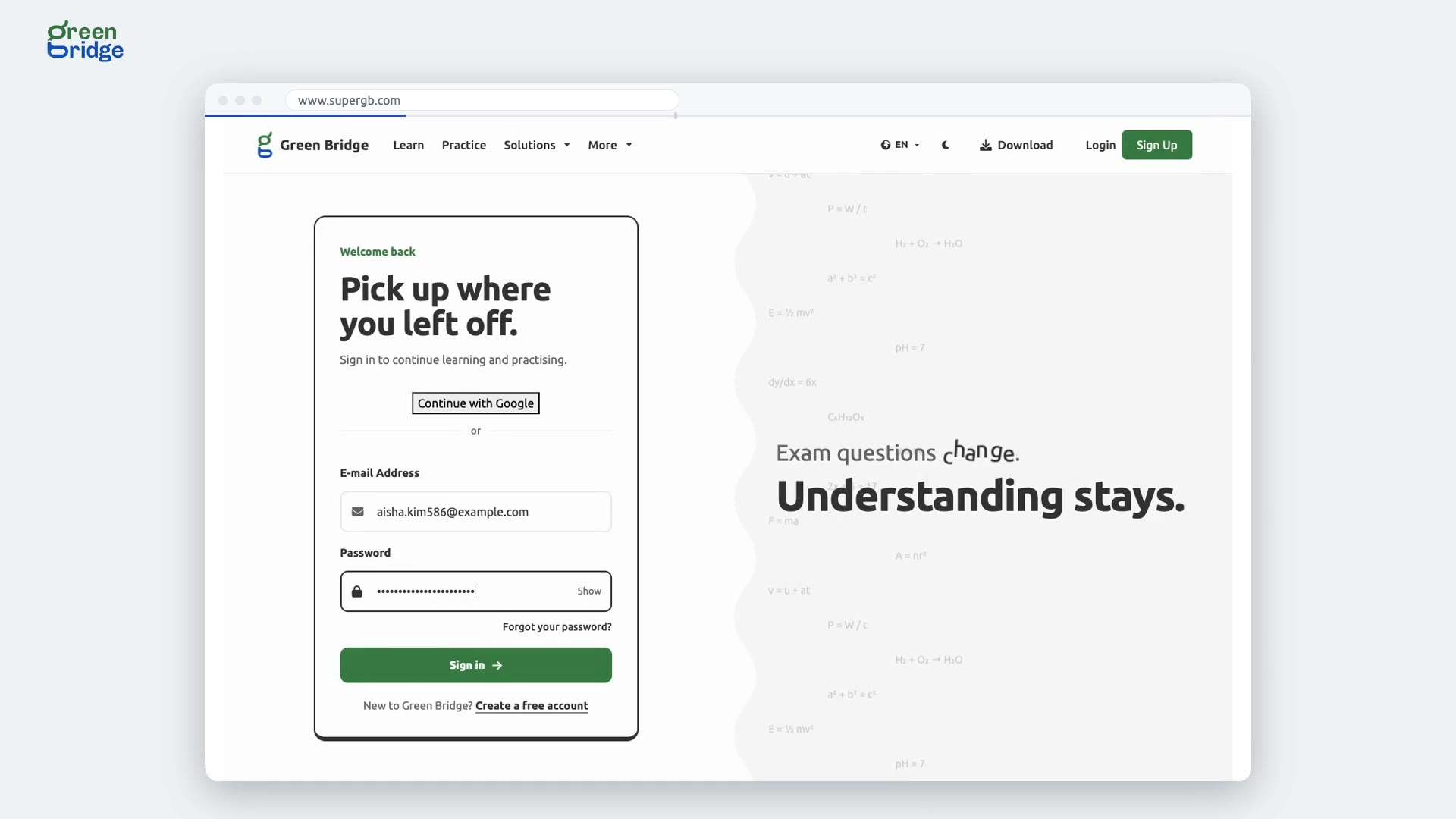
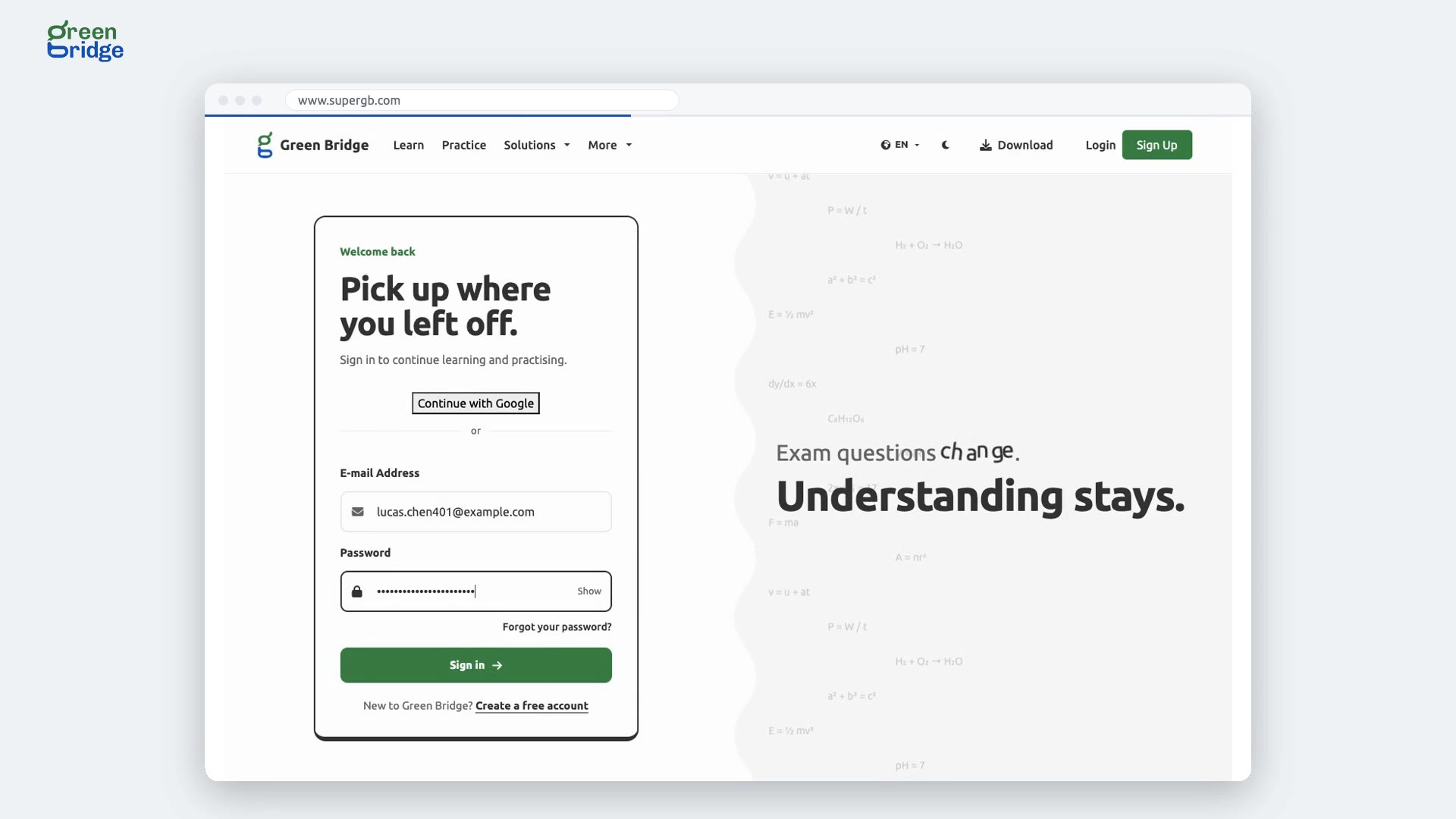
A lot of teachers think AI marking can't be trusted. Here, it only suggests a mark, and you check every one. Here's how a teacher marks a student's essays on Green Bridge, with the AI marker's help. It starts with the teacher signing in. Here's their school dashboard. They open Grading, and pick the student's submission. Each essay already has the AI marker's suggestion. Three out of five, with what went well, and how to improve. If they agree, one click accepts the mark. And the same for the second essay. Both essays are marked. Six marks, and the submission is fully graded. So: the AI marker suggests a mark and feedback, you check it, and one click accepts it. Try the AI marker on your next class test, at super G B dot com.