Bí Green Bridge ṣe ń ṣiṣẹ́
Àlàyé kúkúrú tó rọrùn nípa ohun tí o lè ṣe lórí Green Bridge, ọ̀pọ̀ pẹ̀lú fídíò. Yan ẹni tí o jẹ́ àti ibi tí o ti ń lò ó, tàbí wá a.
Ìtọ́sọ́nà 349, 277 ní fídíò
Ìtọ́sọ́nà tí a rí: 347 Pa àṣàyàn rẹ́
-
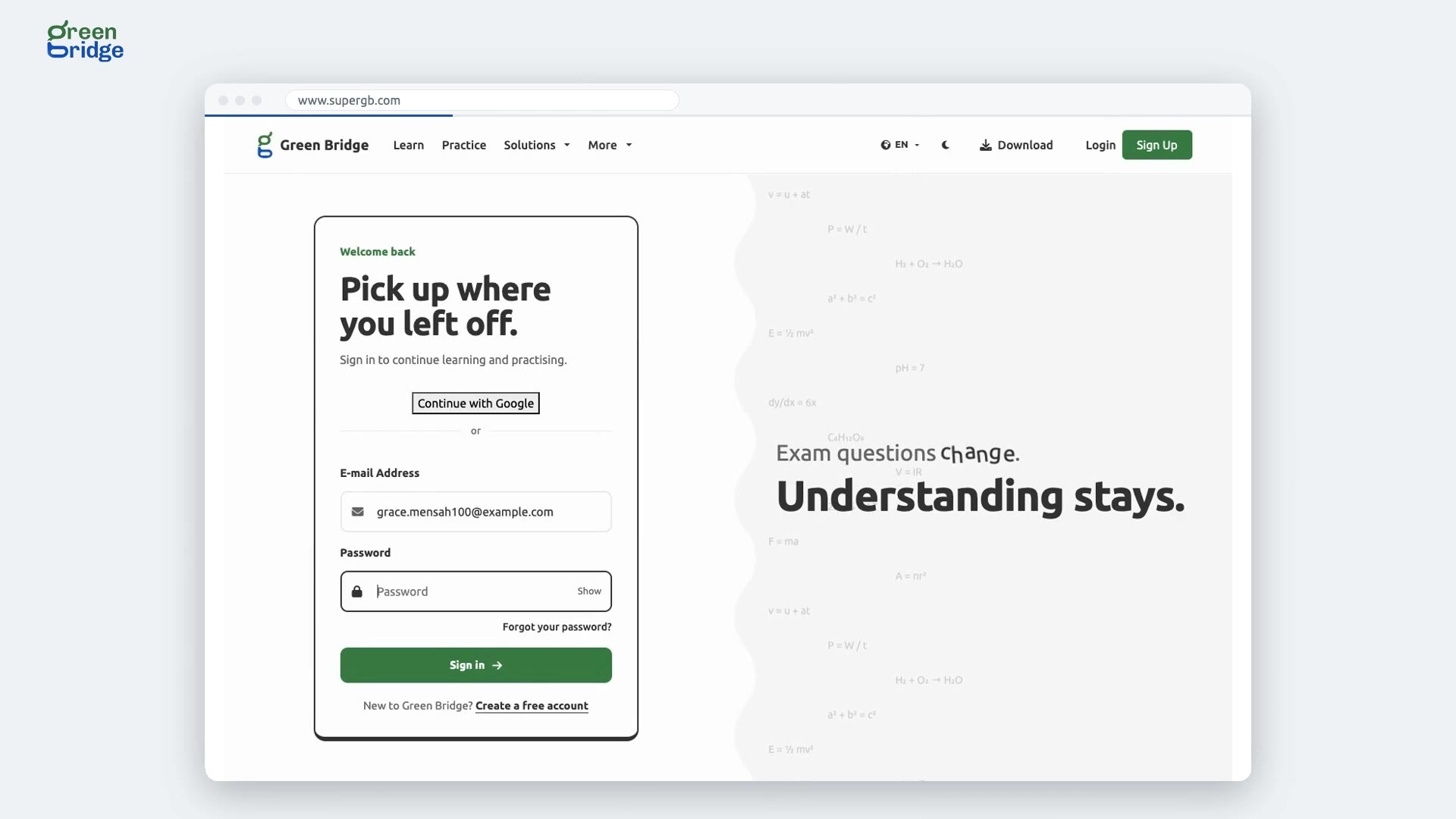 0:40
How to resend a failed webhook delivery
Open Connect your website or app. A failed delivery is listed with the error your system gave. Once your system is ready, click Send again: the delivery is queued and reaches your system.
Síso ẹ̀rọ tìrẹ pọ̀
-
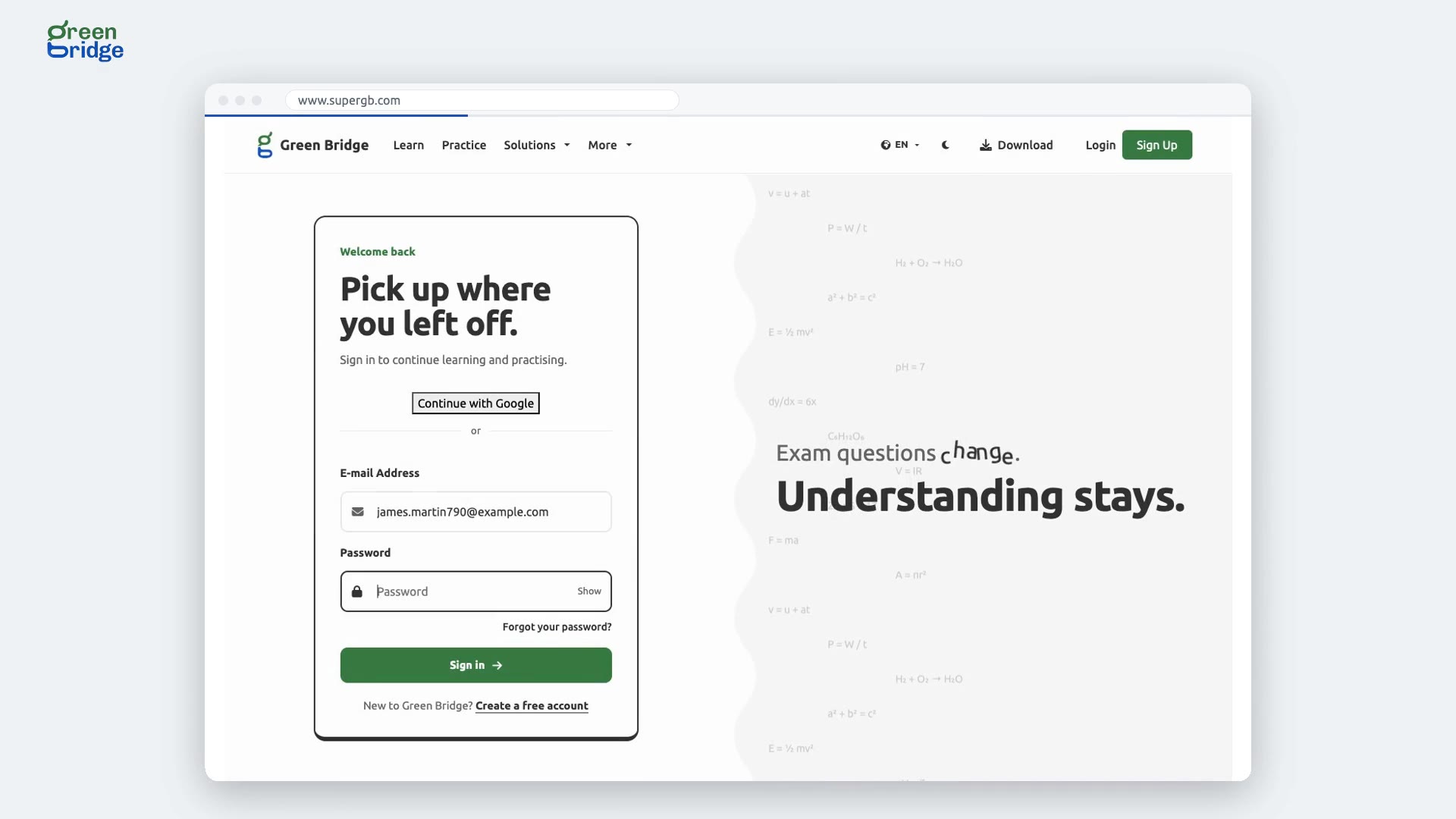 0:39
How to download your test's results
Open Tests, open your test and click Download results. The spreadsheet is named for the test and has a column for each question.
Síso ẹ̀rọ tìrẹ pọ̀
-
 1:56
How do practice paper marks reach my learning platform's gradebook?
Once your learning platform is connected to Green Bridge with LTI 1.3, you can set a Green Bridge practice paper as an activity. Learners open the activity and the paper opens right there, with no separate sign-in. When they submit, they see their score, and the gradebook receives it as a percentage. Set up the connection from Learning platforms in your dashboard.
Àwọn pẹpẹ ẹ̀kọ́ (LTI 1.3)
-
 2:27
How to set your school's own test through Moodle or another LMS
A school admin connects your learning platform from Learning platforms in the school dashboard, using LTI 1.3. Add your Green Bridge test as an activity in a course. Students open it there, start the test and submit, and their mark goes into the platform's gradebook. Students must be on your class list with the same email address they use in the platform, or they're asked to speak to their teacher.
Àwọn pẹpẹ ẹ̀kọ́ (LTI 1.3)
-
 0:27
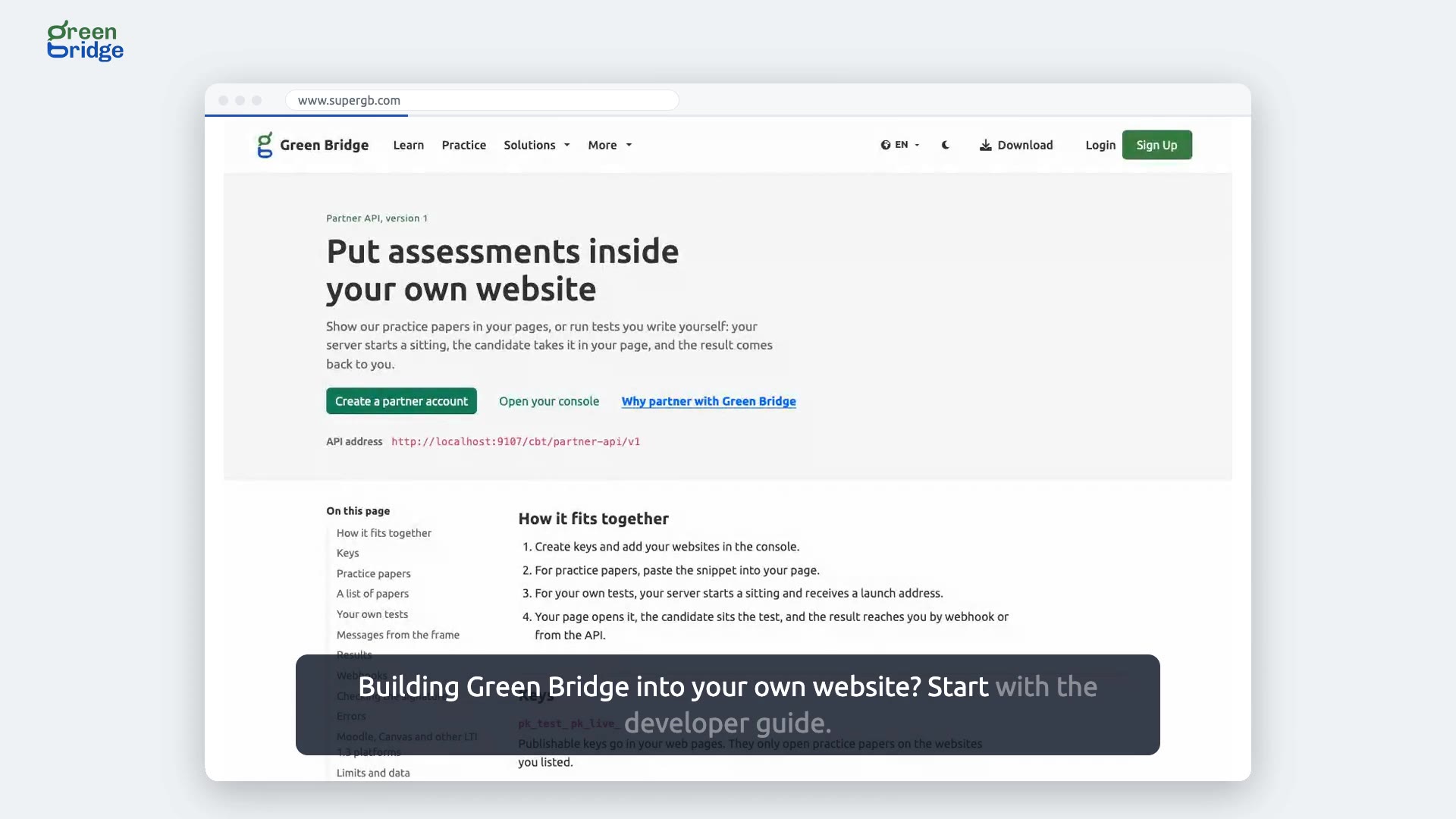
How to build Green Bridge assessments into your own website
Send your developers to the developer guide, Green Bridge for developers. It covers your keys, showing a list of practice papers, putting your own tests on your pages and collecting the results. Later sections explain webhooks and how to check their signature, errors, limits and your data, and how to connect Moodle, Canvas and other LTI 1.3 platforms.
Fífi Green Bridge sínú ojú-òpó rẹ
-
 1:07
How do visitors practise past papers on my website?
As an approved partner, you can place the Green Bridge catalogue inside a page on your own site. Visitors choose an exam and a subject and pick a paper to practise, and it opens right there, without them leaving your website. They can click View answer after each question, and when they submit, their score appears inside your page.
Ìwé ìdánwò àṣedánrawò lórí ojú-òpó rẹ
-
 0:50
Are premium IGCSE answers safe when visitors practise on my website?
Yes. Partners on the Growth and Institution plans can offer premium Cambridge IGCSE papers, and these play in a protected player. The page holds none of the answers. When a visitor answers a question and clicks View answer, only that one answer is sent, and their choice is locked so it can't be changed. Every screen also carries a watermark naming your organisation.
Ìwé ìdánwò àṣedánrawò lórí ojú-òpó rẹ
-
 0:42
What your partner console home page shows
Sign in to your partner console. The home page names your organisation and shows that it is approved, the plan you are on, and the steps left before you go live, with each finished step ticked off.
Àkáǹtì alábàáṣiṣẹ́ rẹ
-
 0:43
How to add another website to your partner account
Open Websites and keys, type the website's address and click Add website. The new website is listed beside the ones you already had, and the practice papers can run there too.
Àkáǹtì alábàáṣiṣẹ́ rẹ
-
 0:47
How to remove a website from your partner account
Open Websites and keys and click Remove next to the website you no longer use. The papers stop running there, and your other websites stay as they were.
Àkáǹtì alábàáṣiṣẹ́ rẹ
-
 0:45
How to create a test key for your staging site
Open Websites and keys and click Create key. Give the key a name, choose Test as the key type and create it. Test keys are free, so you can try the papers on a staging site before going live.
Àkáǹtì alábàáṣiṣẹ́ rẹ
-
 0:47
How to revoke a key you no longer use
Open Websites and keys, click Revoke next to the key and confirm. The key is listed as revoked and stops working straight away.
Àkáǹtì alábàáṣiṣẹ́ rẹ
-
 0:49
How to let candidates save their results to Green Bridge
Open Account settings and switch on saving results to a Green Bridge account. Candidates can then keep their results in their own account. Switch it off again whenever you like.
Àkáǹtì alábàáṣiṣẹ́ rẹ
-
 1:00
How to download your monthly usage
Open Usage, choose the month and click Download CSV. The file is named for the month and lists the practice visitors did on your website, key by key.
Àkáǹtì alábàáṣiṣẹ́ rẹ
-
 0:56
How to ask about paying by invoice
Open Plan and billing to see your current plan. To pay by invoice, choose how many assessments you expect each month, choose Invoice, say what you have in mind and click Send to Green Bridge. We reply by email.
Àkáǹtì alábàáṣiṣẹ́ rẹ
-
 1:01
How to close your partner account
Open Account settings and click Close account. Type your organisation's name to confirm, then close it. You can set up a new organisation straight away, with its name and website, and build and test while it waits for approval.
Àkáǹtì alábàáṣiṣẹ́ rẹ
-
 0:22
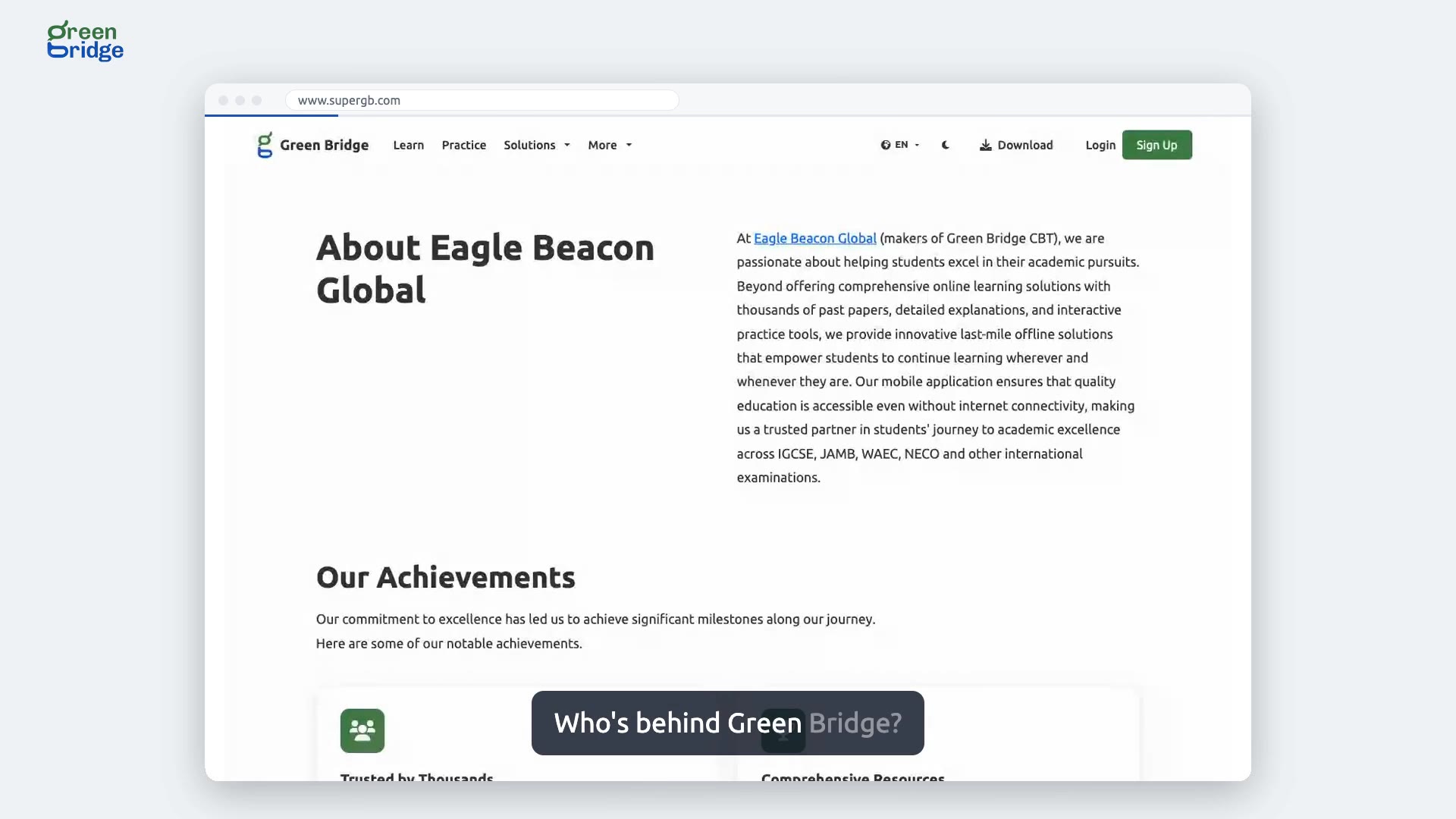
Who is behind Green Bridge?
Green Bridge is made by Eagle Beacon Global. To read about the company, scroll to the bottom of any page and click Company in the footer. The About Eagle Beacon Global page covers what the team has achieved so far and the goals it is working towards.
Nípa Green Bridge
-
 0:26
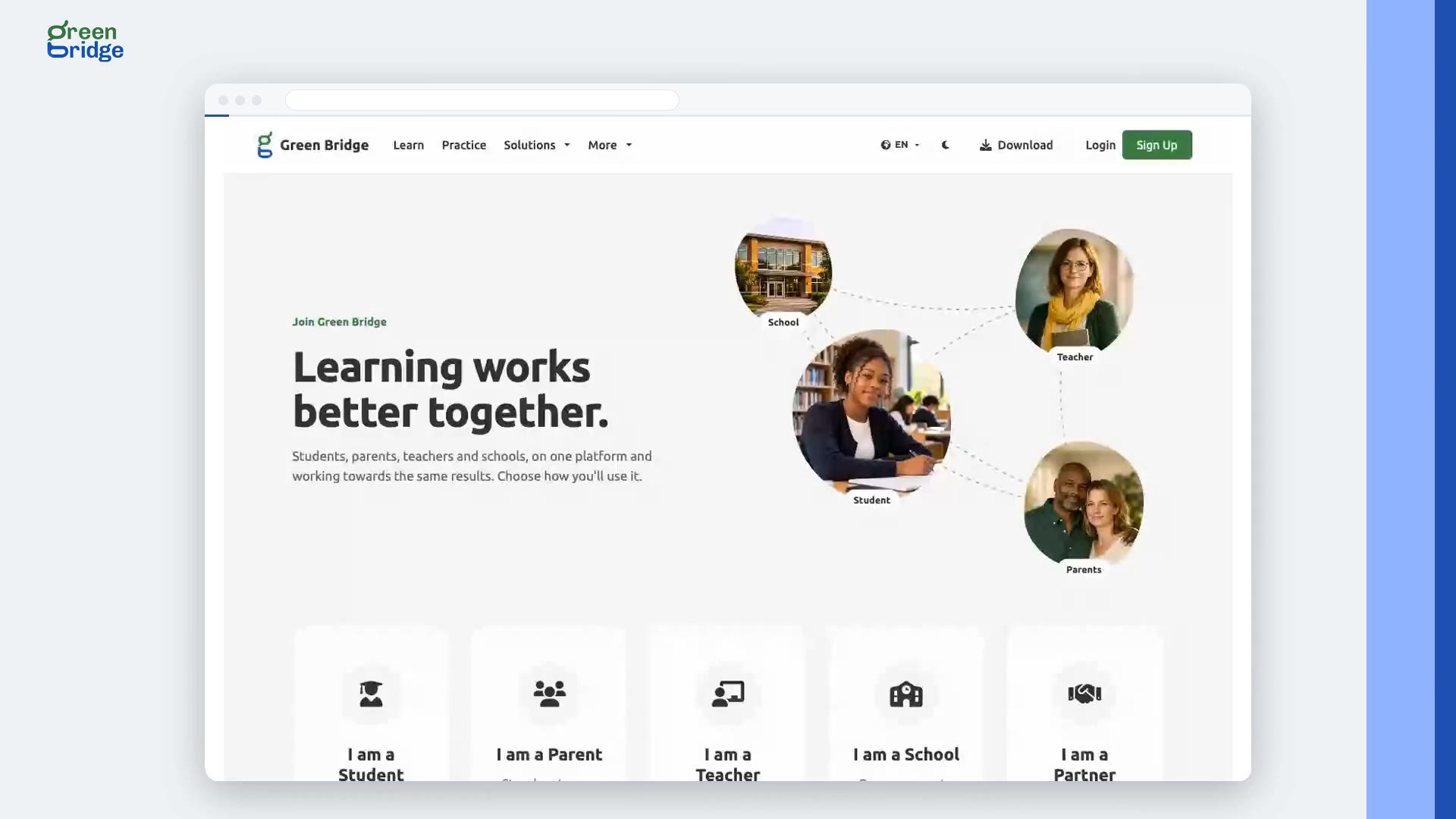
How to choose the right account when you sign up
On the sign-in page, click Create a free account. Pick the card that describes you: I am a Student, I am a Parent, I am a Teacher, I am a School or I am a Partner Organisation, and click Continue. Each one takes you to a sign-up made for that kind of account.
Yíyan irú àkáǹtì
-
 0:23
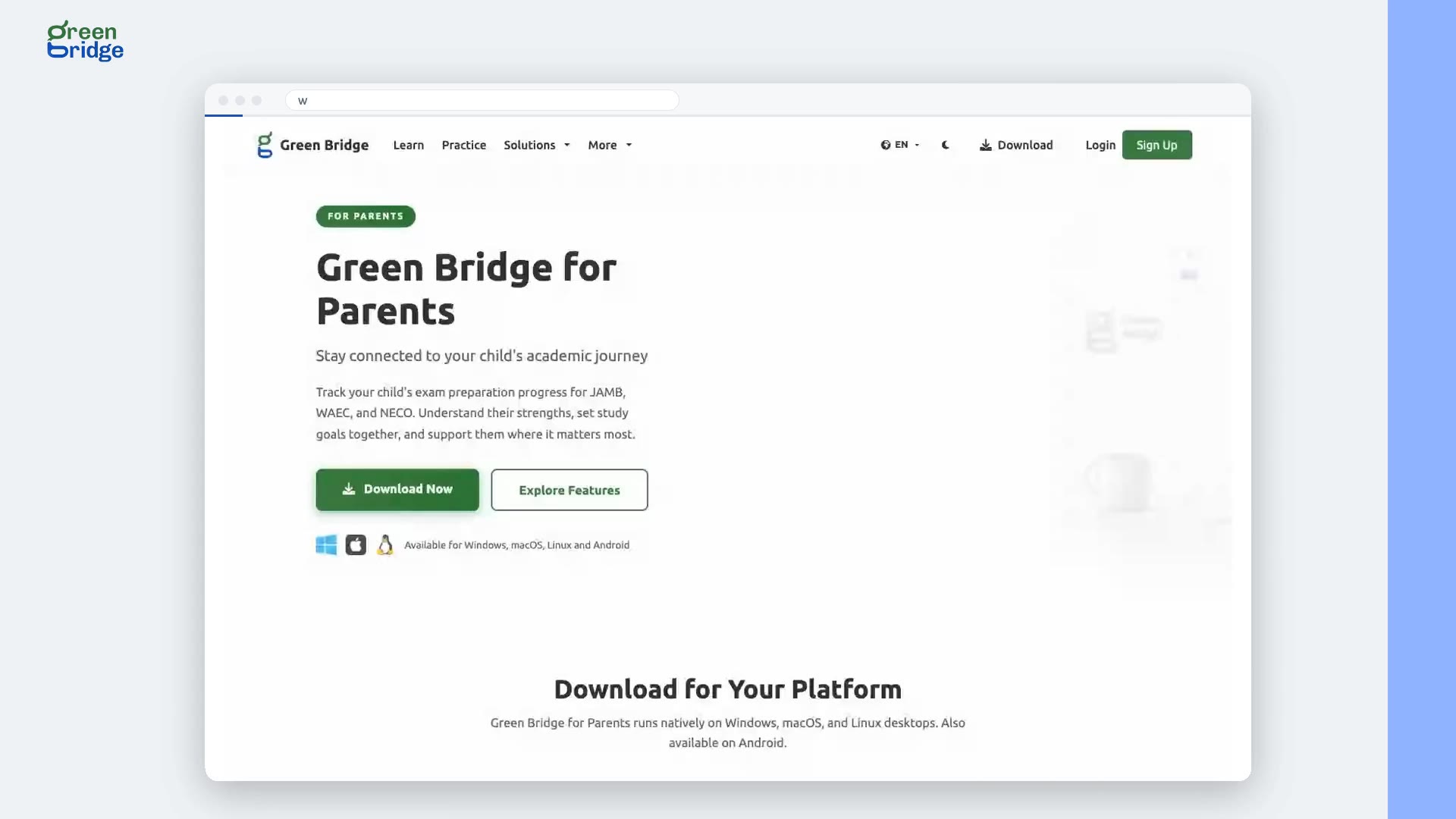
How to get the Green Bridge desktop app for parents
Click Download at the top of the page, choose Get Green Bridge for Parents, then View Desktop Downloads. The Green Bridge for Parents page shows what the app helps you follow, a video of it in use and the system requirements, with downloads for Windows, macOS and Linux and a link to the Android app.
Ìṣàfilọ́lẹ̀ kọ̀ǹpútà fún àwọn òbí
-
 0:21
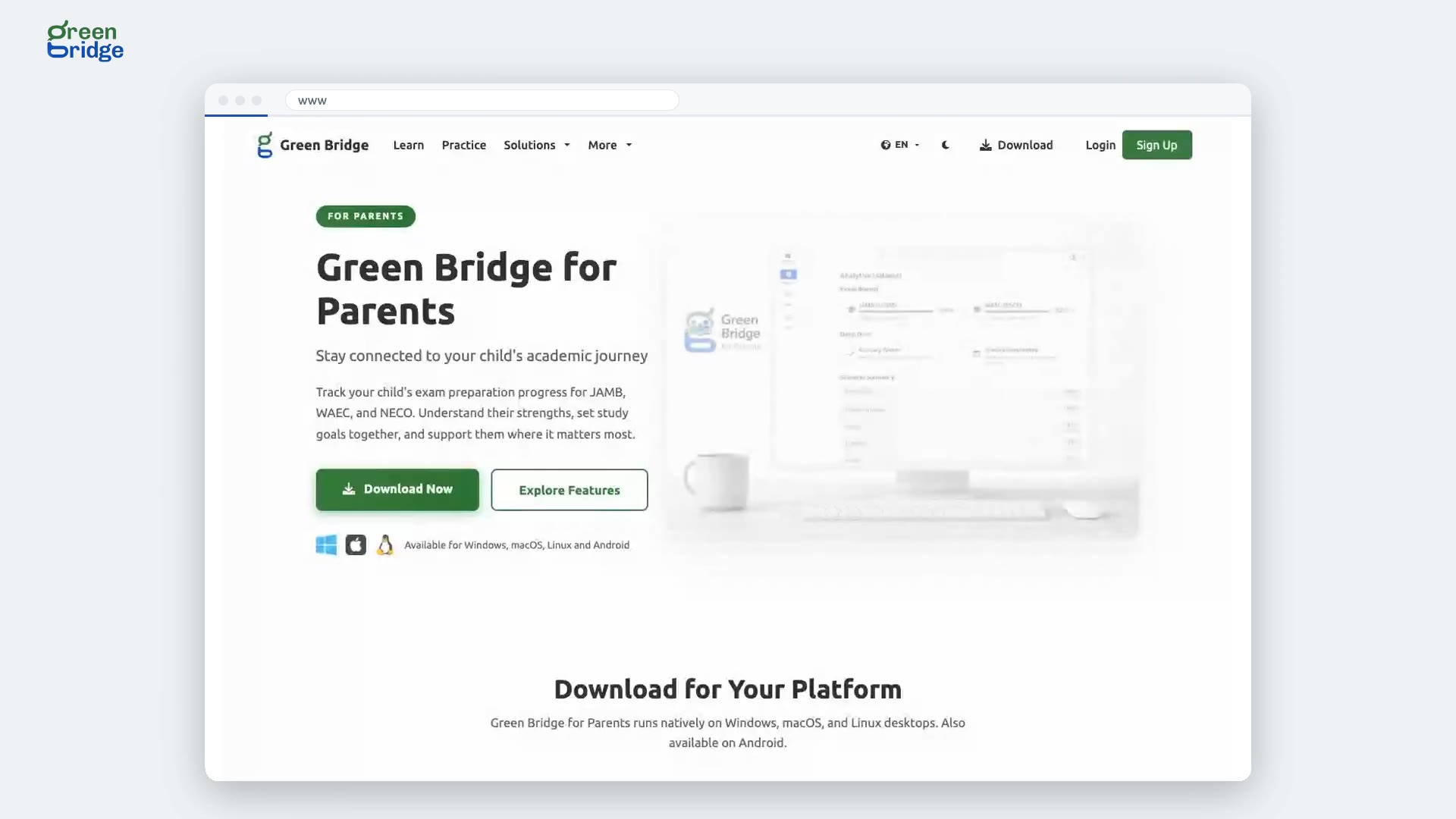
Which computers does the parents' desktop app run on?
The parents' desktop app runs on Windows, macOS and Linux. On its download page, choose Apple Silicon or Intel for a Mac, and 64-bit or ARM64 for Linux. Every download is the same version of the app, so each computer gets the same features.
Ìṣàfilọ́lẹ̀ kọ̀ǹpútà fún àwọn òbí
-
 0:25
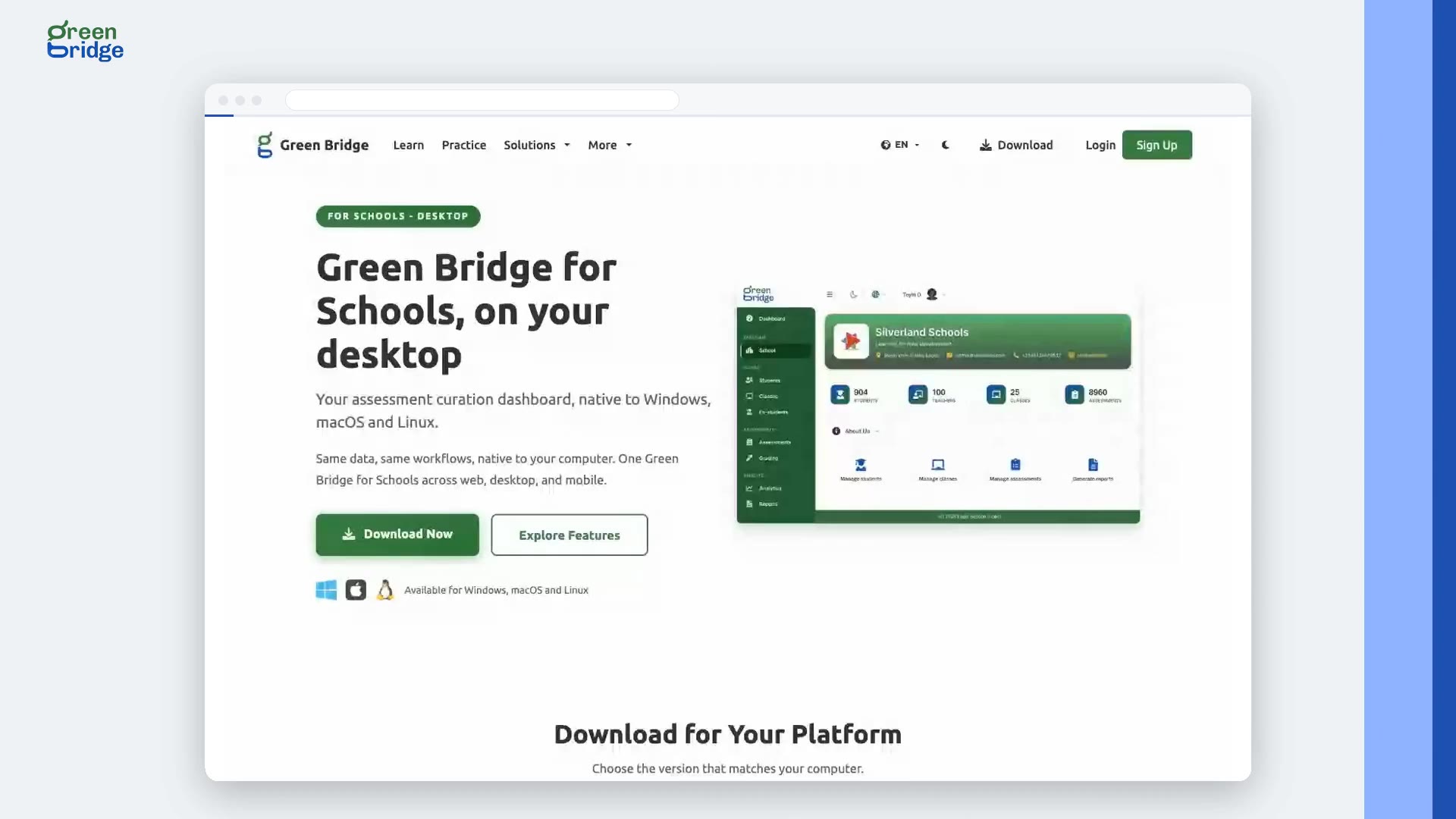
How to get the Green Bridge desktop app for schools
Click Download at the top of the page, choose Get Green Bridge for Schools, then Preview Desktop. The page explains what staff can do with the app on school computers, offers downloads for Windows, macOS and Linux, and lists the system requirements.
Ìṣàfilọ́lẹ̀ kọ̀ǹpútà fún ilé-ìwé
-
 0:25
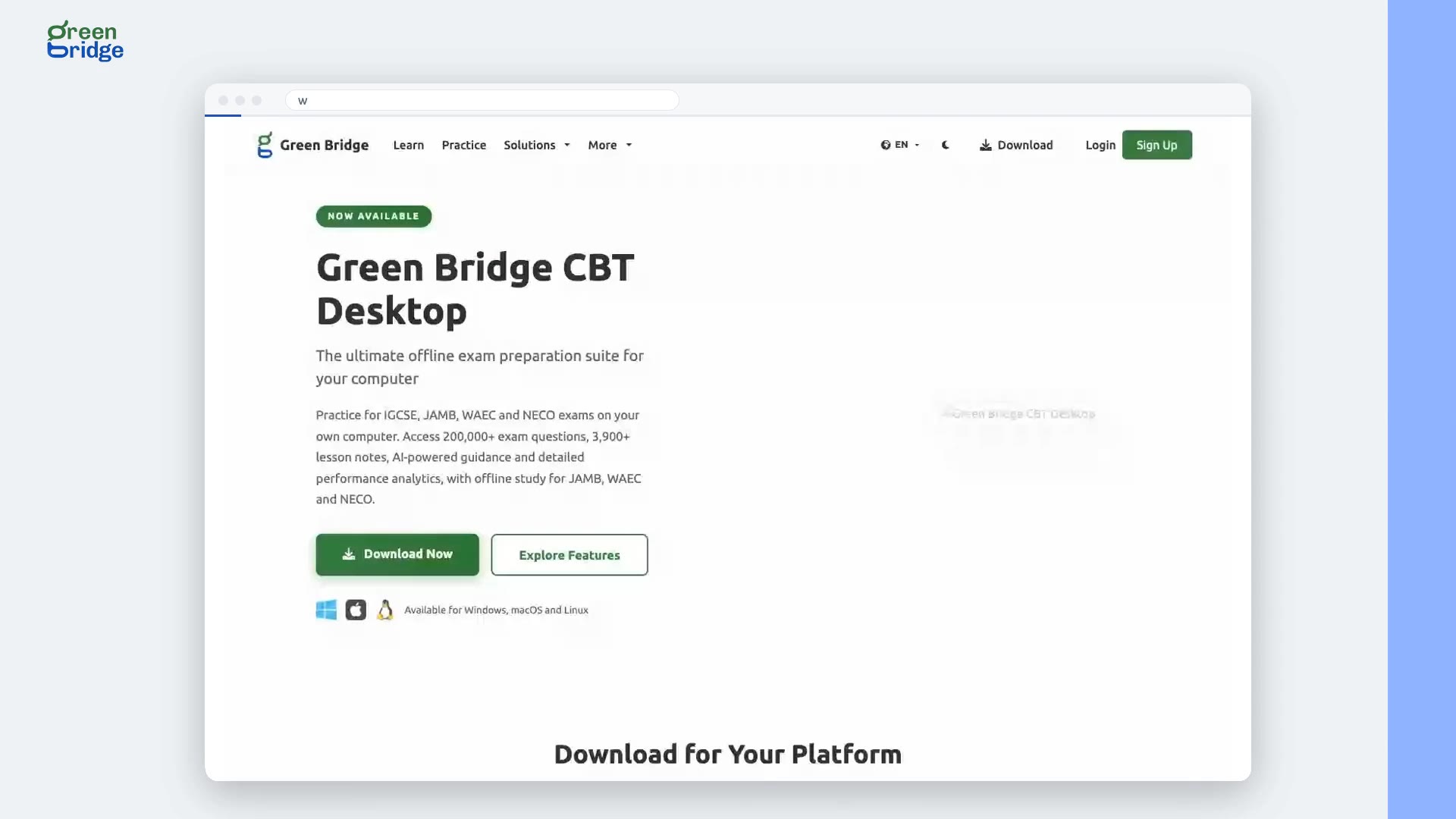
How to get the Green Bridge desktop app for students
Click Download at the top of the page, then Get Green Bridge for Students, and choose Go to Desktop Downloads. The Green Bridge CBT Desktop page has downloads for Windows, macOS and Linux, videos of the app in use and the system requirements. Check those before you install so you know your computer can run it.
Ìṣàfilọ́lẹ̀ kọ̀ǹpútà fún akẹ́kọ̀ọ́
-
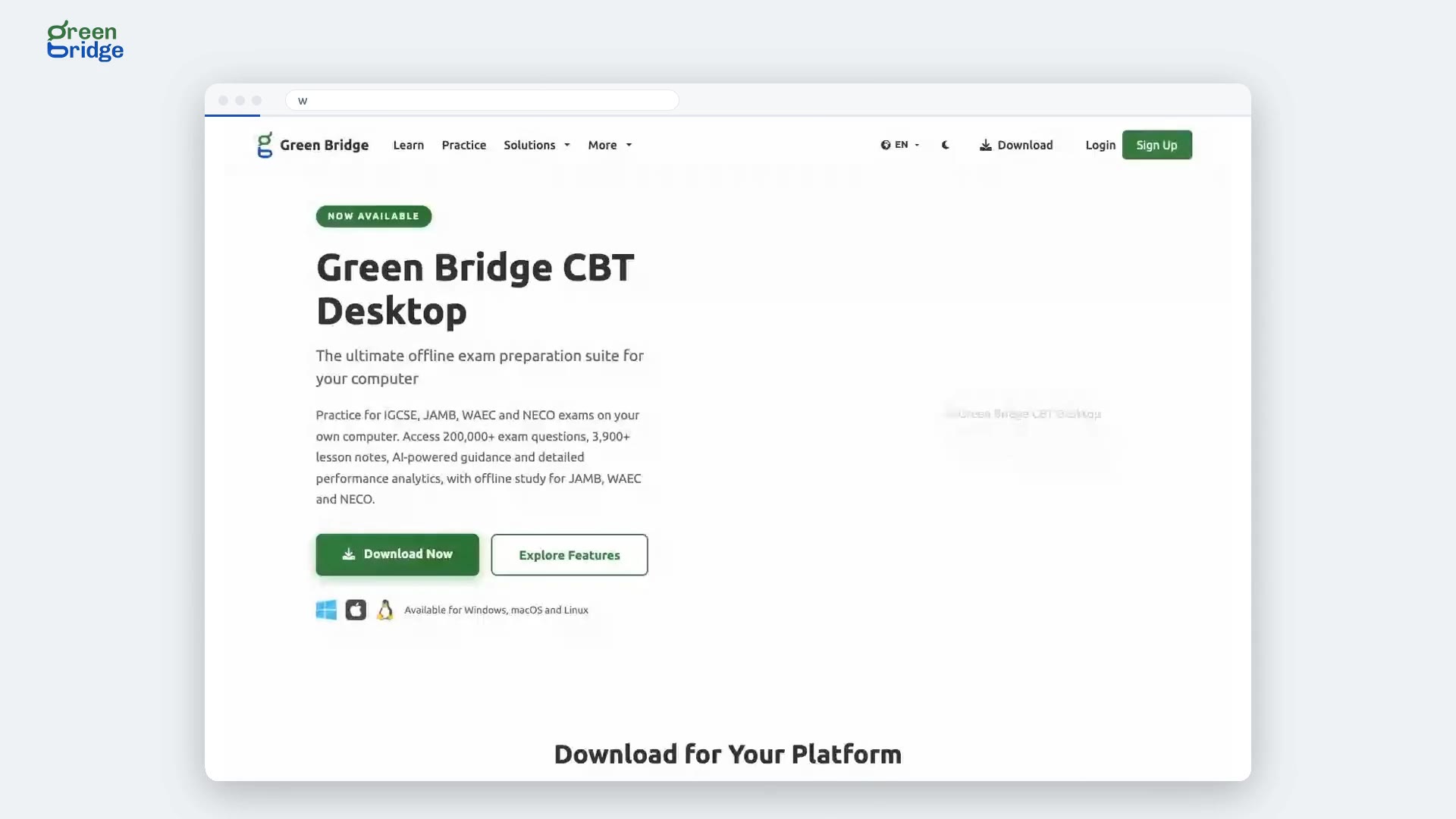 0:20
Which computers does the student desktop app run on?
The desktop app runs on Windows, macOS and Linux. On the desktop app page, pick the download for your computer: Apple Silicon or Intel for a Mac, and 64-bit or ARM64 for Linux. Every download is the same version of the app. Not sure which Mac you have? Open the Apple menu and choose About This Mac.
Ìṣàfilọ́lẹ̀ kọ̀ǹpútà fún akẹ́kọ̀ọ́
-
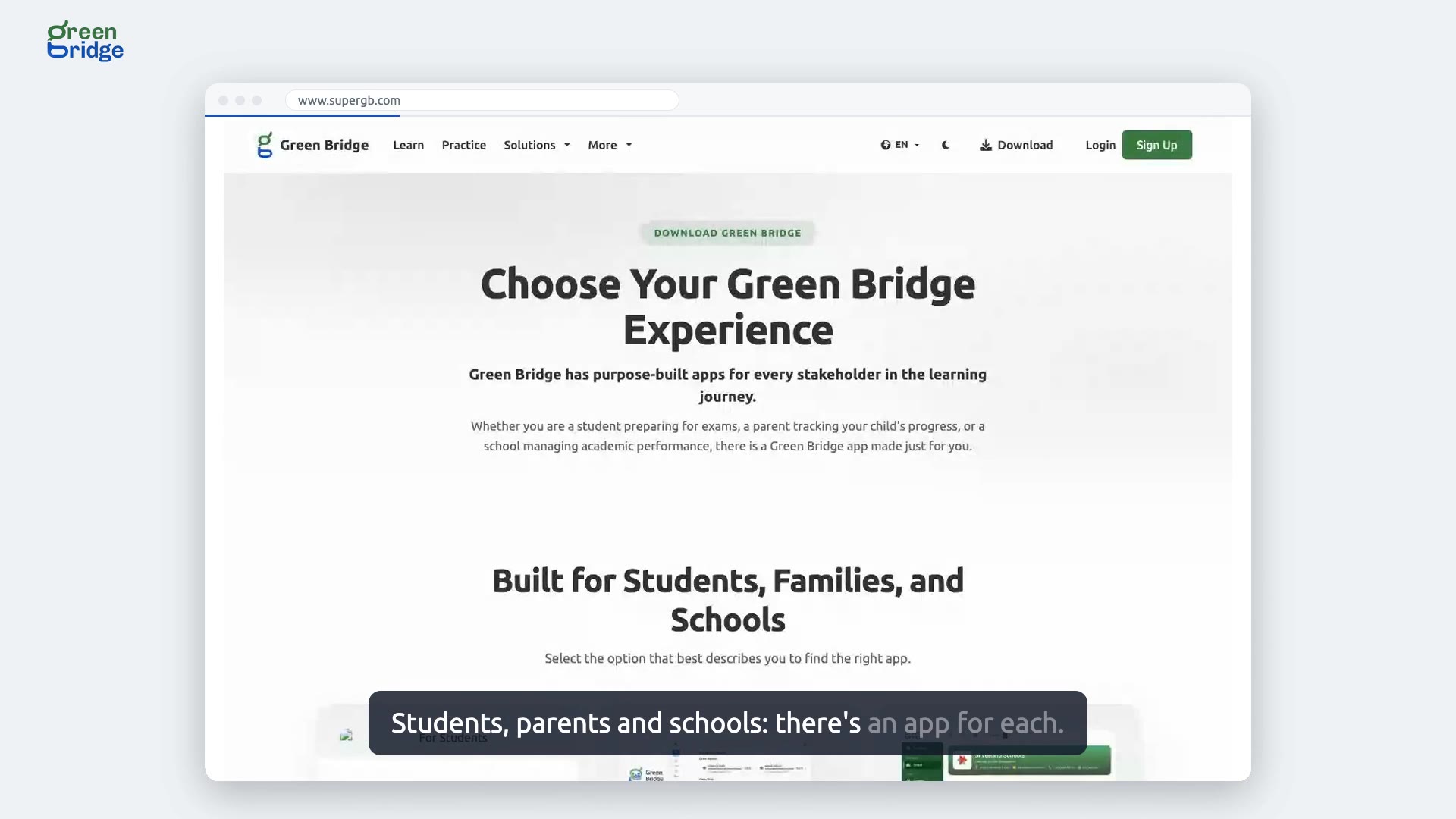 0:25
Which Green Bridge app should I download?
Click Download at the top of any page. You'll see three choices, For Students, For Parents and For Schools, each saying what it offers. All three run on Android, Windows, macOS and Linux. Pick the one that fits you and follow its button to the downloads.
Gbígba àwọn ìṣàfilọ́lẹ̀