How can you add speaker notes to a PowerPoint slide? You can add speaker notes by clicking on "View" and then selecting "Notes Page" to open the notes pane ...
Ibeere 1 Ìròyìn
How can you add speaker notes to a PowerPoint slide?
You can add speaker notes by clicking on "View" and then selecting "Notes Page" to open the notes pane where you can
e your notes.
Awọn alaye Idahun
To add speaker notes to a PowerPoint slide, follow these steps:
- Open your PowerPoint presentation.
- Go to the menu and select "View". This will provide you with different viewing options for your slides.
- Choose "Notes Page" from the available options. This will open the notes pane where you can add notes.
- Locate the pane at the bottom of the slide. This is where you can enter your speaker notes.
- Click inside this pane and start typing the notes you would like to associate with the current slide.
Your notes will be saved and can be viewed in the Notes Page view or printed out as notes when delivering your presentation. These notes are useful for helping you remember important points during your presentation or providing additional information not shared directly with the audience.
Ṣe igbasilẹ ohun elo naa lori Google Playstore
Gbogbo ohun ti o nilo lati ṣe dara julọ ninu JAMB, WAEC ati NECO.
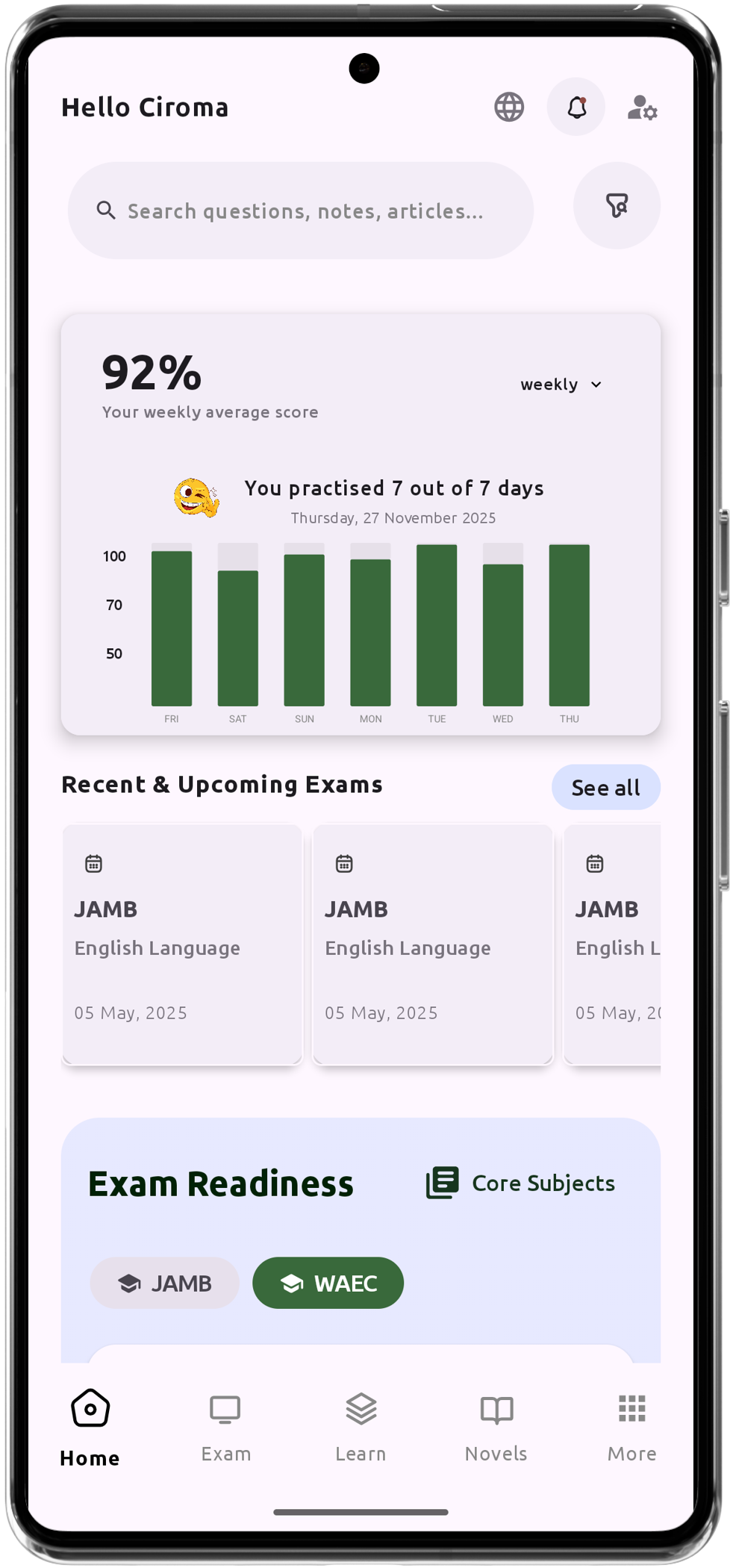
Asiko ẹkọ AI ti ara ẹni Chat Assistant
Ìbéèrè ìdánwò IGCSE, JAMB, WAEC ati NECO tó ju 200,000 lọ
Fiwọn 1200 Awọn akọsilẹ Ẹkọ ju.
Atilẹyin Aisinipo - Kọ ẹkọ Nigbakugba, Nibi gbogbo
Tẹ̀dí Green Bridge
Àkójọpọ̀ Ìtàn Lítíréṣọ̀ & Ìbéèrè Tó Lè Dáyéé ṣẹ́lẹ̀
Tẹle iṣẹ ṣiṣe rẹ ati ilọsiwaju rẹ.
Àlàyé tí ó jinlẹ̀ fún ìmòye tó jinlẹ̀.