Jinsi Green Bridge inavyofanya kazi
Maelezo mafupi na rahisi ya unachoweza kufanya kwenye Green Bridge, mengi yakiwa na video. Chagua wewe ni nani na jukwaa lako, au tafuta.
Miongozo 349, 277 ina video
Miongozo iliyopatikana: 63 Futa vichujio
-
 0:54
What's in the student dashboard?
The menu on the left holds everything. Dashboard is your home page. Prep Materials has lesson notes for each exam and subject, and Syllabus has the syllabus for each. Exam Readiness, Score Tracker, Smart Quiz and the AI Study Companion help you see where you stand. Messages, Find a teacher and Teacher notes connect you with teachers. Click your name at the bottom for Profile, Settings and Billing & Subscription.
Kuzunguka dashibodi yako
-
 0:38
How to read a set novel for your exam
Open Literature Summaries in the menu on the left. Choose your exam, then your subject, and click the novel or play you're studying. Its summary opens on the page.
Kuzunguka dashibodi yako
-
 0:41
Why am I asked what I'm studying for when I first sign in?
Your first time on the dashboard, you're asked What are you studying for? Choose your exam and click Continue, and we show you the subjects, materials and teachers that fit it. You're only asked once, and you can change it later from the top bar.
Kuzunguka dashibodi yako
-
 1:36
How to practise a WAEC past paper and see your score
Click Practice at the top of the page. Choose SSCE, set the mode to Practice, then pick WAEC, your subject and a paper. Practice mode isn't timed. After you answer a question you can click View answer to see if you got it right. When you've finished, click Submit and confirm, and your score appears straight away.
Kufanya mtihani uliopita
-
 1:02
What happens if I reveal an answer before choosing one?
In Practice mode you can click View Answer before you've picked an option, but that question is then locked and earns no mark. Your score only counts the questions you worked out yourself, so try each one first and check afterwards.
Kufanya mtihani uliopita
-
 0:57
Can I see the answers in a timed exam?
No. When you sit a paper in Real mode, View Answer isn't there and the time left shows on screen, as in the real exam. Your answers are marked in exactly the same way as in Practice mode, so the score is a fair picture of how you'd do.
Kufanya mtihani uliopita
-
 1:03
How to practise two JAMB subjects together
The JAMB UTME tests several subjects in one sitting, and you can practise it that way. Click Practice at the top of the page, choose SSCE and then JAMB. Pick a subject and paper, click Add Assessment and pick a second subject and paper. Click Start Assessment and you'll sit both together.
Kufanya mtihani uliopita
-
 1:05
How to sit a past paper as a timed exam
Click Practice at the top of the page and choose SSCE, then WAEC. Set the mode to Real, which is timed, with answers only shown after you submit. Pick a subject and paper and click Start Assessment. You'll see the paper's instructions first, and the clock starts when you begin.
Kufanya mtihani uliopita
-
 1:02
How to practise past questions on one topic
Click Practice at the top of the page and choose SSCE, then your exam board. Choose Practice Based On Topics In Syllabus, pick a subject and up to five topics, and say how many questions you want. Click Start Assessment and you'll get past questions on just those topics.
Kufanya mtihani uliopita
-
 0:47
What happens when the time runs out in a timed exam?
Your paper is submitted for you as soon as the clock reaches zero, just like in the exam hall. It's marked on the questions you'd answered, and the review shows any you didn't get to as skipped. Keep an eye on the time left at the top of the paper.
Kufanya mtihani uliopita
-
 1:05
Can I change an answer before I submit?
Yes, as often as you like. Click a question's number in the question list to go back to it and choose a different option. Only your final choice is marked when you submit, and the review afterwards shows each question as right, wrong or skipped.
Kufanya mtihani uliopita
-
 0:43
How do I see which questions I haven't answered?
The question list on the paper shows every question's number. Each one you've answered is marked Attempted, and the rest show Not yet attempted. Check it before you submit, and click any number to go straight to that question.
Kufanya mtihani uliopita
-
 0:54
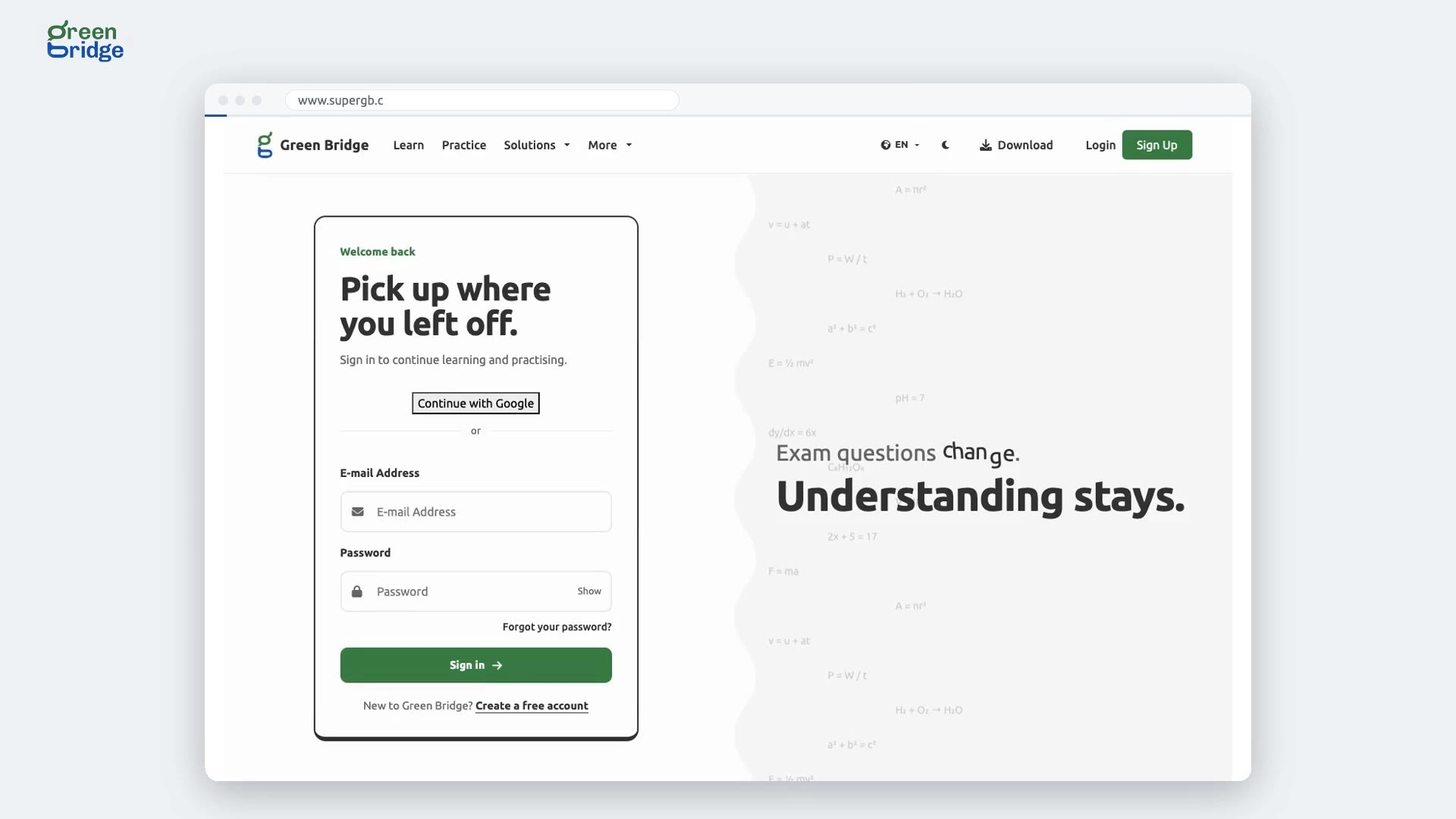
Are unanswered questions marked wrong?
No. A question you leave blank is counted as skipped. Your review after submitting shows right, wrong and skipped separately, so you can tell whether you need more knowledge or more speed.
Kufanya mtihani uliopita
-
 1:06
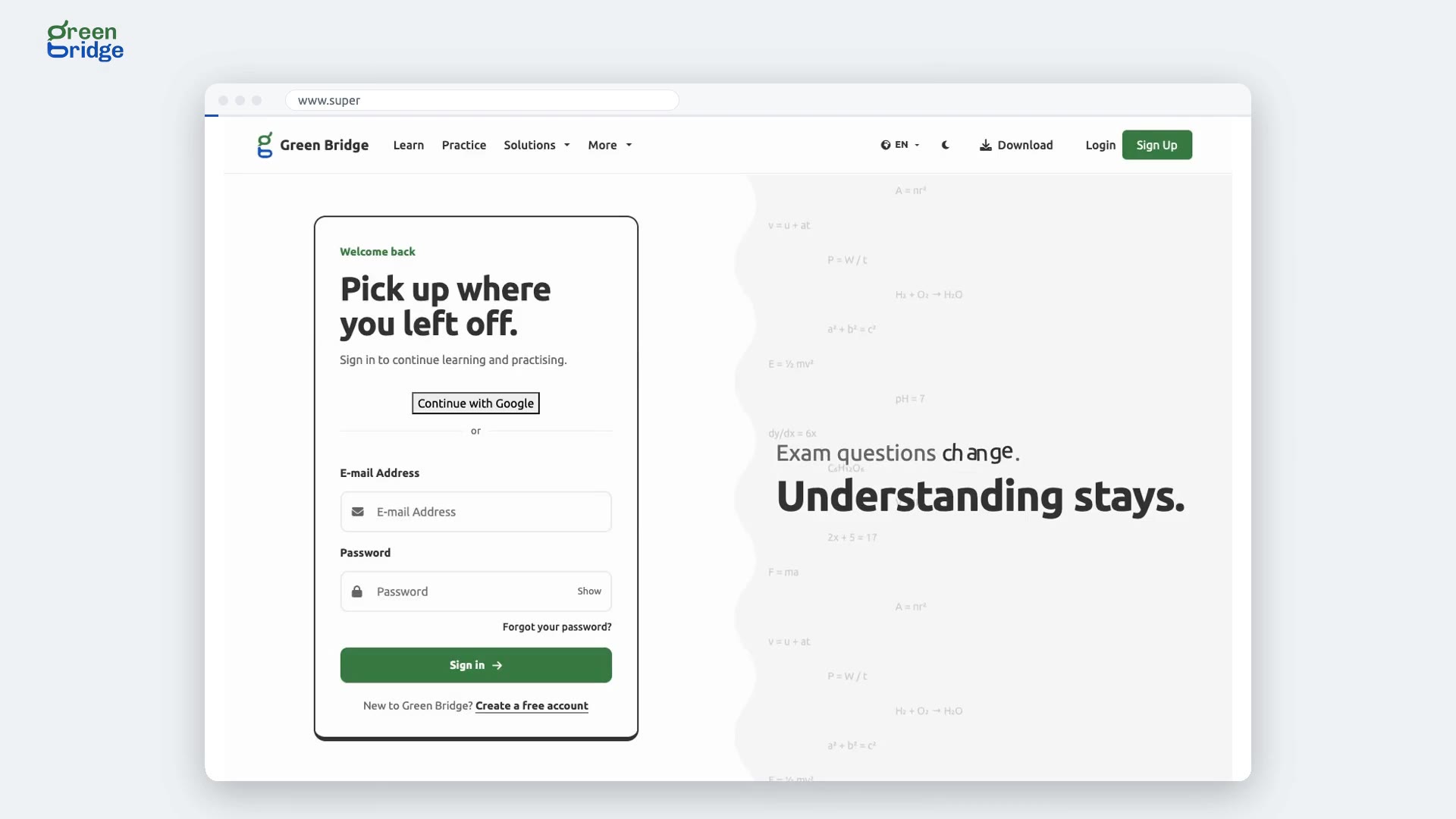
What happens if I click Submit by mistake?
Nothing is lost. You're always asked to confirm before a paper is submitted. Click Cancel and you're back on the paper with every answer still in place. When you've really finished, click Submit again and confirm with Yes, please.
Kufanya mtihani uliopita
-
 0:50
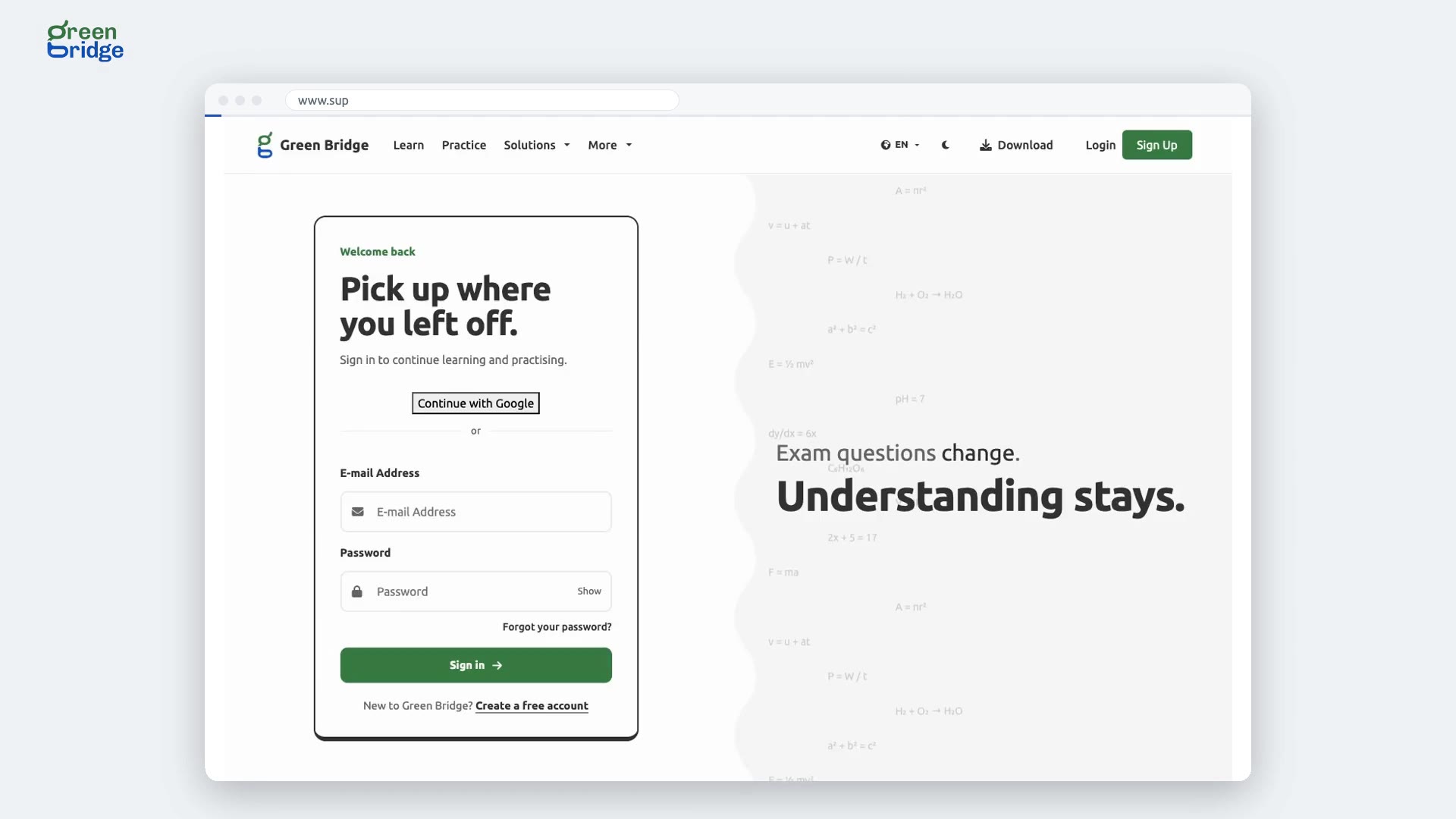
How to report a mistake in a question
If a question has a problem, such as a missing diagram or a wrong option, click Report on that question. Type what's wrong in a few words and click Send Report. You stay on the same question and can carry on with the paper. Our team checks every report.
Kufanya mtihani uliopita
-
 0:42
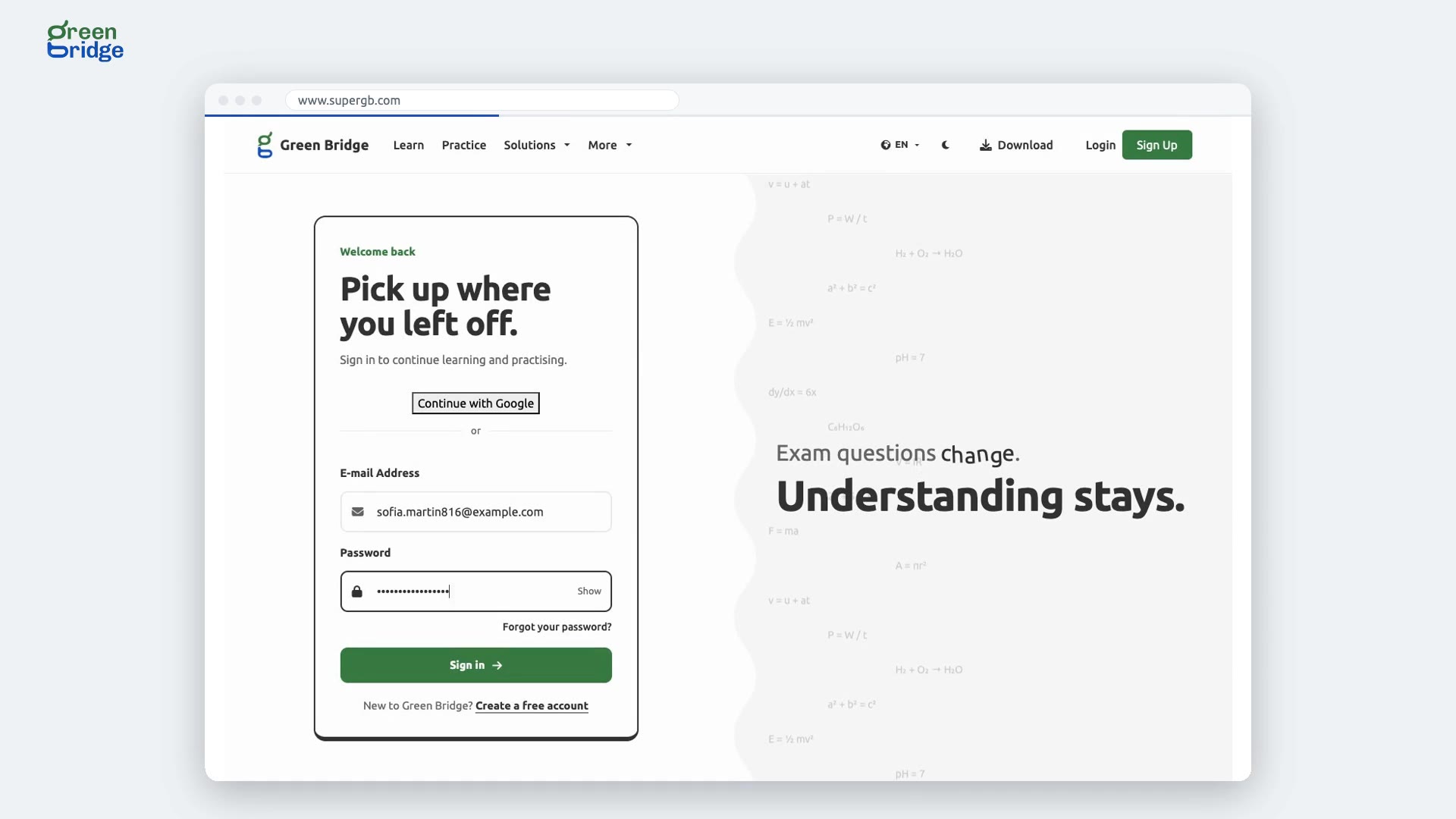
How to save a topic as a favourite
Open Prep Materials in the menu on the left, then choose your exam and subject. Click the star next to a topic to save it as a favourite. It's still starred whenever you come back to the subject.
Kusoma maelezo na mihtasari
-
 1:03
How to keep track of the topics you've read
When you finish a topic in Prep Materials, click I have read this topic to tick it off. It stays ticked whenever you open it again. Your home page also shows the subject under Jump back in, with how many topics you've read, so you can pick up where you stopped.
Kusoma maelezo na mihtasari
-
 0:52
How to practise past questions on a topic you've just read
Many topics in Prep Materials list the past exam questions on them, grouped by exam board. Click Start Practice and you'll get up to 10 of them to answer. It's a quick way to check you've understood what you read.
Kusoma maelezo na mihtasari
-
 0:43
How to go back to a subject's topic list
Open Prep Materials, choose your exam and subject, and click a topic to read it. When you've finished, click Go Back and the subject's full list of topics is there to choose your next one.
Kusoma maelezo na mihtasari
-
 0:55
How to search a syllabus for a topic
Open Syllabus in the menu on the left and choose your exam and subject. Click Expand all to open every section, or Collapse all to fold them again. To find something specific, type a word into Search topics and objectives, and only the topics that contain it stay on screen.
Kusoma maelezo na mihtasari
-
 0:56
Where are the smart quiz, exam readiness and exam timetable?
Your home page has shortcuts to Smart quiz, Exam readiness and Exam timetable. These three tools are in the Green Bridge mobile app, so on the website each shortcut tells you to open the app.
Kusoma maelezo na mihtasari
-
 0:50
How to search your study notes
Type a word into the search box in the top bar, choose Prep materials as the category and click Search. You'll get a list of matching topics from your subjects. Click one to start reading.
Kusoma maelezo na mihtasari
-
 0:36
How to get to your subjects from your home page
On your home page, click Study materials under Quick actions. Your subjects open in the menu on the left. Pick one to see its topics and start reading.
Kusoma maelezo na mihtasari
-
 0:51
How to pick up a subject you saved a topic from
Once you've starred a topic in Prep Materials, your home page shows that subject under Jump back in, with how many topics you've saved. Click it and you're back in the subject's topic list.
Kusoma maelezo na mihtasari