Jinsi Green Bridge inavyofanya kazi
Maelezo mafupi na rahisi ya unachoweza kufanya kwenye Green Bridge, mengi yakiwa na video. Chagua wewe ni nani na jukwaa lako, au tafuta.
Miongozo 349, 277 ina video
Miongozo iliyopatikana: 347 Futa vichujio
-
 1:24
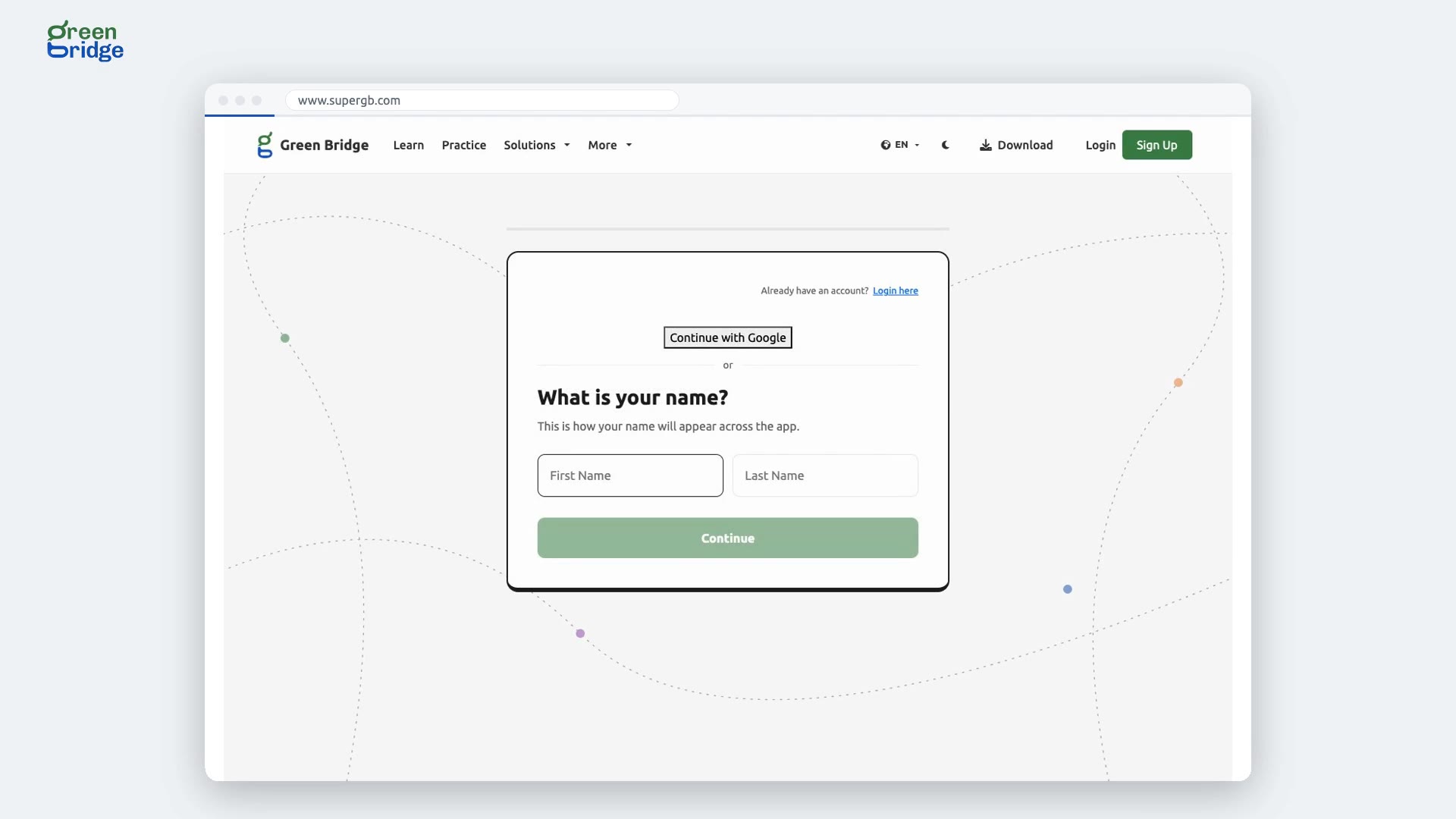
How to decline a teacher who asked to join your school
When a teacher signs up with your school's share code, the school admin receives an email titled "New request to join" followed by your school's name. It has links to accept or decline. Click decline and you'll see "Connection Declined". The teacher isn't connected to your school and gets an email to let them know.
Kufungua akaunti
-
 1:14
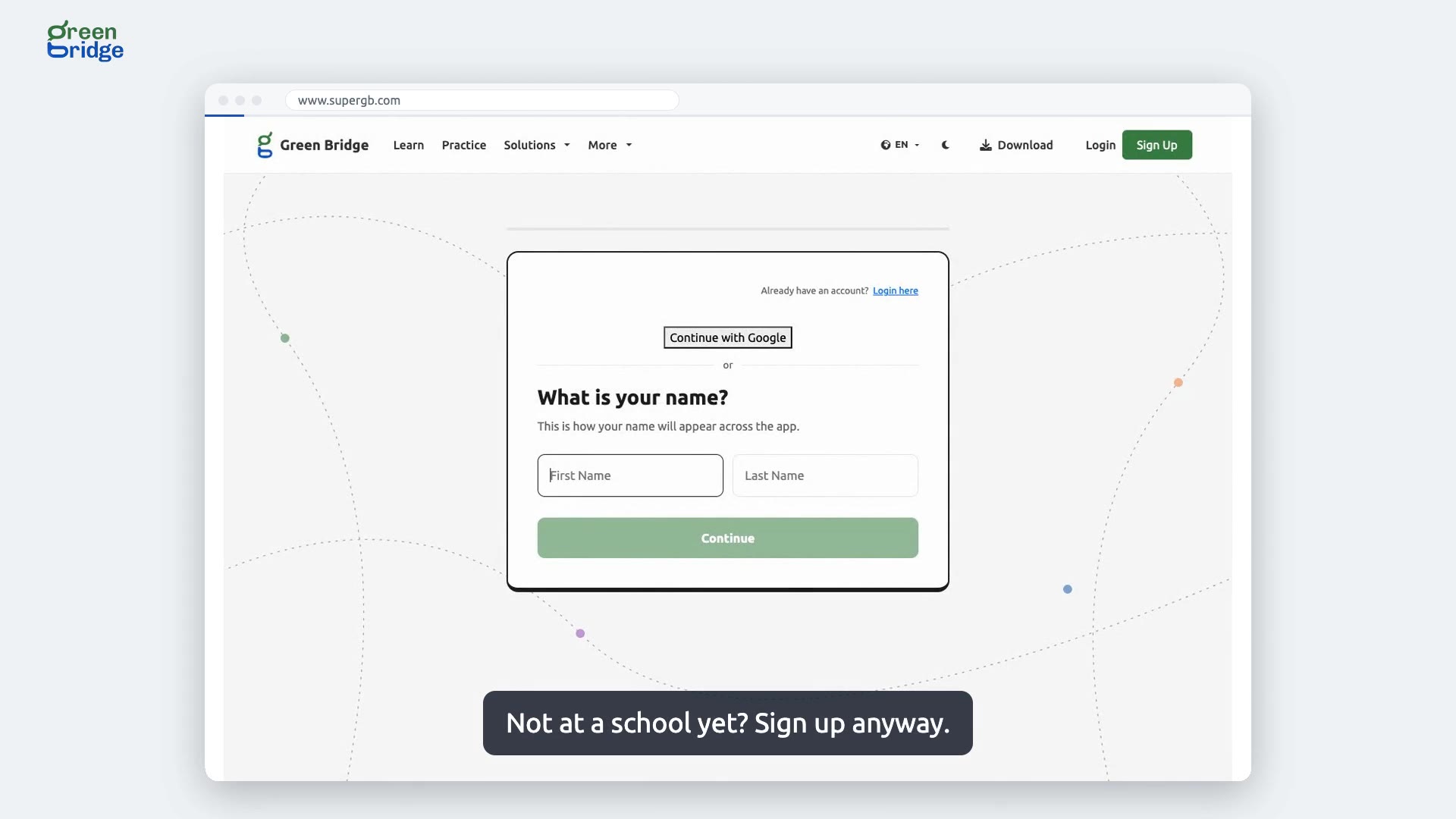
Can I sign up as a teacher without a school?
Yes. Sign up as a teacher and, when you're asked if you know a school you would love to connect with, choose Not yet. Your account is created with no school attached. Confirm your email to start, and join a school whenever you're ready.
Kufungua akaunti
-
 1:31
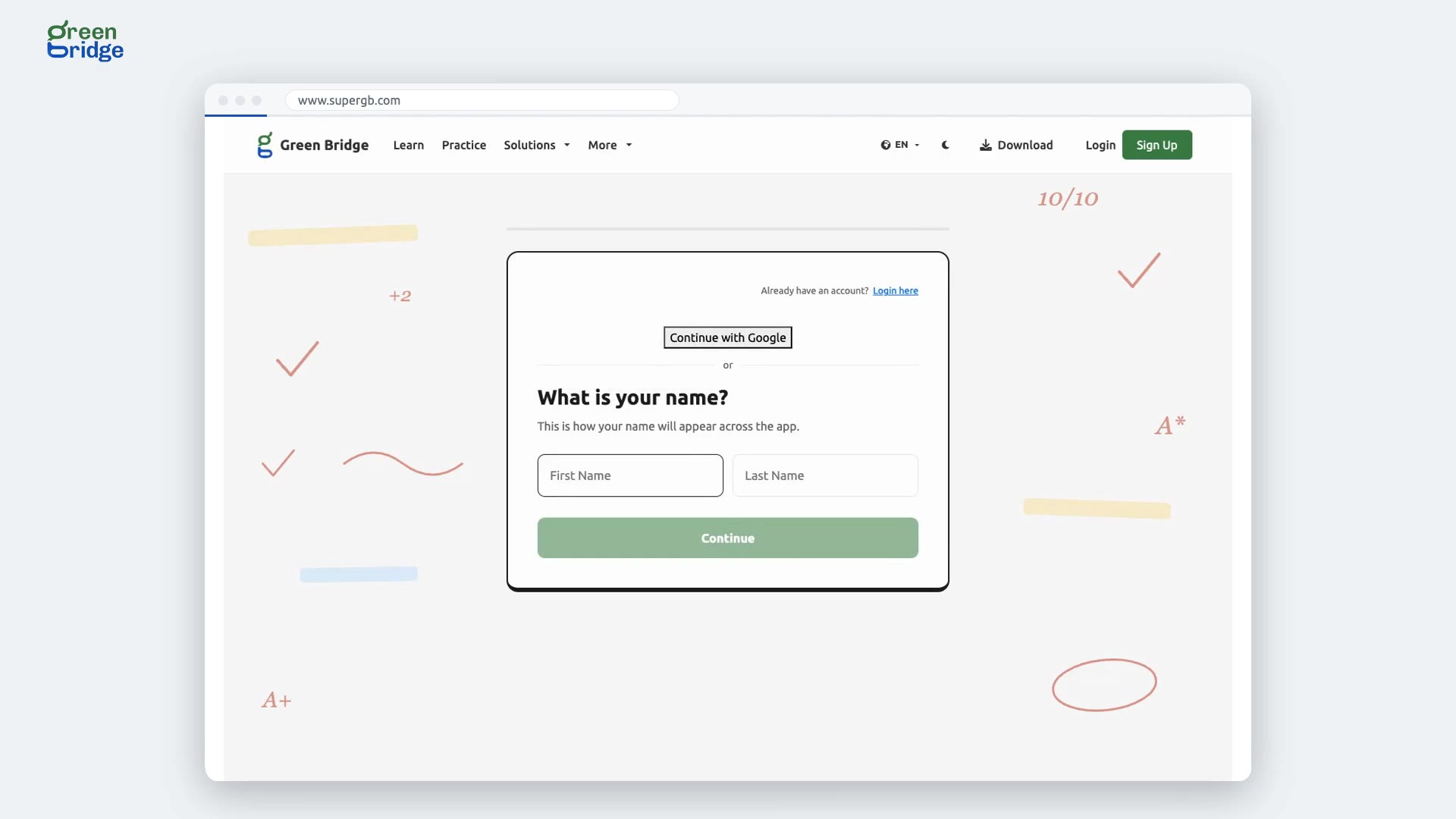
How to accept your school's invitation to be its admin
Open the email your school sent and follow its link to sign up. Use the same email address the school invited, because the account must match it. Once you finish, you're already an admin of that school. Confirm your address from the "Welcome to Green Bridge for Schools" email, then sign in and you'll land on the school dashboard.
Kufungua akaunti
-
 1:33
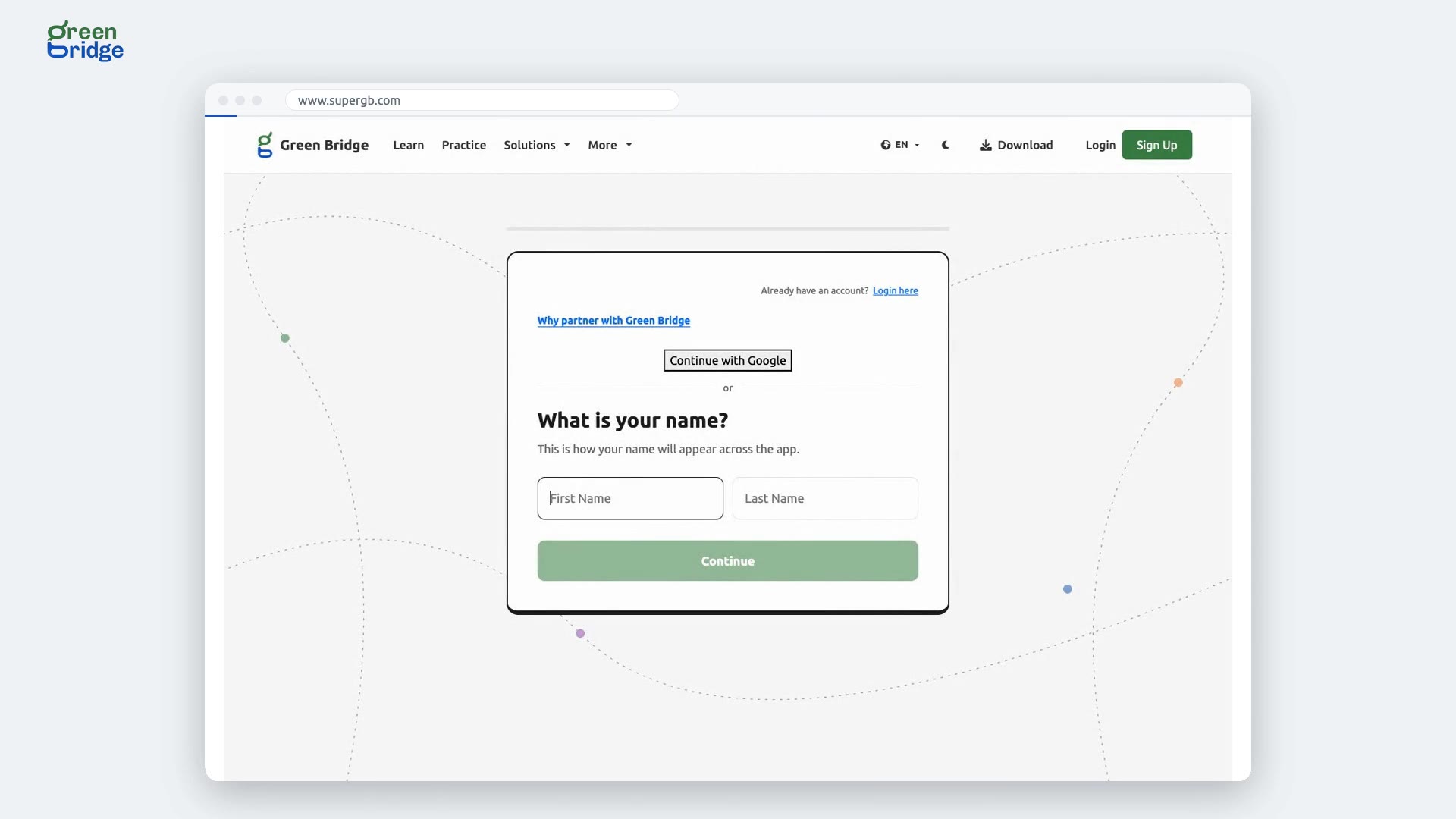
How to sign up as a partner organisation
On the sign-up page, choose I am a Partner Organisation and click Continue. Along with your name and email, give your organisation's name and the website where the tests will appear. Only those websites can show your embedded tests, and you can add more later. Confirm your address from the welcome email, then sign in to reach your partner dashboard.
Kufungua akaunti
-
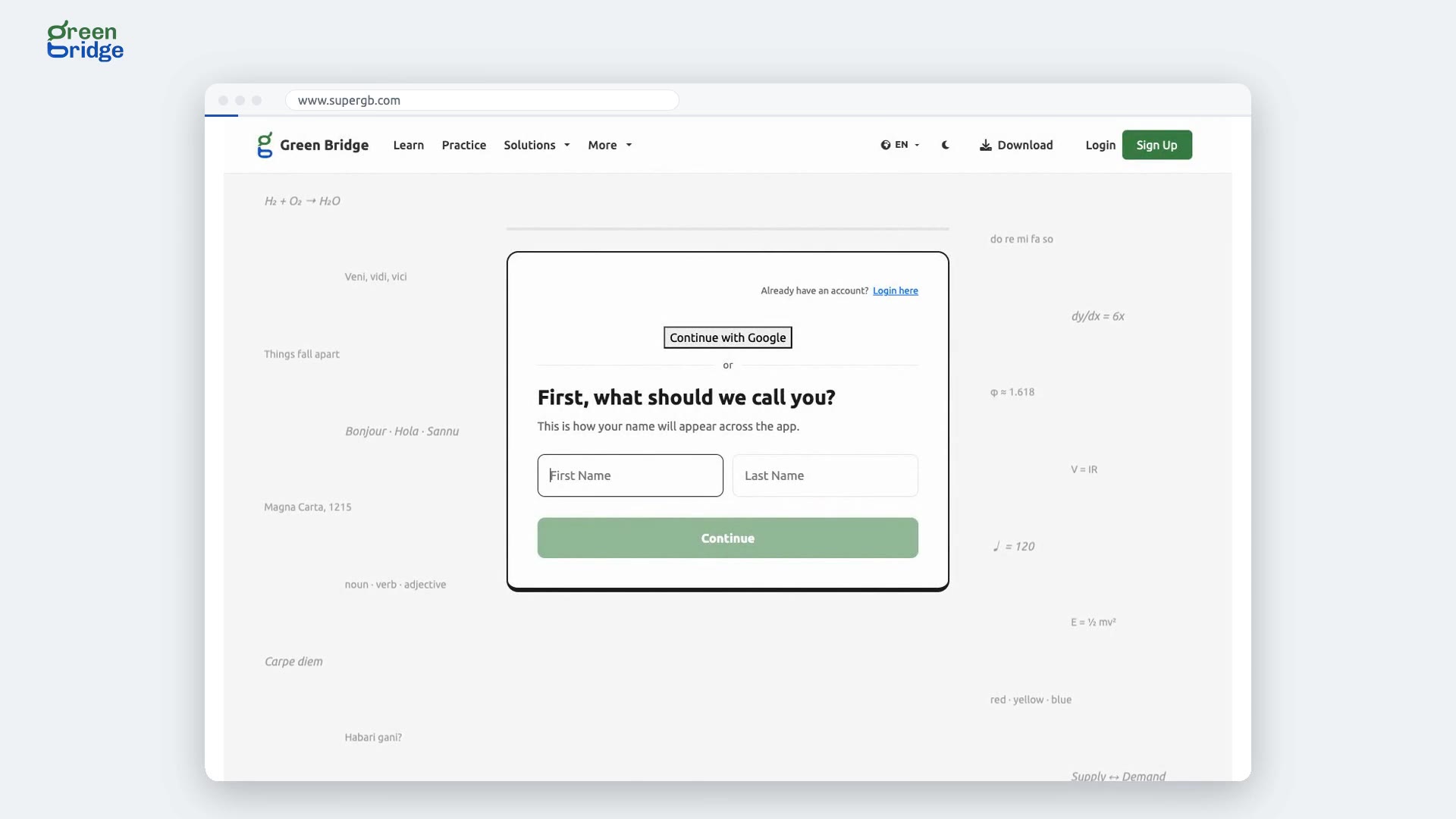 1:36
How to get the confirmation email sent again
After you sign up you'll see Check your inbox. If the email hasn't come, look in your spam folder first, then click Send it again. We'll send the same confirmation link to the same address. You can ask once a minute, so give it a moment before trying again. Open the link and you'll see "Account Verified & Activated".
Kufungua akaunti
-
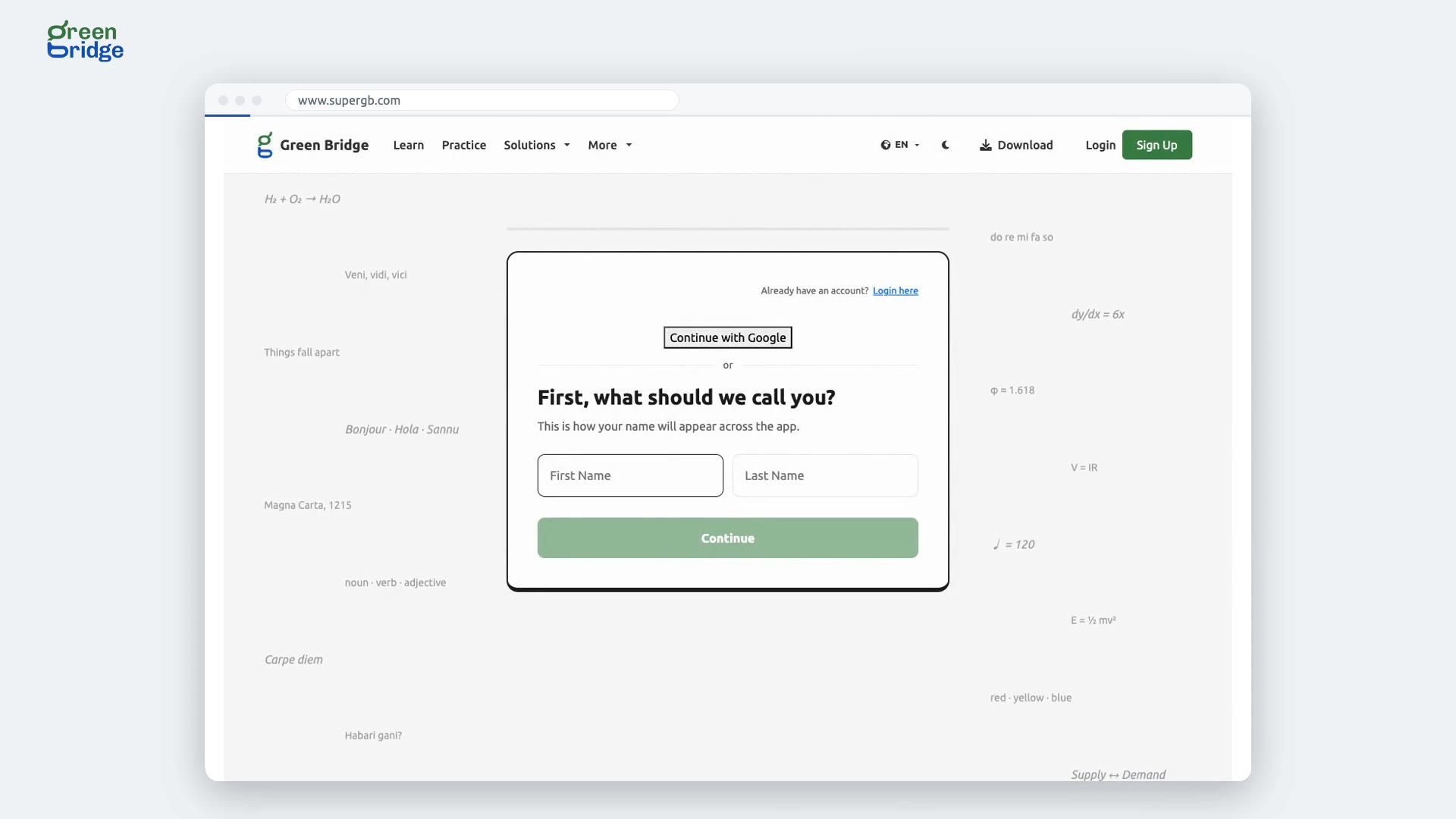 1:29
Why does sign-in say "Verify your email to log in"?
Your account is waiting for you to confirm your email address. The page shows where we sent the link. Open that email and select the link, or click Send it again on the same page for a fresh copy. Once you've confirmed, sign in as normal.
Kufungua akaunti
-
 0:36
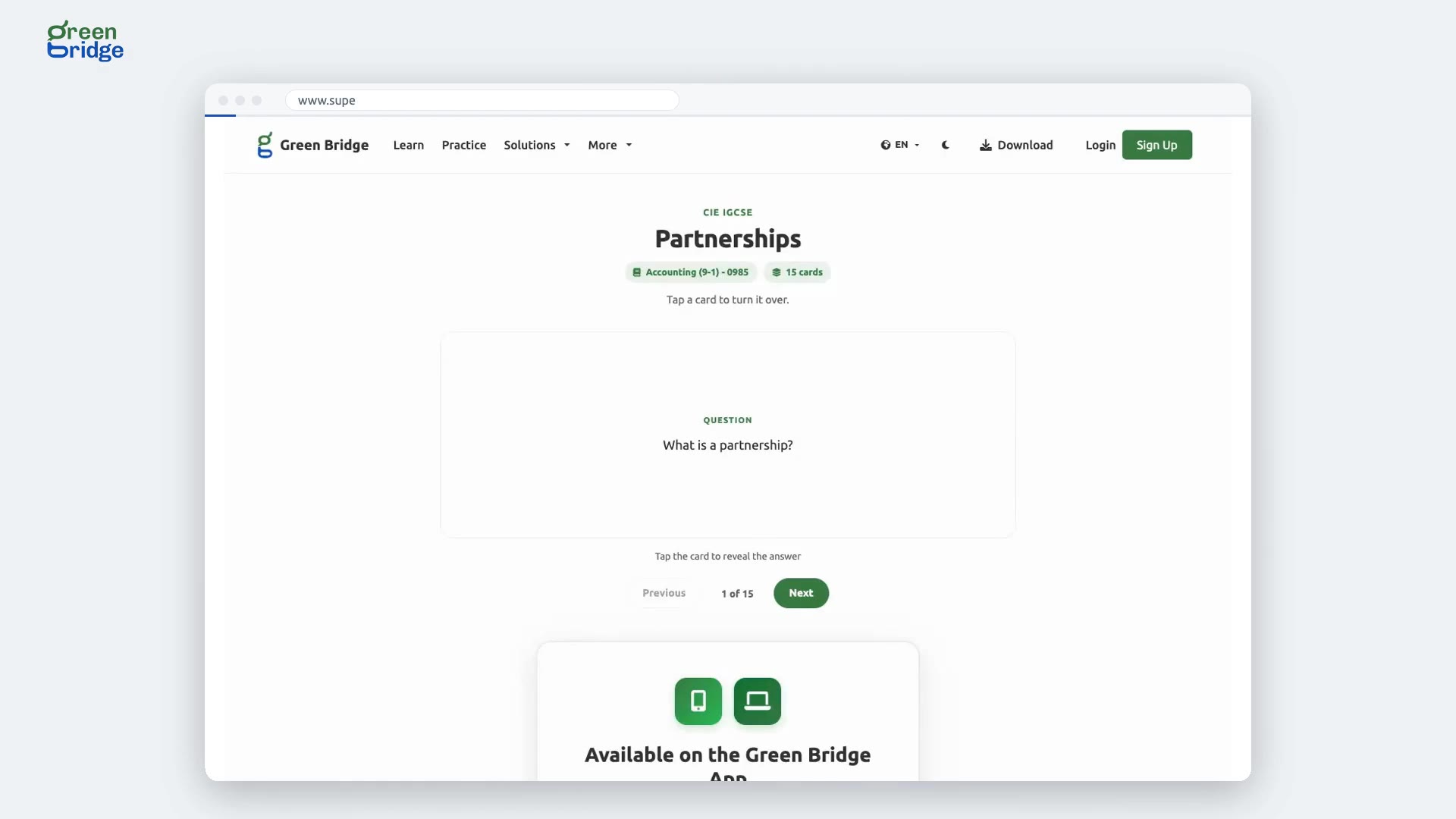
How to revise with flashcards
Open a set of flashcards for your topic. Each card shows its question first, so answer it in your head before you look. Tap or click the card to turn it over and see the answer, then click Next for the following card. Previous takes you back one.
Kutumia kurasa za masomo za bure
-
 0:28
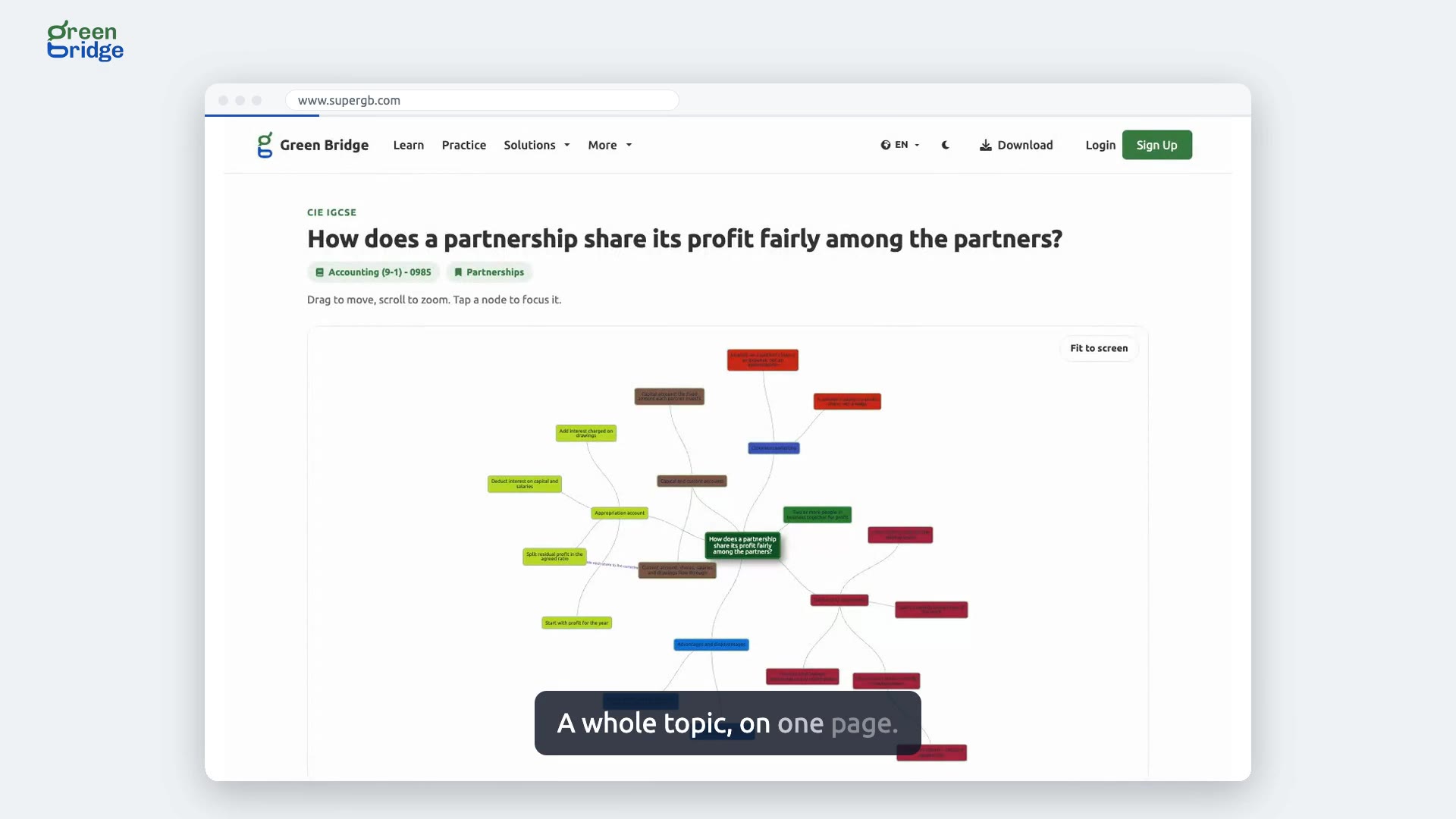
How to see a whole topic on a mind map
Open the mind map for your topic. Drag to move around it, scroll to zoom in or out, and tap a branch to focus on it. If you lose your place, click Fit to screen and the whole map shrinks to fit your window, with every branch in view. Mind maps are free to use without an account.
Kutumia kurasa za masomo za bure
-
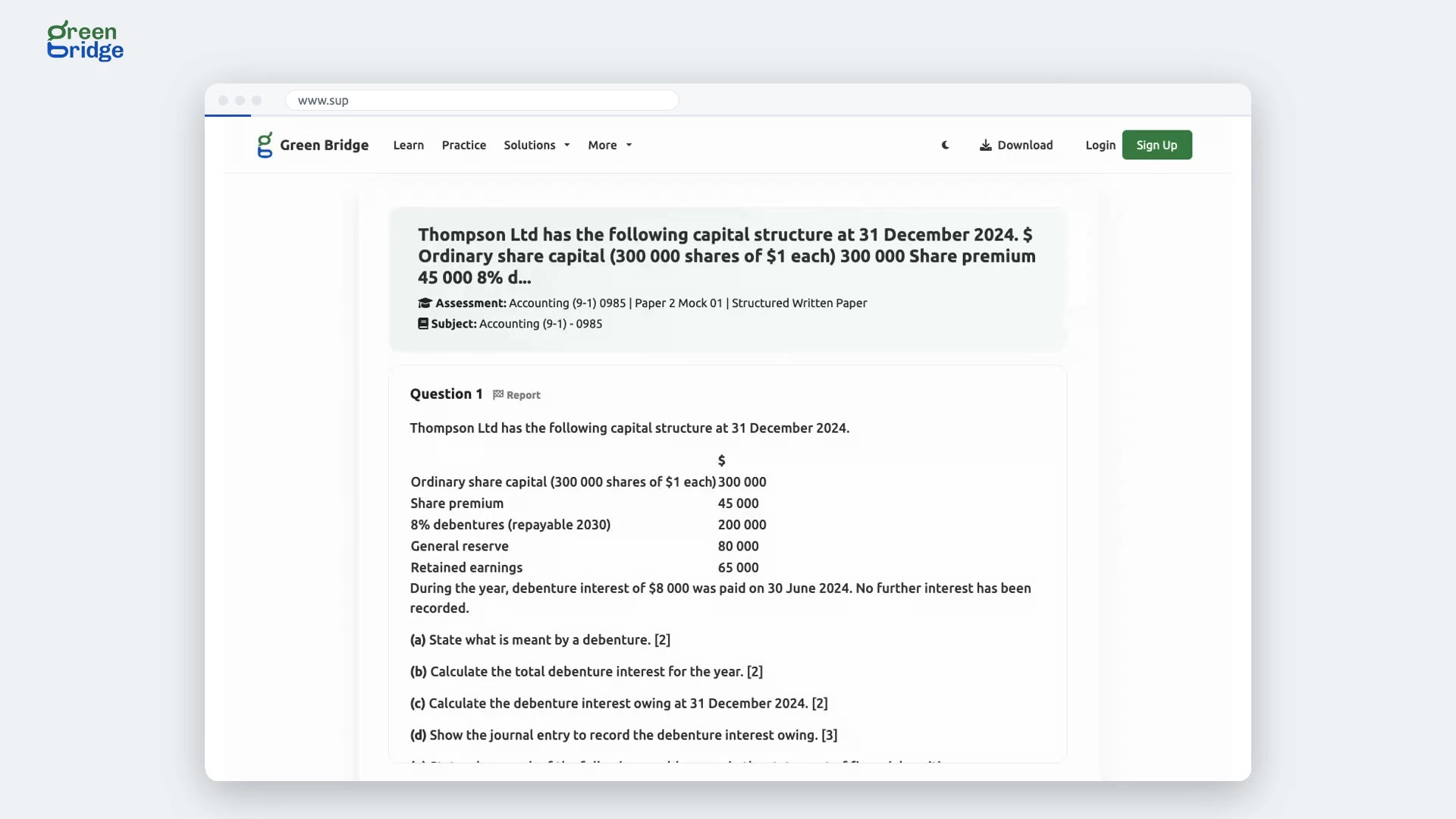 0:27
How to check the answer to a past question
Try the question yourself first. When you're ready, click View Answer under it to see the correct answer. Click View Answer again to hide it, so you can come back later and have another go.
Kutumia kurasa za masomo za bure
-
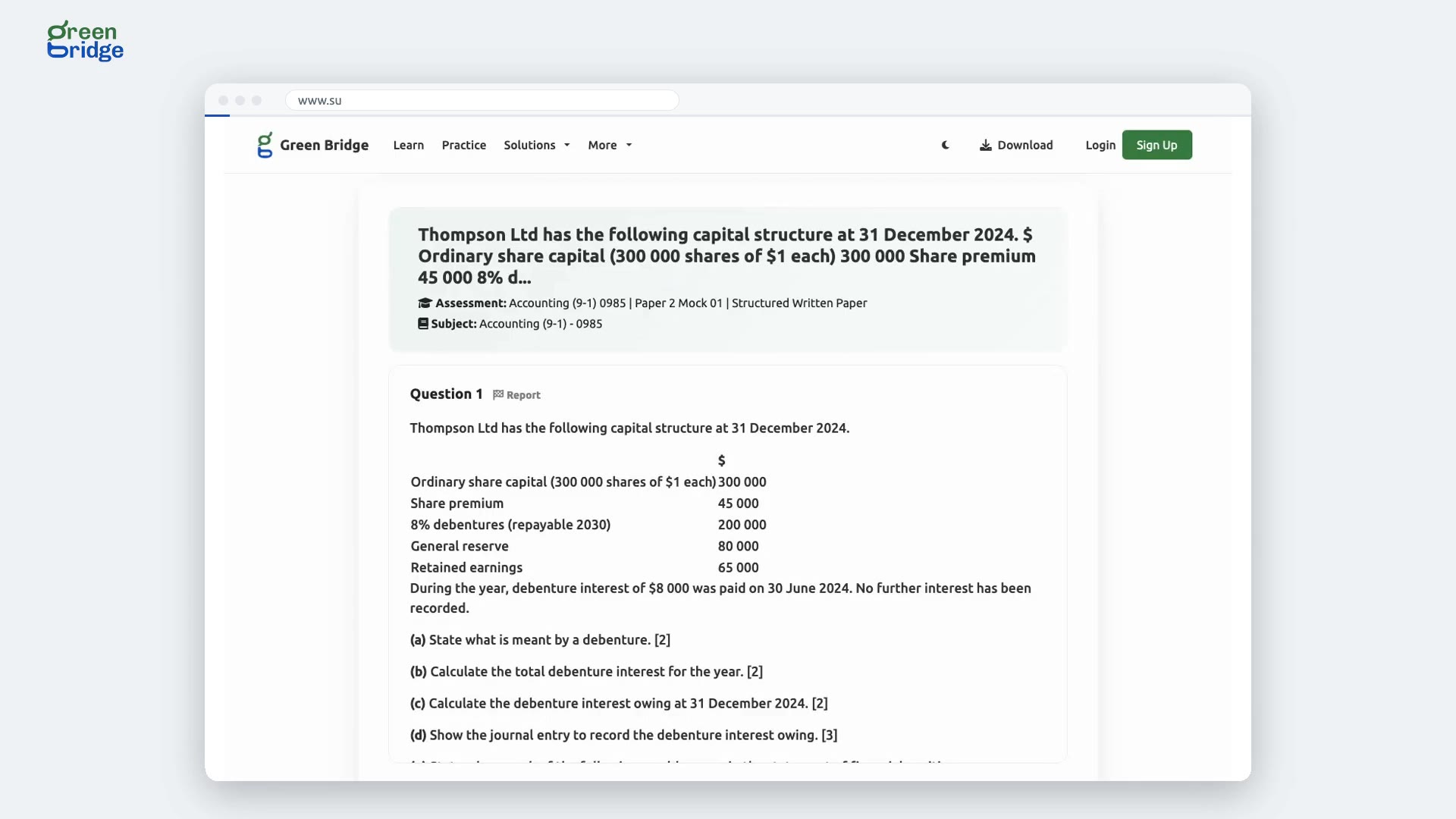 0:38
How to report a mistake in a question
If a question has a typo, a wrong answer or anything else that looks off, click Report next to the question number. Describe the problem in the box and click Send Report. You'll see "Report Sent", and the Green Bridge team gets your report by email so they can put it right. You can report a question without an account.
Kutumia kurasa za masomo za bure
-
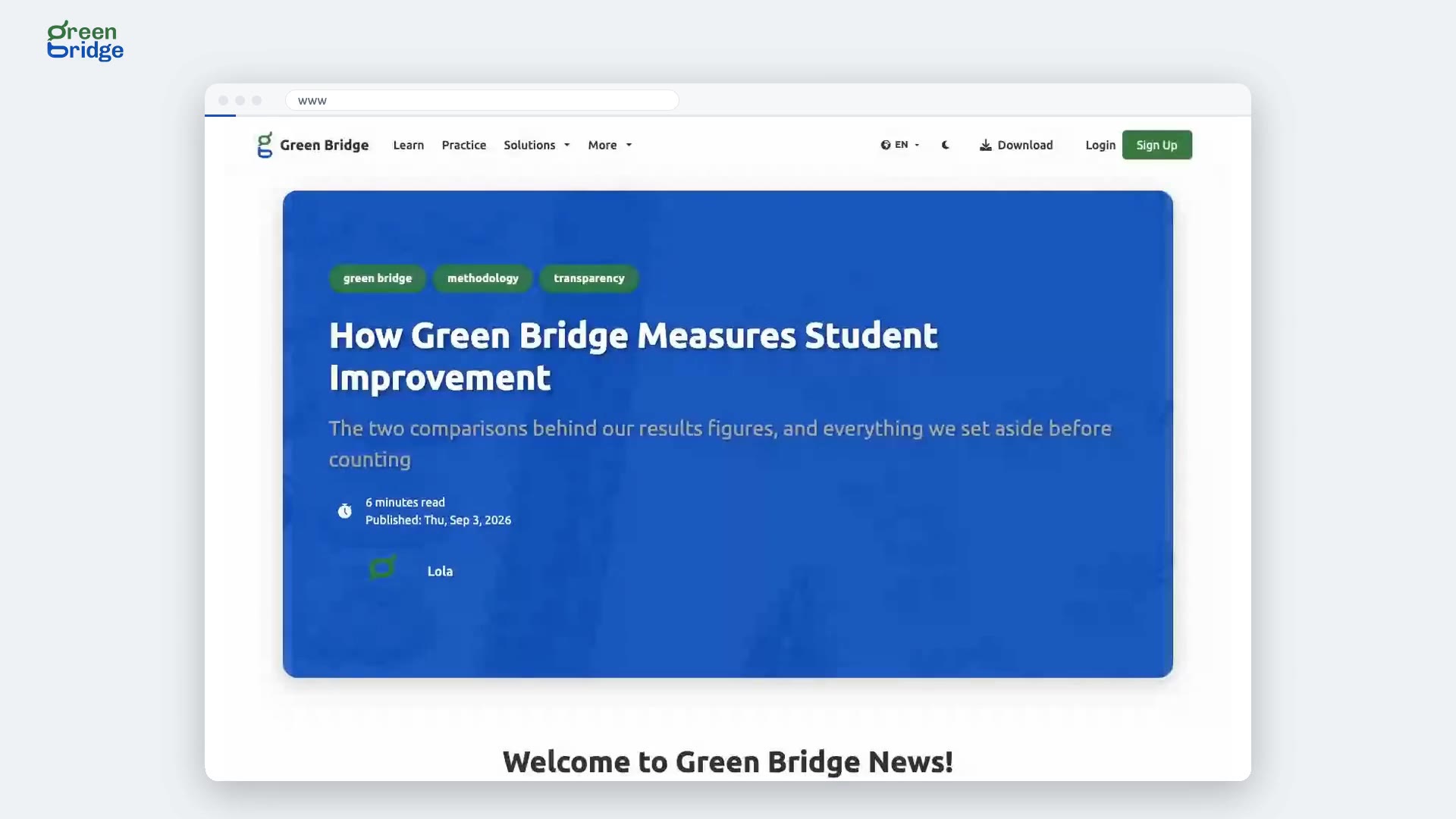 0:28
How to search the Green Bridge journal
Click News in the menu at the top of the page (on a wide screen it sits under More). Type what you're looking for into the search box, for example exam, and press Enter. The articles listed are the ones that mention it. To browse everything instead, click See More Articles.
Kutumia kurasa za masomo za bure
-
 0:26
How to find more articles on the same topic
At the end of a journal article, under Tag(s), click any of its tags. A list of other articles with that tag opens, and you can pick the next one to read.
Kutumia kurasa za masomo za bure
-
 0:30
How to find a topic in a subject
Open the subject from the Learn page to see its topics. Type a word from the topic you want into the search box above the list and press Enter. Only topics with that word in their name are left, so you can open the one you need.
Kutumia kurasa za masomo za bure
- How to find your share code for a parent or school From your dashboard, open your profile. You'll see your share code there, which you can give to your parent or school. Akaunti yako, mipangilio na mpango
- How to approve your child's teacher and withdraw approval If your child is under 18, ask them to open the teacher's profile from their dashboard and create a link for your approval. Open the link and approve the teacher as your child's parent. You'll see confirmation that your approval is recorded, and the profile stops asking for approval when your child checks again. If you withdraw your approval, you'll see confirmation that it was withdrawn. When your child checks again, the teacher's profile asks for your approval again. Kupata mwalimu na kufanya kazi naye
- How to search past SSCE questions and view an answer From your dashboard, search for a topic or keyword in the top bar. Open a question from the search results to see the full question and its answer. Kusoma maelezo na mihtasari
- How to view the WAEC exam timetable From your dashboard menu, open the WAEC exam timetable to see the papers listed day by day. Switch to the calendar view to see the papers arranged on a calendar. Kusoma maelezo na mihtasari
- How to submit written practice answers and read AI feedback With a premium account, open a paper for practice and answer the multiple-choice and essay questions. Attach a photo of your working to an essay answer and check that it appears under that essay. Submit the paper and confirm, then you'll see a message saying your written answers are being marked. When marking finishes, you can read the AI's marks and feedback for each written answer and see your overall result. Written answers on a practice paper
- How to view your practice paper result from an email Open a paper as practice and answer the multiple-choice and essay questions. Submit the paper and confirm your submission. When marking is finished, you’ll receive an email saying your result is ready. Open the result from that email to see your overall score, along with the marks and feedback for each written answer. Written answers on a practice paper
- How to pay for your child's Network lesson From your parent dashboard, open your child's teachers and find the Network lesson waiting for payment. Choose to pay for the lesson and complete the payment. When you return to Green Bridge, you'll see "Thank you, your payment is in". Go back to your child's teachers to see the lesson marked as paid. Kufuatilia mtoto wako
- How to watch your child's live Network lesson From your parent dashboard, open your child's teachers and find the Network lesson happening now. Choose to watch the lesson to join its video call as an observer. Kufuatilia mtoto wako
- How to cancel your child's Network lesson From your parent dashboard, open your child's teachers and find the Network lesson scheduled for tomorrow. Cancel the lesson. You'll see it listed as cancelled. Kufuatilia mtoto wako
- How to report a problem with your child's lesson From your parent dashboard, open your child's teachers and find the lesson you want to report. Report a problem with the lesson and explain that the teacher did not attend. You'll see that the lesson is being looked into. Kufuatilia mtoto wako
- How to report your child's teacher From your parent dashboard, open your child's teachers and choose the teacher you want to report. Choose the option to report them, select the reason and explain what happened, then send your report. You'll see confirmation that your report was sent. Kufuatilia mtoto wako