Como funciona o Green Bridge
Explicações curtas e simples do que pode fazer no Green Bridge, muitas com vídeo. Escolha quem é e a sua plataforma, ou pesquise.
349 guias, 277 com vídeo
Guias encontrados: 347 Limpar filtros
-
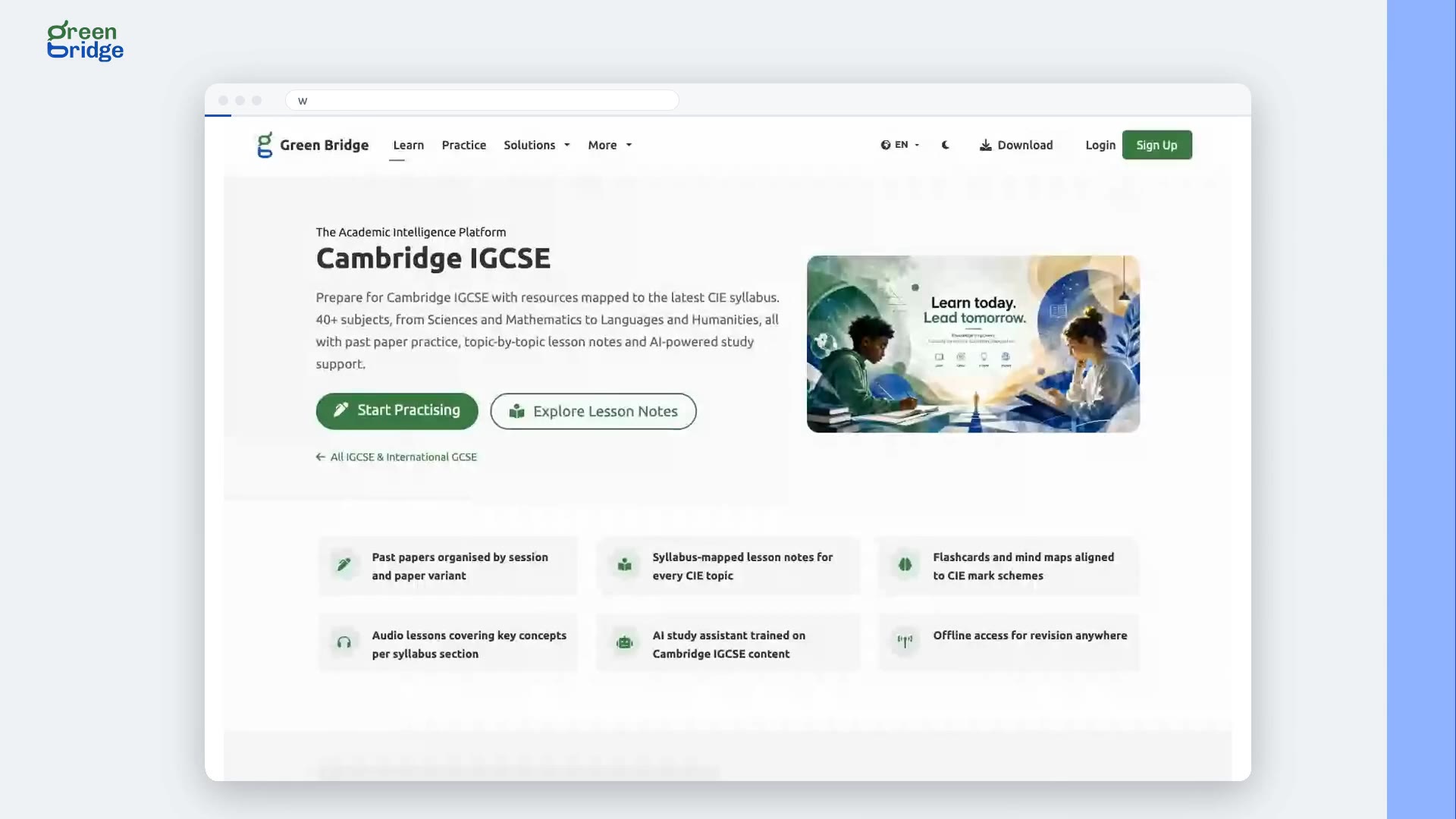 0:26
Does changing the language take me back to the home page?
No. Change the language from the globe button at the top of any page, such as the FAQs or a subject page, and the same page reopens in the language you chose. You carry on reading from where you were.
Mudar o idioma
-
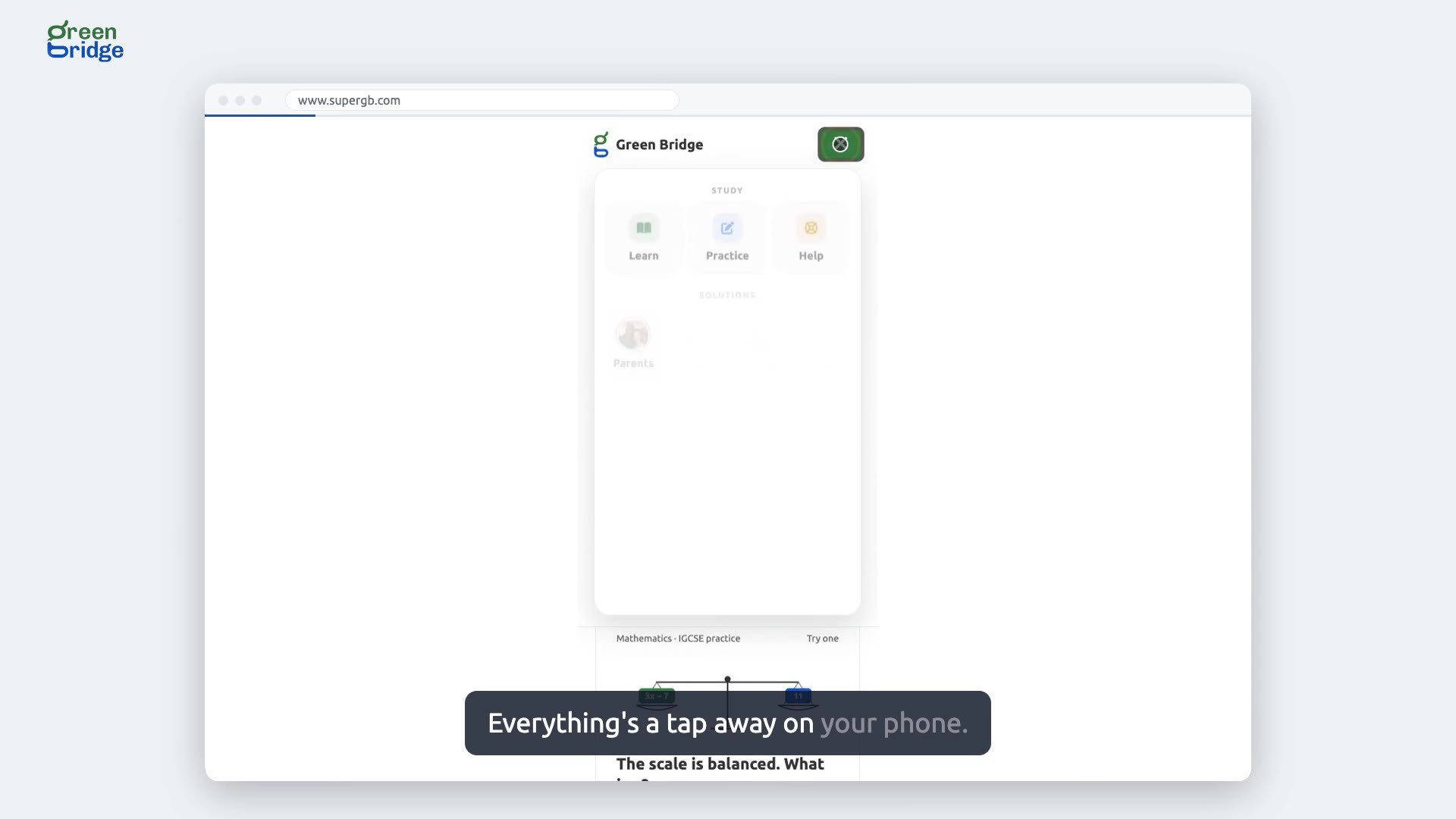 0:25
How to use the menu on a phone
On a phone, the links at the top of the page are folded behind the menu button. Tap it to open the menu. Learn takes you to revision notes by subject, Practice to past papers, and Login to your account.
Usar o site num telemóvel
-
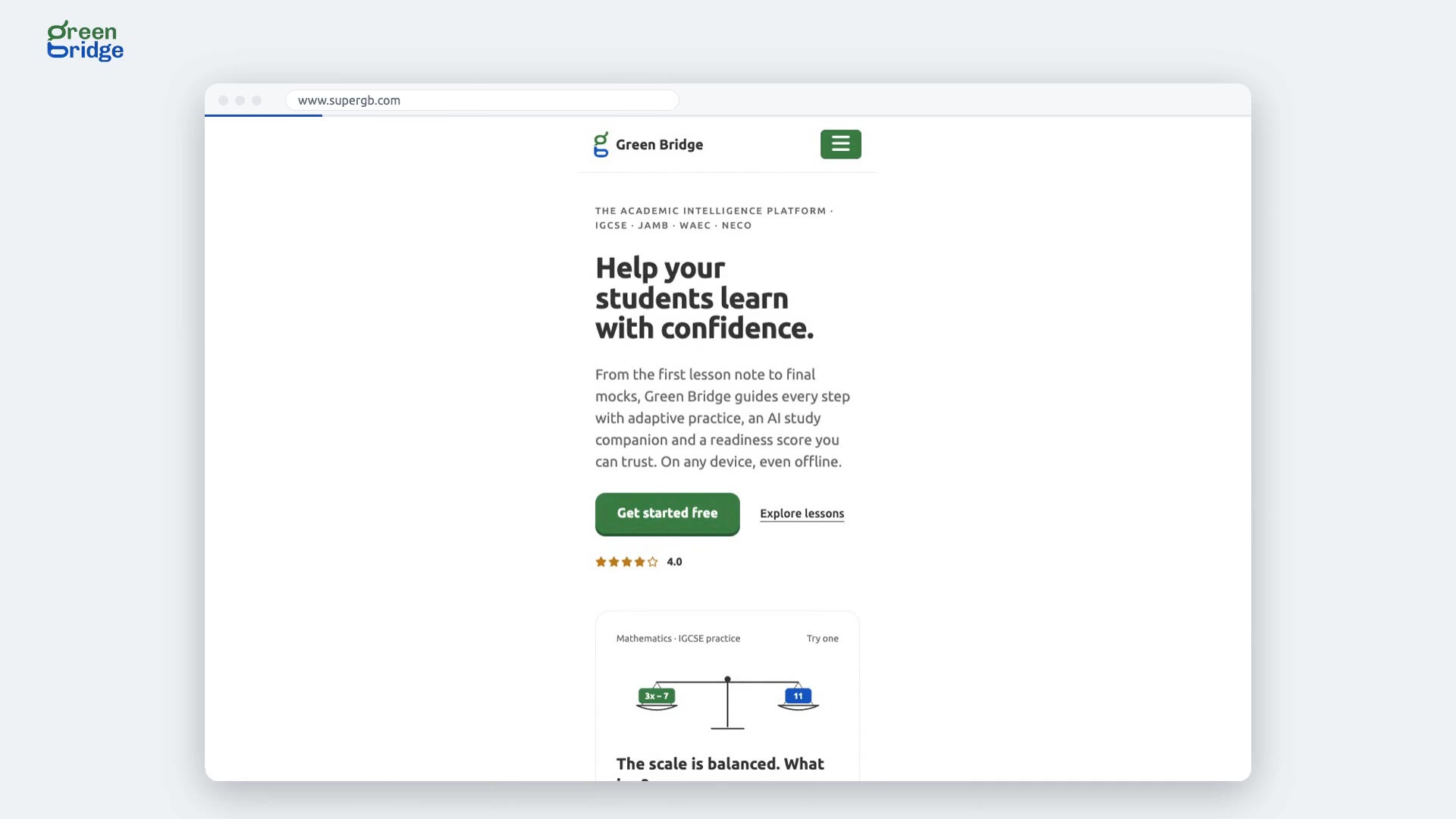 0:27
Can I use the website on Android instead of the app?
Yes. When you open Green Bridge in a browser on an Android phone, a banner offers you the app. Tap Open App to switch to it, or tap Continue to keep using the website, and the banner closes.
Usar o site num telemóvel
-
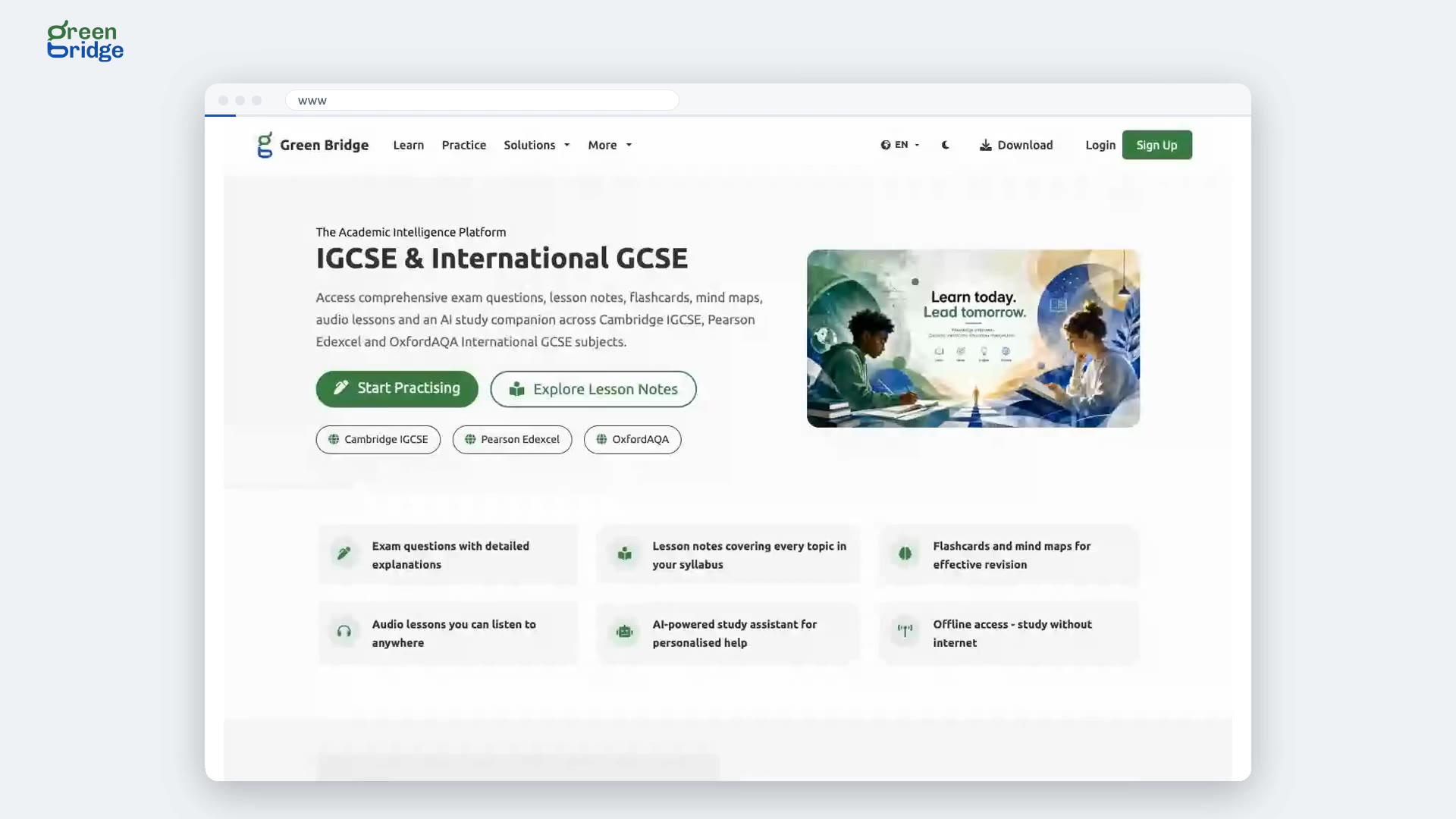 0:28
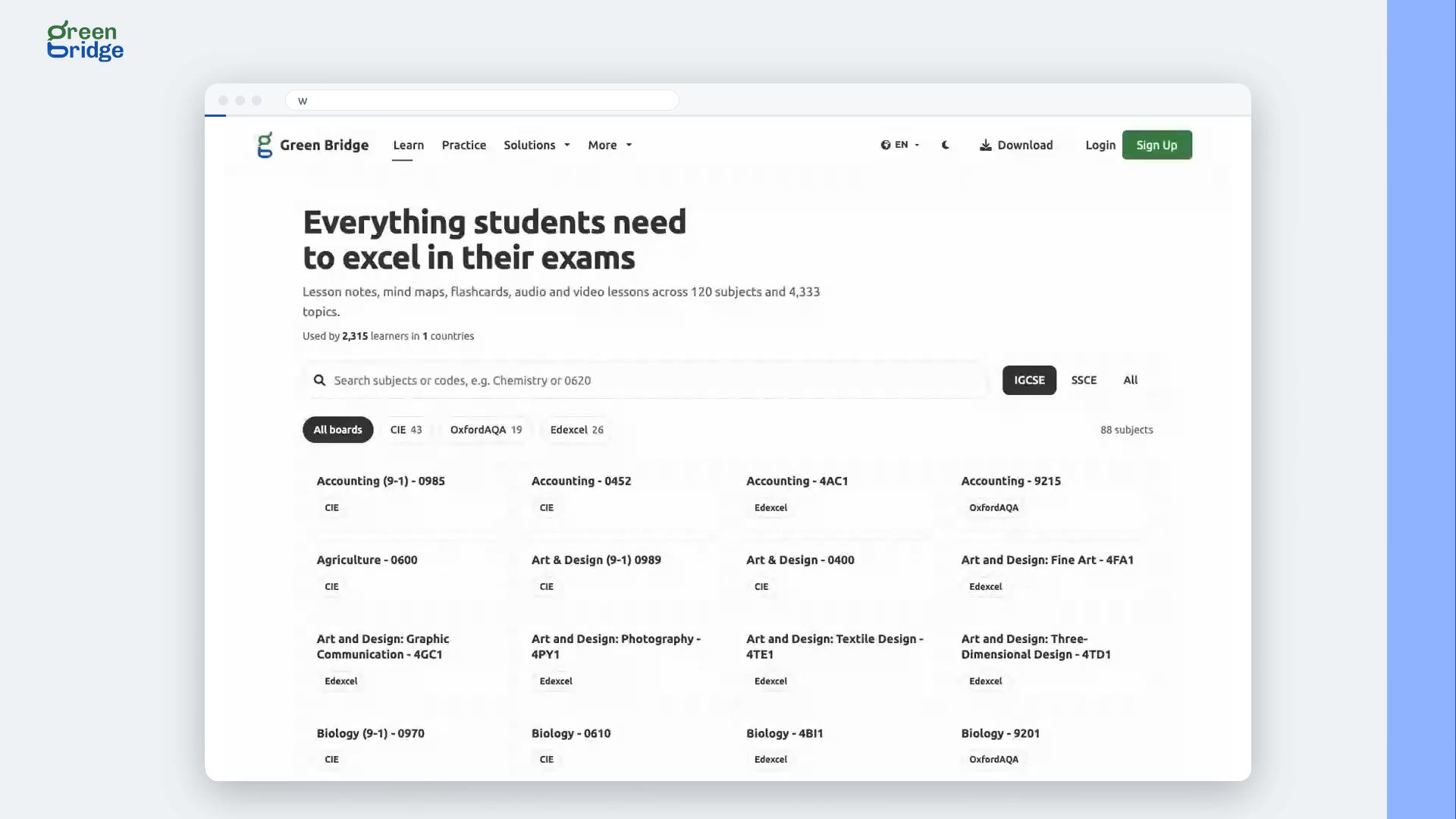
Where can I find IGCSE subjects from every exam board?
The IGCSE & International GCSE learning page lists more than fifty subjects from Cambridge, Pearson Edexcel and Oxford AQA. Click a subject to open its topics and start revising for your board.
Apontamentos de revisão IGCSE
-
 0:30
How to find revision notes for your subject
Click Learn at the top of the page to see more than fifty subjects. Click yours to open its topics, each with notes and study tools to revise from. Everything on the Learn page is free to read without an account.
Encontrar apontamentos de revisão
-
 0:27
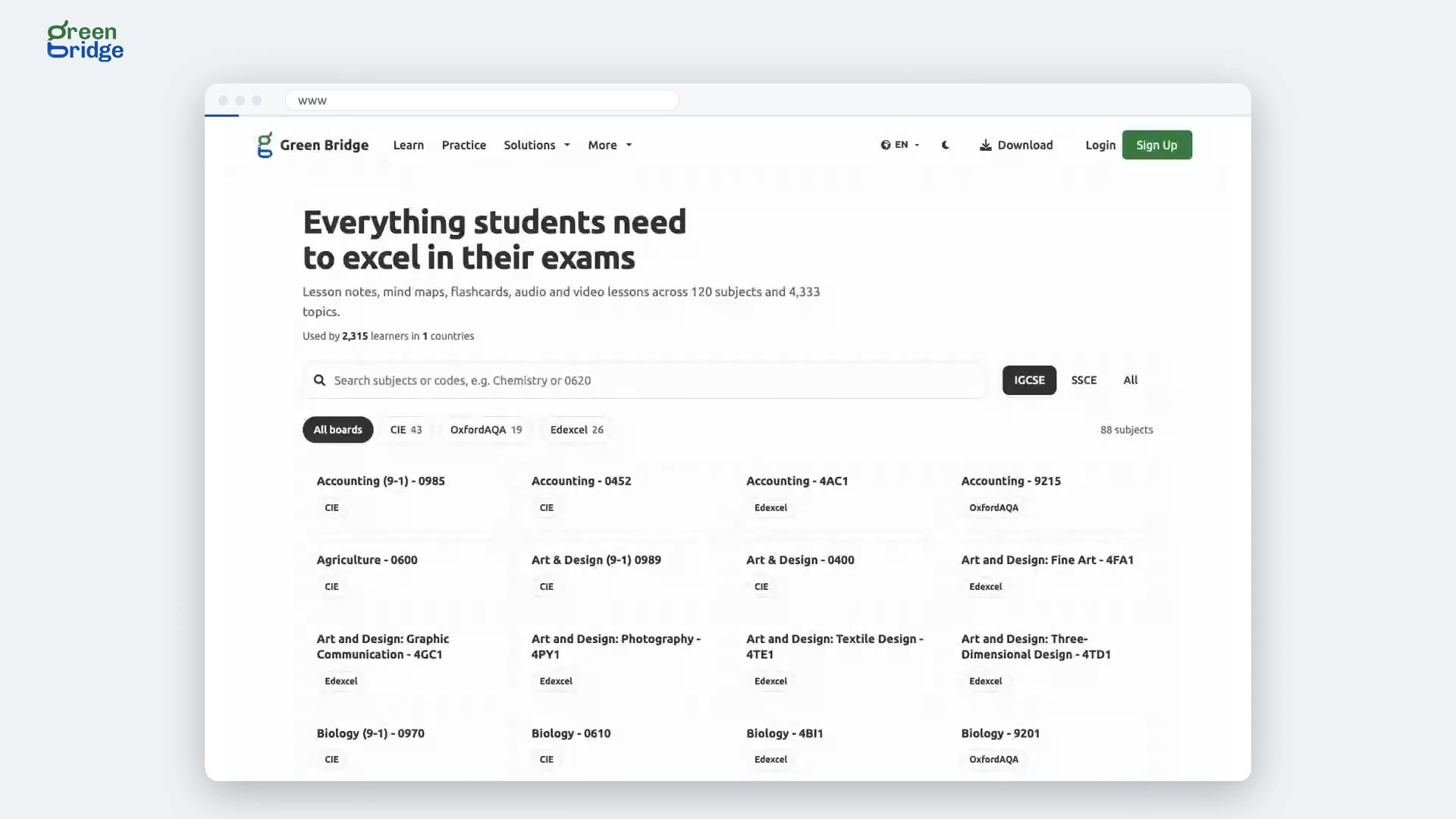
How to find a subject on the Learn page
Click Learn at the top of the page. Type a subject name or code into the search box, for example Chemistry or 0620, and the list narrows as you type. Click a subject to open its topics.
Encontrar apontamentos de revisão
-
 0:26
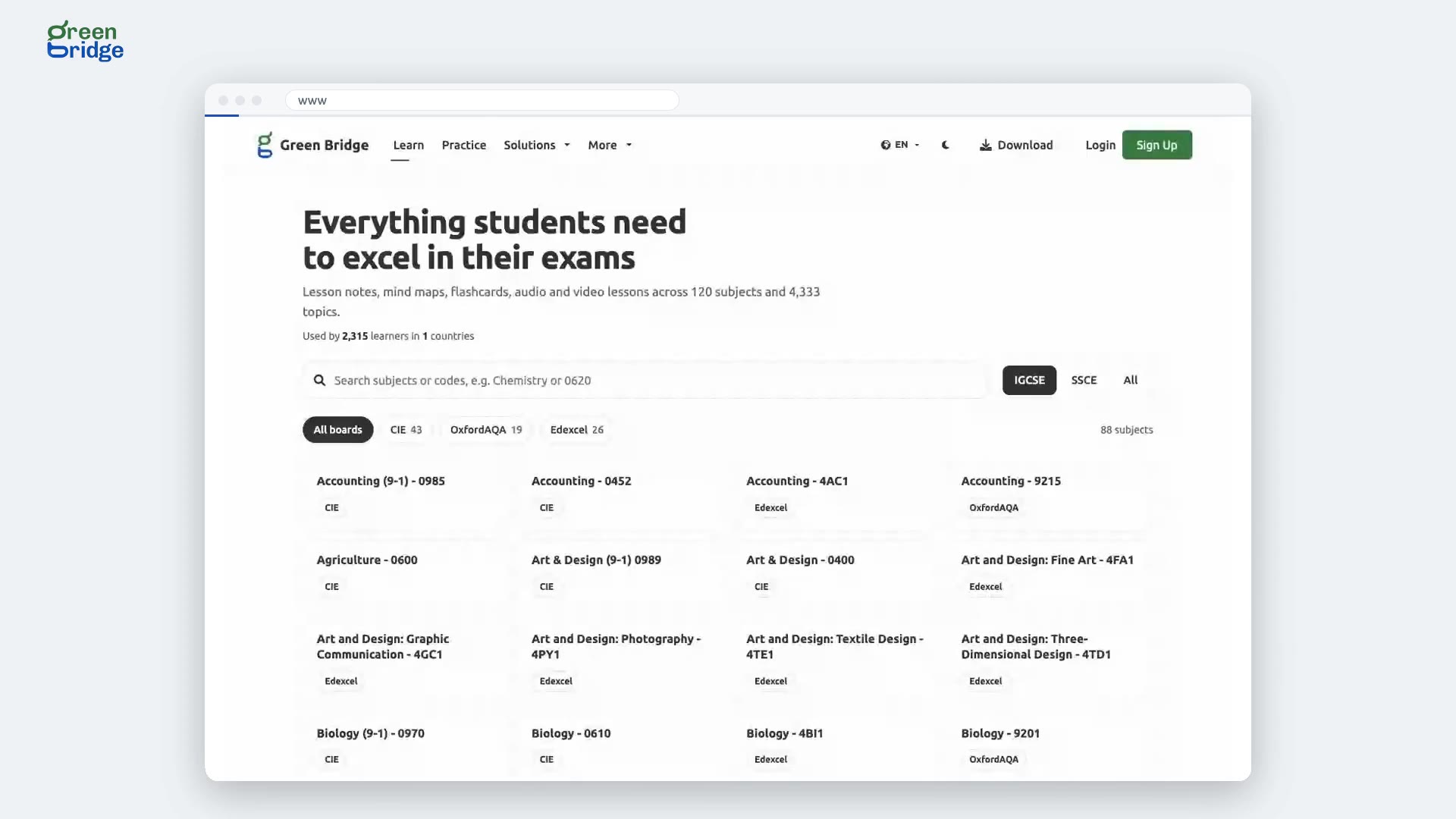
How to show Learn page subjects for one qualification
On the Learn page, beside the search box, click SSCE for subjects studied for WAEC, NECO and JAMB, or IGCSE for international ones. Only subjects for that qualification are listed. Click All to see every subject again.
Encontrar apontamentos de revisão
-
 0:27
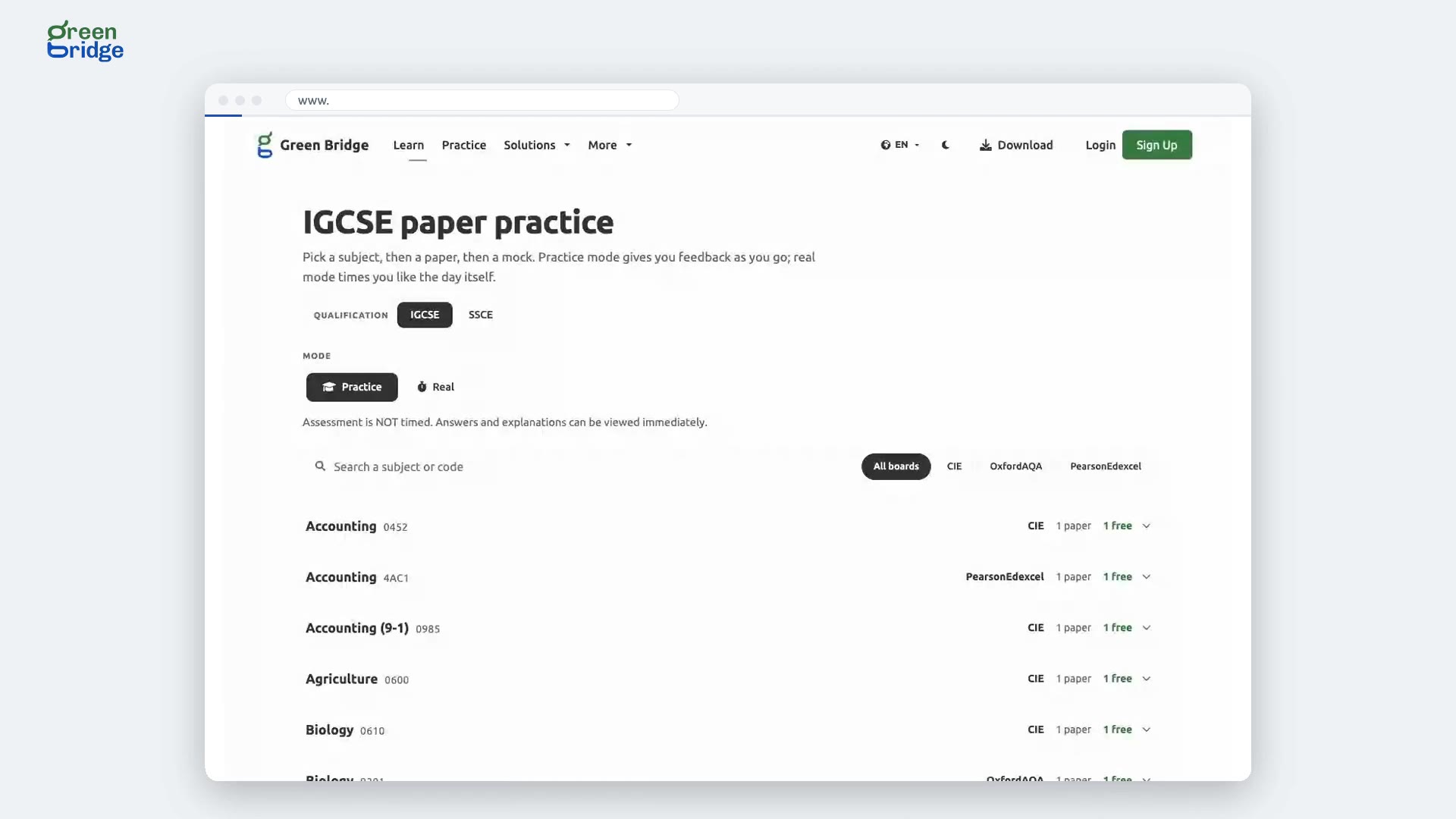
How to find past papers for a subject
Click Practice at the top of the page and type a subject name or code into the search box. The list narrows to the matching subjects as you type. Open a subject to see its papers.
Praticar exames anteriores
-
 0:26
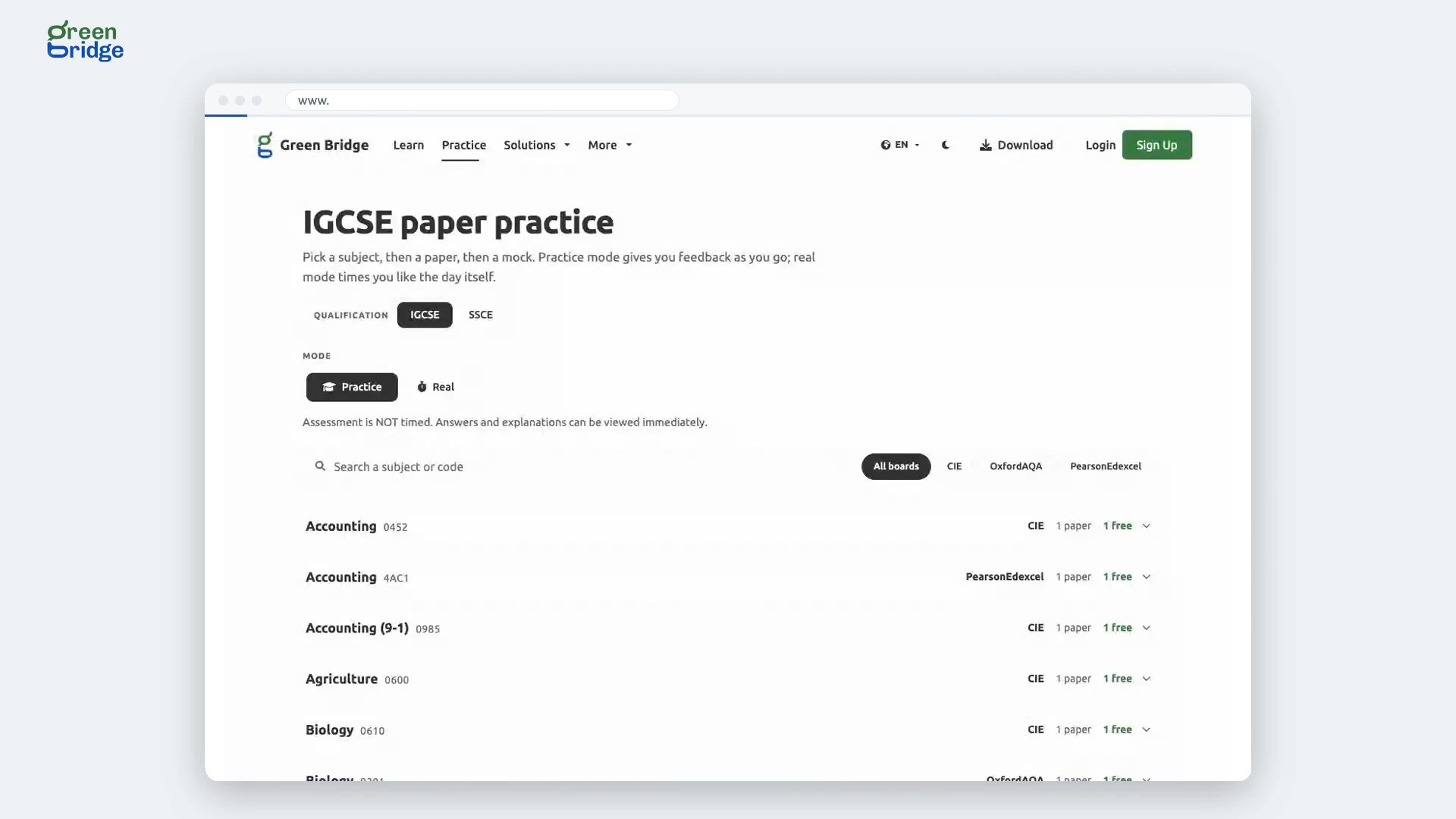
How to show IGCSE past papers for one exam board
Click Practice at the top of the page with IGCSE chosen. Beside the search box, click a board: CIE for Cambridge, PearsonEdexcel or OxfordAQA. Only subjects set by that board are listed. Click All boards to see them all again.
Praticar exames anteriores
-
 0:28
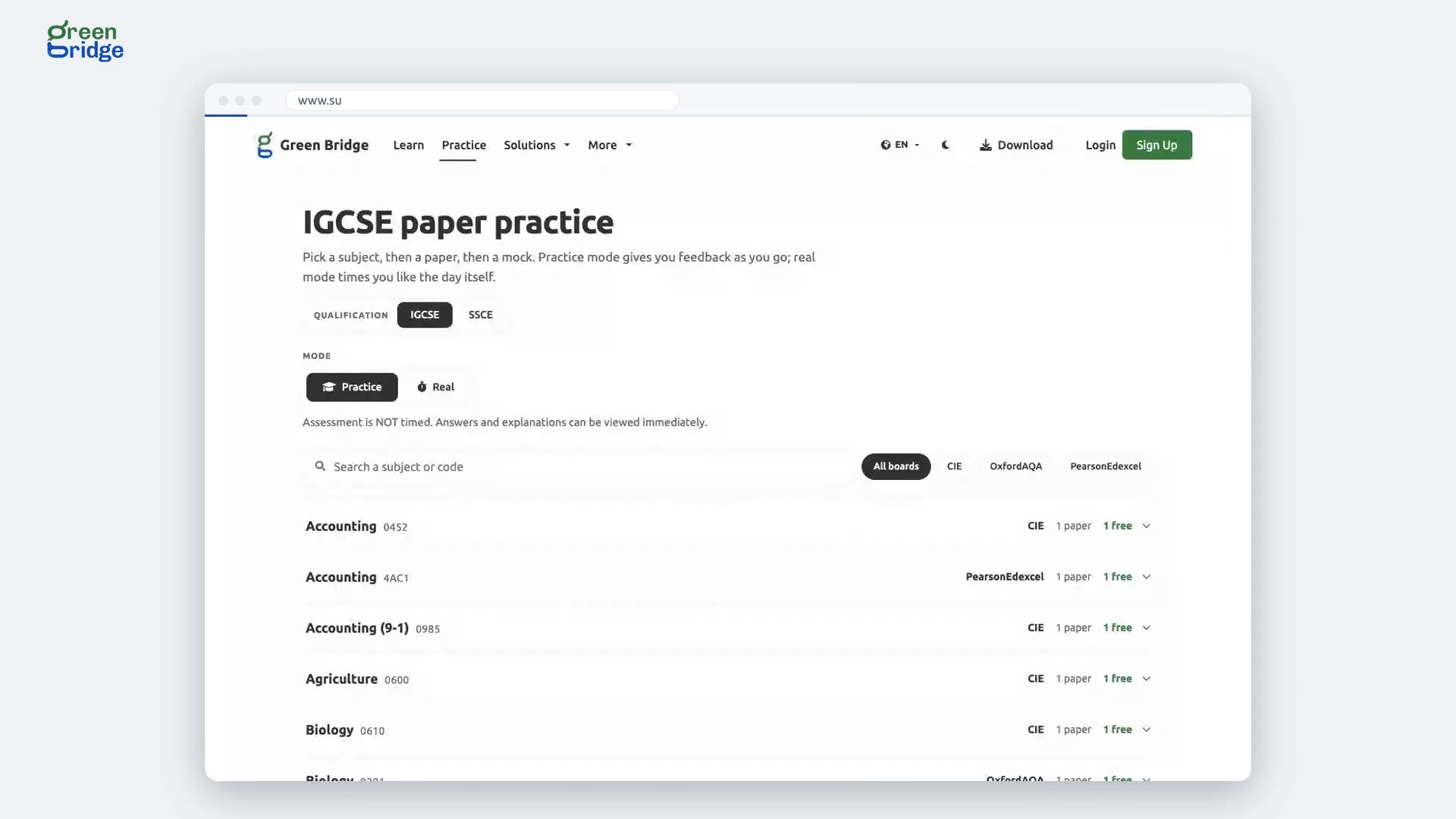
How to sit a past paper as a timed exam
Click Practice at the top of the page. Under Mode, choose Real instead of Practice. Every paper you open is then timed, and the answers are only shown after you submit. Switch back to Practice when you want to check answers as you go.
Praticar exames anteriores
-
 0:35
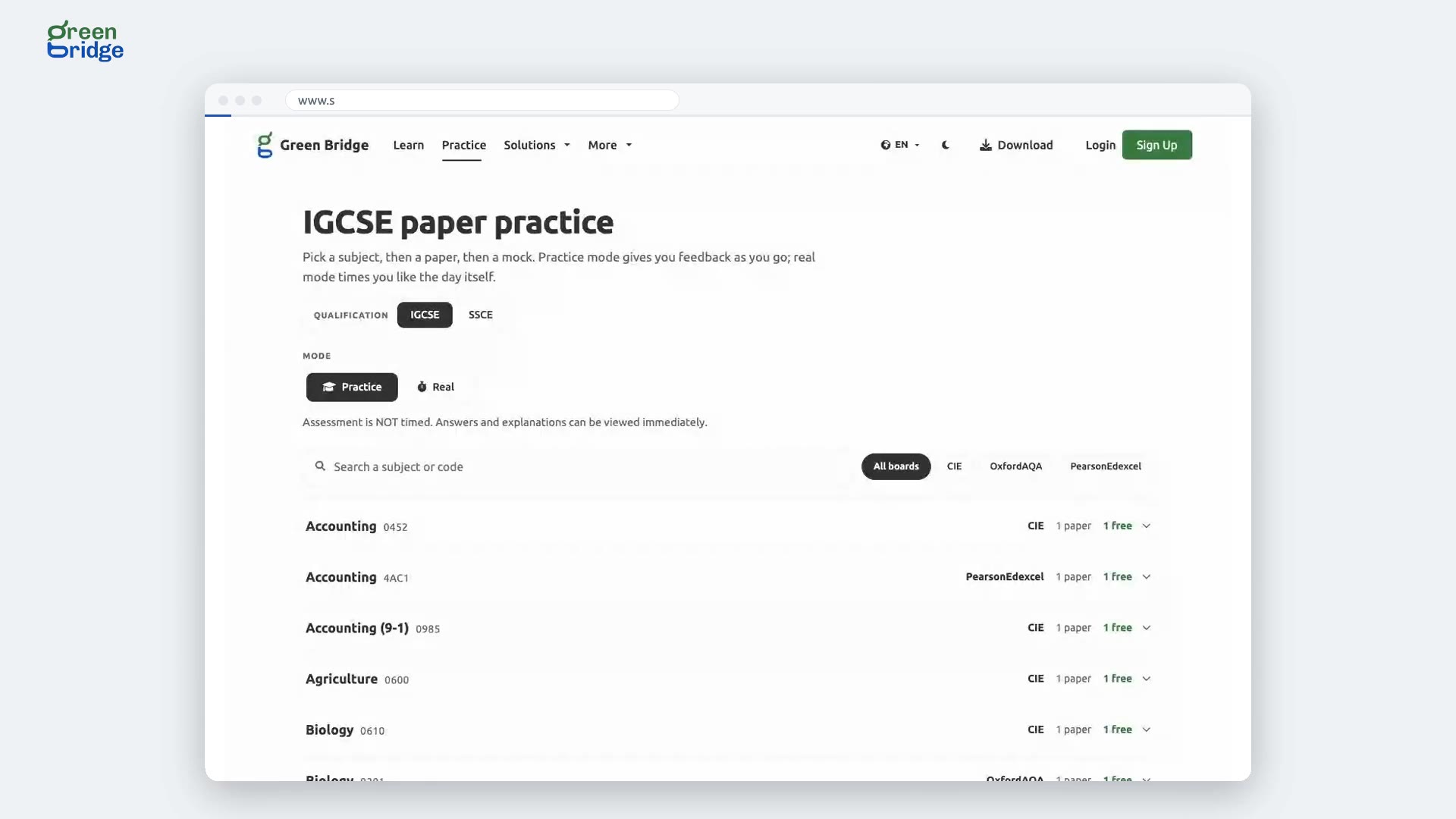
How to switch past papers between SSCE and IGCSE
Click Practice at the top of the page. Next to Qualification, click SSCE for WAEC, NECO and JAMB papers, or IGCSE for international ones. The page reloads with that qualification's papers, and you can switch back whenever you like.
Praticar exames anteriores
-
 0:47
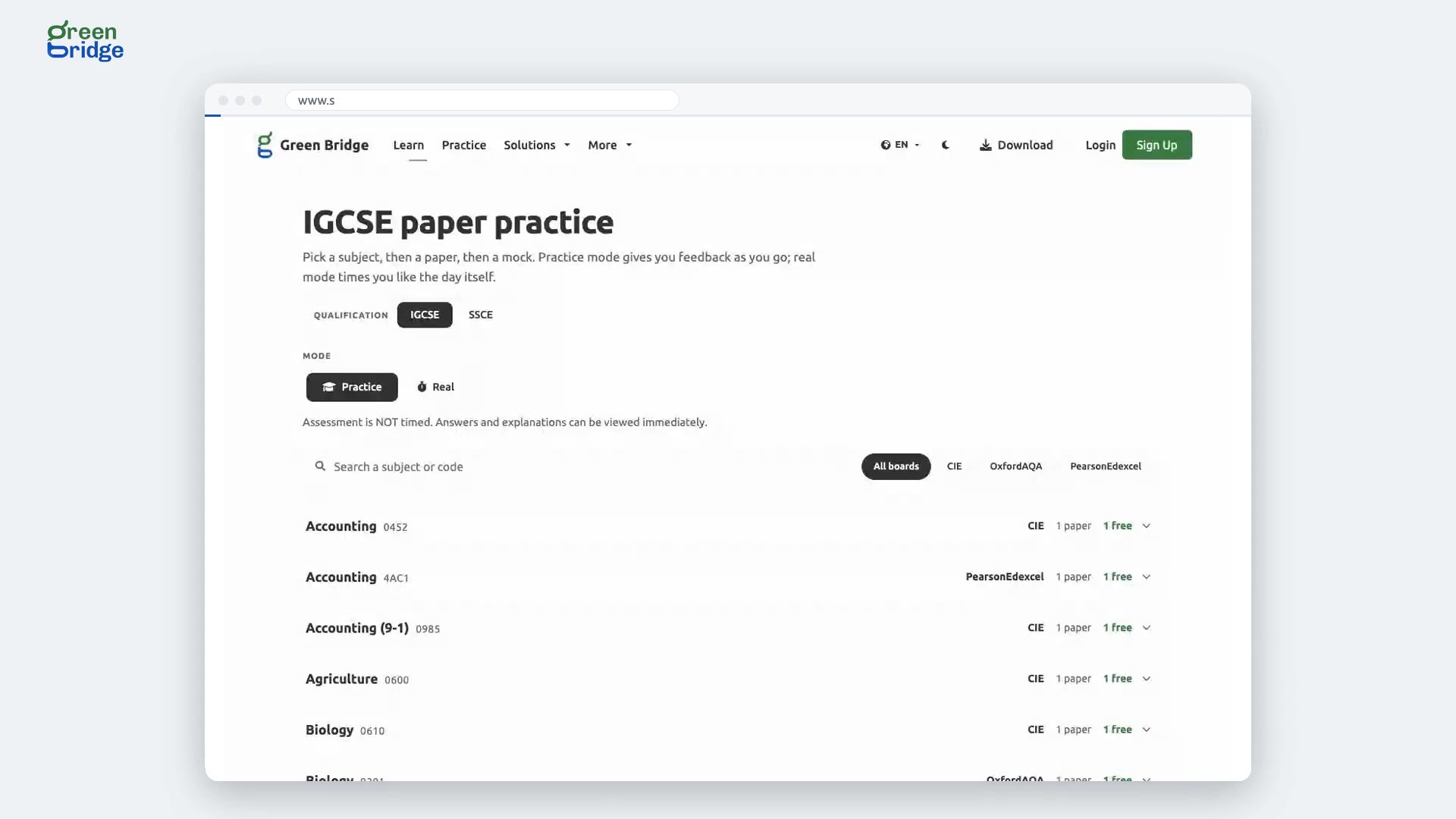
What happens if I pick a past paper before signing in?
You can browse past papers without an account, but you need to sign in to sit one. Click Practice at the top of the page, open a subject and pick a paper. You'll be asked to sign in, and once you do, the paper you picked opens, so there's no need to find it again.
Praticar exames anteriores
-
 0:24
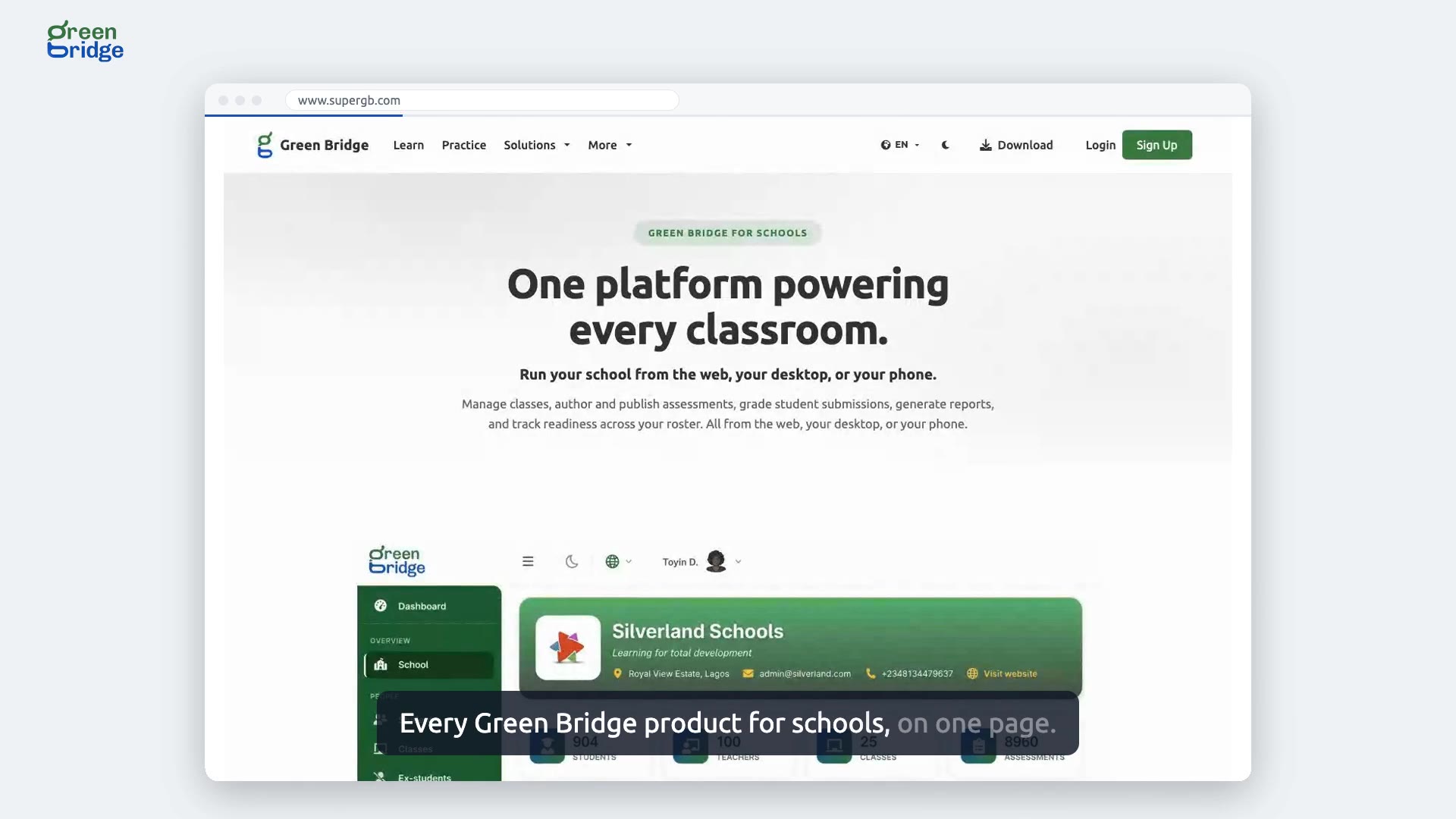
Which Green Bridge product should my school use?
Click Download at the top of the page and choose Get Green Bridge for Schools. You'll see three ways in: the Web Dashboard in any browser, the Desktop App for school computers and the Mobile Companion. Compare what each offers and pick what suits your staff.
Produtos para escolas
-
 0:28
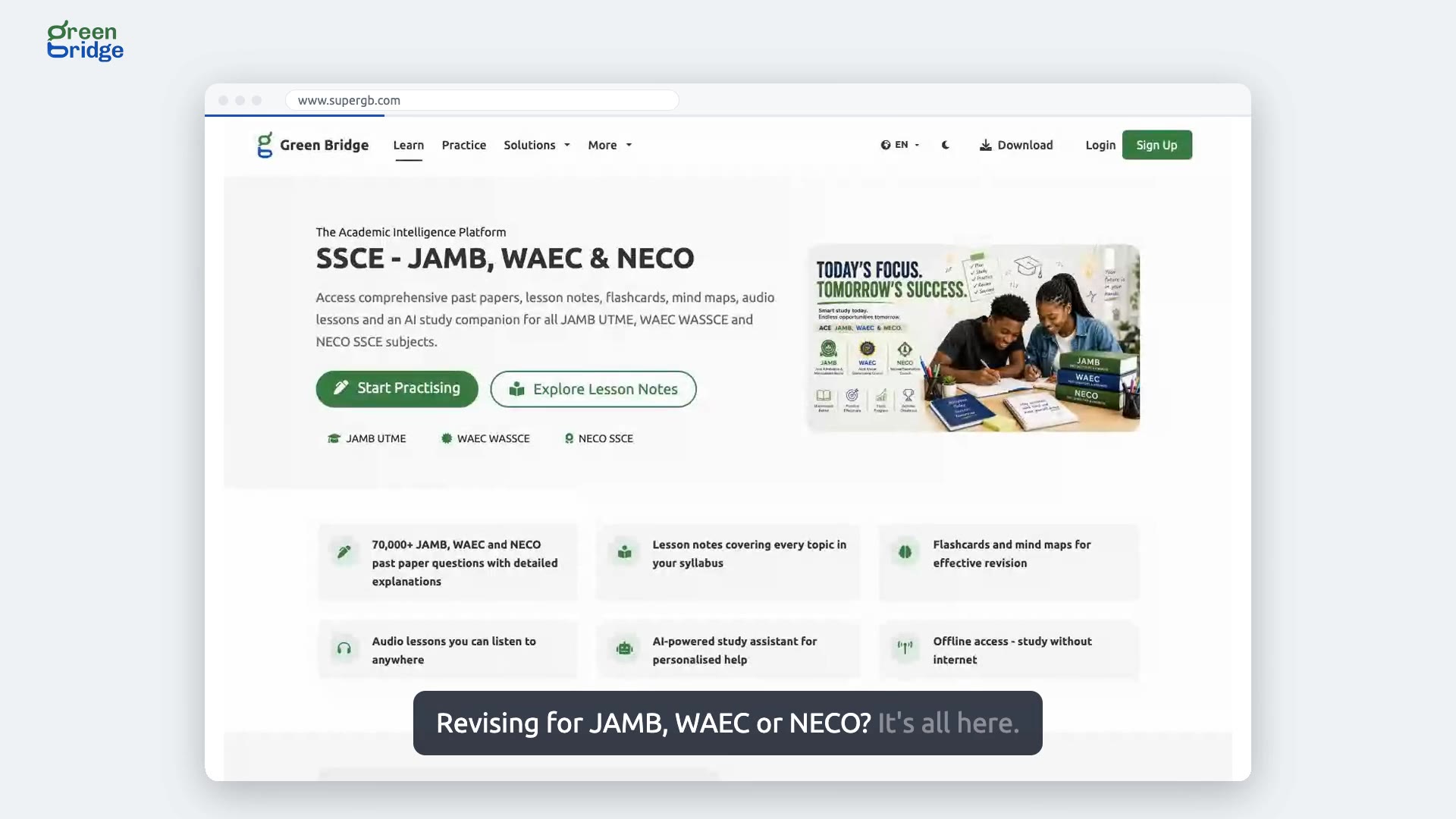
Where can I find SSCE subjects for JAMB, WAEC and NECO?
The SSCE - JAMB, WAEC & NECO learning page lists the subjects you sit for those exams. Click one to see its topics and work through them one by one before exam day.
Apontamentos de revisão SSCE
-
 0:26
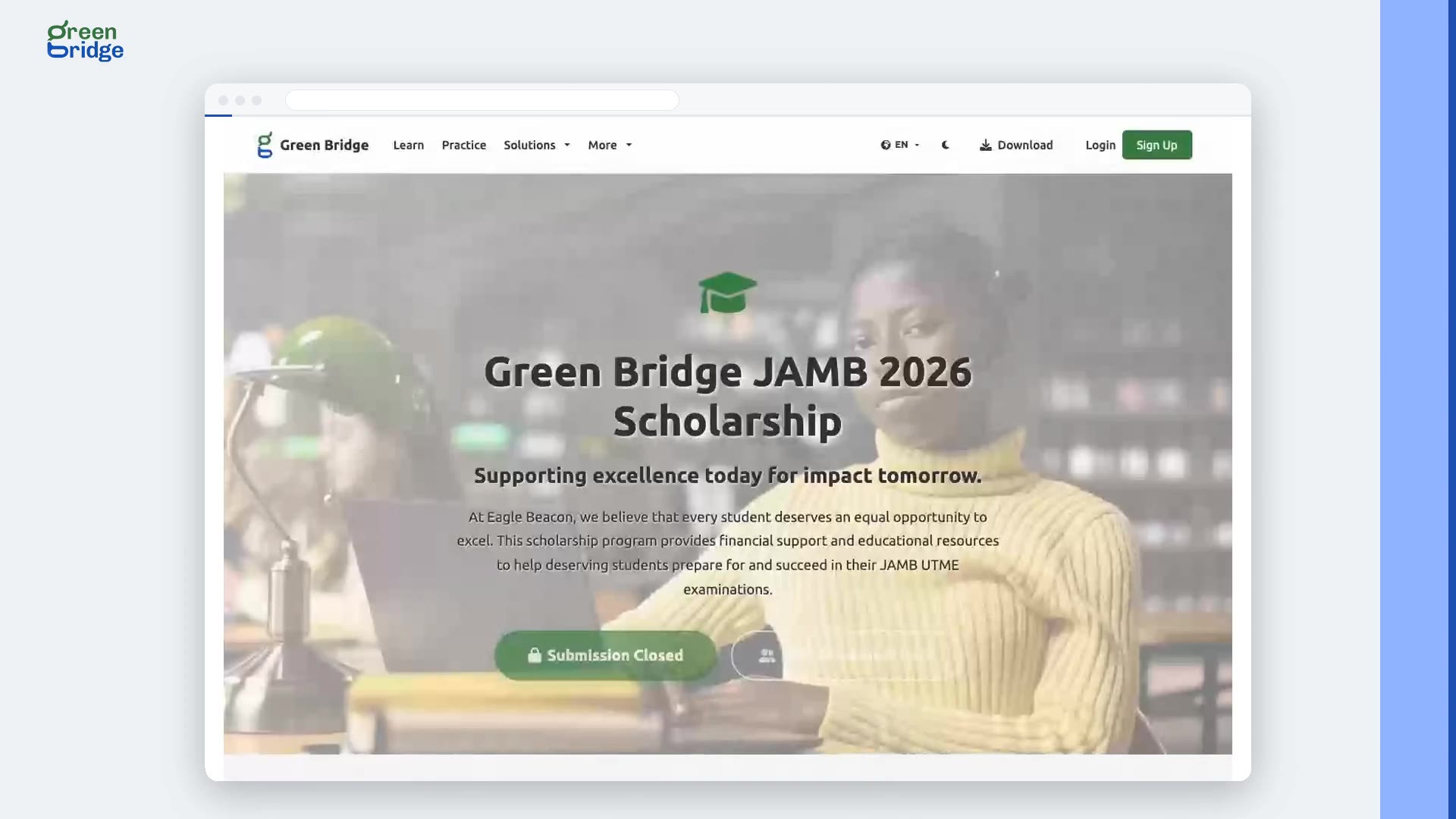
What is the Green Bridge JAMB 2026 scholarship?
The scholarship pays the JAMB registration fee and gives premium access to Green Bridge for more than 50 outgoing secondary school students sitting the 2026 UTME. To read who could apply and how recipients are chosen, open Scholarships from the menu at the top of the page (on a wide screen it sits under More). Applications closed on 8 February 2026.
Bolsas de estudo
-
 0:37
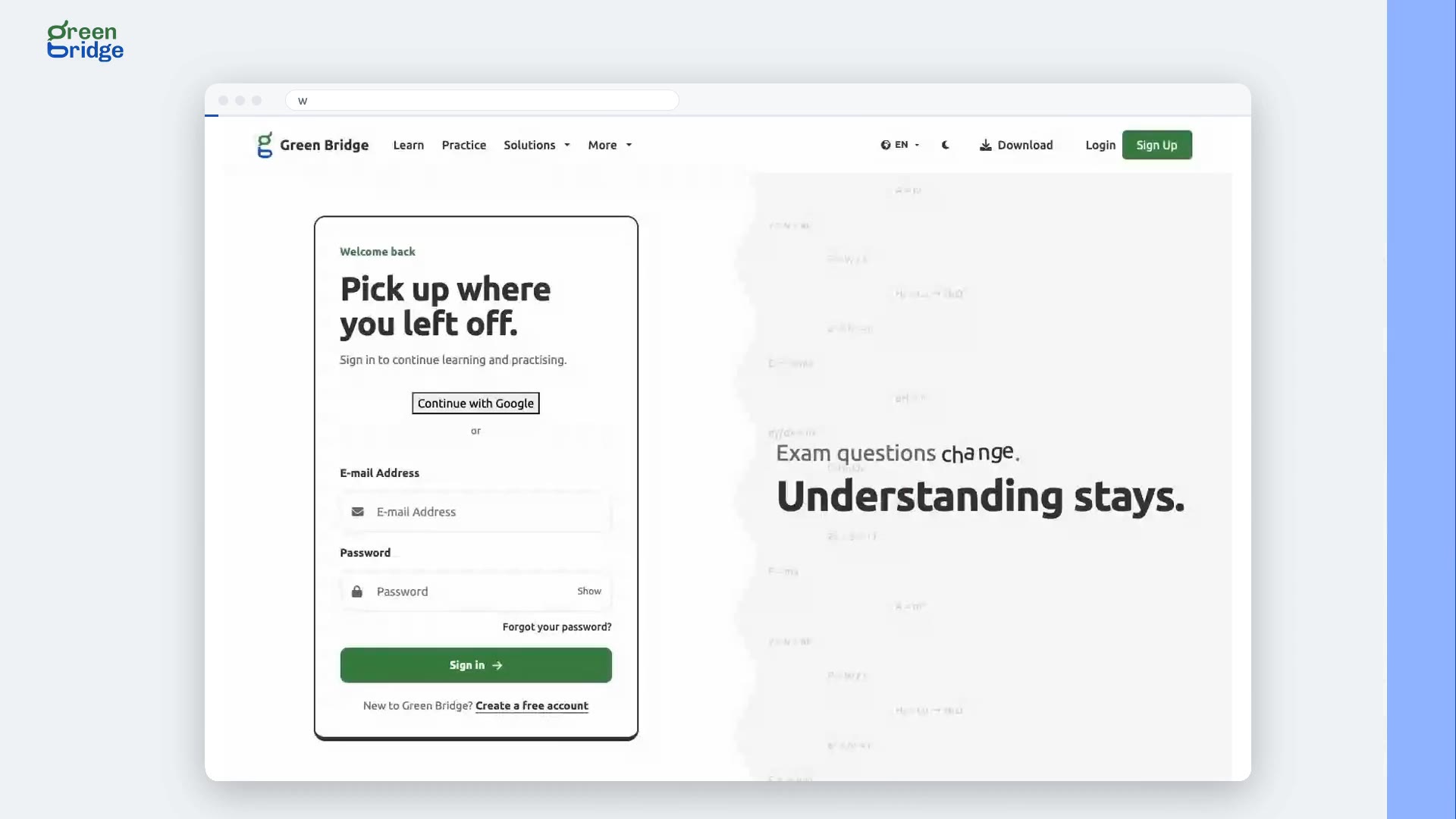
How to sign in to Green Bridge
Go to www.supergb.com and open the sign-in page. Type your E-mail Address and your password, then click Sign in. You'll land on your dashboard, ready to carry on practising.
Iniciar sessão
-
 0:54
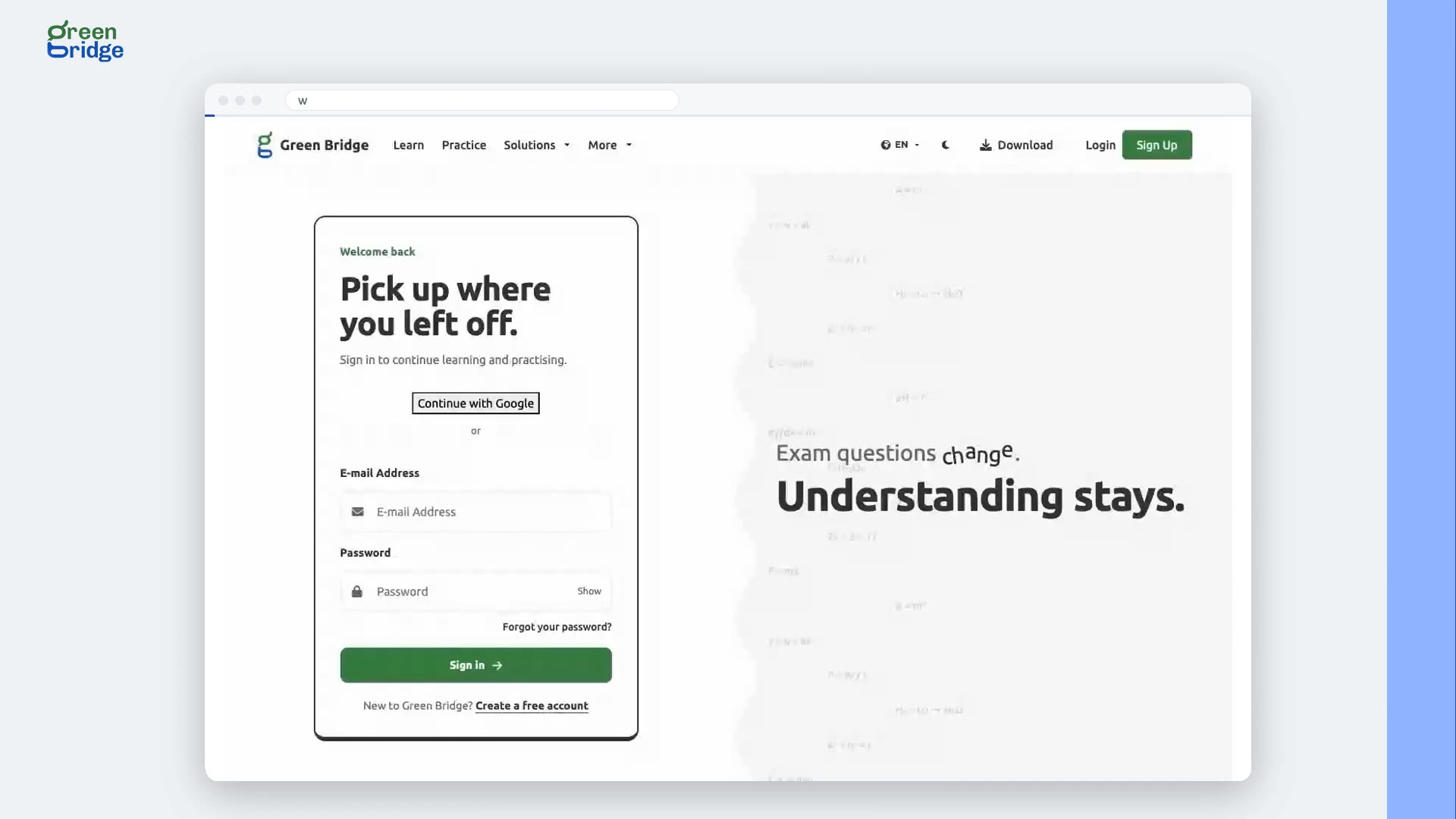
What happens if I type the wrong password?
You stay on the sign-in page and see "Invalid email or password. Please check your login details and try again." Check the email for typos and make sure Caps Lock is off. Click Show next to the password box to see what you typed. If you still can't get in, click Forgot your password? to set a new one.
Iniciar sessão
-
 1:26
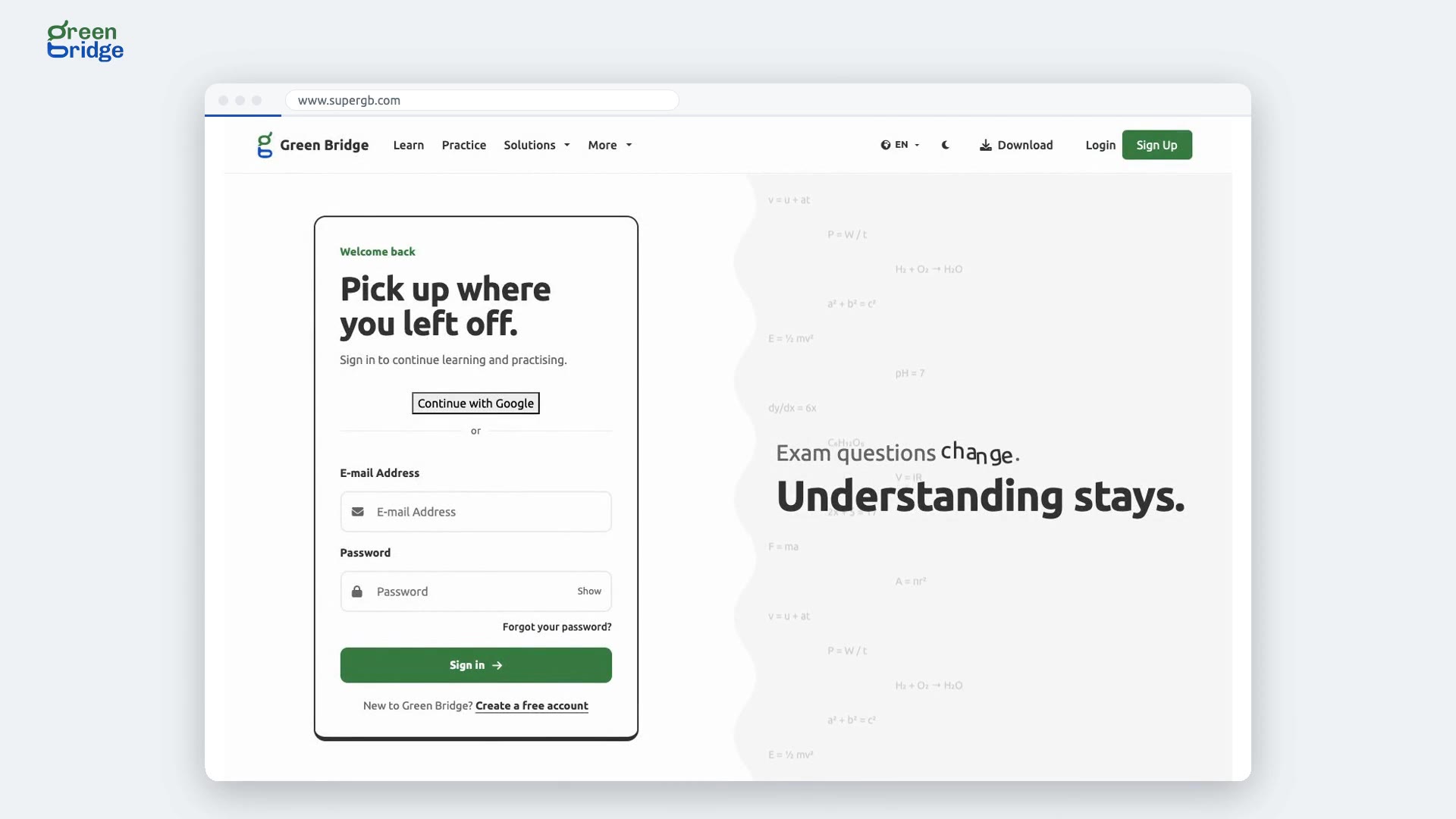
How to reset a forgotten password
On the sign-in page, click Forgot your password? under the password box. Enter the email address you signed up with and click Reset Password. We'll email you a link. Open it, type your new password twice and click Change. You can now sign in with the new password, and the old one stops working. If the email hasn't arrived after a few minutes, check your spam folder.
Iniciar sessão
-
 0:40
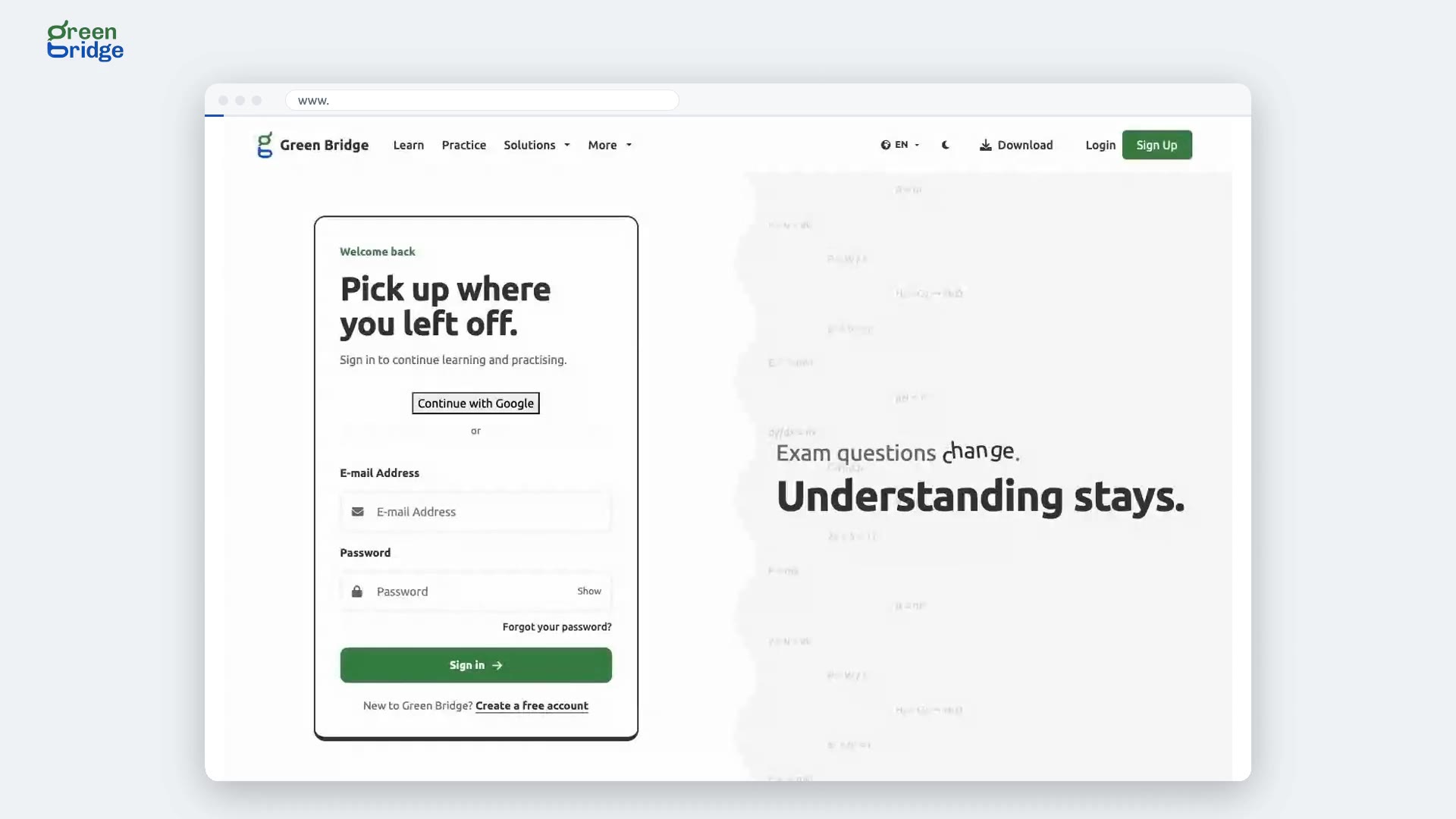
Where will I land after signing in?
Green Bridge takes you to the dashboard for your kind of account. Students go to their student dashboard, parents to the parent dashboard and teachers to their school dashboard. Scholarship judges see the judge dashboard, where their scholarship work is.
Iniciar sessão
-
 0:58
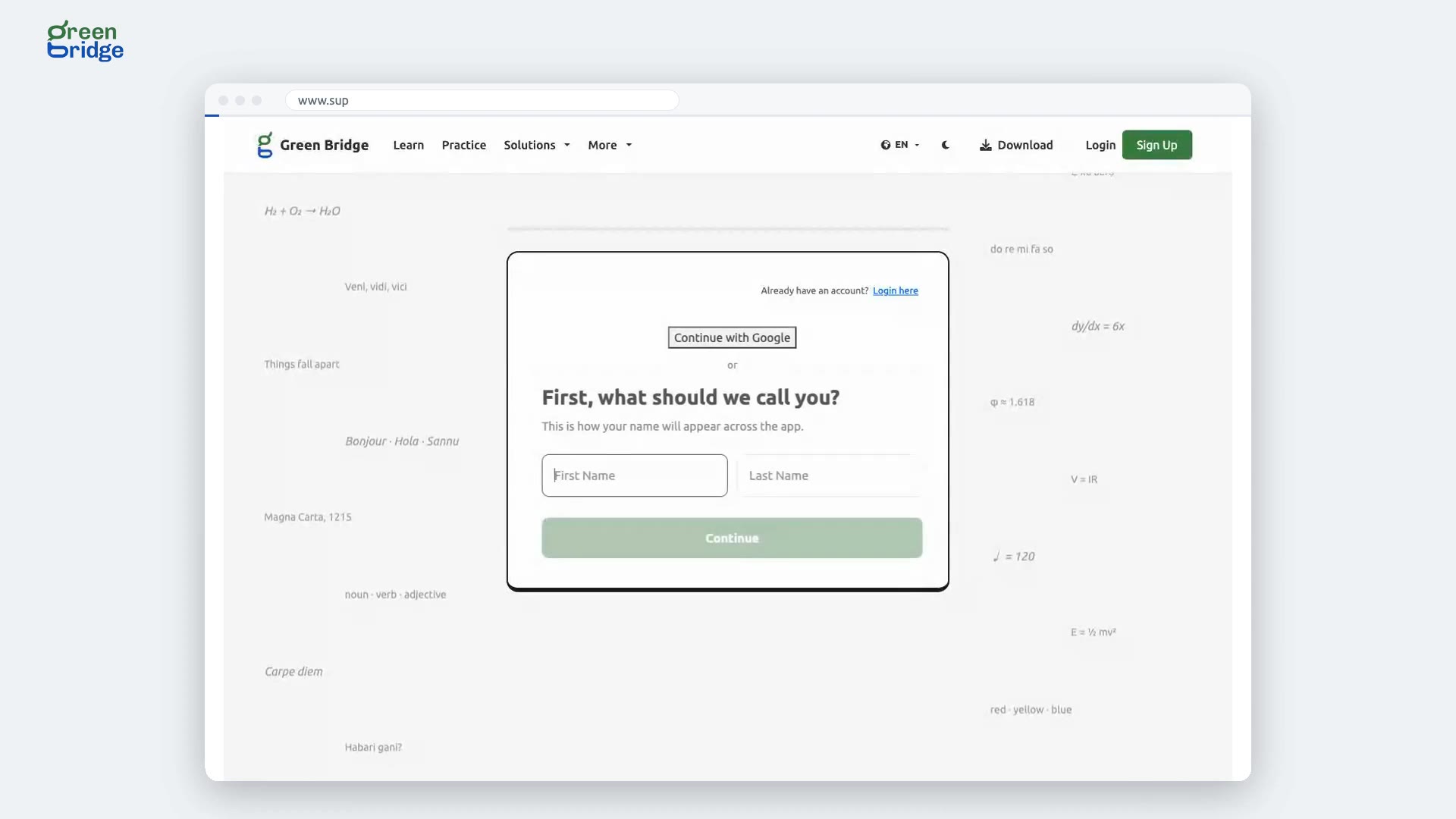
How to sign up as a student with Google
Click Sign Up at the top of the page, choose I am a Student and click Continue. Click Sign up with Google and pick your Google account. A few questions follow, such as your date of birth, phone number and the terms; anything optional has a Skip this one button. When you finish you land on your student dashboard, with no confirmation email to wait for.
Registar-se e iniciar sessão com o Google
-
 0:29
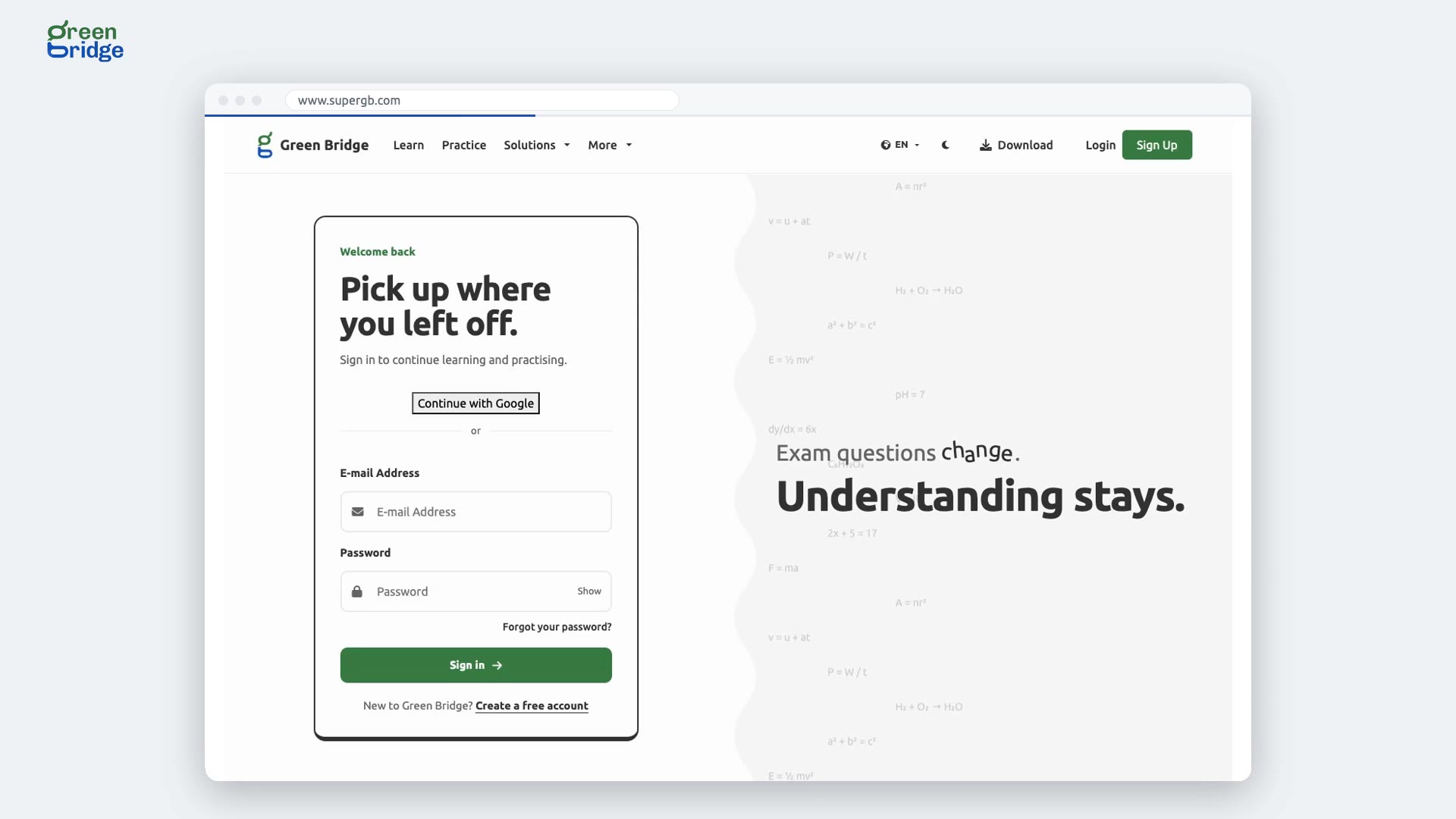
How to sign in with Google
Click Login at the top of the page, then Sign in with Google, and choose the Google account that uses the same email address as your Green Bridge account. You go to your dashboard without typing a password, and your account is linked to that Google account from then on.
Registar-se e iniciar sessão com o Google
-
 2:08
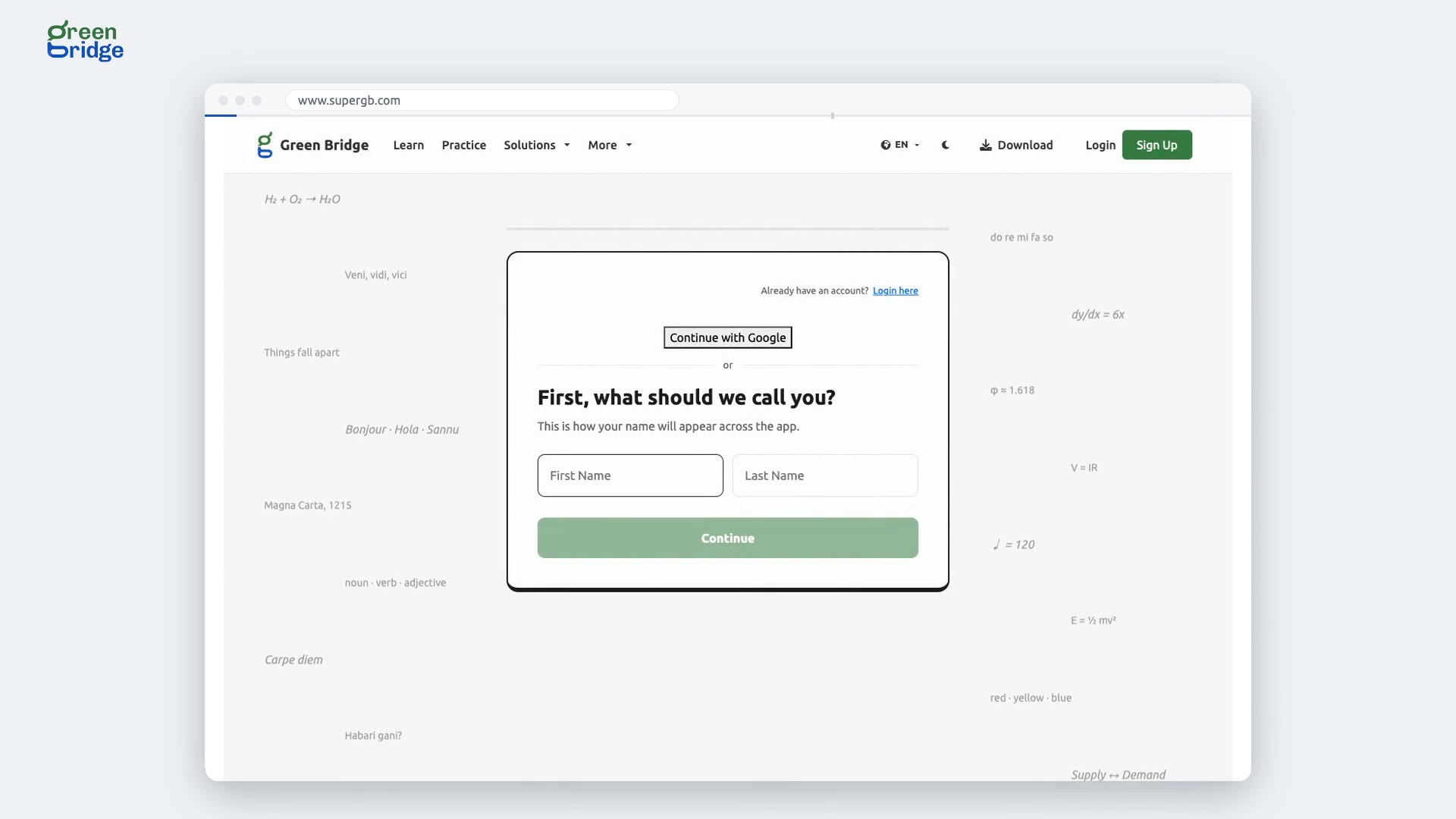
How to sign up as a student
On the sign-up page, choose I am a Student and click Continue. Answer one question at a time, including your name, email, the exam you're preparing for, your date of birth and a password. Some questions about how you study can be skipped with Skip this one. Agree to the Terms and Conditions to finish, then open the welcome email and select the link to activate your account. Now sign in and you'll be on your dashboard.
Criar uma conta
-
 1:35
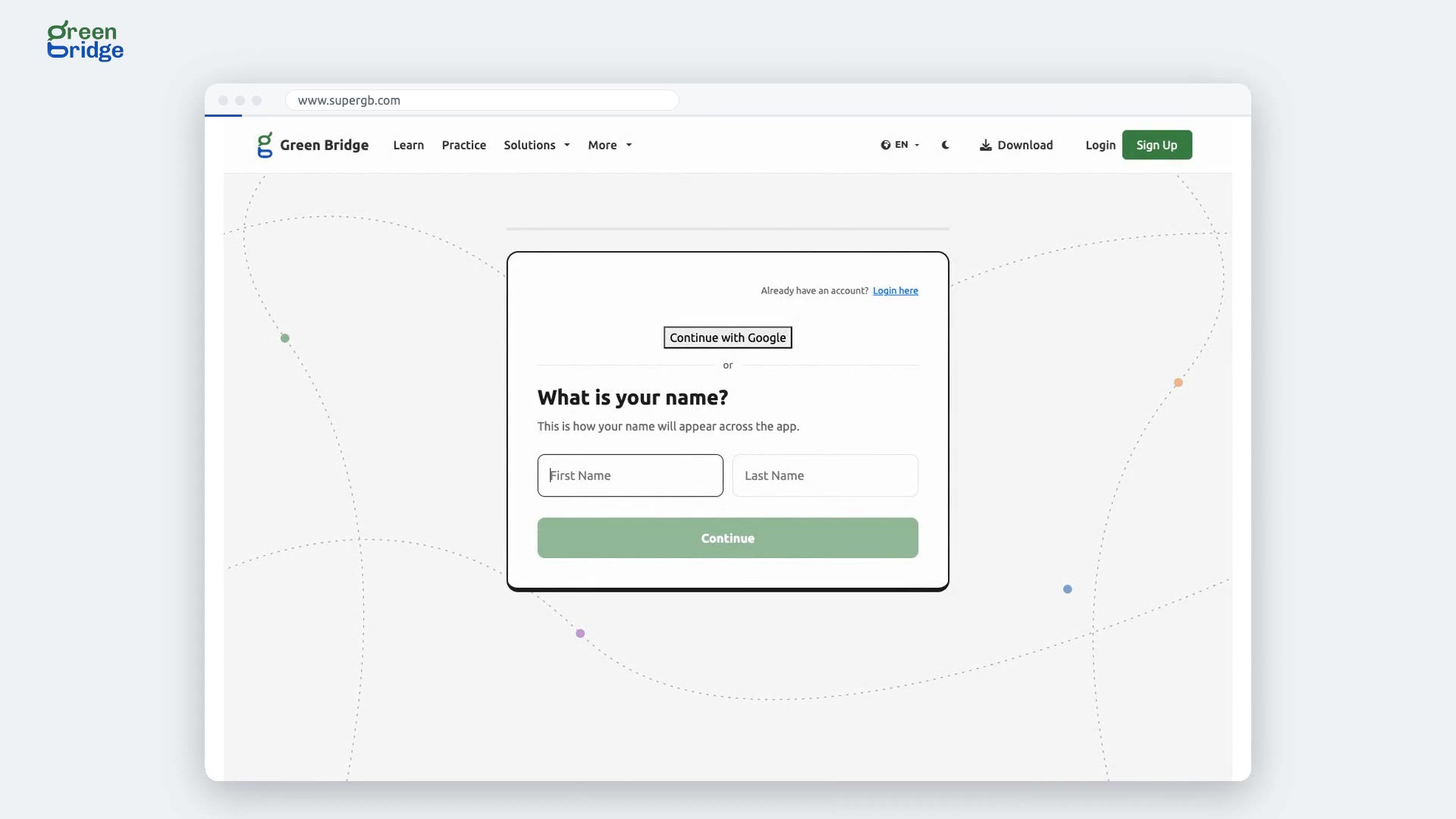
How to create a parent account
On the sign-up page, choose I am a Parent and click Continue. Answer one question at a time: your name, email, how many children you're supporting, your country, which exam they're preparing for, your date of birth and a password. A parent account needs someone aged 18 or over. Agree to the Terms and Conditions to finish, then open the "Welcome to Green Bridge for Parents" email and select the link. Sign in and you'll land on your parent dashboard.
Criar uma conta
-
 2:04
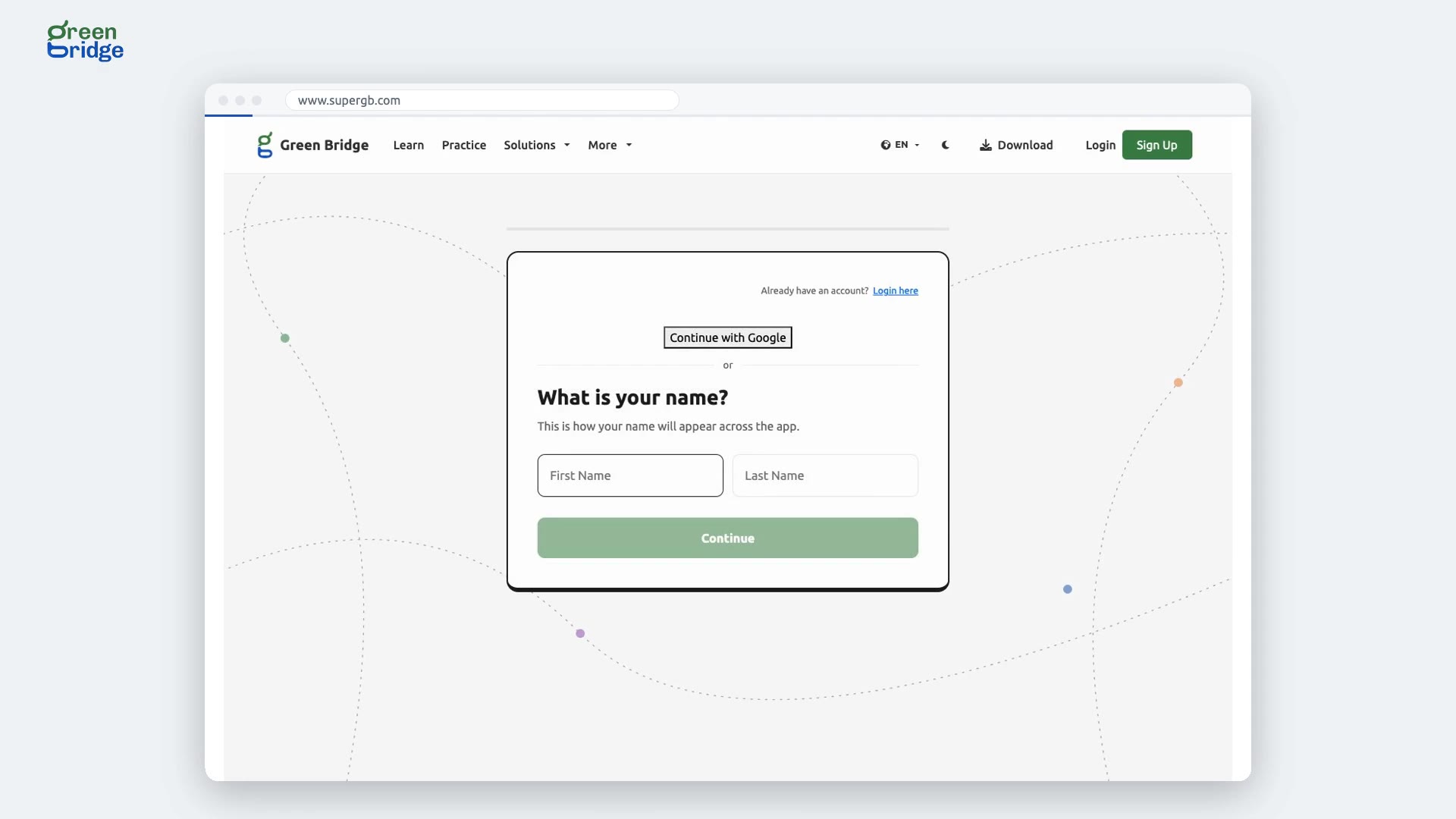
How to sign up as a teacher and join your school
On the sign-up page, choose I am a Teacher and click Continue. When you're asked if you know a school you would love to connect with, choose Yes, I do and type the school's share code. Your school admin gets an email to accept you. Confirm your own address from the welcome email. Once the school accepts, sign in and you'll land on your school dashboard.
Criar uma conta