Hoe Green Bridge werkt
Korte, eenvoudige uitleg van wat je met Green Bridge kunt doen, vaak met een video. Kies wie je bent en je platform, of zoek.
349 gidsen, 277 met een video
Gevonden handleidingen: 347 Filters wissen
-
 1:22
How to give a reference for a teacher
When a teacher names you as a referee, you get an email with a link. You don't need an account. Open it, say how you know the teacher and for how long, whether you'd recommend them, and what their strengths are. Tick the agreements and click Send reference. Each link works once and lasts 30 days, and the teacher never sees your answers.
Referenties voor docenten in het netwerk
-
 1:08
How to send a referee their link again, or remove them
Open Teachers' Network and find your referees under Grow your trust level. Click Send again to email a new link. If you've only just sent one, you'll be asked to wait a little first. To stop asking someone, click Remove and confirm. We won't contact them again.
Referenties voor docenten in het netwerk
-
 0:23
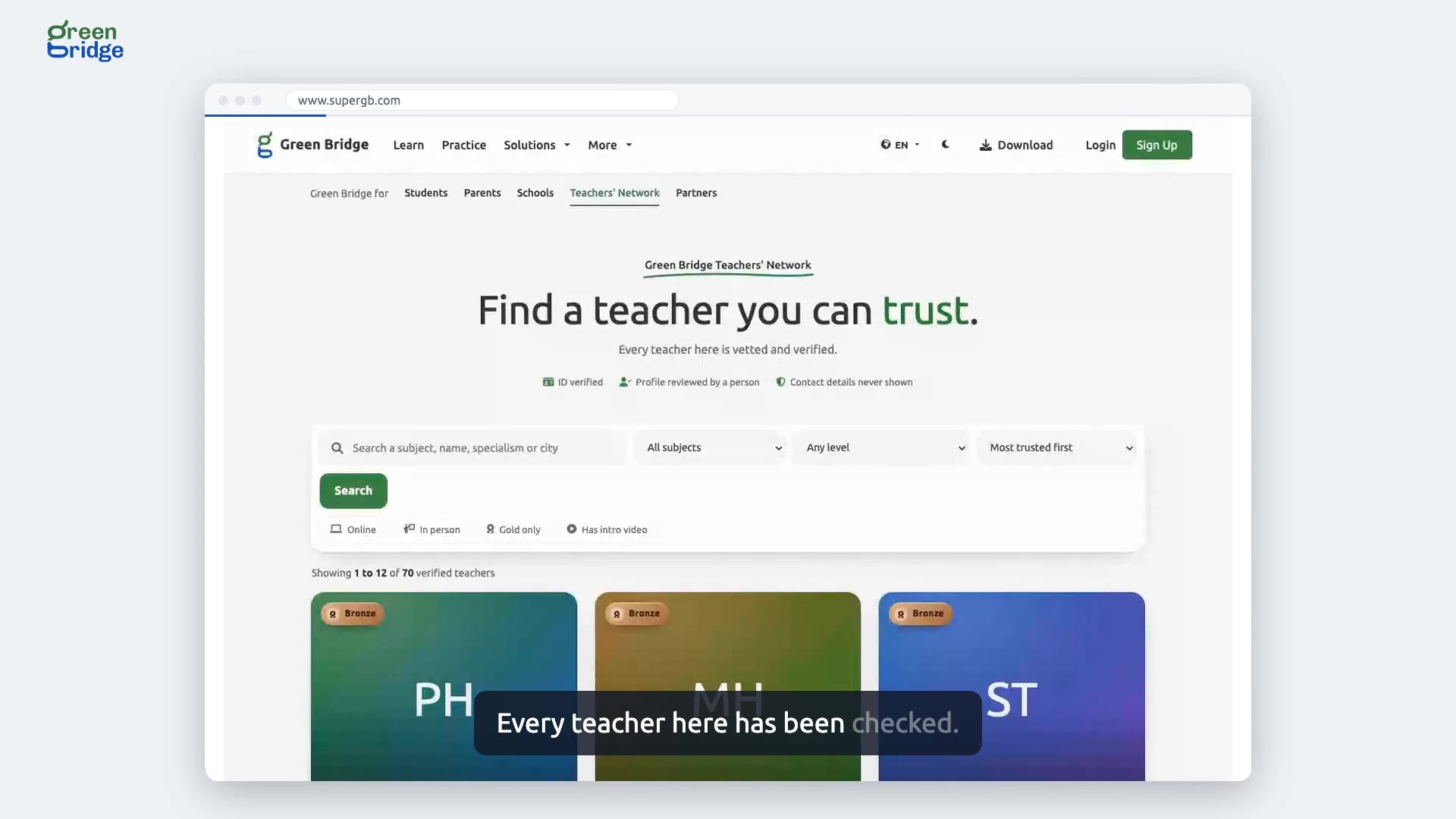
Where can I find a teacher I can trust?
The Find a teacher you can trust page lists teachers on the Green Bridge Teachers' Network. Every teacher there has been checked before they appear. Search by subject to see who teaches what, then open a profile to read more about them.
Een docent vinden
-
 0:27
What is the Green Bridge Teachers' Network?
It's where students and parents find a teacher, and where teachers get found. Joining takes three steps: build your teacher profile, verify your ID, then grow your trust with references and badges families can see. You set the hours you're available. Click Create your teacher profile on the Teachers' Network page to start.
Het docentennetwerk
-
 1:38
How to share a lesson note with your class
Open the note on your Lesson desk and click Share. Tick the class and click Share. Your students find it under Teacher notes in their own dashboard, where they can read it and click Print. They see the note as it was when you shared it, without your teacher-only parts, so share it again after you change it.
Lesnotities in de lesomgeving
-
 0:44
How to start a lesson note from a template
In your school dashboard, open Lesson desk and click New lesson note. Under How do you want to start?, pick From a lesson structure and choose one, such as Revision session or Exam technique. Click Create, then type a title at the top of the note. It saves as you type and waits on your desk with your other notes.
Lesnotities in de lesomgeving
-
 1:11
How to copy a lesson note, download it as a PDF or see its earlier versions
Open the note on your Lesson desk and click More at the top of it. Make a copy puts a second copy on your desk, ready to adapt for another class. Download PDF opens the note as a PDF you can save or print. Version history lists the note's earlier versions, so you can see what it said before.
Lesnotities in de lesomgeving
-
 1:32
Can I get back a lesson note I deleted?
Yes, for 30 days. A note you remove with More and then Move to trash waits in the trash, and learners can no longer see it. Click the bin icon at the top of your library to open the trash, choose the note and click Restore note to put it back on your desk. Delete forever removes it for good, and that can't be undone.
Lesnotities in de lesomgeving
-
 0:52
How to stop sharing a lesson note with your class
Open the note on your Lesson desk and click Share. Under Shared with, click Stop sharing next to the class. When nothing is left on that list, the note is private again and you can keep working on it.
Lesnotities in de lesomgeving
-
 0:50
How to organise your lesson notes into folders
On your Lesson desk, click New folder in the library on the left, type a name and press Enter. The folder appears in your library, ready to hold notes. To remove one, click Delete folder next to it and confirm. The notes inside are kept, so nothing you wrote is lost.
Lesnotities in de lesomgeving
-
 1:29
How to have AI draft a lesson note, then make a section simpler
On your Lesson desk, click New lesson note. Choose the subject and topic, type the level (for example, Year 10 or SS2), pick AI draft and say what the draft should focus on, then click Create. The draft opens for you to edit. If a section is too hard for your class, click Revamp with AI on that section, choose Make it simpler and click Use this to keep the new wording. The top of the desk shows how much AI help you have left today.
Lesnotities in de lesomgeving
-
 0:54
How to add a section of an OpenStax textbook to a lesson note
Open the note on your Lesson desk. In the Add row at the bottom of the note, click From open sources, choose OpenStax as the source and search for the section you want. Click Add to note next to it and its text becomes part of your note. The book is credited under Sources and credits, and only material whose licence allows it can be edited.
Lesnotities in de lesomgeving
-
 1:14
Where do I find my school tests and results?
When your school has a test for you, it's on your home page under A school test to take, with a Start test button. Click See my tests to open My Assessments: open tests are at the top with a Take button, and tests you've already sat are under Past submissions. Open one to see your result.
Je schooltoetsen
-
 1:26
How to sit the school test on your home page
Sign in and the test is on your home page under A school test to take. Click Start test and type the code your school emailed you. Read the instructions and click Start Assessment. Answer each question, then click Submit and confirm. You'll be thanked for handing it in, and the test leaves your home page.
Je schooltoetsen
-
 0:38
Why is there no school test on my home page?
Your home page only shows a school test when there's one you still have to take. If it's missing, you've sat every test your school has open. Your marked tests are still in See my tests under Past submissions.
Je schooltoetsen
-
 1:46
How to ask the assistant for questions from the bank
Open the test from Assessments, click Add question and choose AI assistant. Say what you need, for example multiple-choice questions for this test, and send it. The assistant suggests questions from the Green Bridge question bank. Click Accept on the ones you want and they join the test. Each test can take only a set number of questions from the assistant.
Toetsen maken voor je school
-
 1:44
How to write a test for a class you teach
Open Assessments and click Create assessment. The class list offers only the classes you teach. Set the title, subject, duration and question counts and save. Then click the test's name, choose Add question, write the question with its answer and click Save and finish.
Toetsen maken voor je school
-
 2:58
How to write short-answer, practical and speaking questions
When you create the test, open More question types and set how many of each you need. Then click Add question and pick the type. For a short answer, put each blank in curly braces and list the answers it accepts. A practical question takes a model answer for the marker, and a speaking question takes a preparation time and a response time. Preview shows a question as students see it, and View edit history lists every change to it.
Toetsen maken voor je school
-
 0:53
How to add another admin to your school
Open Staff and go to Administrators. Under Add an administrator, type your colleague's email and click Add administrator. We email them a link, and if they don't have a Green Bridge account yet, it lets them create one with that address. To take someone off, click Remove under their name and confirm. They can no longer manage the school.
Het personeel van je school
-
 1:44
How to join your school's staff as a teacher
Ask your school admin for the school share code. Sign in, and your dashboard shows Awaiting school invitation with a box for each character of the School share code. Type it in and click Send request. Once the admin accepts, you're emailed and the school's classes and tests appear on your dashboard.
Het personeel van je school
-
 1:39
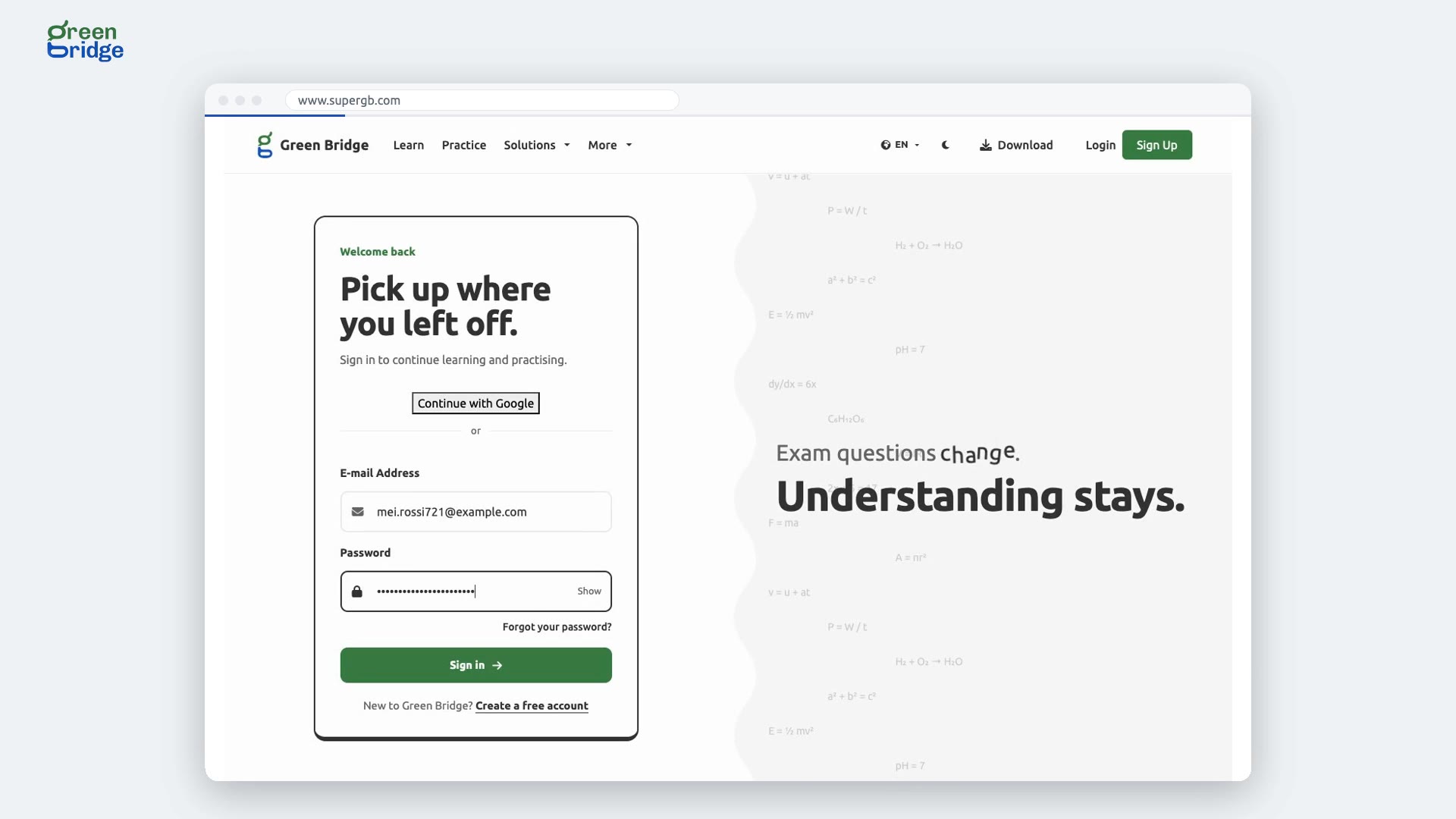
How to decline a teacher's request to join your school
Open Staff and go to Join requests. Find the teacher and click Decline, then confirm. The request disappears, the teacher isn't added to your staff, and they're told by email. They can ask again later if they need to.
Het personeel van je school
-
 1:45
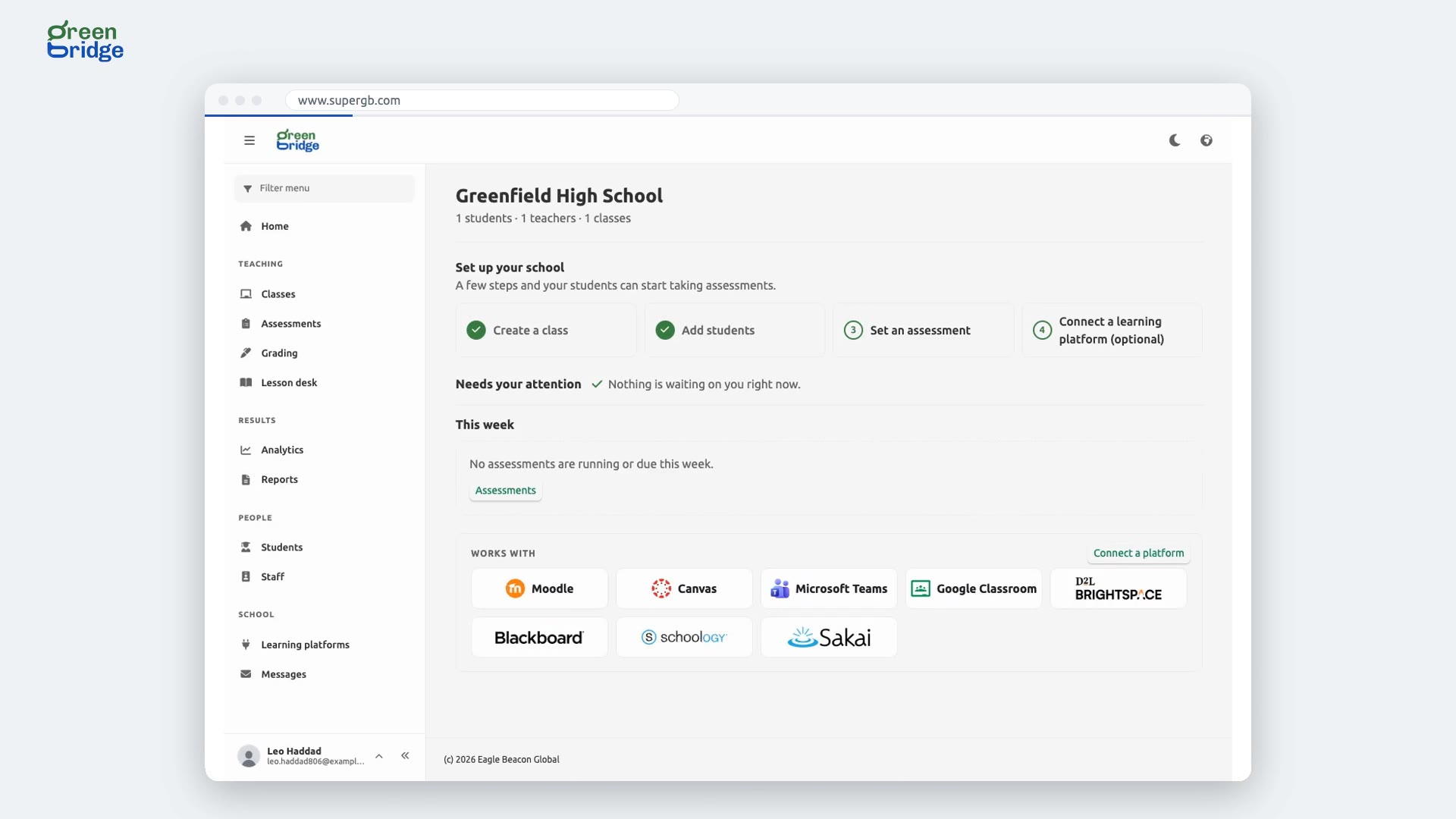
Where do I see new requests to join my school?
Your dashboard home has a Needs your attention list. When someone has entered your school share code, it shows how many people are asking to join the school, with a Review button. Click Review to go to Join requests, where you can accept or decline each one.
Het personeel van je school
-
 2:27
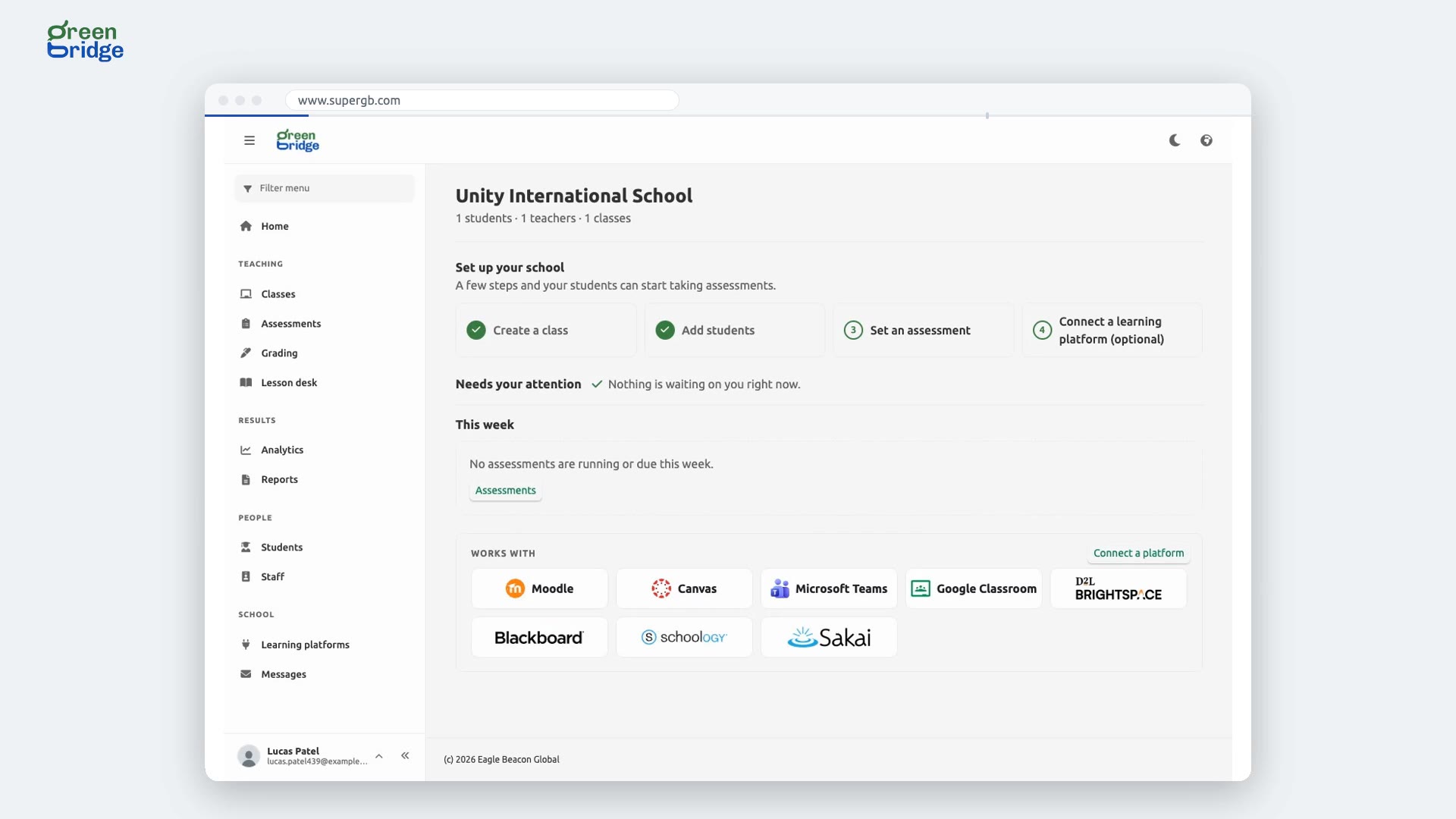
How to accept several teachers' join requests together
Open Staff and go to Join requests. Everyone who entered your school share code is listed. Tick Select all requests, or tick the people you want, then click Accept selected and confirm. Each teacher is emailed and joins your staff.
Het personeel van je school
-
 1:05
How to record a student who has left, and restore them
Open Students, click Mark as ex-student for the student, add a reason such as graduated or transferred, and confirm. They're taken out of all their classes and moved to Ex-students, but their account stays as it is. If they come back, open Ex-students and click Restore.
De leerlingen van je school