Hoe Green Bridge werkt
Korte, eenvoudige uitleg van wat je met Green Bridge kunt doen, vaak met een video. Kies wie je bent en je platform, of zoek.
349 gidsen, 277 met een video
Gevonden handleidingen: 106 Filters wissen
-
 0:25
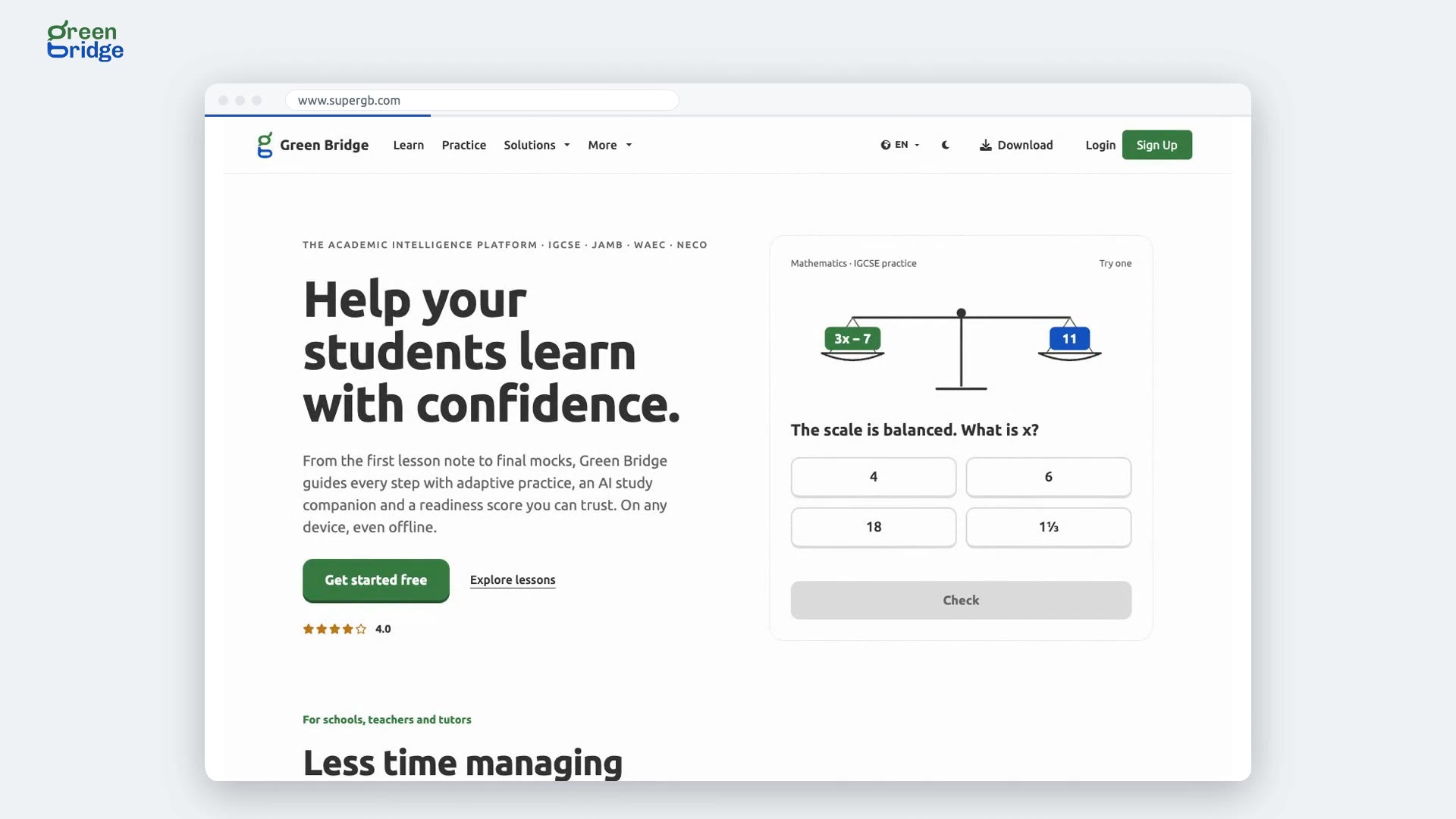
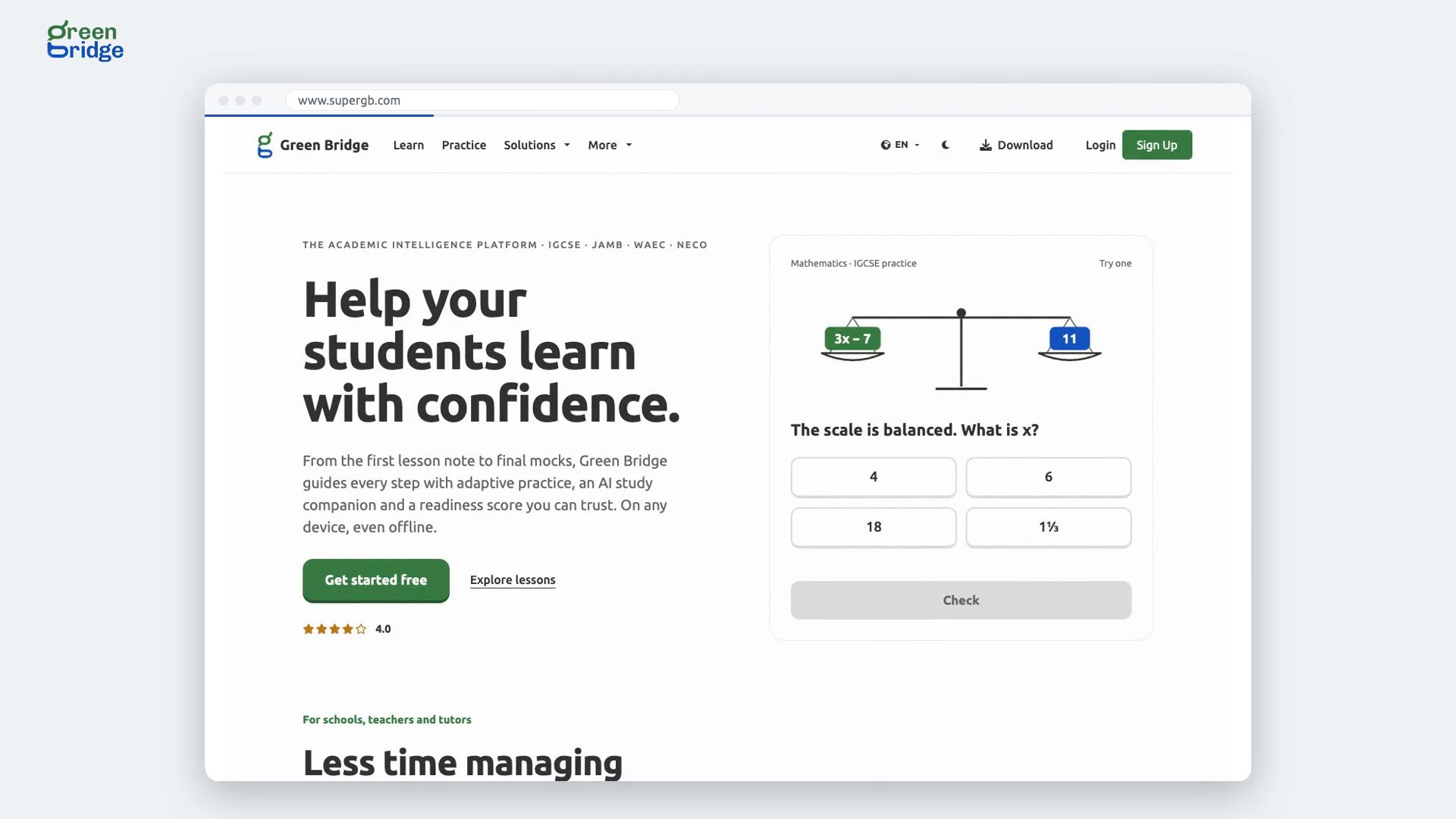
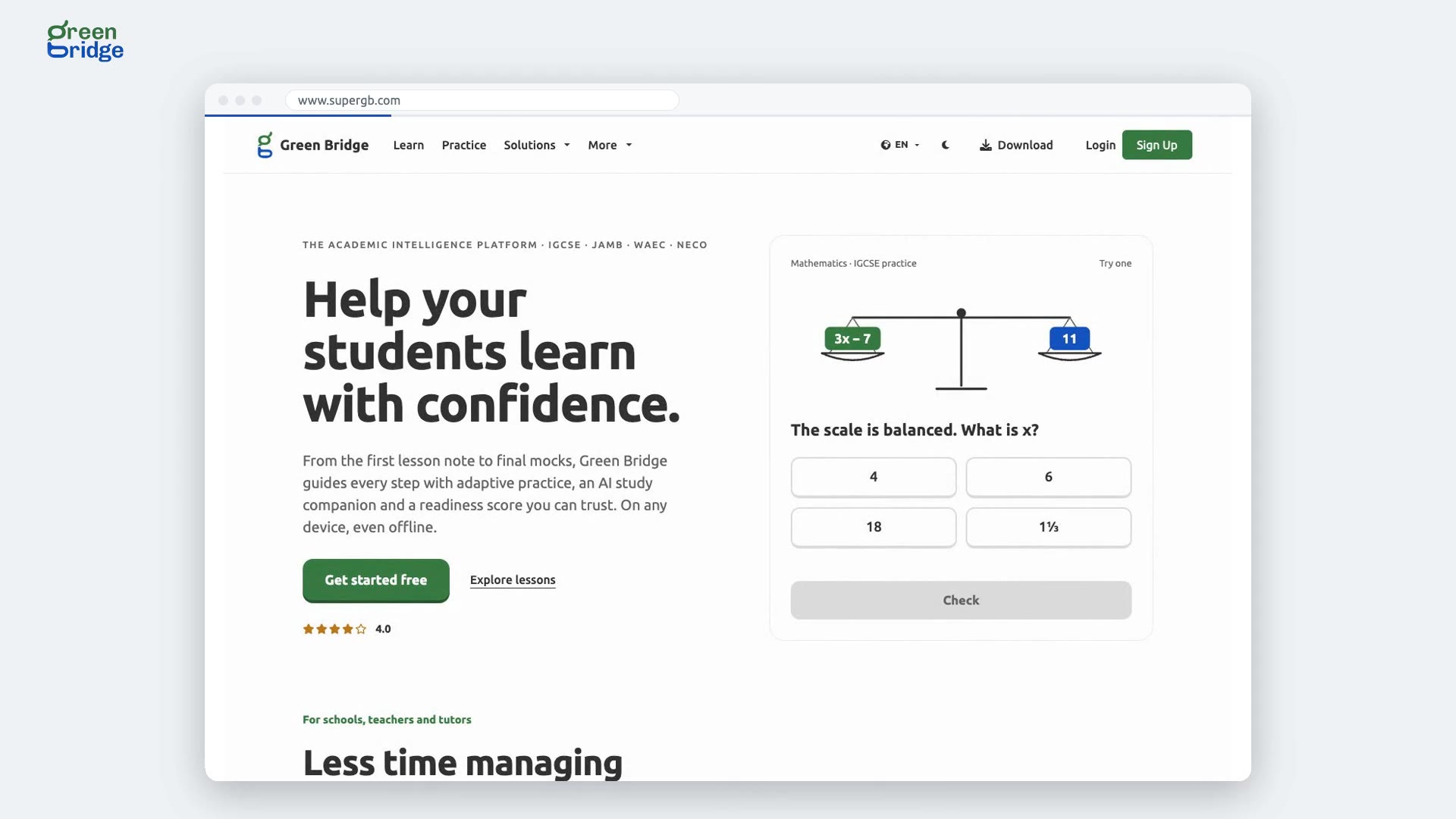
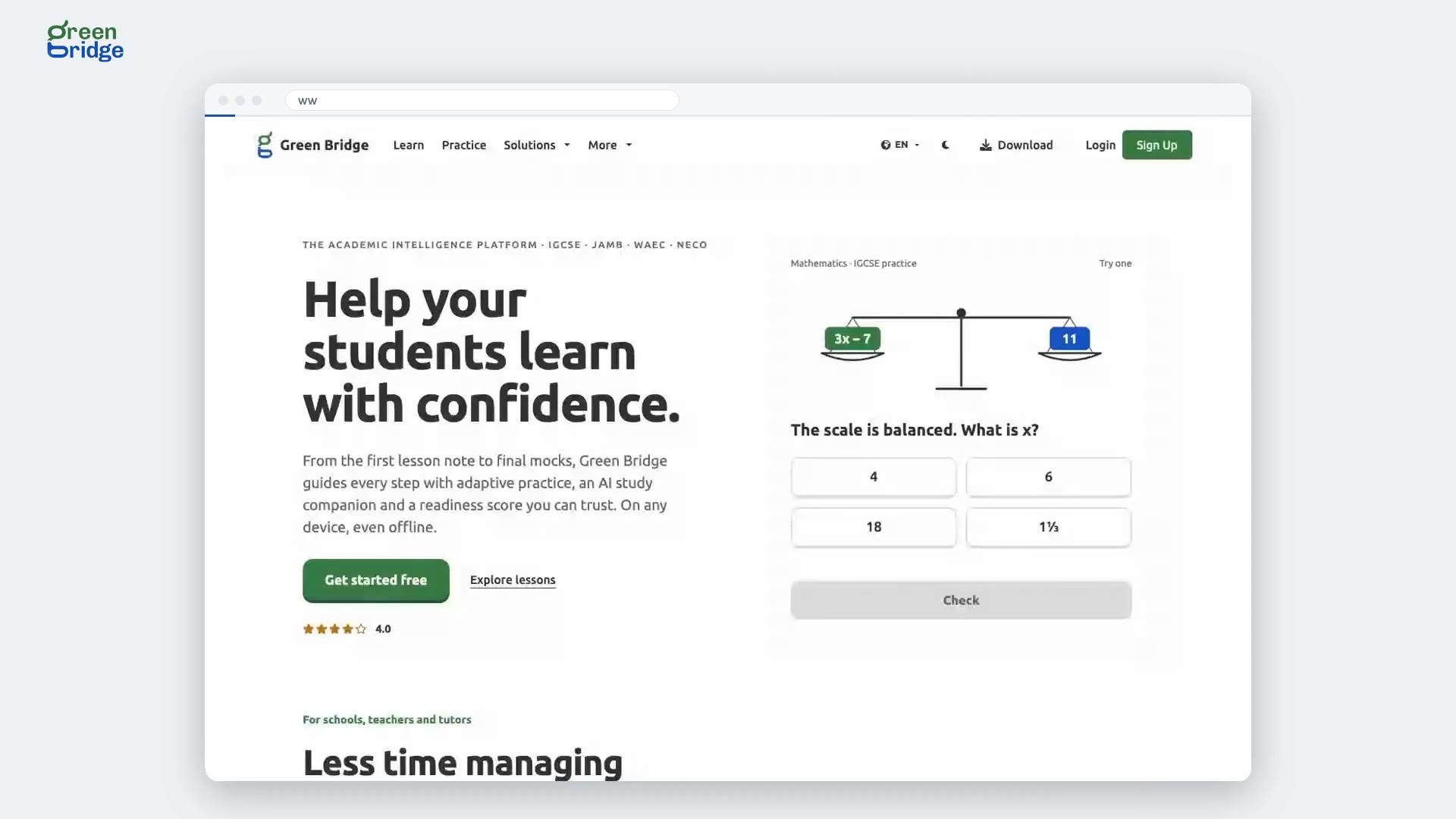
How to try the practice question on the home page
Near the top of the home page there's a maths question marked Try one. Pick one of the four answers and click Check. You'll see Correct. with the working, or Not quite. with a hint on where to start. For full past papers, click Practice at the top of the page.
De startpagina
-
 0:29
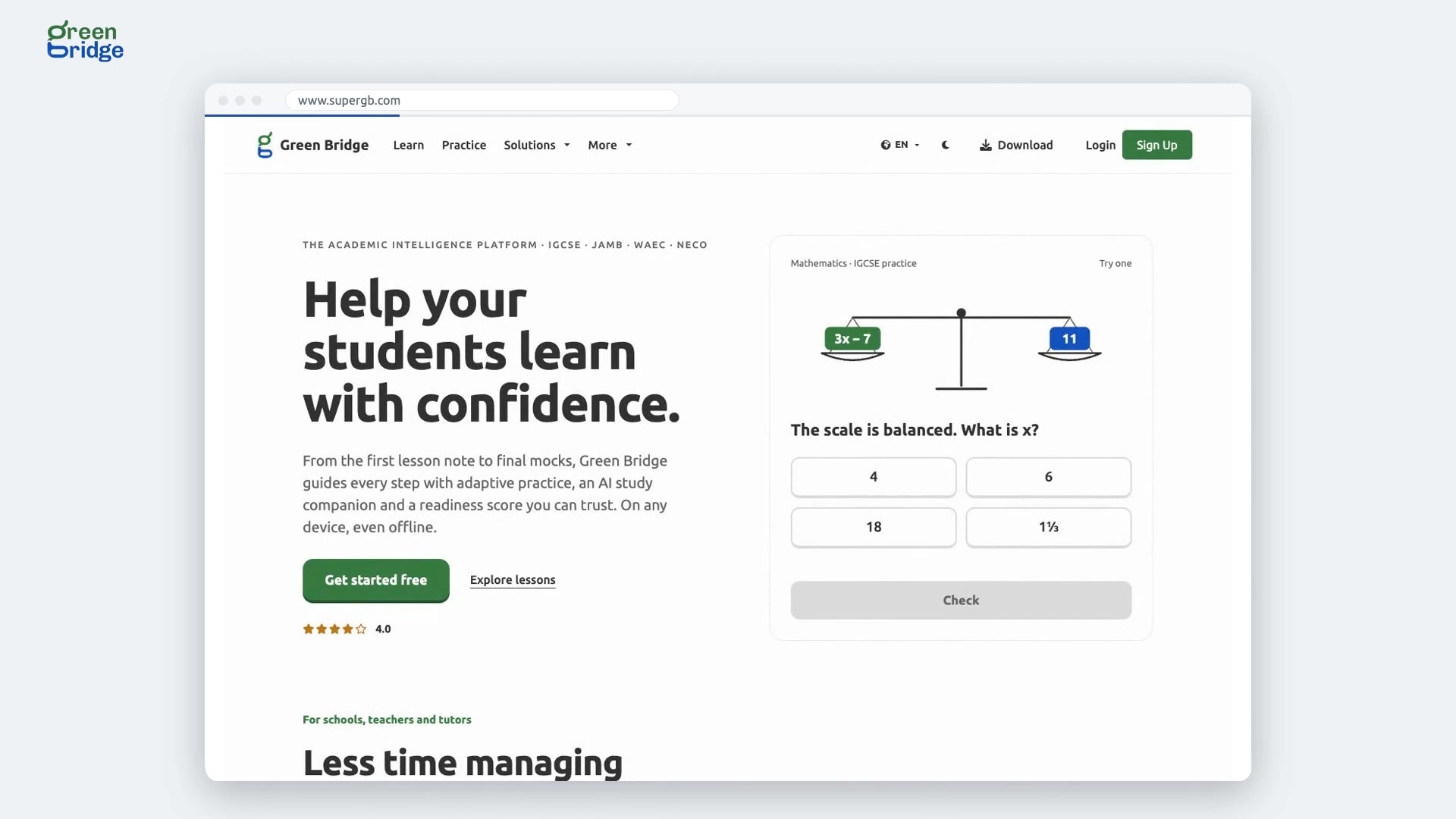
What does Green Bridge offer schools, teachers, parents and students?
Scroll down the home page to the section that begins "It takes more than one person to get a student across." Click who you are: School, Teacher, Independent tutor, Parent, Student or Partner organisation. The panel beside the buttons changes to show what Green Bridge offers you.
De startpagina
-
 0:44
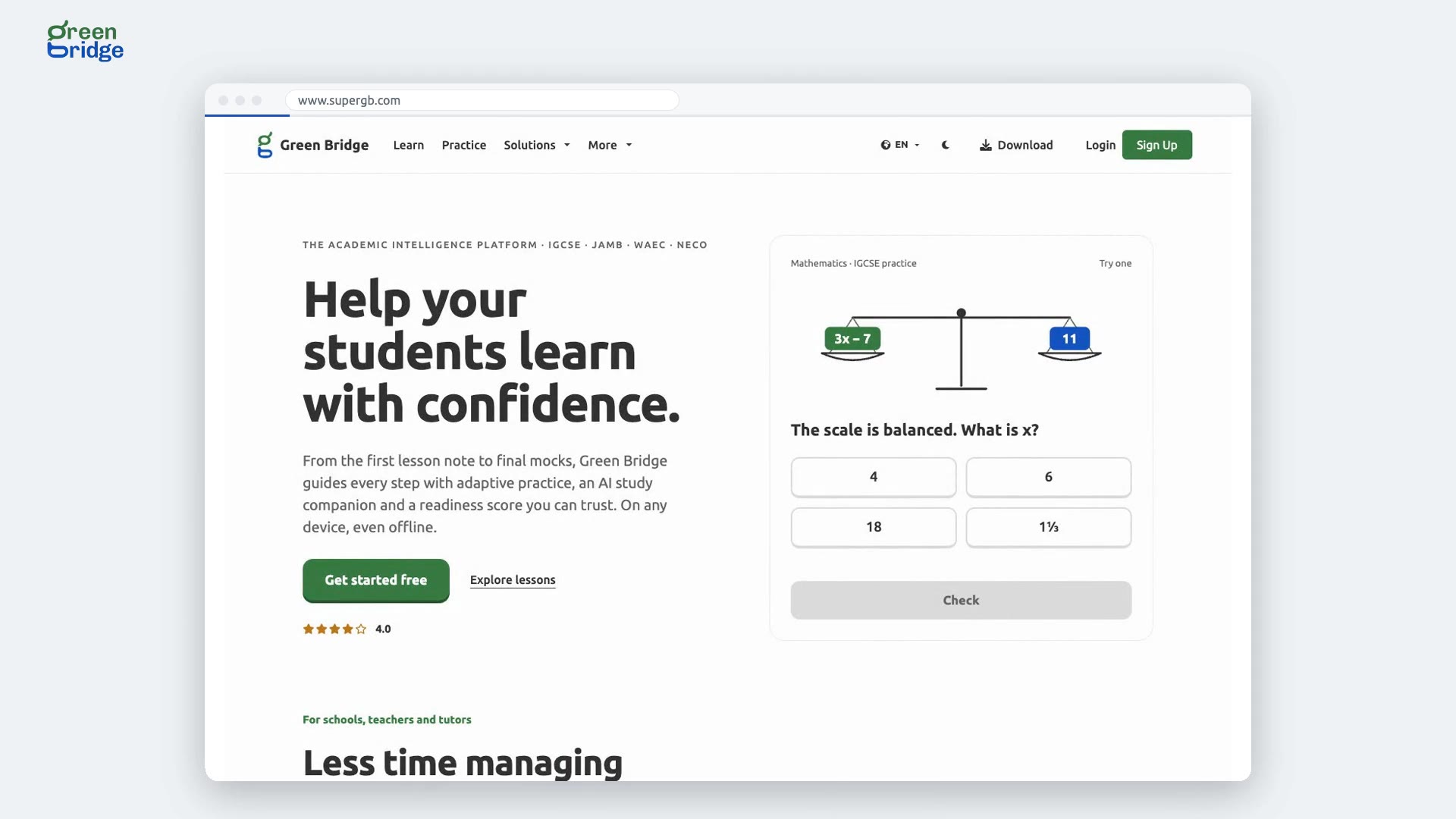
How to switch the home page subjects between SSCE and IGCSE
Scroll to Start with a subject on the home page. Click SSCE for subjects such as Mathematics, English Language and Government, or IGCSE for subjects such as Mathematics (0580) and Biology (0610). This browser remembers your choice, so you see your own exam's subjects next time too.
De startpagina
-
 0:31
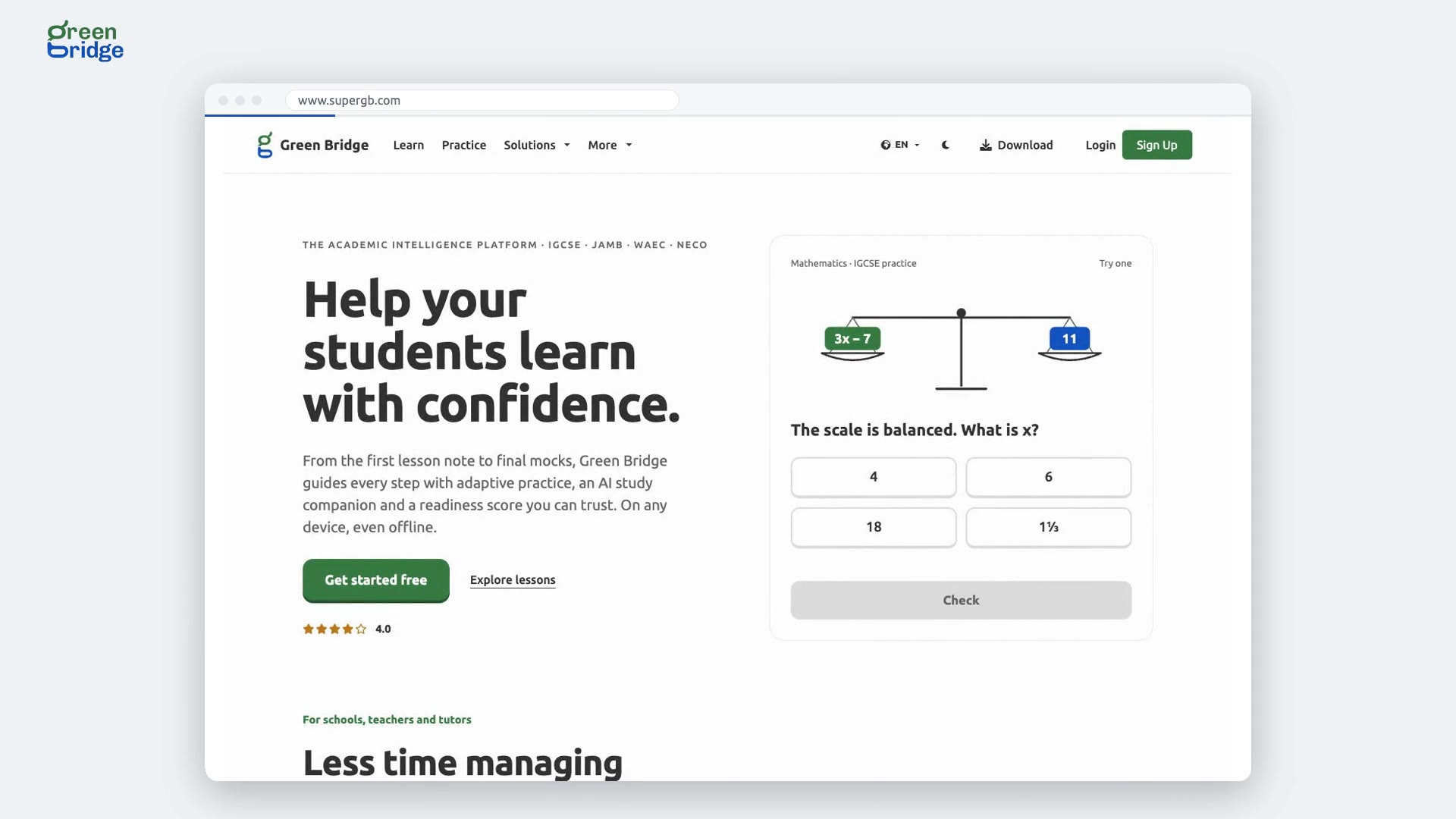
How to try a flashcard on the home page
Scroll to the Remember section of the home page. The flashcard shows a question first. Tap or click it to flip it over and see the answer, and tap it again to go back to the question. Click Learn at the top of the page to find more for your subjects.
De startpagina
-
 0:25
How to read the common questions on the home page
Scroll down the home page to Frequently Asked Questions and click a question to open its answer right there. For the full list, click See All FAQ's. If your question isn't covered, click Contact our Team.
De startpagina
-
 0:31
How to subscribe to the Green Bridge newsletter
Scroll to Never Miss an Update at the bottom of the home page. Type your email address and click Subscribe. You'll see "Thanks For Subscribing!", and from then on you'll get weekly exam preparation tips, study resources and early access to new features.
De startpagina
-
 0:36
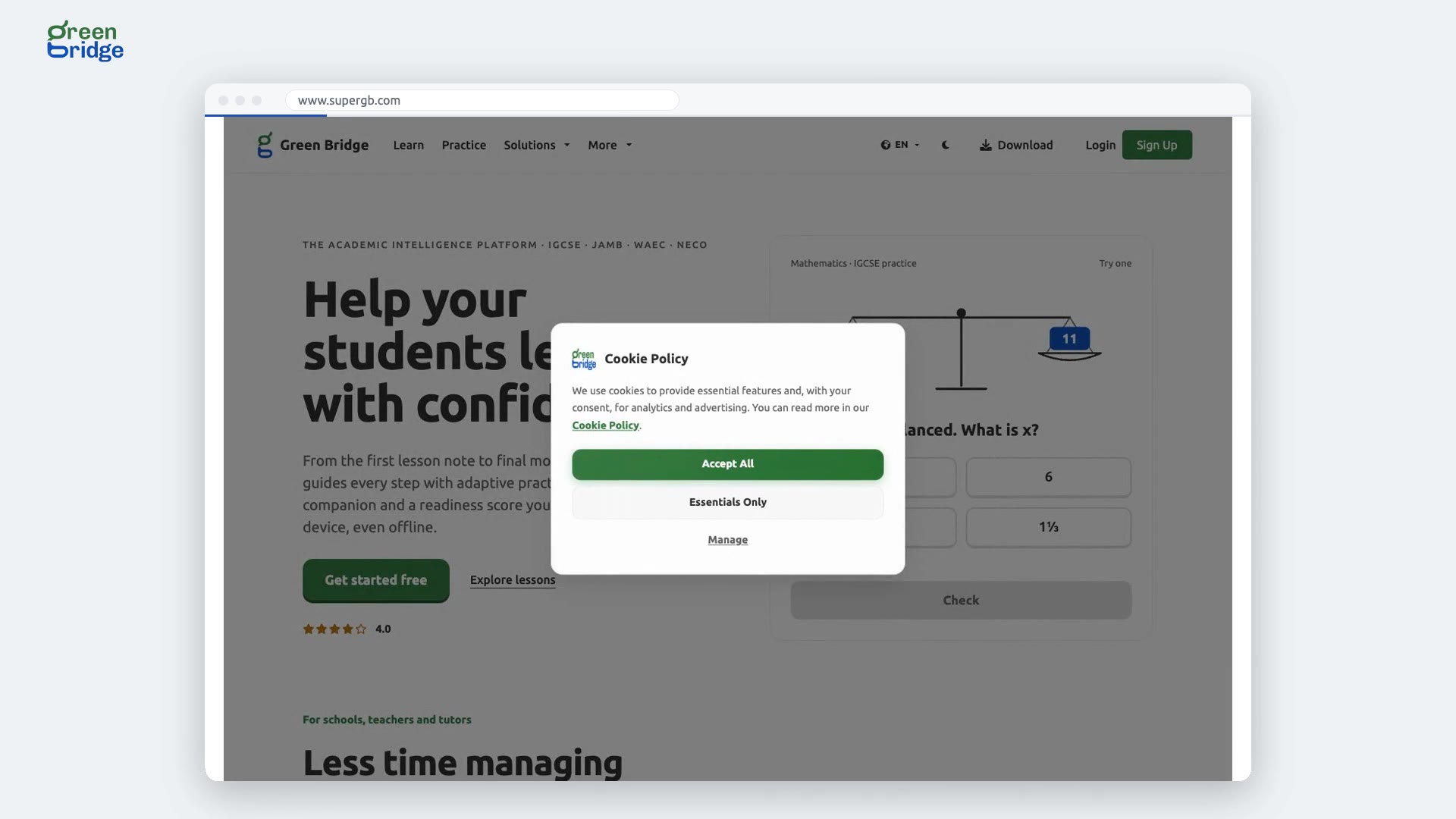
How to choose which cookies Green Bridge uses
When the cookie notice appears, click Manage. Essential cookies are always on. Use the switches to turn Analytics Cookies and Advertising Cookies on or off, then click Save Preferences. The notice closes and this browser remembers your choice. If you want everything or only the minimum, click Accept All or Essentials Only on the notice instead.
De startpagina
-
 0:27
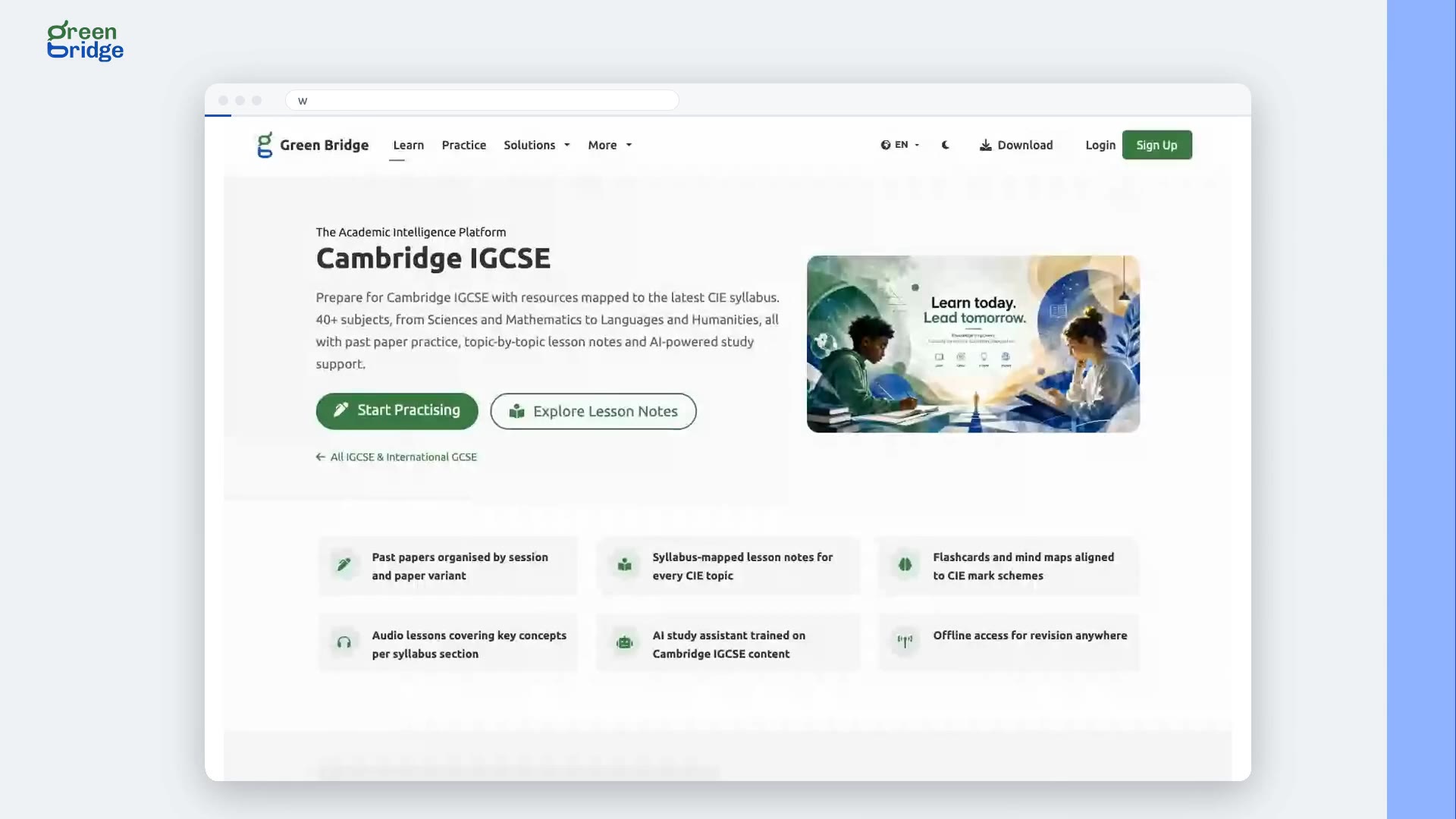
How to change the website's language
Click the globe button at the top of the page; it shows the language you're using, such as EN. Choose a language from the list, for example French (FR), and the page reloads in that language. Switch back the same way whenever you like.
De taal wijzigen
-
 0:26
Does changing the language take me back to the home page?
No. Change the language from the globe button at the top of any page, such as the FAQs or a subject page, and the same page reopens in the language you chose. You carry on reading from where you were.
De taal wijzigen
-
 0:25
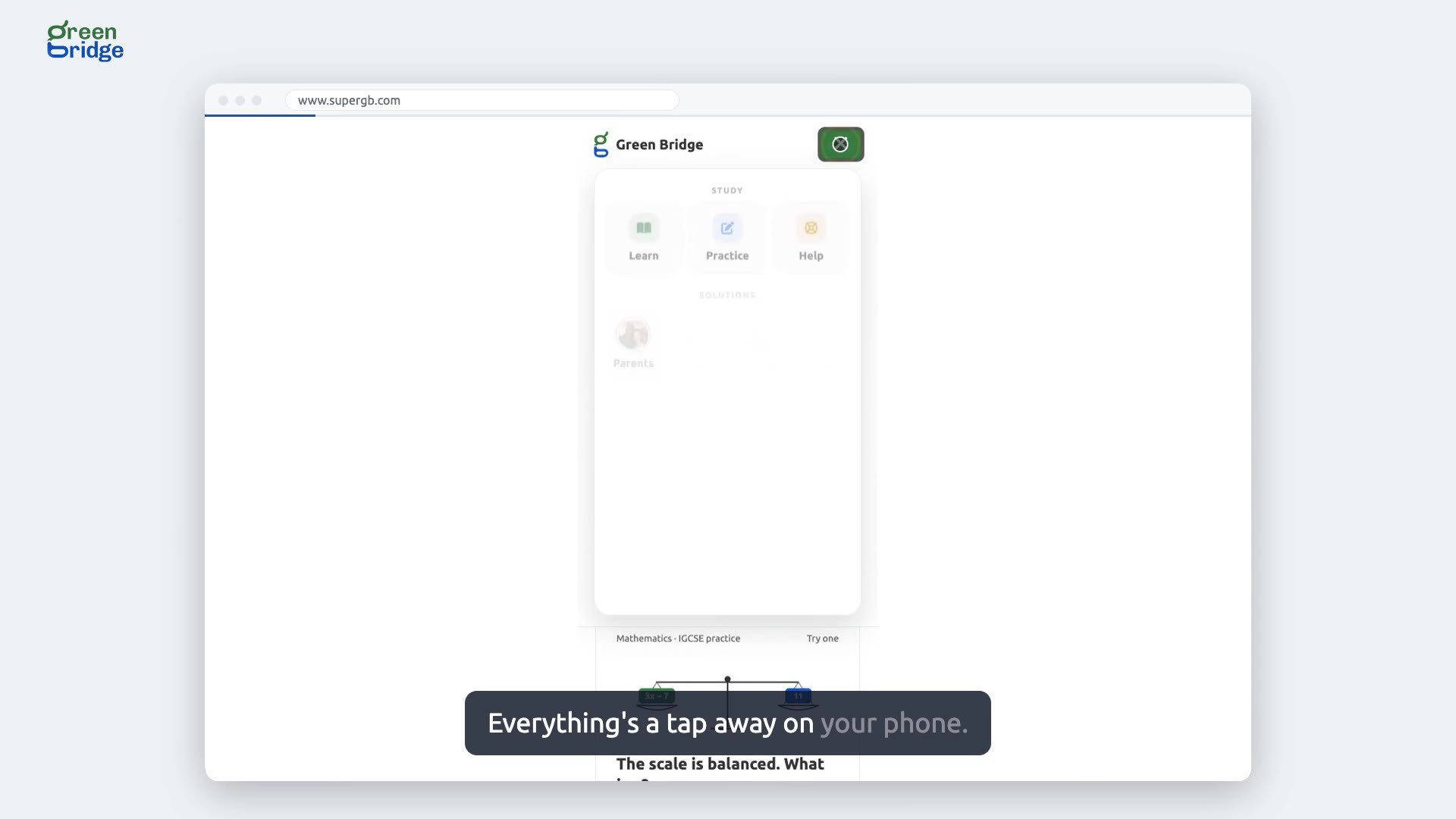
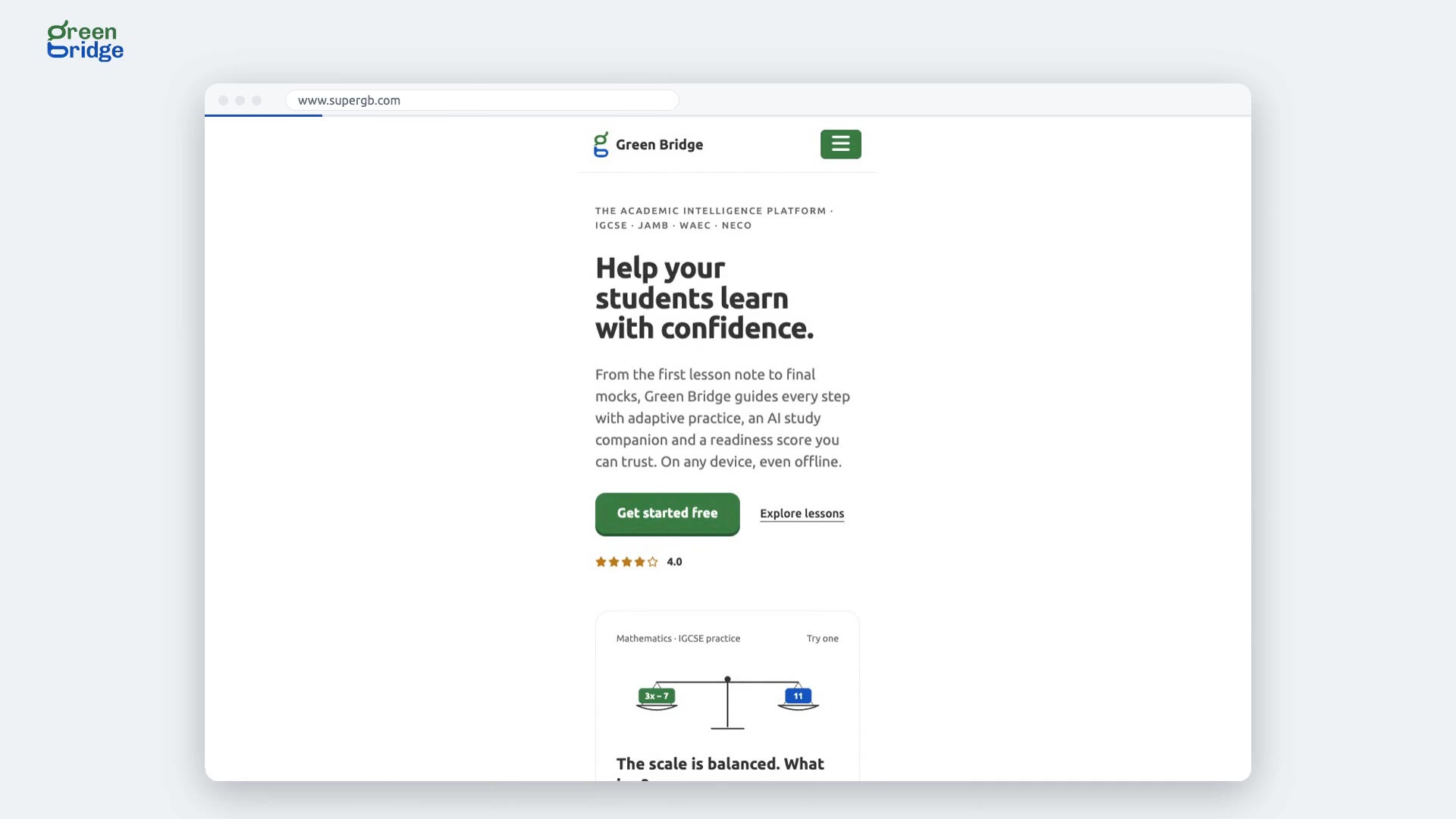
How to use the menu on a phone
On a phone, the links at the top of the page are folded behind the menu button. Tap it to open the menu. Learn takes you to revision notes by subject, Practice to past papers, and Login to your account.
De website op een telefoon gebruiken
-
 0:27
Can I use the website on Android instead of the app?
Yes. When you open Green Bridge in a browser on an Android phone, a banner offers you the app. Tap Open App to switch to it, or tap Continue to keep using the website, and the banner closes.
De website op een telefoon gebruiken
-
 0:28
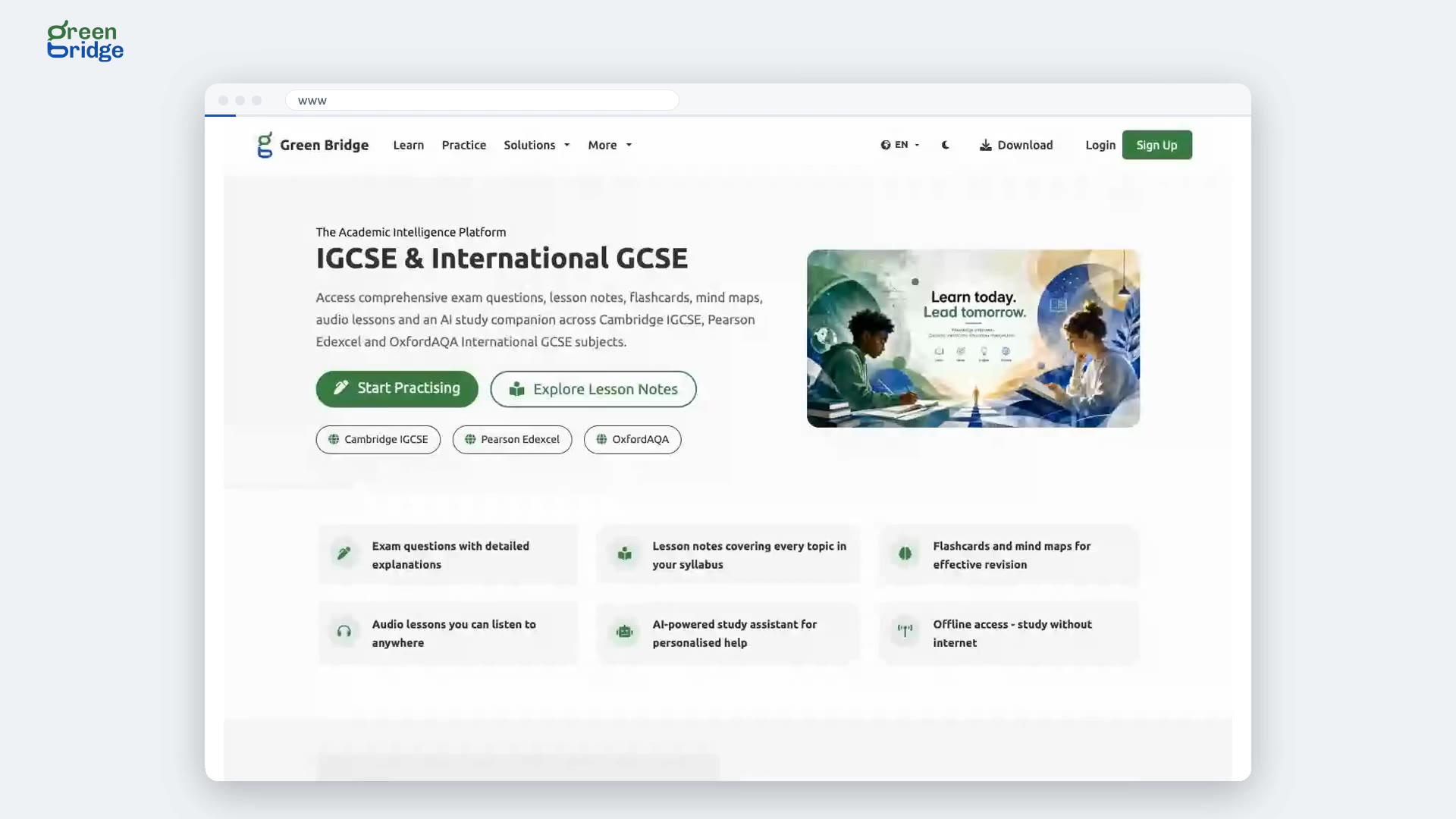
Where can I find IGCSE subjects from every exam board?
The IGCSE & International GCSE learning page lists more than fifty subjects from Cambridge, Pearson Edexcel and Oxford AQA. Click a subject to open its topics and start revising for your board.
IGCSE-samenvattingen
-
 0:30
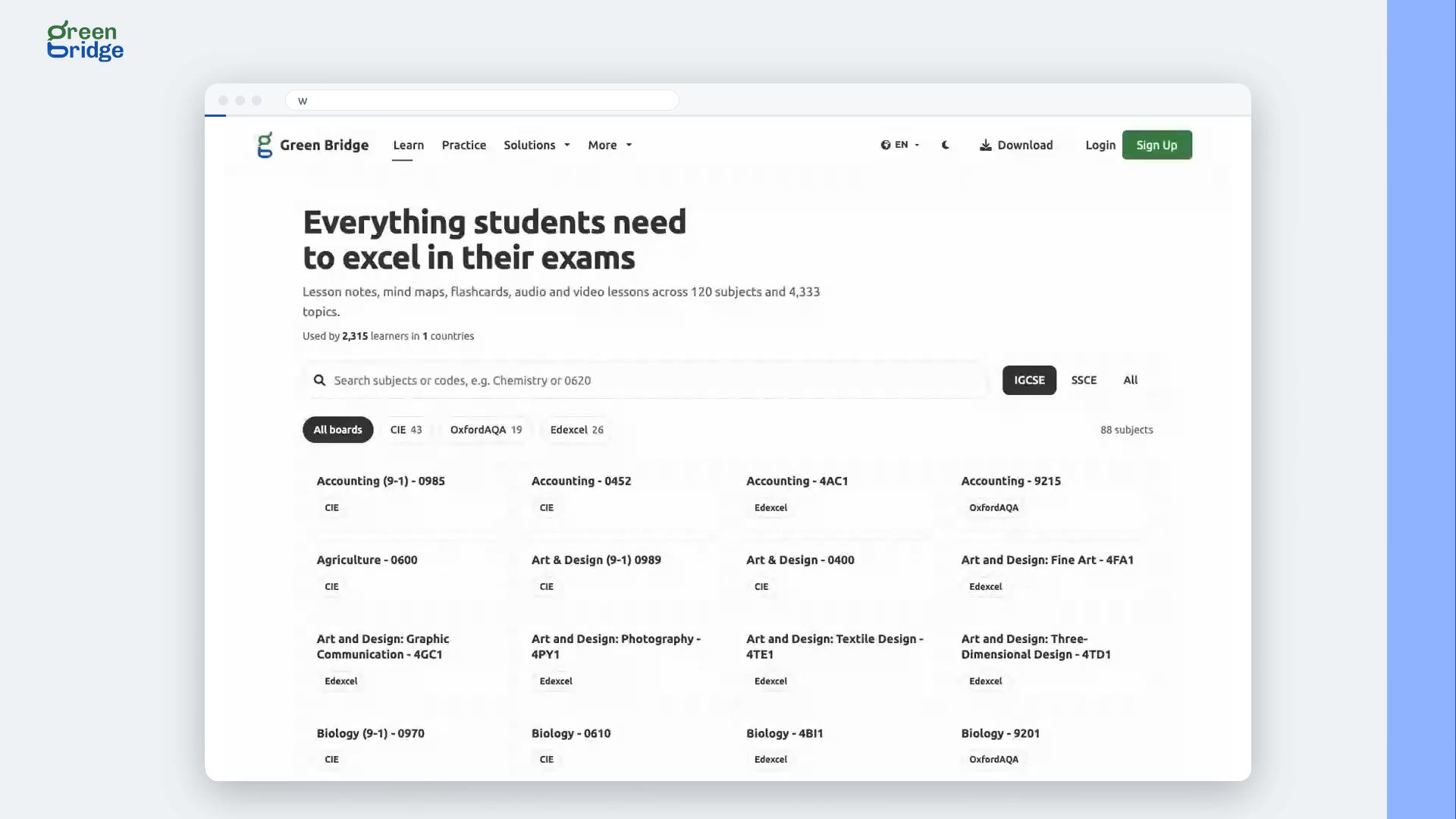
How to find revision notes for your subject
Click Learn at the top of the page to see more than fifty subjects. Click yours to open its topics, each with notes and study tools to revise from. Everything on the Learn page is free to read without an account.
Samenvattingen vinden
-
 0:27
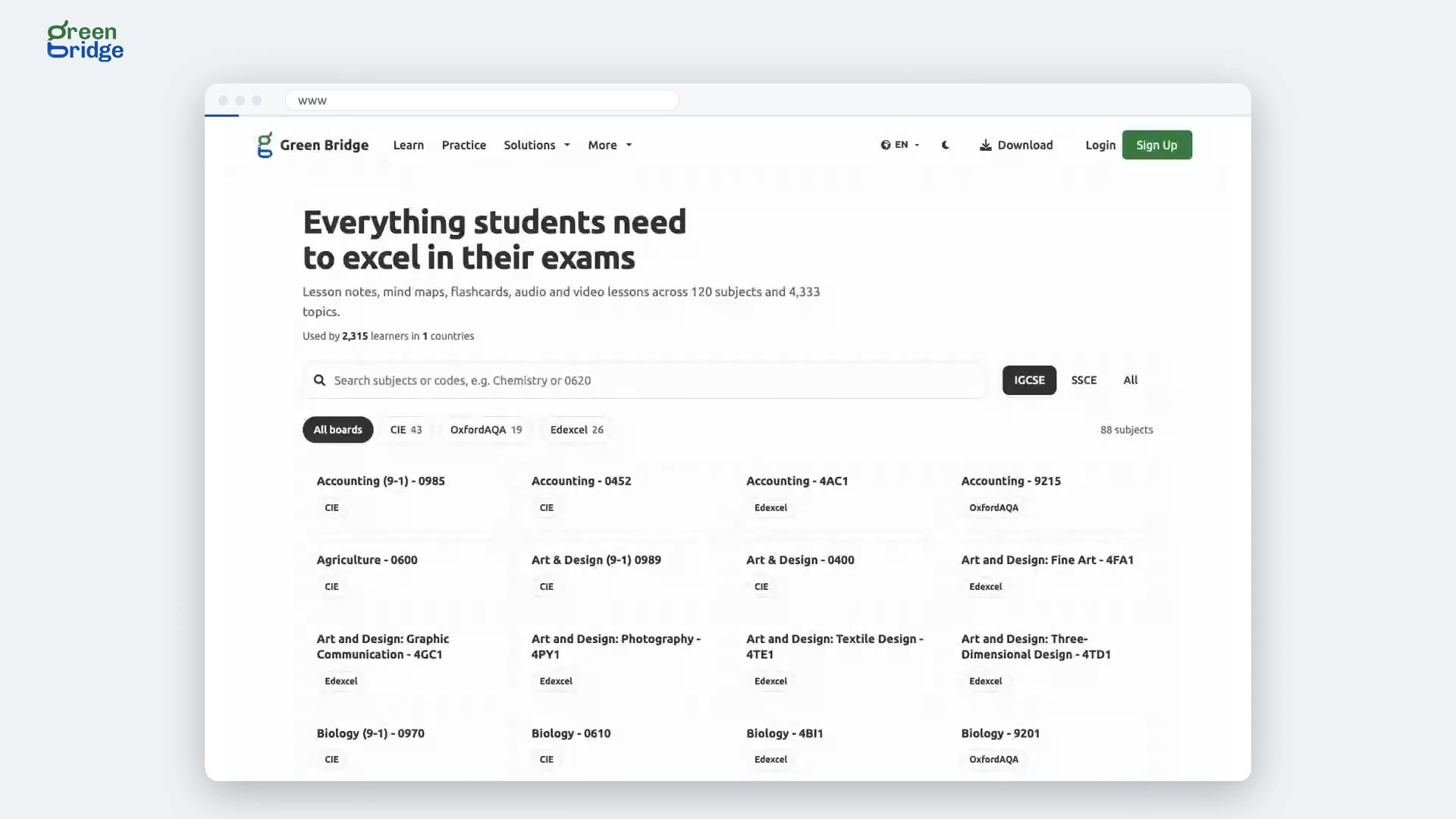
How to find a subject on the Learn page
Click Learn at the top of the page. Type a subject name or code into the search box, for example Chemistry or 0620, and the list narrows as you type. Click a subject to open its topics.
Samenvattingen vinden
-
 0:26
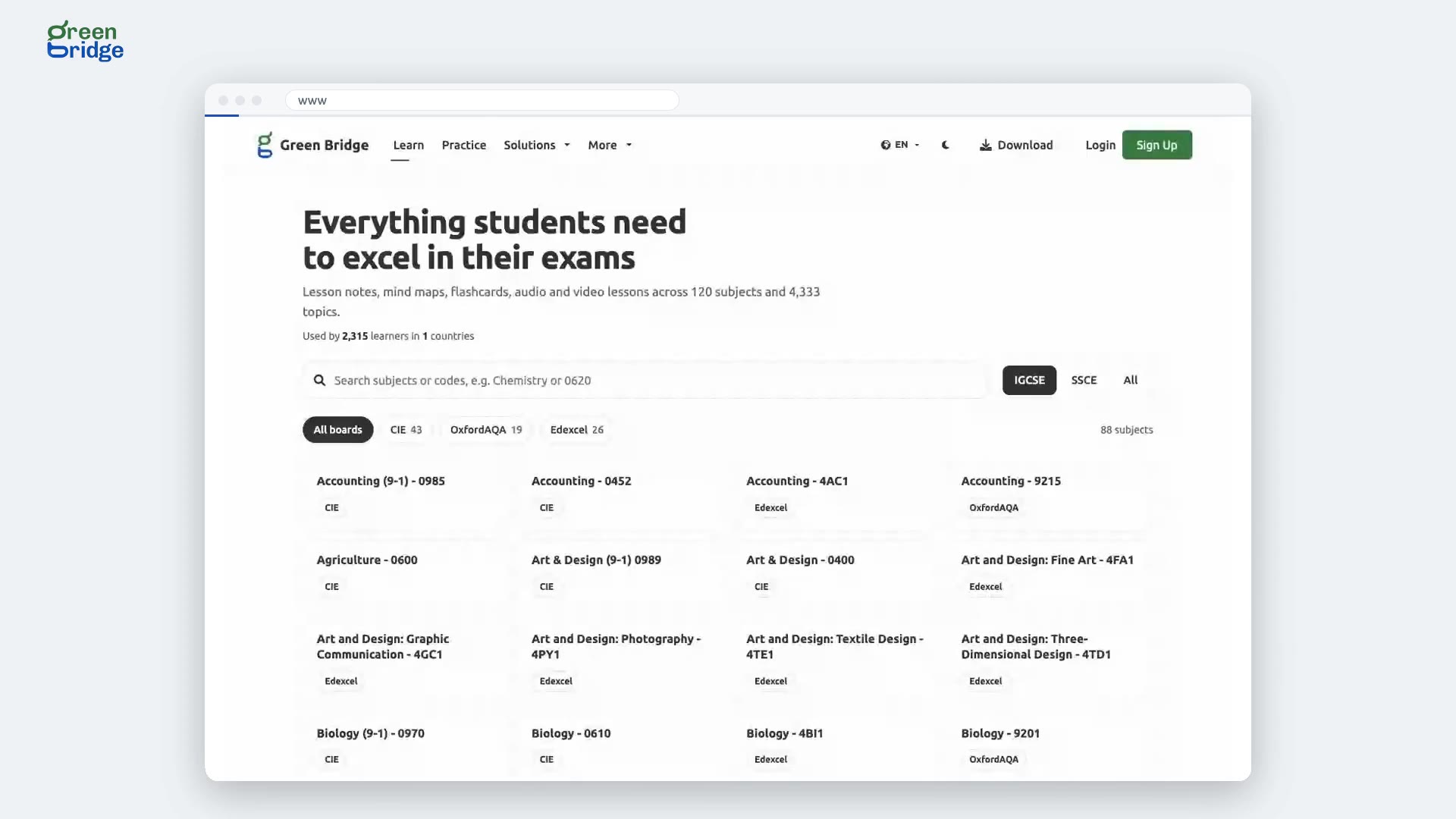
How to show Learn page subjects for one qualification
On the Learn page, beside the search box, click SSCE for subjects studied for WAEC, NECO and JAMB, or IGCSE for international ones. Only subjects for that qualification are listed. Click All to see every subject again.
Samenvattingen vinden
-
 0:27
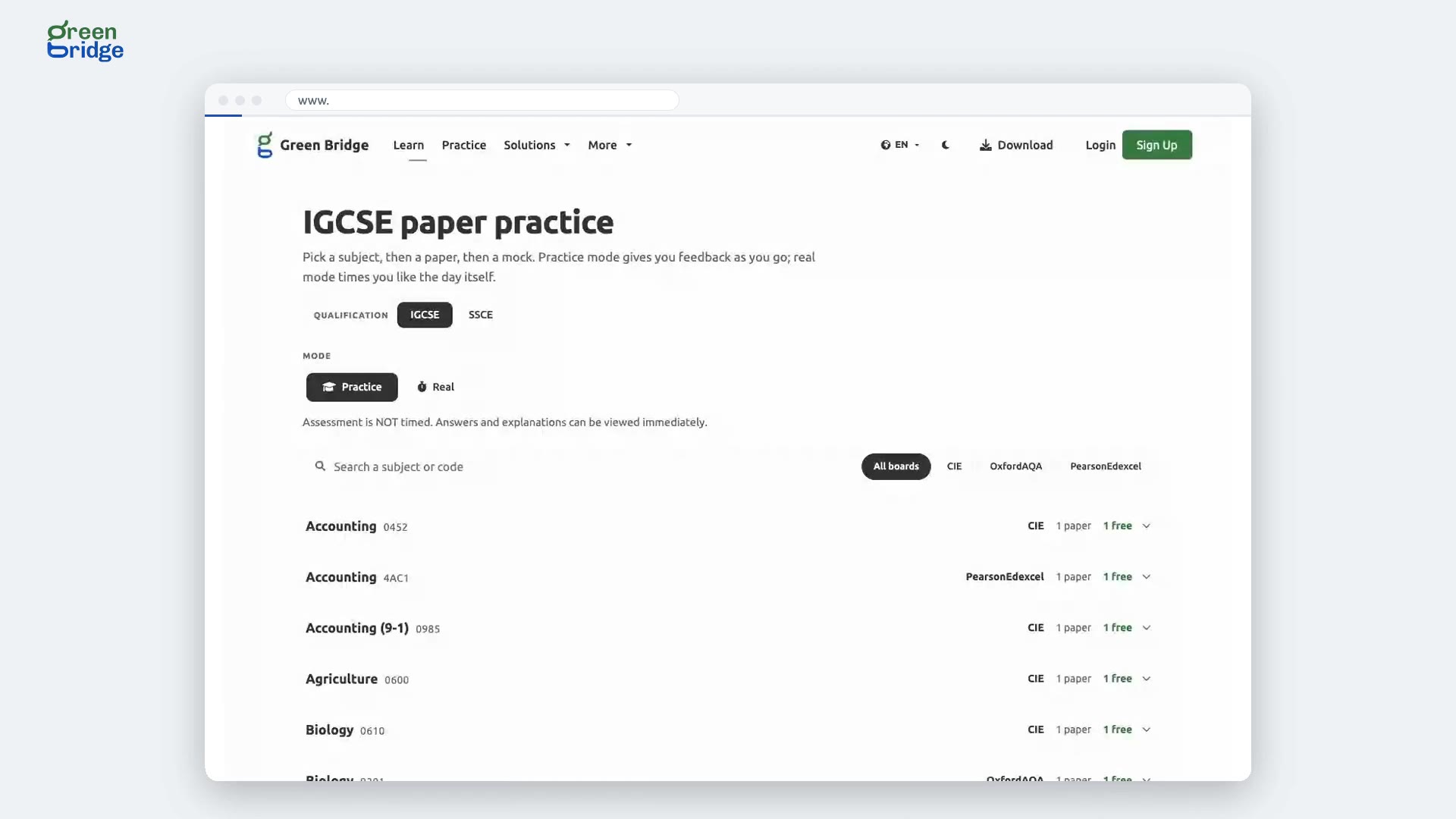
How to find past papers for a subject
Click Practice at the top of the page and type a subject name or code into the search box. The list narrows to the matching subjects as you type. Open a subject to see its papers.
Oude examens oefenen
-
 0:26
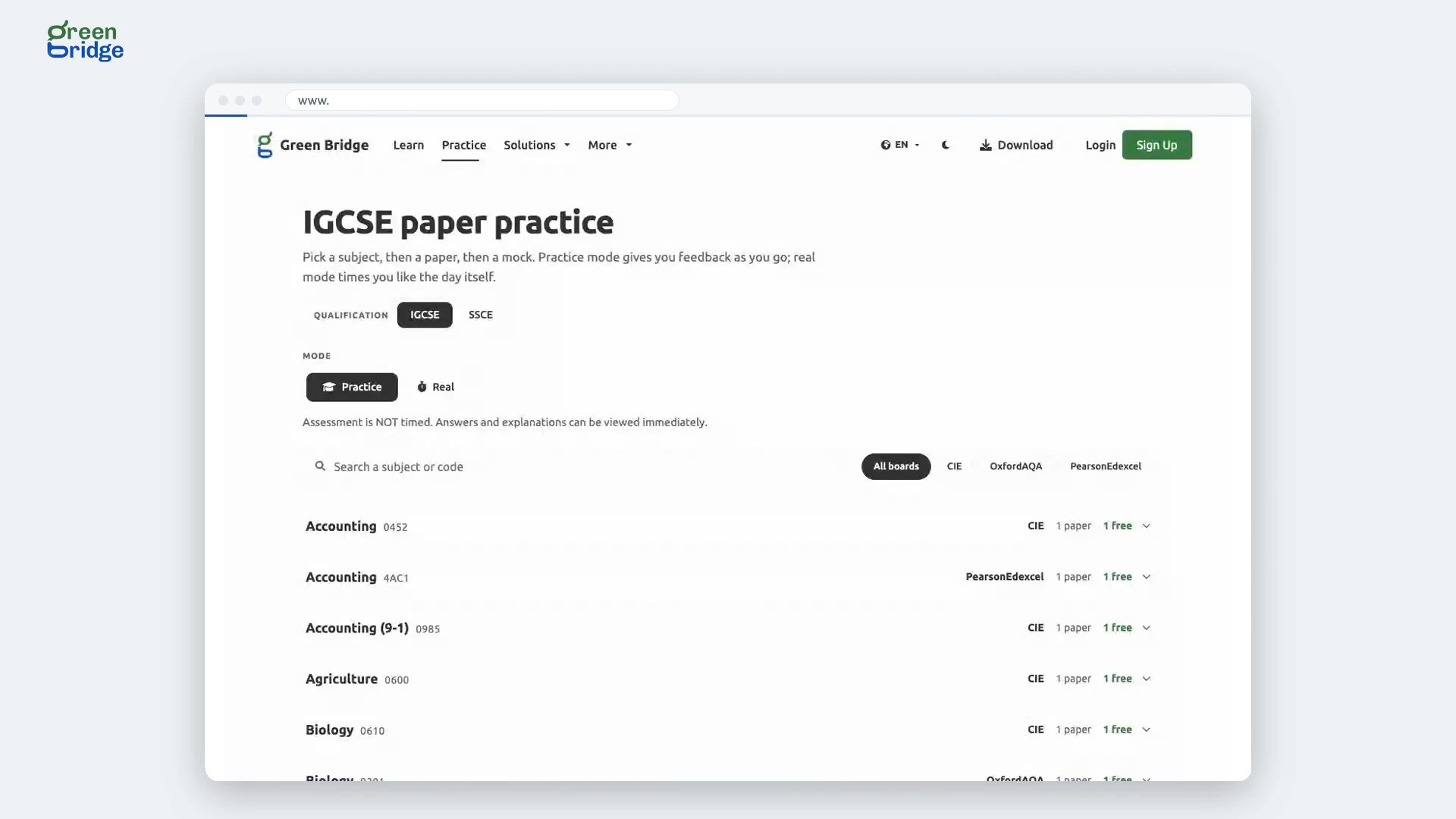
How to show IGCSE past papers for one exam board
Click Practice at the top of the page with IGCSE chosen. Beside the search box, click a board: CIE for Cambridge, PearsonEdexcel or OxfordAQA. Only subjects set by that board are listed. Click All boards to see them all again.
Oude examens oefenen
-
 0:28
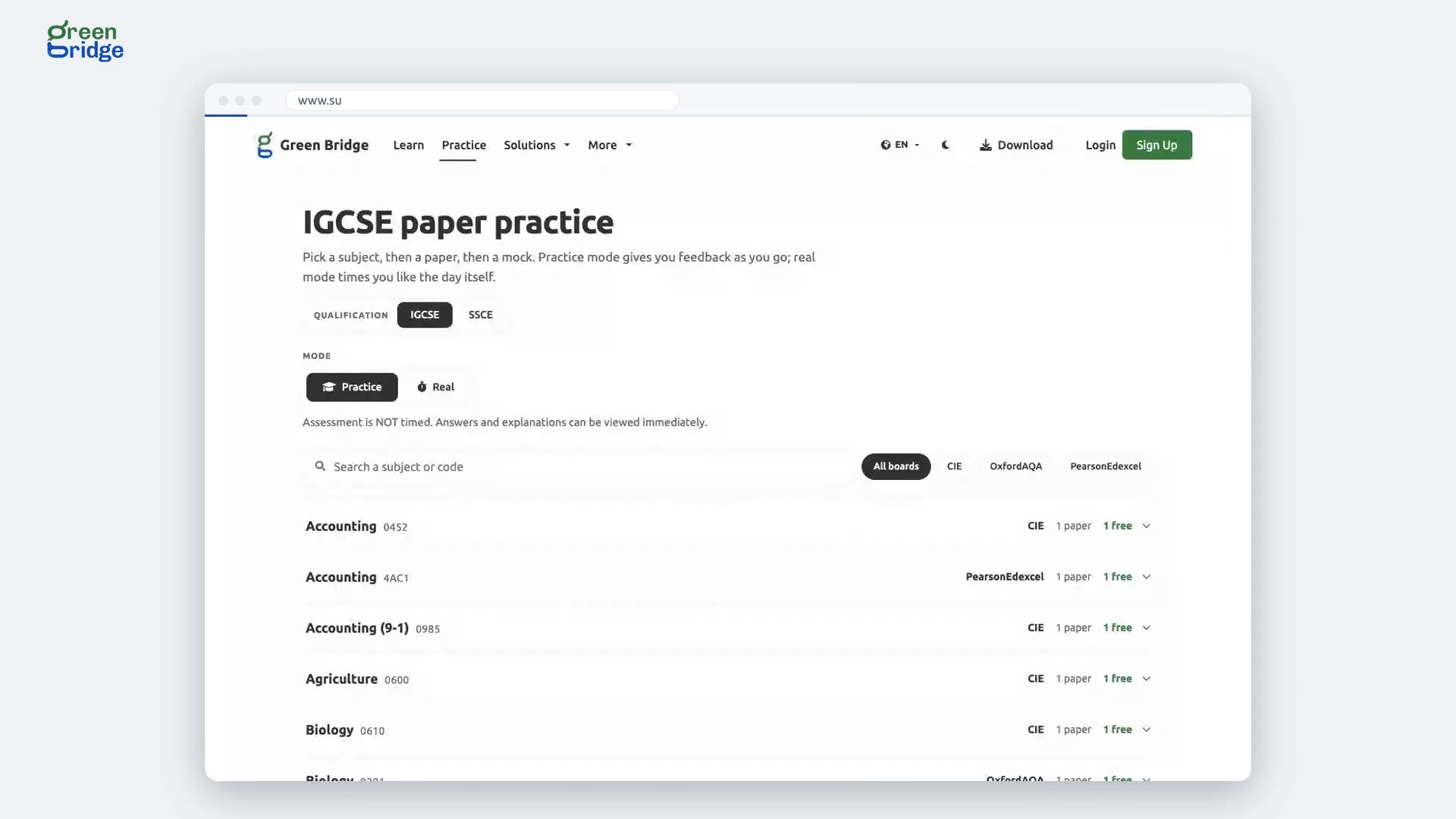
How to sit a past paper as a timed exam
Click Practice at the top of the page. Under Mode, choose Real instead of Practice. Every paper you open is then timed, and the answers are only shown after you submit. Switch back to Practice when you want to check answers as you go.
Oude examens oefenen
-
 0:35
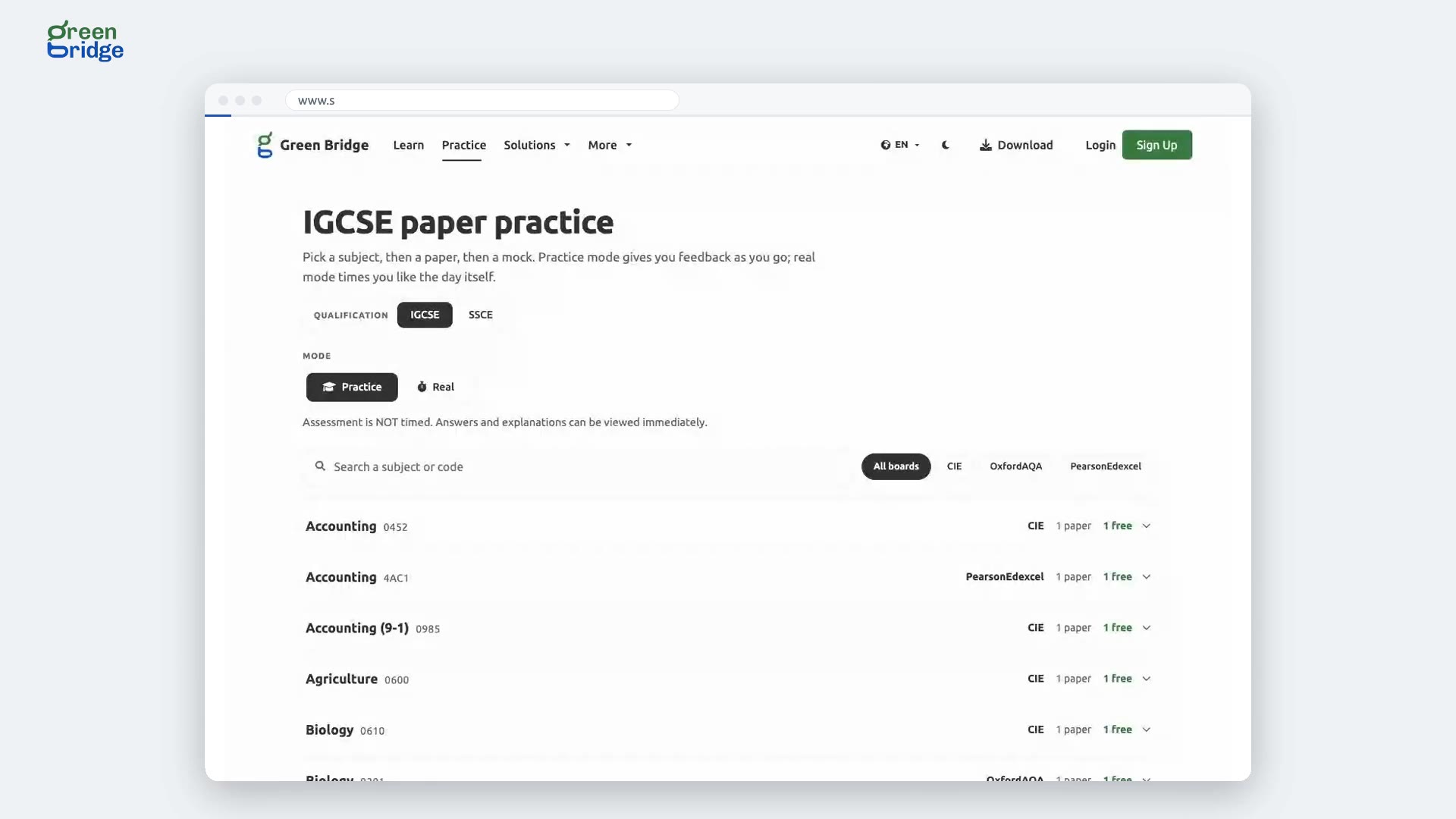
How to switch past papers between SSCE and IGCSE
Click Practice at the top of the page. Next to Qualification, click SSCE for WAEC, NECO and JAMB papers, or IGCSE for international ones. The page reloads with that qualification's papers, and you can switch back whenever you like.
Oude examens oefenen
-
 0:47
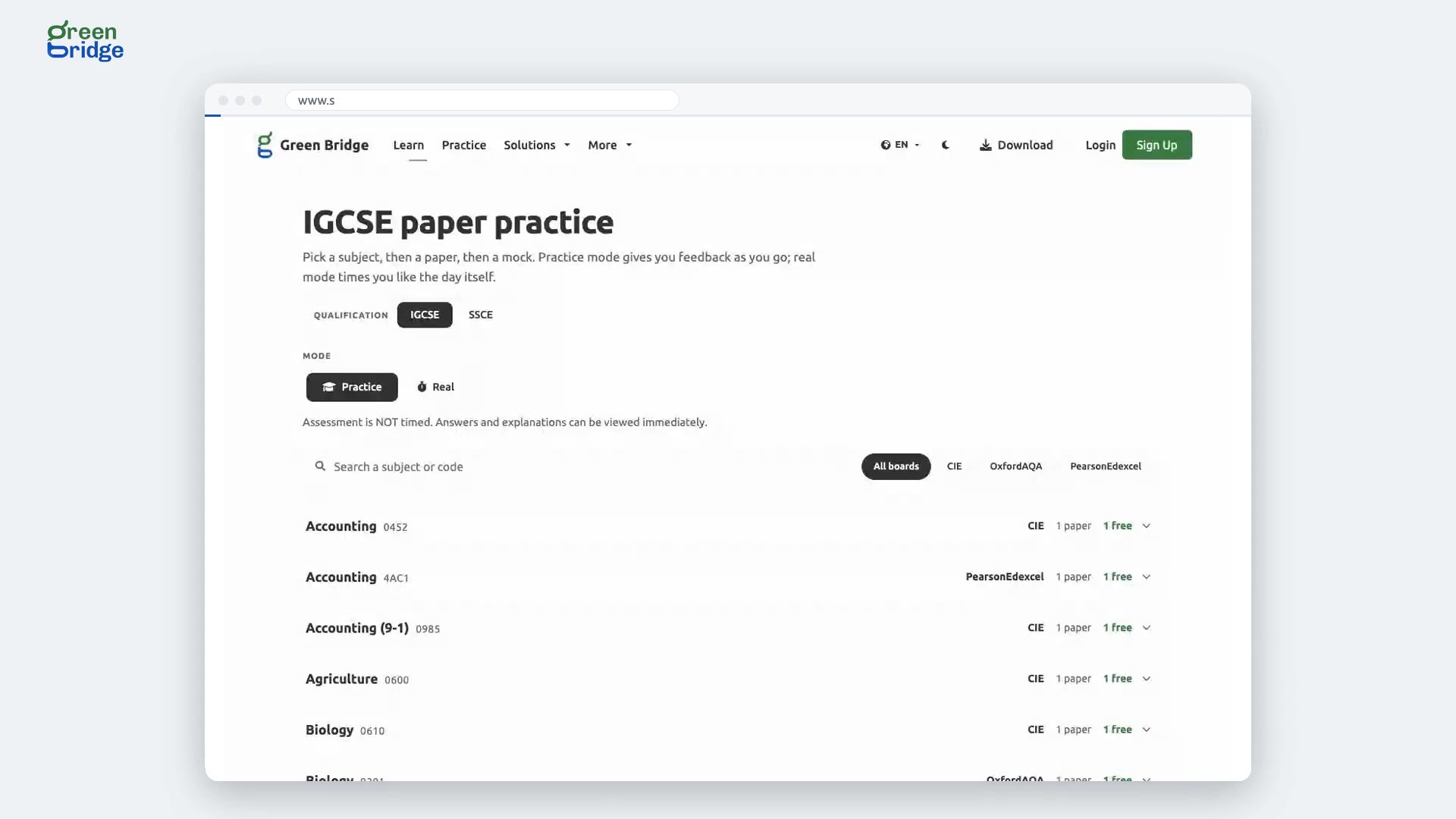
What happens if I pick a past paper before signing in?
You can browse past papers without an account, but you need to sign in to sit one. Click Practice at the top of the page, open a subject and pick a paper. You'll be asked to sign in, and once you do, the paper you picked opens, so there's no need to find it again.
Oude examens oefenen
-
 0:24
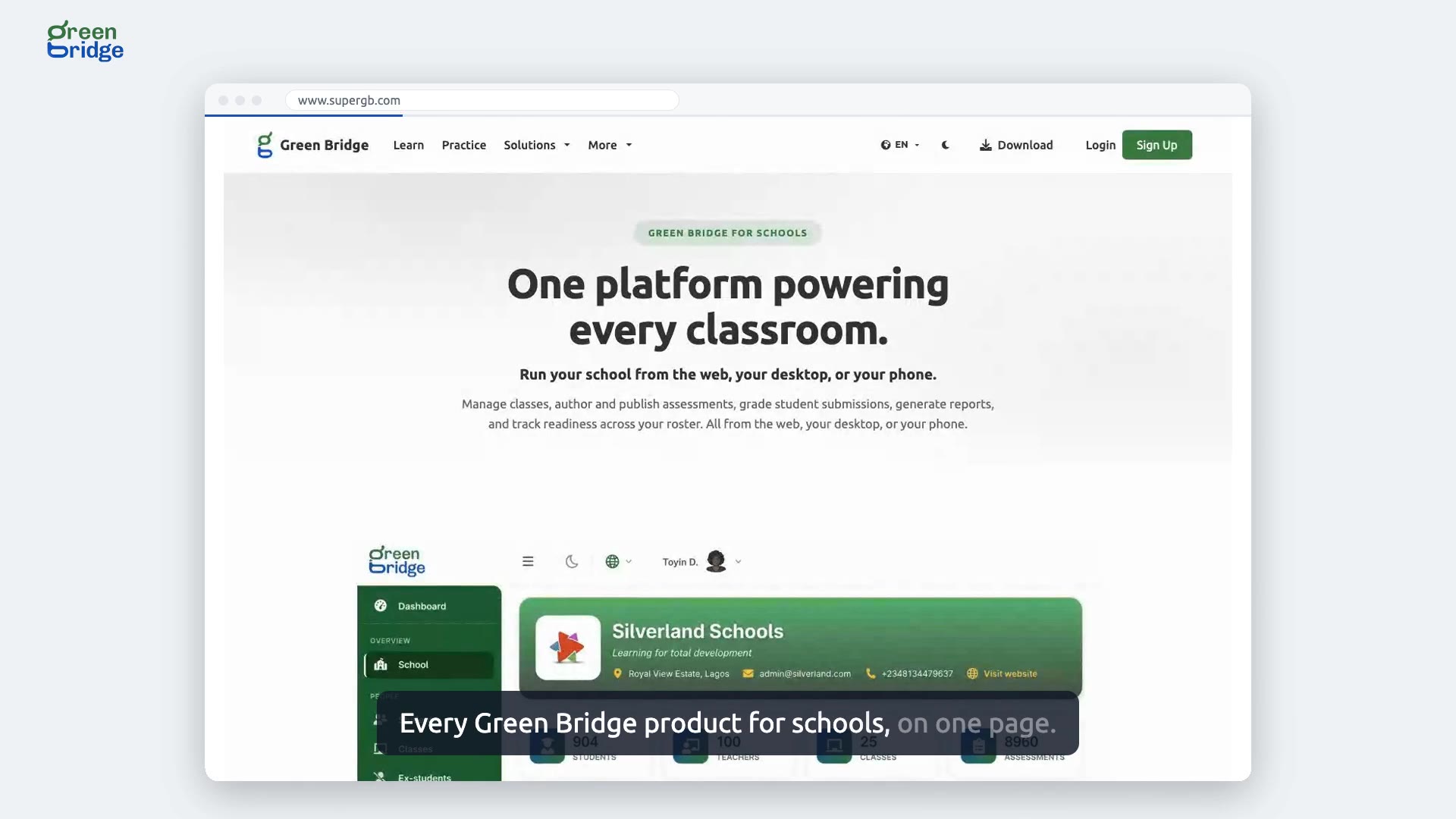
Which Green Bridge product should my school use?
Click Download at the top of the page and choose Get Green Bridge for Schools. You'll see three ways in: the Web Dashboard in any browser, the Desktop App for school computers and the Mobile Companion. Compare what each offers and pick what suits your staff.
Producten voor scholen
-
 0:28
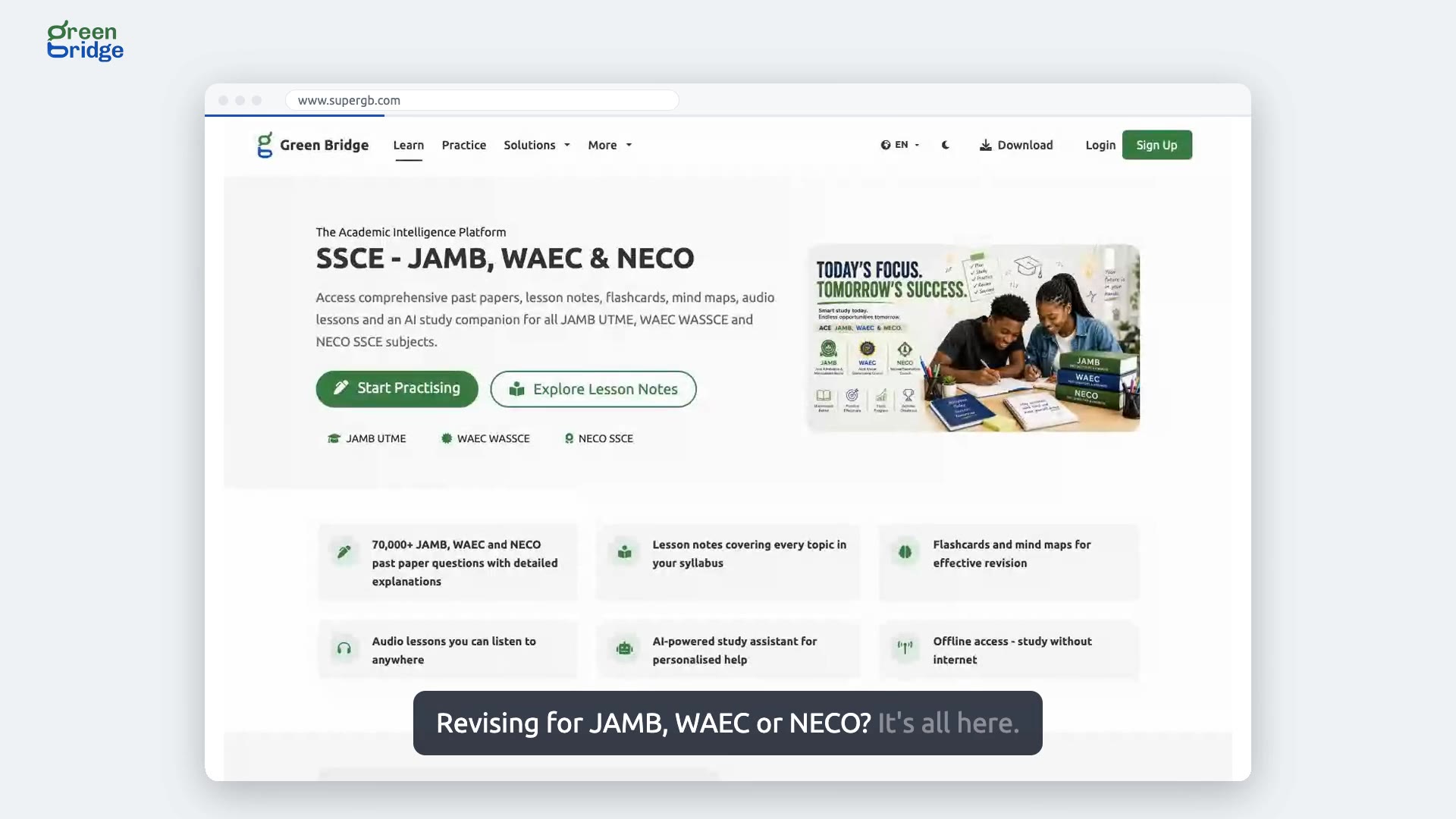
Where can I find SSCE subjects for JAMB, WAEC and NECO?
The SSCE - JAMB, WAEC & NECO learning page lists the subjects you sit for those exams. Click one to see its topics and work through them one by one before exam day.
SSCE-samenvattingen
-
 0:26
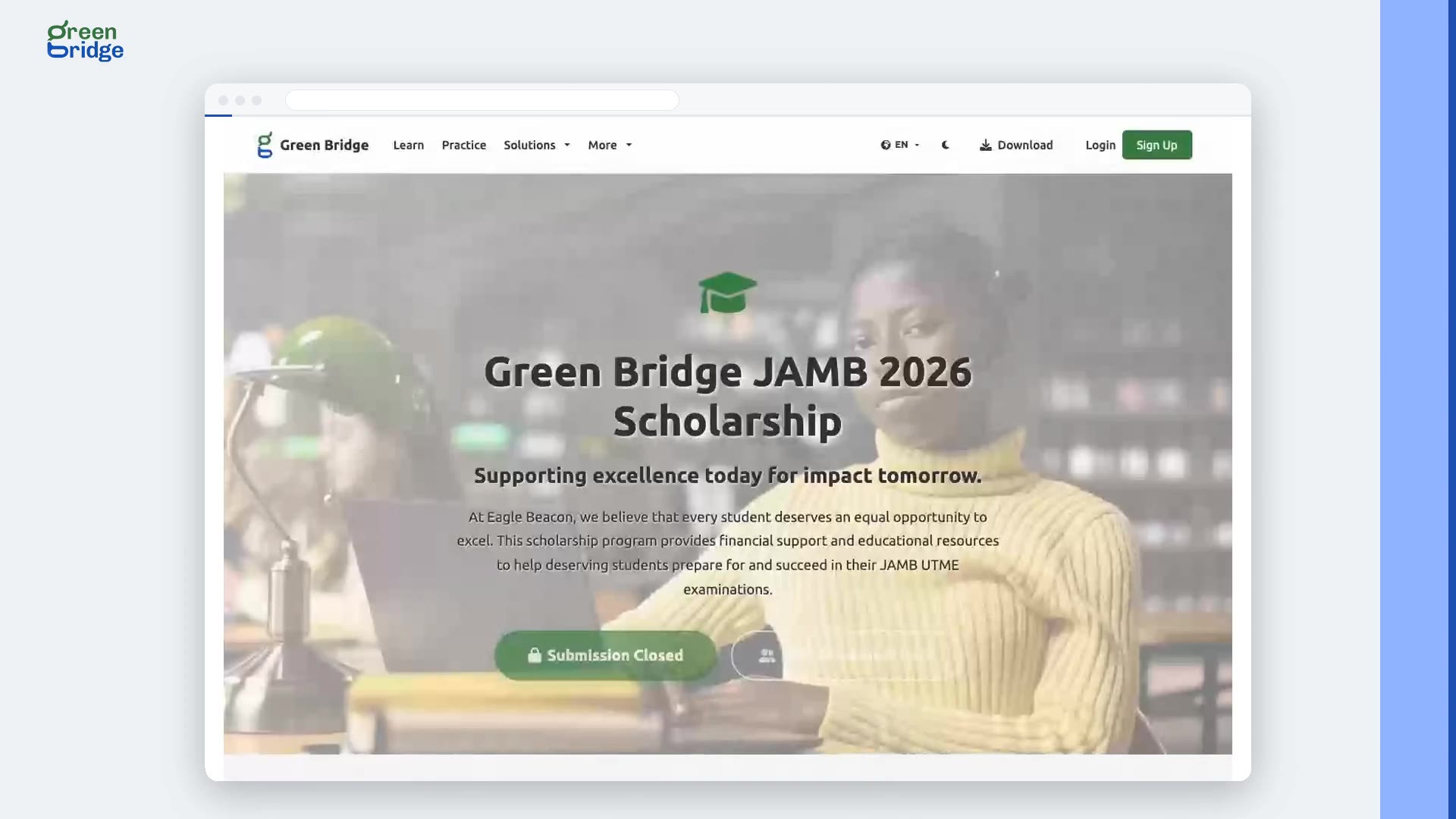
What is the Green Bridge JAMB 2026 scholarship?
The scholarship pays the JAMB registration fee and gives premium access to Green Bridge for more than 50 outgoing secondary school students sitting the 2026 UTME. To read who could apply and how recipients are chosen, open Scholarships from the menu at the top of the page (on a wide screen it sits under More). Applications closed on 8 February 2026.
Beurzen
-
 0:37
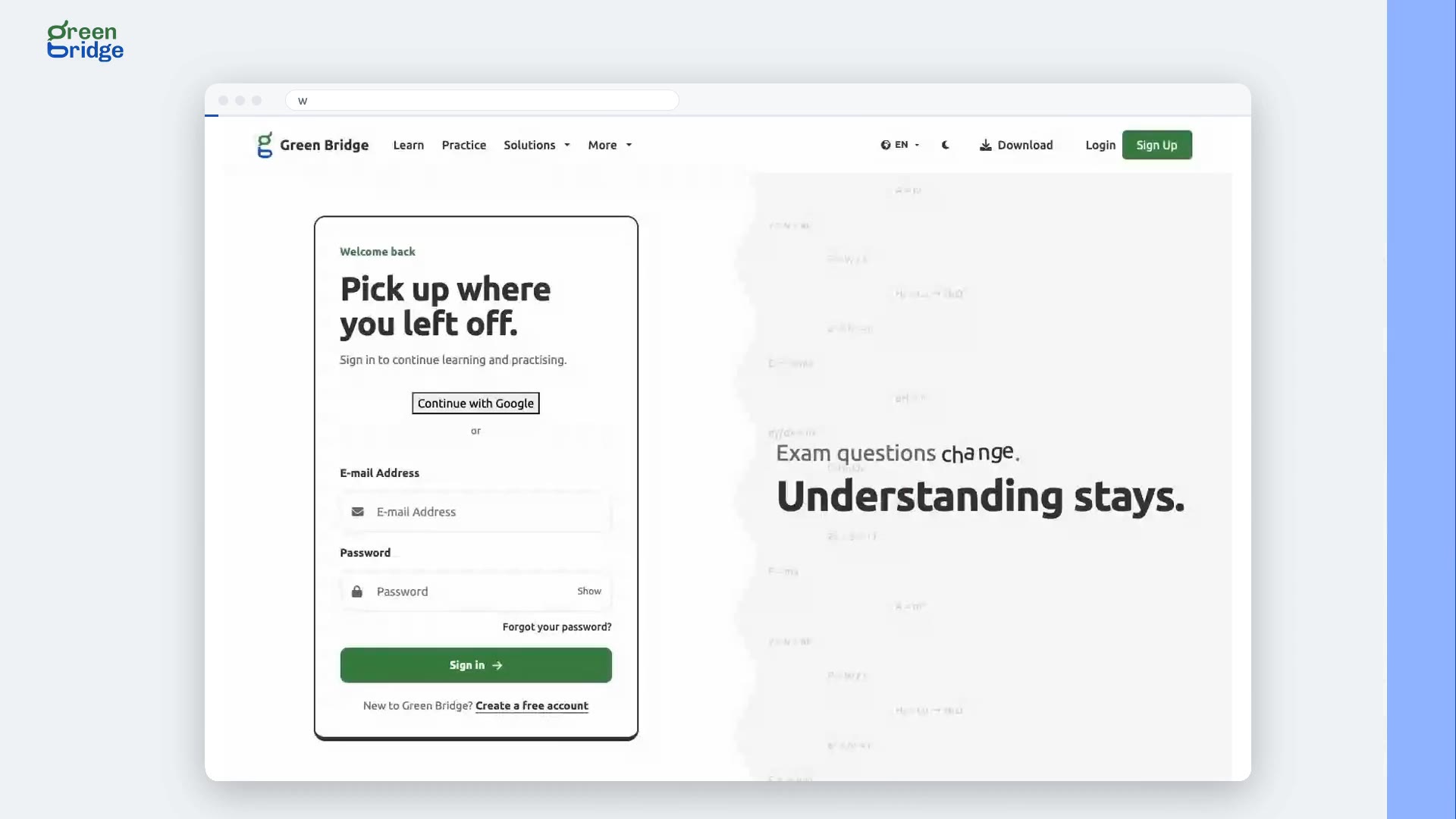
How to sign in to Green Bridge
Go to www.supergb.com and open the sign-in page. Type your E-mail Address and your password, then click Sign in. You'll land on your dashboard, ready to carry on practising.
Inloggen