Otú Green Bridge si arụ ọrụ
Nkọwa dị mkpụmkpụ ma dị mfe nke ihe ị nwere ike ime na Green Bridge, ọtụtụ nwere vidiyo. Họrọ onye ị bụ na ebe ị na-eji ya, ma ọ bụ chọọ.
Ntuziaka 349, 277 nwere vidiyo
Ntuziaka achọtara: 106 Hichapụ nhọrọ
-
 0:54
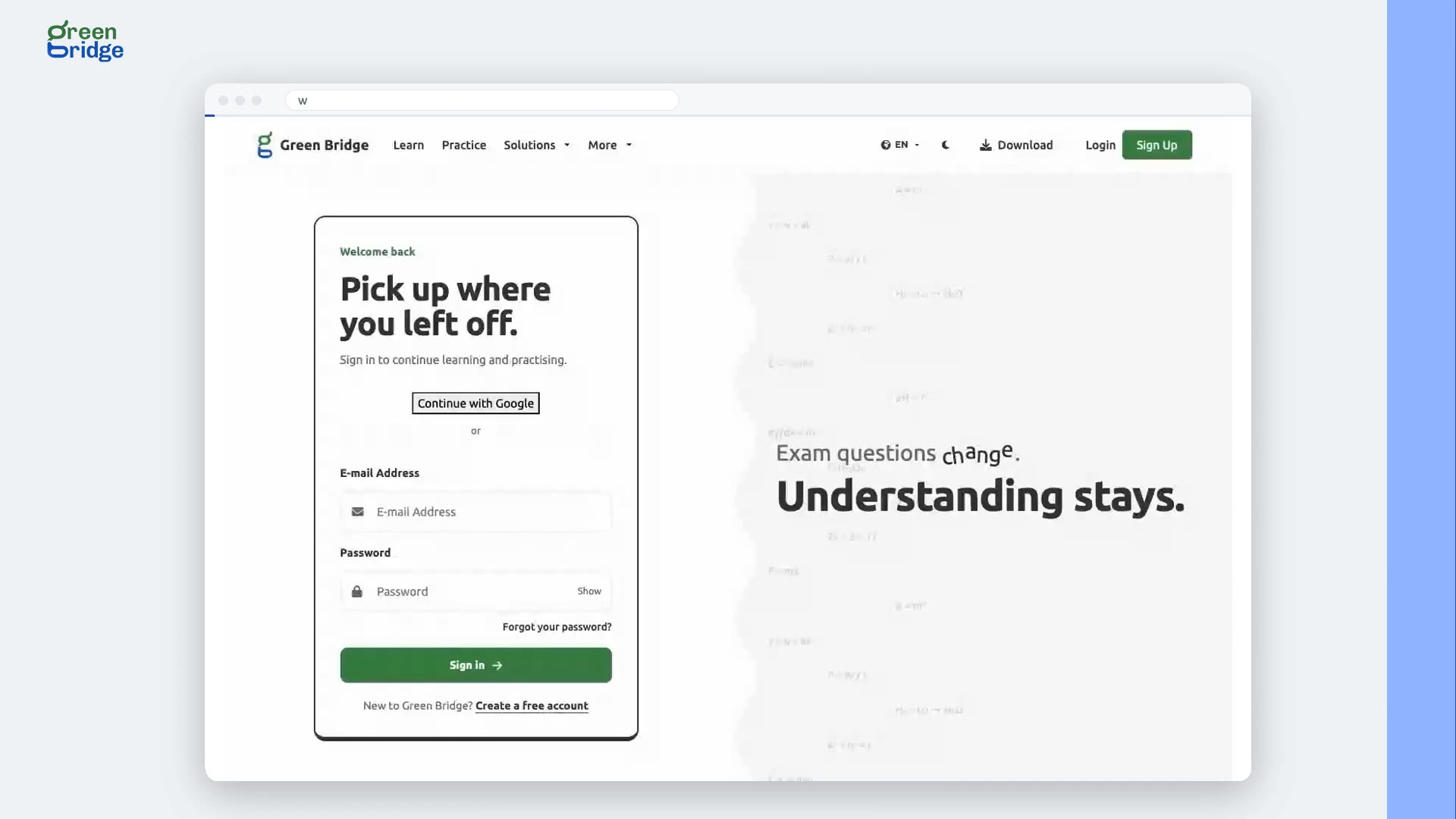
What happens if I type the wrong password?
You stay on the sign-in page and see "Invalid email or password. Please check your login details and try again." Check the email for typos and make sure Caps Lock is off. Click Show next to the password box to see what you typed. If you still can't get in, click Forgot your password? to set a new one.
Ịbanye
-
 1:26
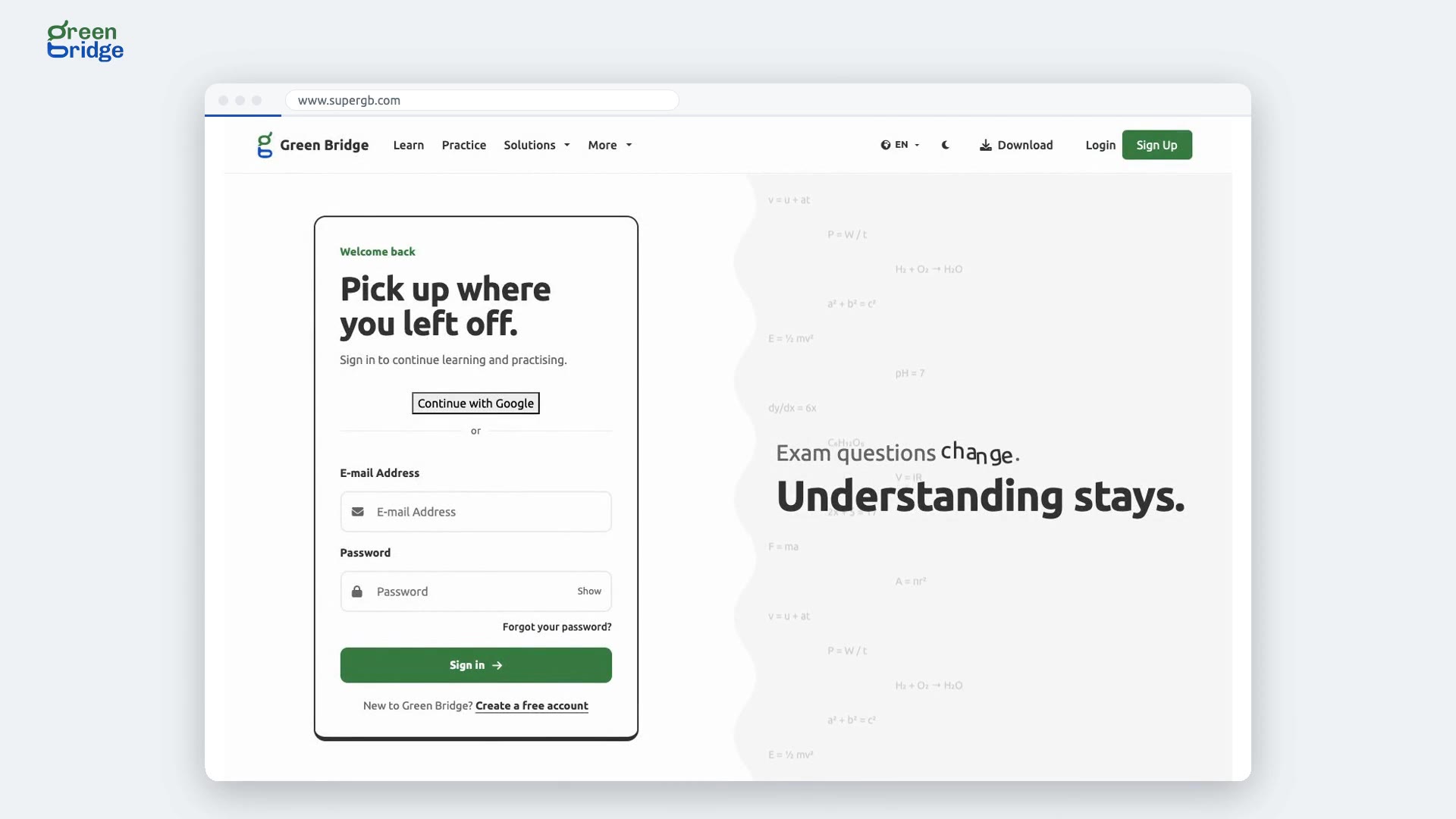
How to reset a forgotten password
On the sign-in page, click Forgot your password? under the password box. Enter the email address you signed up with and click Reset Password. We'll email you a link. Open it, type your new password twice and click Change. You can now sign in with the new password, and the old one stops working. If the email hasn't arrived after a few minutes, check your spam folder.
Ịbanye
-
 0:40
Where will I land after signing in?
Green Bridge takes you to the dashboard for your kind of account. Students go to their student dashboard, parents to the parent dashboard and teachers to their school dashboard. Scholarship judges see the judge dashboard, where their scholarship work is.
Ịbanye
-
 0:58
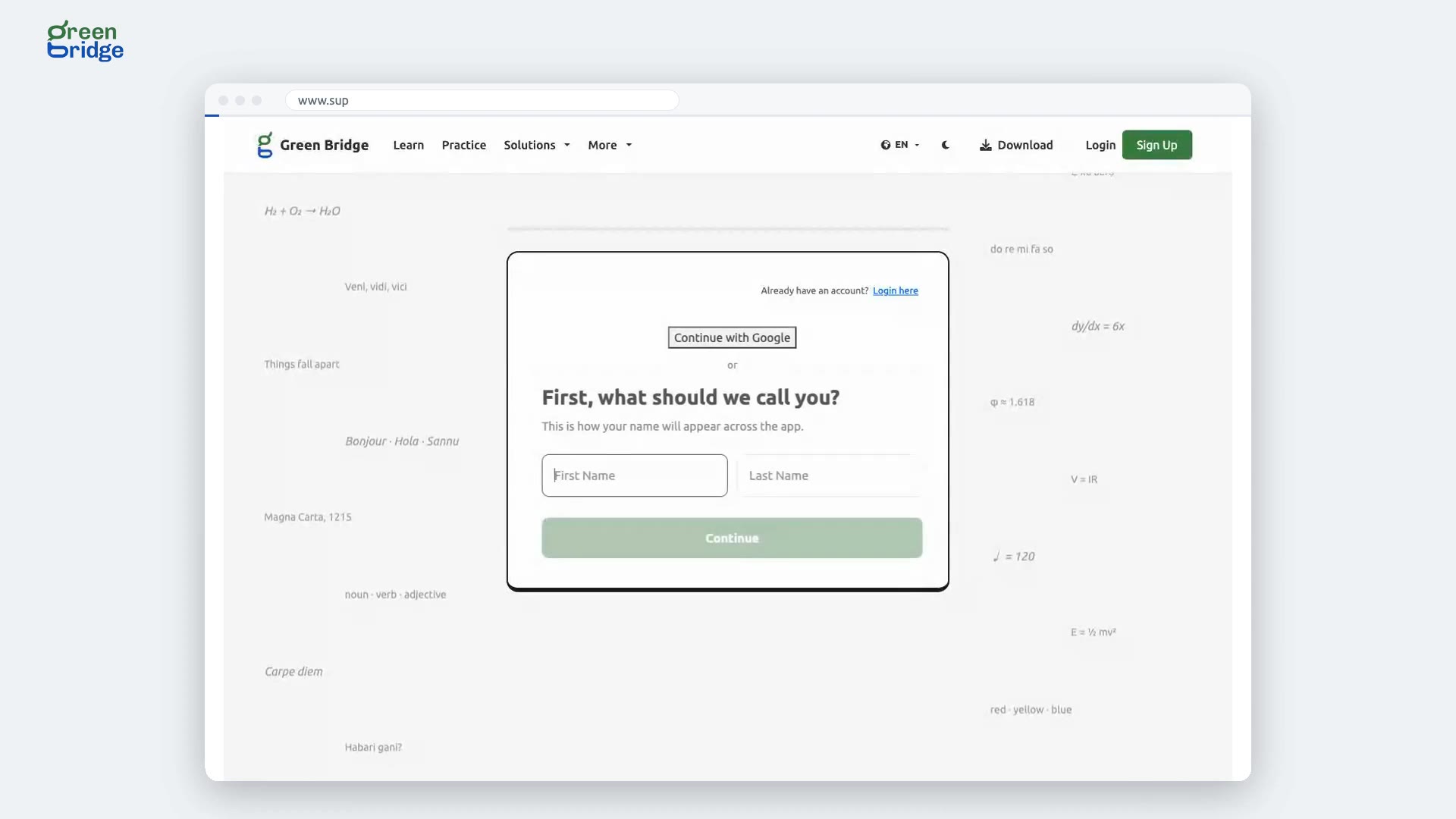
How to sign up as a student with Google
Click Sign Up at the top of the page, choose I am a Student and click Continue. Click Sign up with Google and pick your Google account. A few questions follow, such as your date of birth, phone number and the terms; anything optional has a Skip this one button. When you finish you land on your student dashboard, with no confirmation email to wait for.
Ịdebanye aha na ịbanye site na Google
-
 0:29
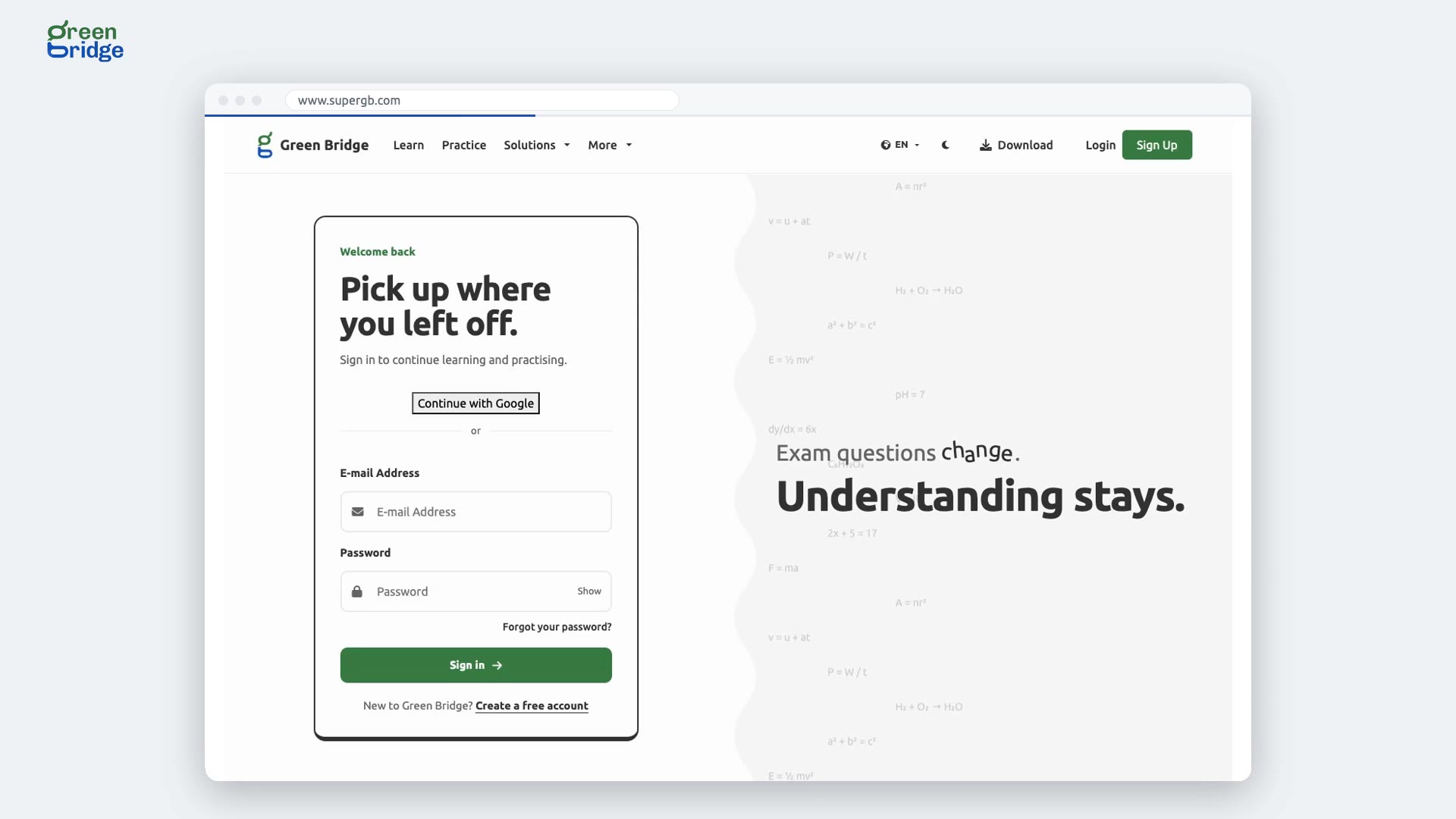
How to sign in with Google
Click Login at the top of the page, then Sign in with Google, and choose the Google account that uses the same email address as your Green Bridge account. You go to your dashboard without typing a password, and your account is linked to that Google account from then on.
Ịdebanye aha na ịbanye site na Google
-
 2:08
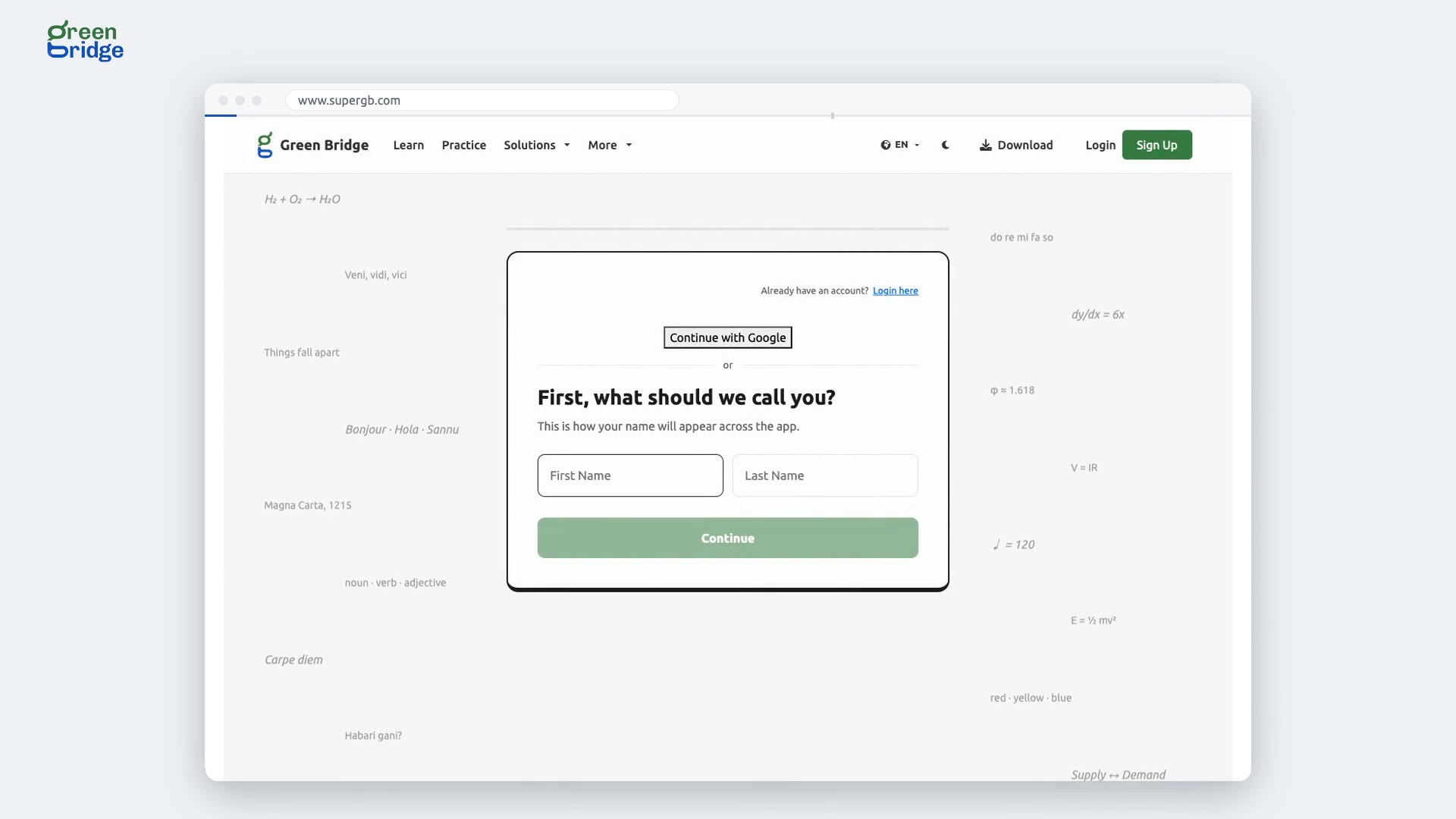
How to sign up as a student
On the sign-up page, choose I am a Student and click Continue. Answer one question at a time, including your name, email, the exam you're preparing for, your date of birth and a password. Some questions about how you study can be skipped with Skip this one. Agree to the Terms and Conditions to finish, then open the welcome email and select the link to activate your account. Now sign in and you'll be on your dashboard.
Imepụta akaụntụ
-
 1:35
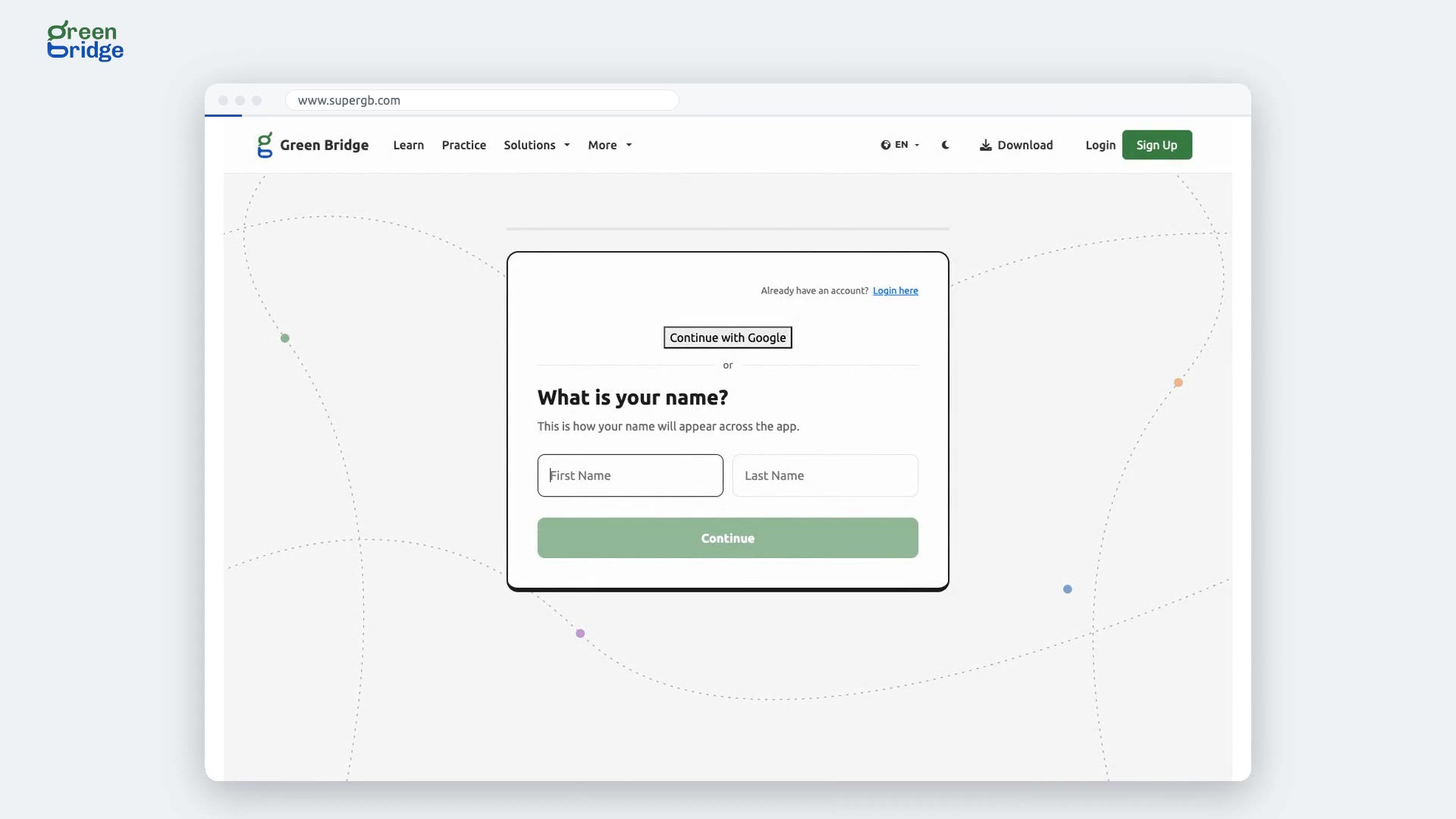
How to create a parent account
On the sign-up page, choose I am a Parent and click Continue. Answer one question at a time: your name, email, how many children you're supporting, your country, which exam they're preparing for, your date of birth and a password. A parent account needs someone aged 18 or over. Agree to the Terms and Conditions to finish, then open the "Welcome to Green Bridge for Parents" email and select the link. Sign in and you'll land on your parent dashboard.
Imepụta akaụntụ
-
 2:04
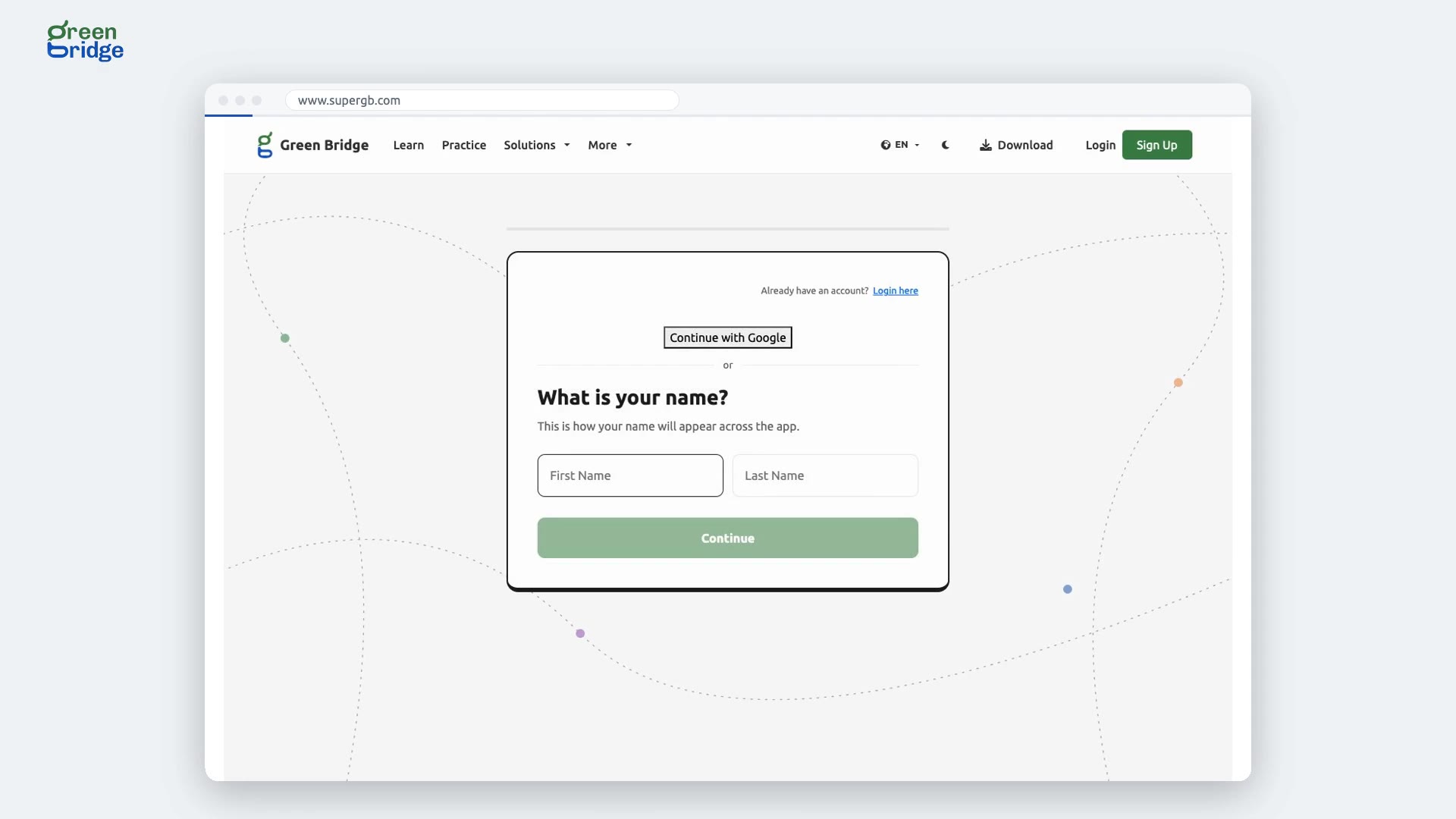
How to sign up as a teacher and join your school
On the sign-up page, choose I am a Teacher and click Continue. When you're asked if you know a school you would love to connect with, choose Yes, I do and type the school's share code. Your school admin gets an email to accept you. Confirm your own address from the welcome email. Once the school accepts, sign in and you'll land on your school dashboard.
Imepụta akaụntụ
-
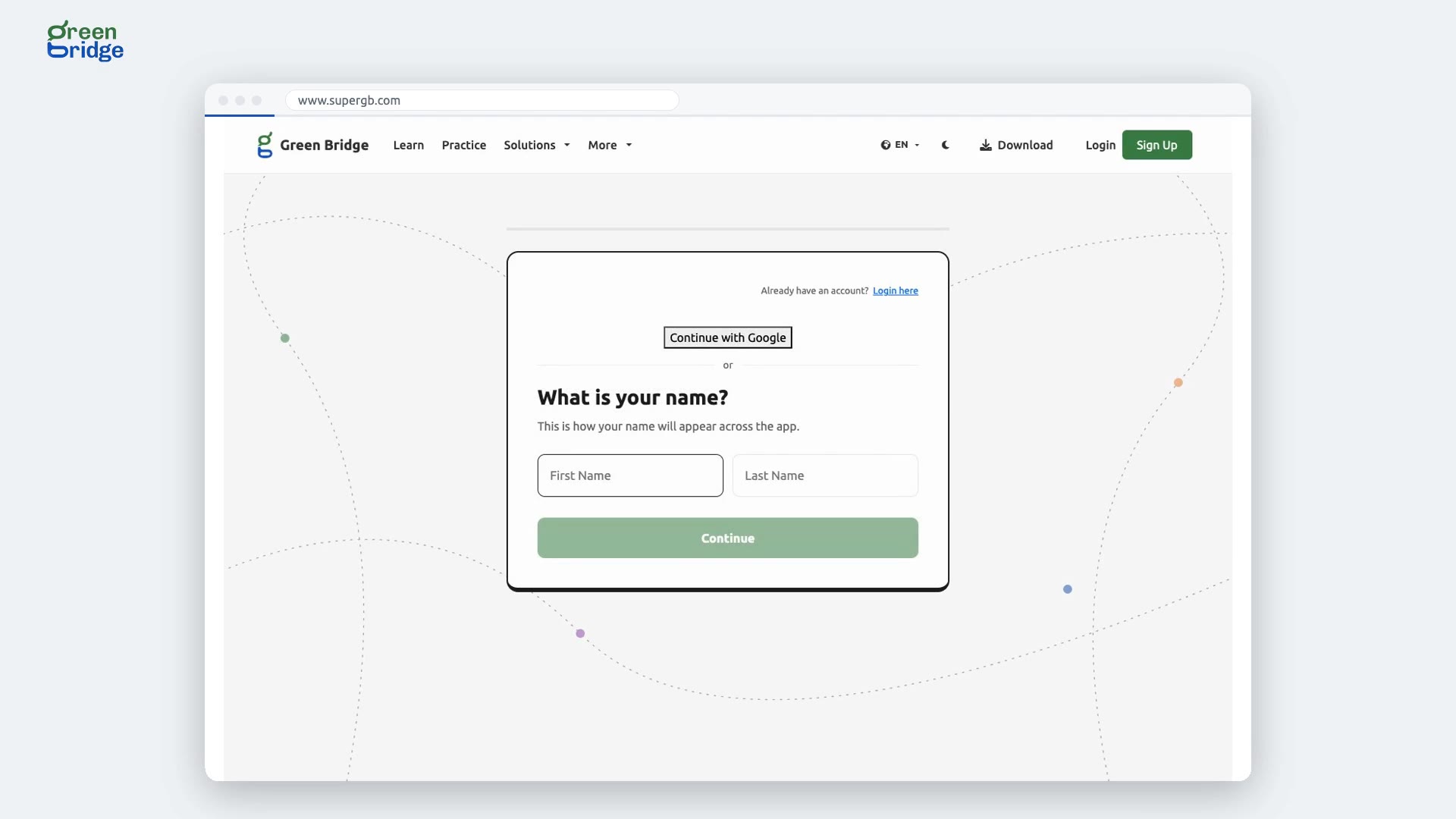 1:24
How to decline a teacher who asked to join your school
When a teacher signs up with your school's share code, the school admin receives an email titled "New request to join" followed by your school's name. It has links to accept or decline. Click decline and you'll see "Connection Declined". The teacher isn't connected to your school and gets an email to let them know.
Imepụta akaụntụ
-
 1:14
Can I sign up as a teacher without a school?
Yes. Sign up as a teacher and, when you're asked if you know a school you would love to connect with, choose Not yet. Your account is created with no school attached. Confirm your email to start, and join a school whenever you're ready.
Imepụta akaụntụ
-
 1:31
How to accept your school's invitation to be its admin
Open the email your school sent and follow its link to sign up. Use the same email address the school invited, because the account must match it. Once you finish, you're already an admin of that school. Confirm your address from the "Welcome to Green Bridge for Schools" email, then sign in and you'll land on the school dashboard.
Imepụta akaụntụ
-
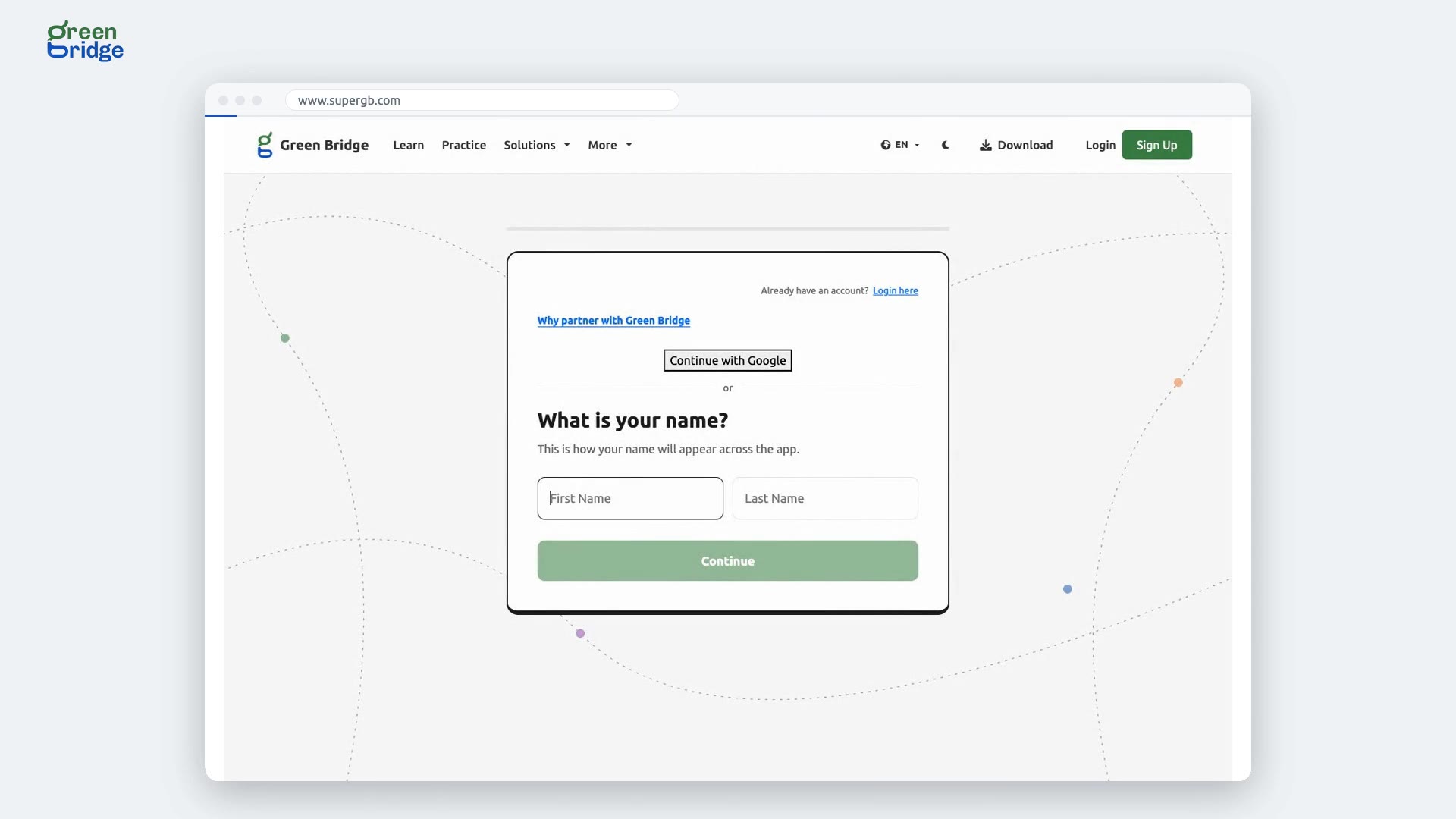 1:33
How to sign up as a partner organisation
On the sign-up page, choose I am a Partner Organisation and click Continue. Along with your name and email, give your organisation's name and the website where the tests will appear. Only those websites can show your embedded tests, and you can add more later. Confirm your address from the welcome email, then sign in to reach your partner dashboard.
Imepụta akaụntụ
-
 1:36
How to get the confirmation email sent again
After you sign up you'll see Check your inbox. If the email hasn't come, look in your spam folder first, then click Send it again. We'll send the same confirmation link to the same address. You can ask once a minute, so give it a moment before trying again. Open the link and you'll see "Account Verified & Activated".
Imepụta akaụntụ
-
 1:29
Why does sign-in say "Verify your email to log in"?
Your account is waiting for you to confirm your email address. The page shows where we sent the link. Open that email and select the link, or click Send it again on the same page for a fresh copy. Once you've confirmed, sign in as normal.
Imepụta akaụntụ
-
 0:36
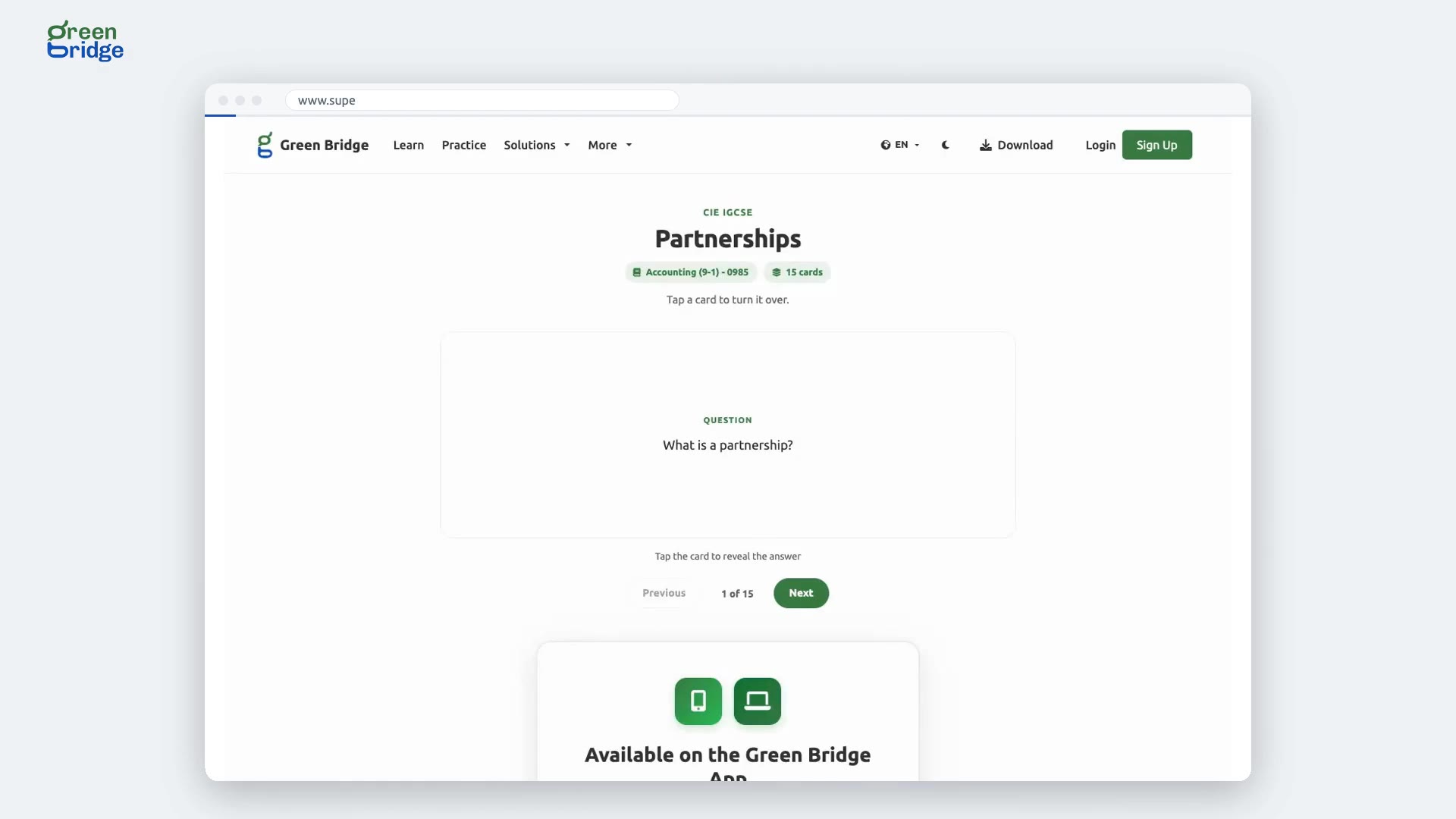
How to revise with flashcards
Open a set of flashcards for your topic. Each card shows its question first, so answer it in your head before you look. Tap or click the card to turn it over and see the answer, then click Next for the following card. Previous takes you back one.
Iji ibe ọmụmụ n'efu
-
 0:28
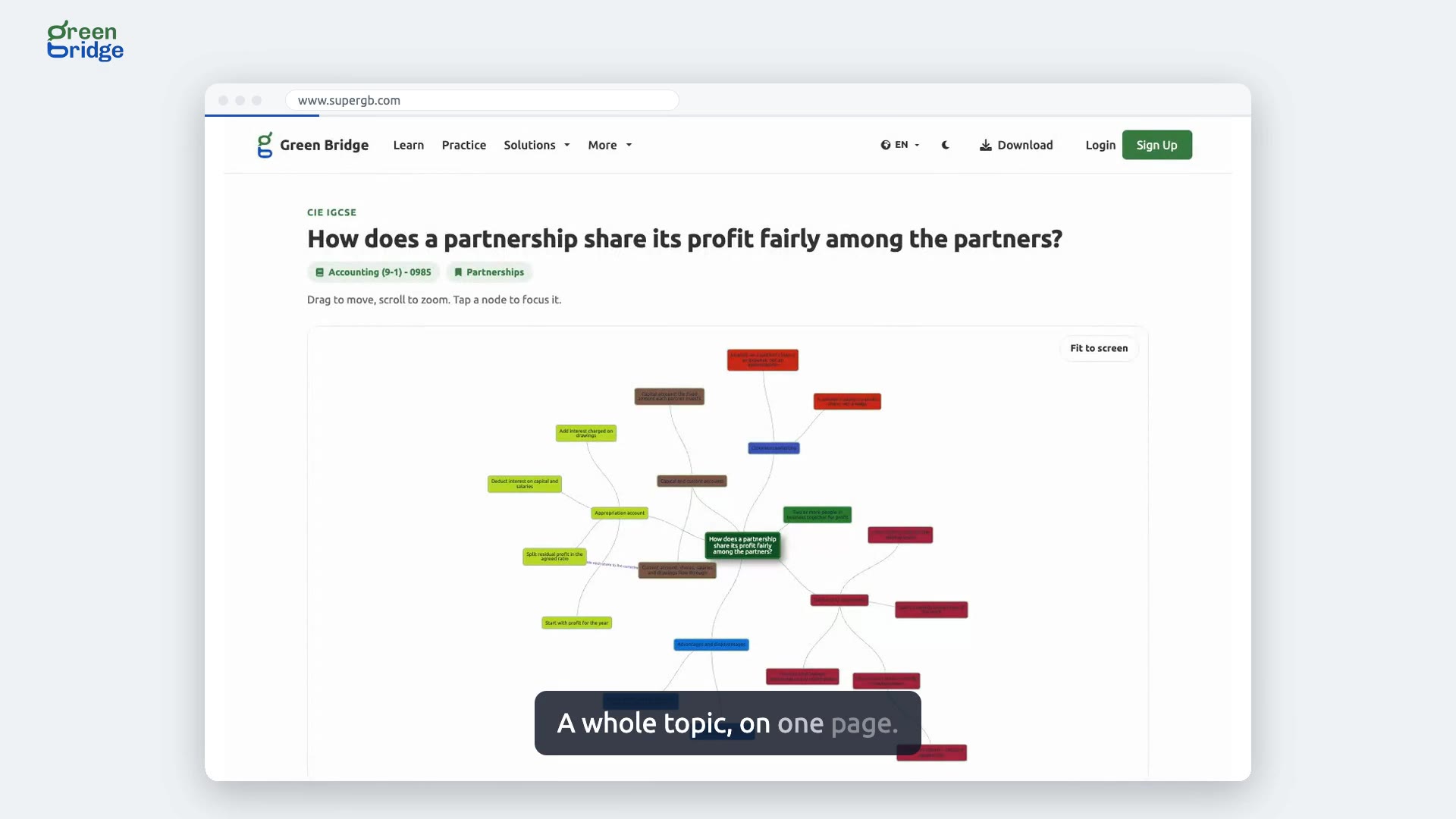
How to see a whole topic on a mind map
Open the mind map for your topic. Drag to move around it, scroll to zoom in or out, and tap a branch to focus on it. If you lose your place, click Fit to screen and the whole map shrinks to fit your window, with every branch in view. Mind maps are free to use without an account.
Iji ibe ọmụmụ n'efu
-
 0:27
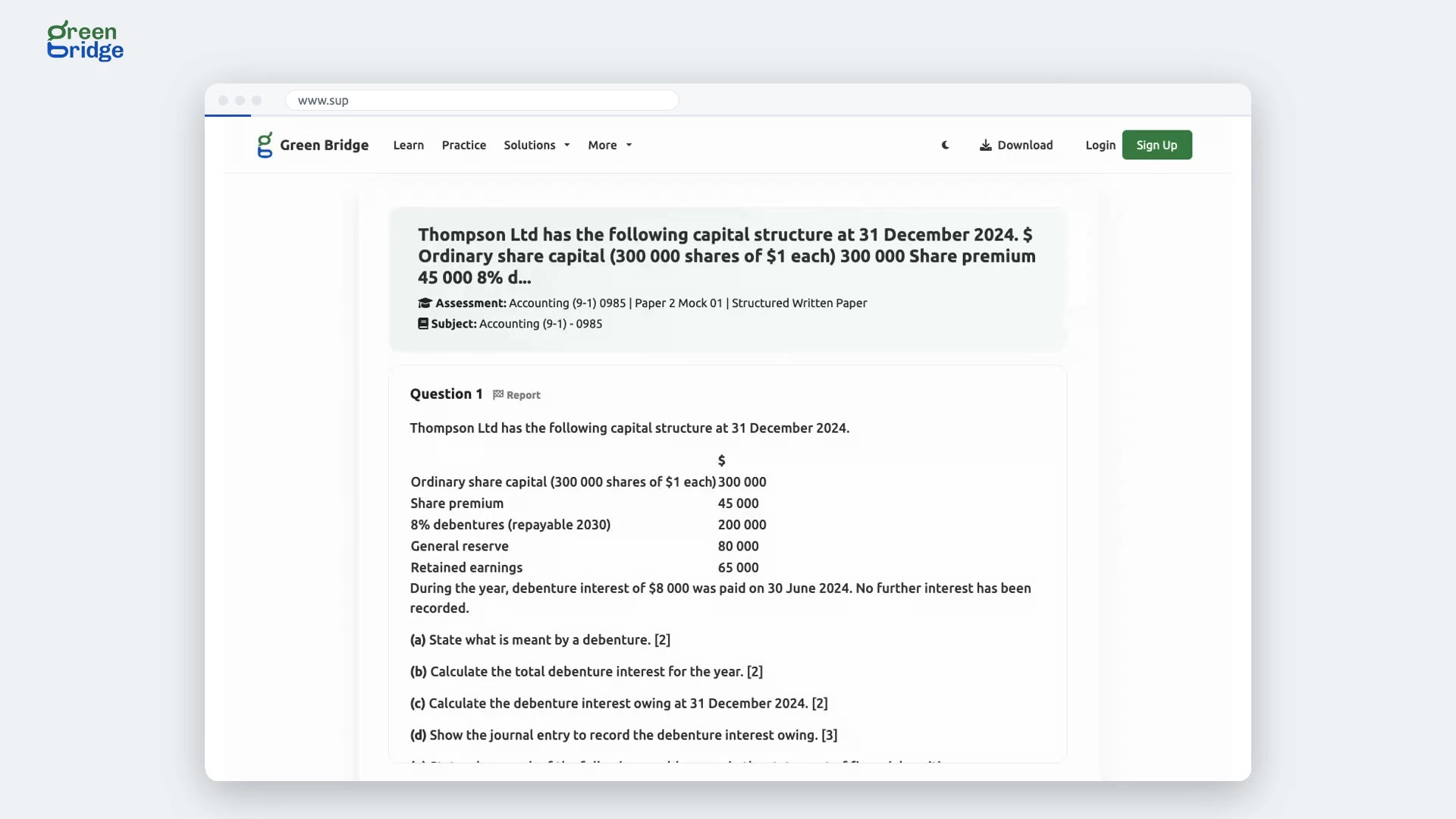
How to check the answer to a past question
Try the question yourself first. When you're ready, click View Answer under it to see the correct answer. Click View Answer again to hide it, so you can come back later and have another go.
Iji ibe ọmụmụ n'efu
-
 0:38
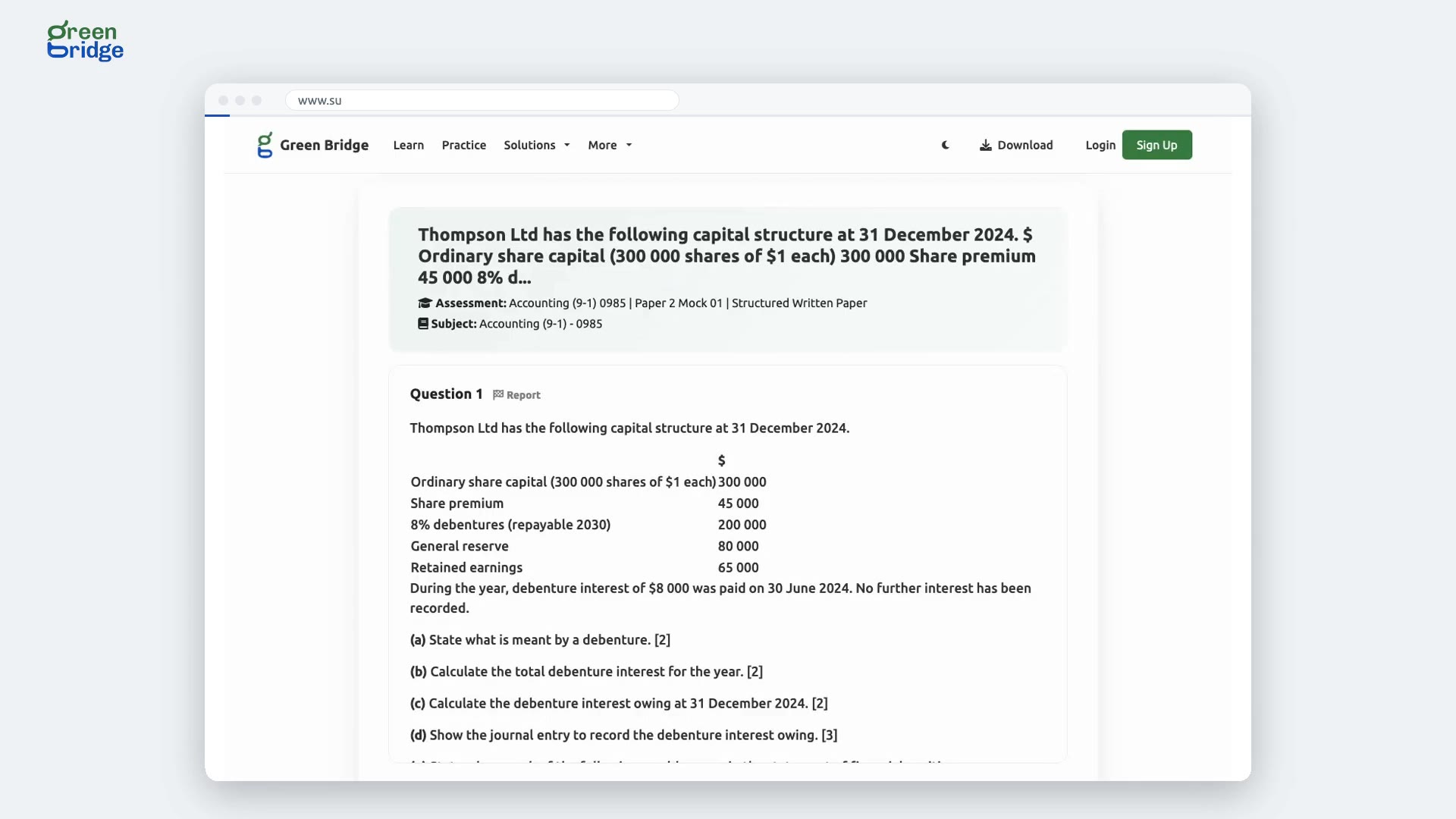
How to report a mistake in a question
If a question has a typo, a wrong answer or anything else that looks off, click Report next to the question number. Describe the problem in the box and click Send Report. You'll see "Report Sent", and the Green Bridge team gets your report by email so they can put it right. You can report a question without an account.
Iji ibe ọmụmụ n'efu
-
 0:28
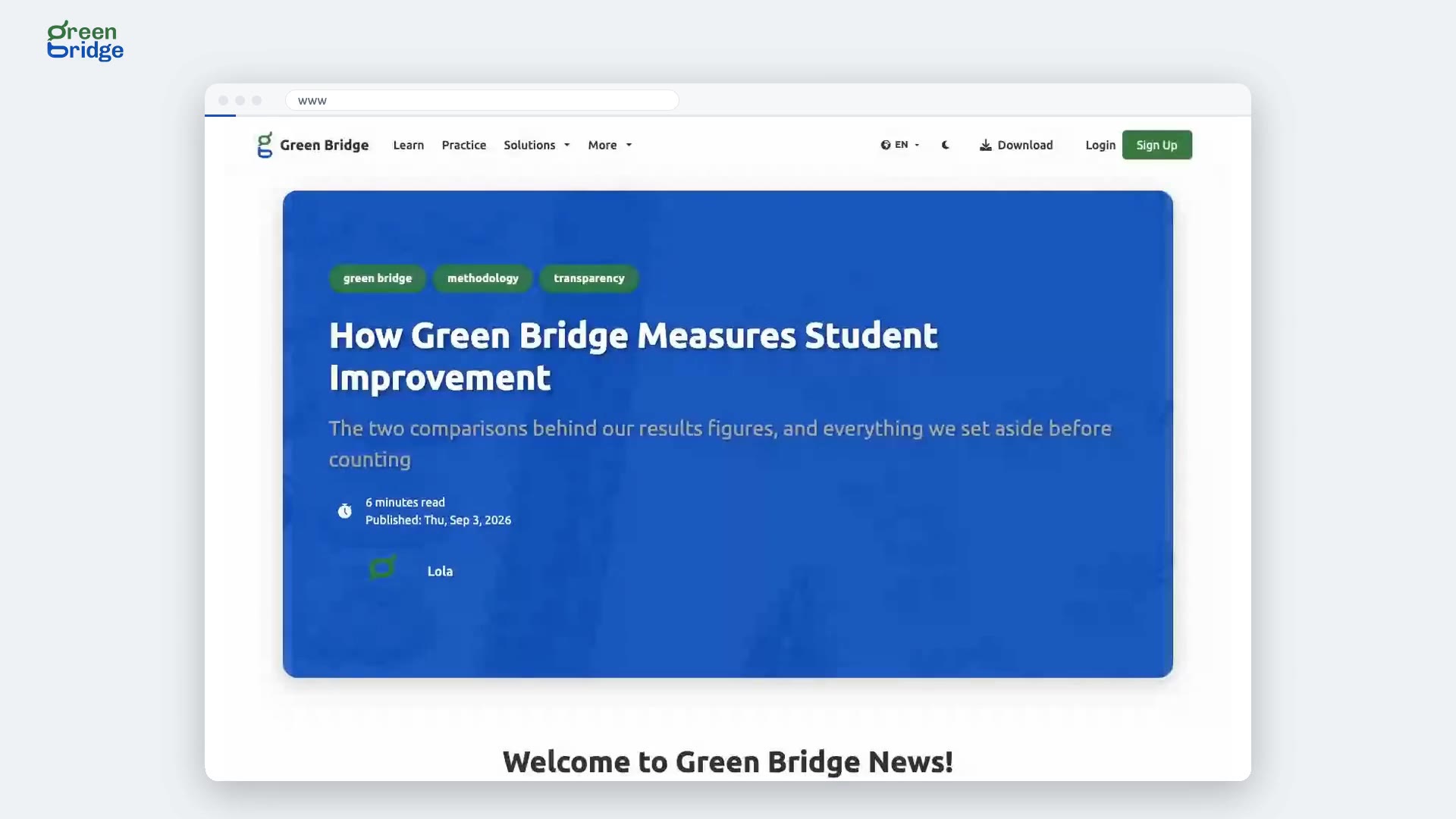
How to search the Green Bridge journal
Click News in the menu at the top of the page (on a wide screen it sits under More). Type what you're looking for into the search box, for example exam, and press Enter. The articles listed are the ones that mention it. To browse everything instead, click See More Articles.
Iji ibe ọmụmụ n'efu
-
 0:26
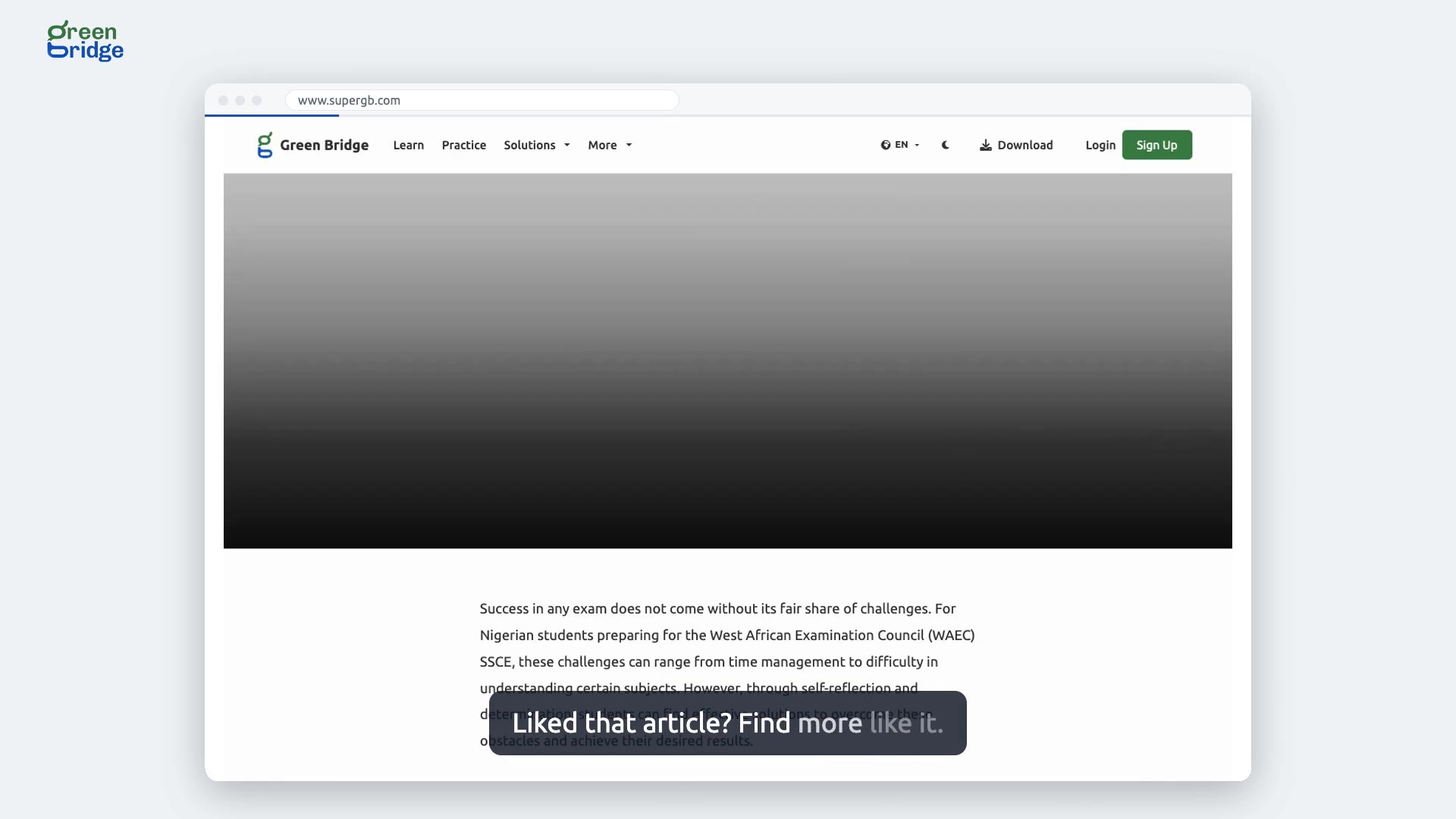
How to find more articles on the same topic
At the end of a journal article, under Tag(s), click any of its tags. A list of other articles with that tag opens, and you can pick the next one to read.
Iji ibe ọmụmụ n'efu
-
 0:30
How to find a topic in a subject
Open the subject from the Learn page to see its topics. Type a word from the topic you want into the search box above the list and press Enter. Only topics with that word in their name are left, so you can open the one you need.
Iji ibe ọmụmụ n'efu
- How to find a student in Clients and view their account From your admin dashboard, open Clients and search for the student by their email address. The results show the student's name and options to view or edit their account. Choose to view the account to see their name and email address. Clients and platform admins on the admin dashboard
- How to assign a plan to a student from Clients In your admin dashboard, open Clients and find the student you want to assign a plan to. Open Edit, choose a learner plan and save your changes. Open Edit again to check that the student's account shows the plan you selected. Clients and platform admins on the admin dashboard
- How to let a platform admin manage schools As a super admin, open Manage users and give the platform admin permission to manage schools. When they sign in to the admin dashboard, they can select Manage school from their menu to open it. Clients and platform admins on the admin dashboard