Comment fonctionne Green Bridge
Des explications courtes et simples de ce que vous pouvez faire sur Green Bridge, souvent avec une vidéo. Choisissez qui vous êtes et votre plateforme, ou faites une recherche.
349 guides, dont 277 avec une vidéo
Guides trouvés : 84 Effacer les filtres
-
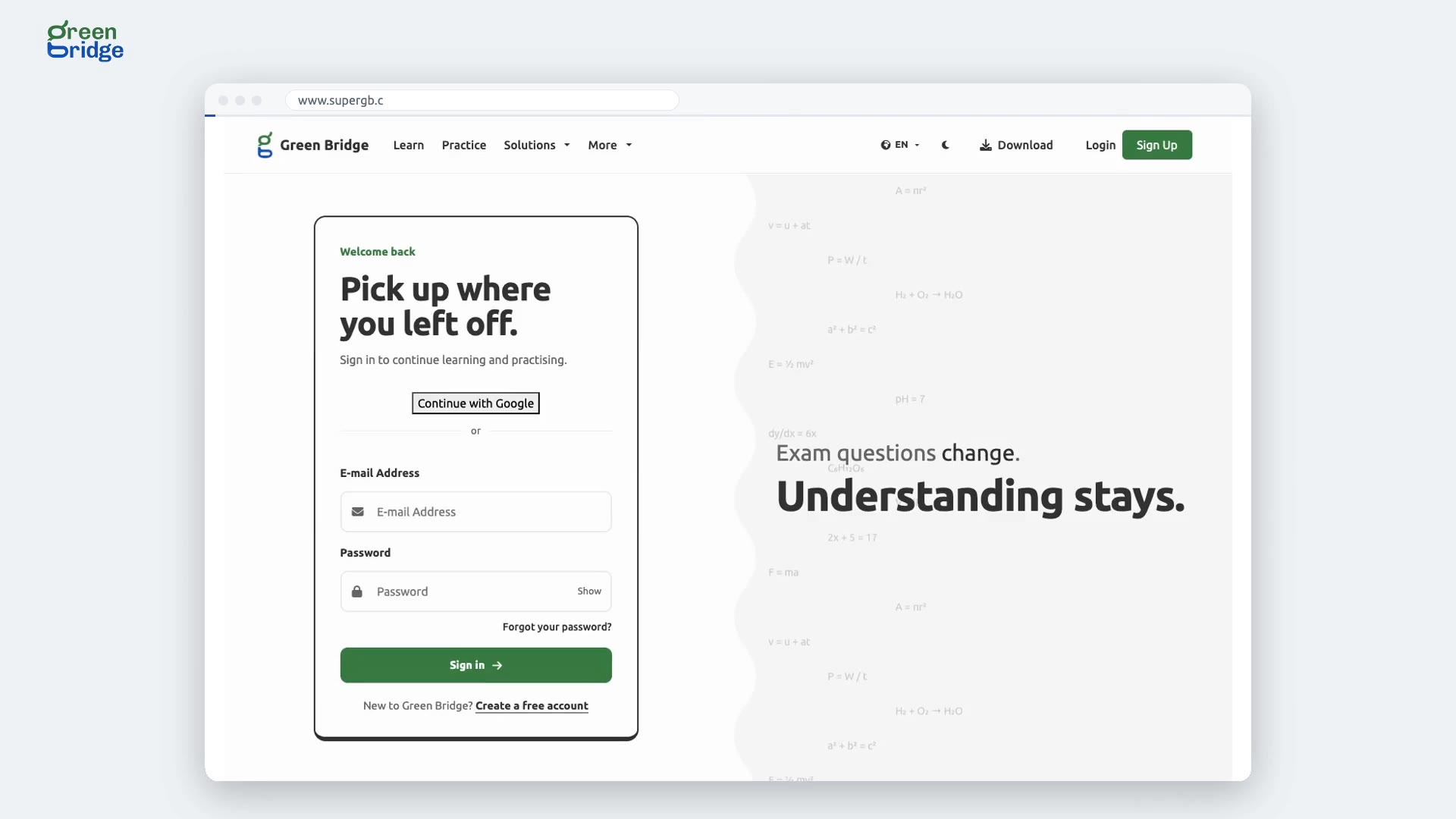 1:48
How to message a teacher at your school
In your school dashboard, open Messages and click New Message. Choose the teacher, write your message and send it. The teacher sees it as unread when they next sign in, and their reply lands in the same conversation for you.
Messages dans votre école
-
 1:15
How to message your Teachers' Network tutor
When you have a confirmed lesson with a tutor from the Teachers' Network, you can message them. Open Messages, click New Message, choose your tutor and write, for example to ask them to go over a question in your next lesson. They'll see it as unread when they next sign in.
Messages dans votre école
-
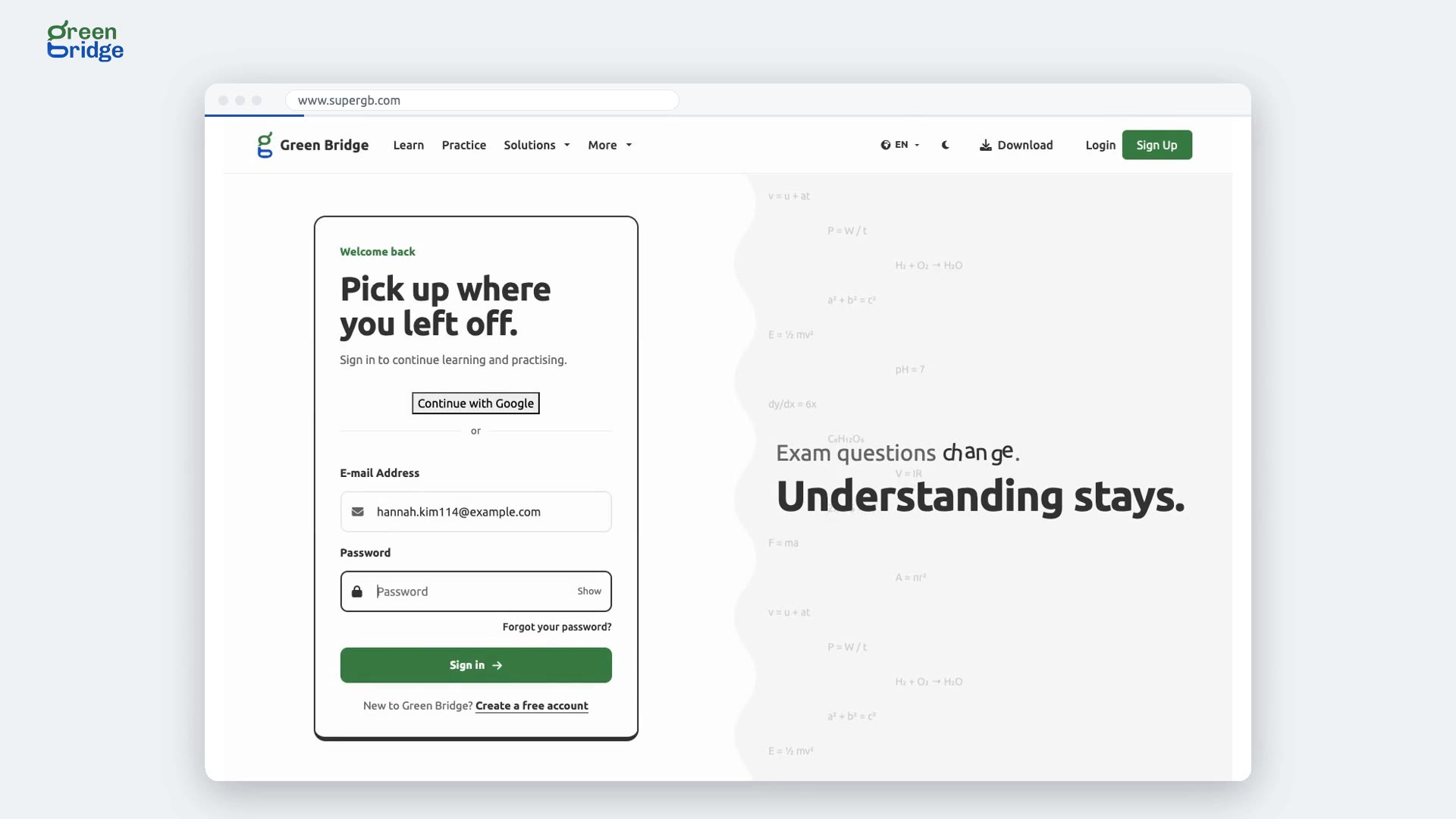 1:22
How to message your parent from your dashboard
Once your parent is linked to your account, open Messages on your dashboard and click New Message. Choose your parent, write your message and send it. It stays in your conversation with them, so their replies are all in one place.
Messages dans votre école
-
 1:55
How to post a test to Google Classroom and get the marks back
In your school dashboard, open Assessments and click the test. Open the menu at the top and choose Post to Google Classroom. The first time, click Connect Google Classroom and allow Google's permissions. Choose your classes, add a due date if you want, click Continue, check the summary and click Post. Students open it from Classroom and sit it on Green Bridge, and their marks go to the Classroom gradebook by themselves.
Google Classroom
-
 1:15
Can I post a test to my own Google Classroom class as a teacher?
Yes. Open Assessments, click the test, then open the menu at the top and choose Post to Google Classroom. Connect your Google account the first time, choose the Classroom classes you teach and click Continue, then Post. The option appears once the test is open. Your students follow the assignment link in Classroom to sit it.
Google Classroom
-
 1:06
How to disconnect Google Classroom
Open a test from Assessments, click the menu at the top and choose Post to Google Classroom. At the bottom of the window, click Disconnect Google Classroom. Marks for assignments you've already posted stop being sent, and next time you post, Green Bridge asks you to connect your Google account again.
Google Classroom
-
 2:33
What happens if Google Classroom refuses a mark?
The mark isn't lost: Green Bridge keeps it, ready to send again. Open the test from Assessments, click the menu at the top and choose Post to Google Classroom. Under Marks sent to Classroom, the refused mark is shown as failed. Click Send again next to it and Classroom gets the mark.
Google Classroom
-
 1:12
How to post a test to your Microsoft Teams class
Your school needs to have connected Microsoft 365 first, and the test must be open. Open Assessments, open the test, then choose Post to Microsoft Teams from its menu. Click Sign in with Microsoft, and Microsoft brings you back to choose your classes. Tick the Teams classes you teach, review and click Post. The test appears in Teams as an assignment, and marks go back to it.
Publier des tests dans Microsoft Teams
-
 0:48
How to email a report to a student or their parents
Open Reports and click the student, or switch to Classes and pick a class. Under Recipient, choose The student or Linked parent, or for a class, All class students or All class parents. Click Send. You'll see exactly who will get it before you confirm with Send to and the number of people. Parents only receive it if their account is linked to the student.
Bulletins des élèves et des classes
-
 1:14
How to find a student's report and show just one test
Open Reports and type a name or email in Search by name or email. The list narrows as you type. Click the student to open their report, then change Scope from All assessments to the test you want. The report then shows that test's result only, which is handy when a parent asks about one paper.
Bulletins des élèves et des classes
-
 1:34
How to rename a test
Open the test from Assessments, open the menu at the top and choose Modify assessment. Change the title and save. The same form also changes the class, deadline, duration and question counts. A draft stays a draft until you publish it.
Paramètres et consignes du test
-
 0:44
How to hide students' names while a test is being marked
In Assessments, open the menu on the test and switch on Anonymise grading. Each candidate's name is then hidden from whoever marks the test, so answers are judged on what they say. Switch it off the same way if you need names back.
Paramètres et consignes du test
-
 0:48
How to use a room code for an exam you supervise in person
Before you publish the test, open its menu and choose Room code, then click Make a code. Read the code out or write it on the board when you want students to start. They need it as well as their own entry code. Afterwards, click Turn off the room code, and students can start with just their entry code.
Paramètres et consignes du test
-
 0:45
How to message everyone sitting a test
Open the test from Assessments, open the menu at the top and choose Message participants. Write a subject, such as a change of room, and your message, then click Send to participants. Every student enrolled on the test gets it by email and as a notification.
Paramètres et consignes du test
-
 1:06
How to add an instruction or reading passage to a test
Open the draft test from Assessments, open the menu at the top and choose Shared instructions. Click New instruction, give it a title, write the rubric or reading passage and click Save. Then choose it in the list on each question it belongs to, so one passage serves a whole set of questions.
Paramètres et consignes du test
-
 1:09
How to delete an instruction from a test
Open the test from Assessments, open the menu at the top and choose Shared instructions. Click the bin icon on the instruction and confirm. If any questions still use it, unlink them first. Instructions can't be changed once students have the test.
Paramètres et consignes du test
-
 2:01
How to add a recording to a test for a listening exercise
Open the test's menu and choose Shared instructions. Click New instruction, give it a title, write what students should do and click Save. Click the microphone icon on the instruction, choose an MP3 or WAV file of up to 20 MB, add a label and a transcript, and click Upload and attach. Then, on the test page, choose that instruction in the list on each question that uses the recording.
Paramètres et consignes du test
-
 1:05
How to create, rename or delete a class
Click Classes in the menu, then Create class. Type the class name, choose its main tutor if it has one, and save. To rename it later, open the menu on the class, choose Edit, change the name and save. Delete in the same menu removes the class.
Les classes de votre école
-
 1:28
How to add or remove students and teachers in a class
Click Classes in the menu, then click the class's name to open it. Click Add student and pick a student, or Add teacher and pick a teacher, and they join the class. To take someone out, click Remove next to them and confirm.
Les classes de votre école
-
 0:51
Why can't I create or change classes as a teacher?
Classes are set up by your school's admin. As a teacher, Classes shows only the classes you teach, and you can open them to see who is in them. Creating, renaming and deleting classes, and adding or removing students and teachers, are left to a school admin, so ask yours if a class needs to change.
Les classes de votre école
-
 1:16
How to sit your school's test from the email
When your school opens a test, you get an email titled with the test's name and "is ready - start your assessment". Open the link, type the 6-digit Exam entry code from the same email and click Start. Read the instructions, click Start Assessment, answer the questions and submit. Your multiple-choice score is shown straight away.
Passer un test scolaire
-
 0:36
What if my test entry code doesn't work?
If the code is wrong or the link has run out, you'll see "That code did not match, or your link has expired." and the test stays closed. Check the code in the email your school sent and type it again. After too many wrong codes the test locks for 15 minutes. If it still won't open, ask your teacher.
Passer un test scolaire
-
 1:23
When do I get my mark for essays and short answers?
Multiple-choice questions are marked when you submit. Essays and short answers are waiting for your teacher, and the thank-you page says so. You'll get your final score once your teacher has marked them.
Passer un test scolaire
-
 0:57
How to sit a school test with your Green Bridge password
Open the test link your teacher shared with the class. Click Sign in with a Green Bridge password instead and sign in. Read the instructions and click Start Assessment. Answer each question, click Submit and confirm. Multiple-choice answers are marked as soon as you submit, so you'll see that score on the thank-you page.
Passer un test scolaire