Comment fonctionne Green Bridge
Des explications courtes et simples de ce que vous pouvez faire sur Green Bridge, souvent avec une vidéo. Choisissez qui vous êtes et votre plateforme, ou faites une recherche.
349 guides, dont 277 avec une vidéo
Guides trouvés : 347 Effacer les filtres
-
 0:23
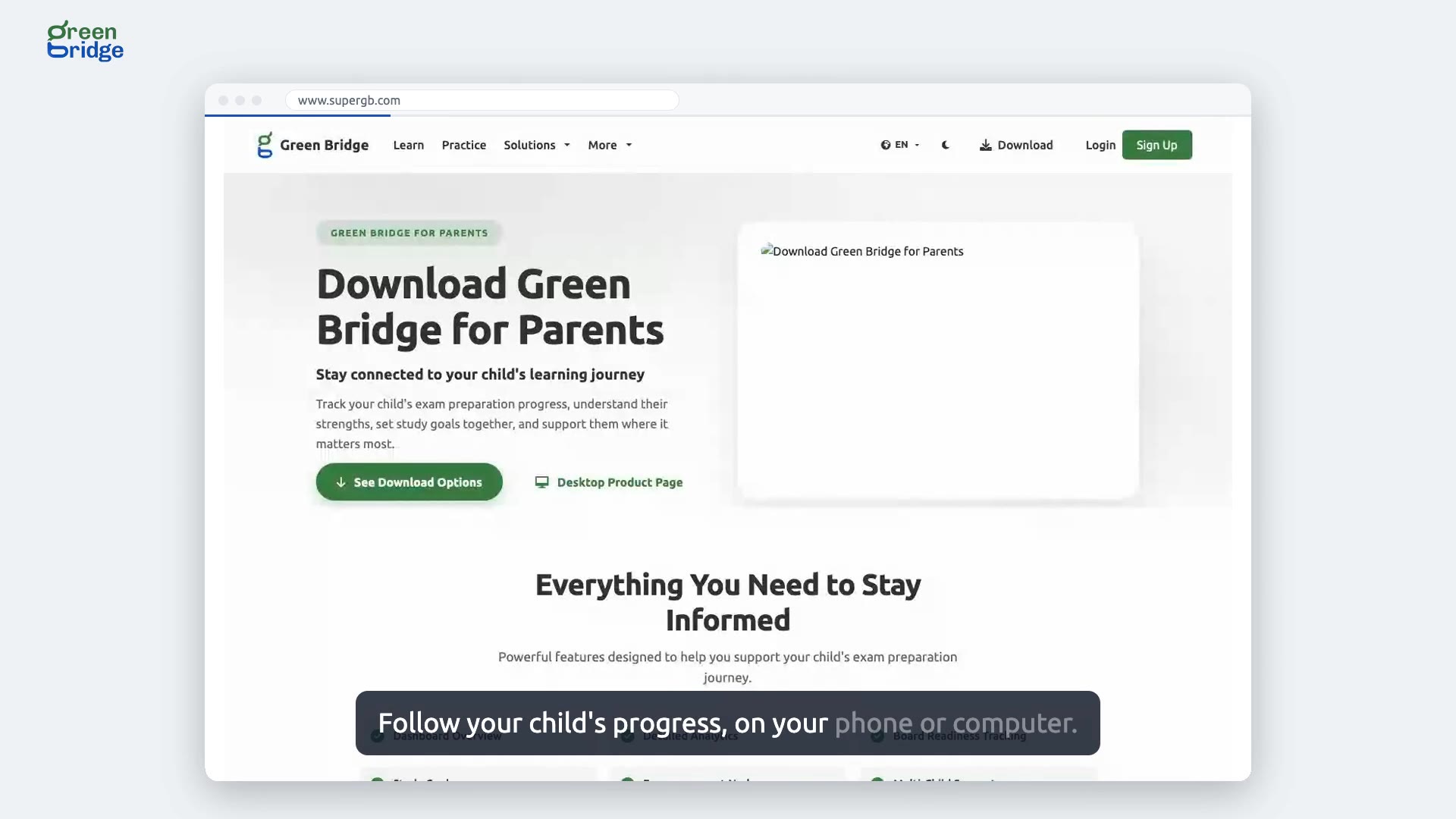
Which Green Bridge app should parents use?
Click Download at the top of the page and choose Get Green Bridge for Parents. The page explains what the apps help you keep track of, then offers two ways in: the Desktop App for a computer and the Mobile App for an Android phone. Click View Desktop Downloads or Get it on Google Play.
Applications pour les parents
-
 0:22
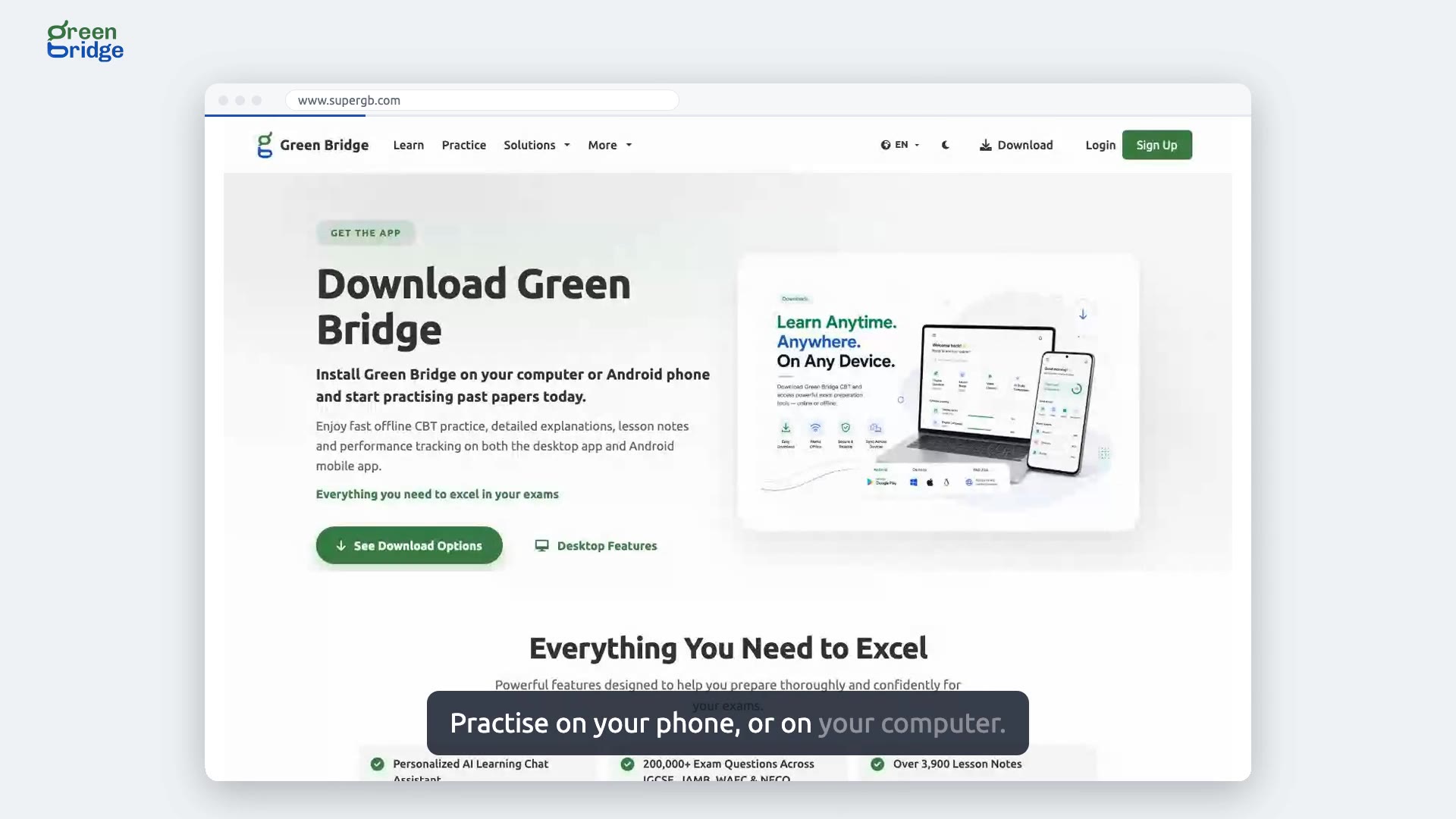
How to download Green Bridge on your phone or computer
Open the student downloads page and scroll to the download options. For a computer, click Go to Desktop Downloads: the desktop app runs on Windows, macOS and Linux. For an Android phone, click Open Play Store. Both apps let you practise even without data.
Obtenir les applications
-
 0:27
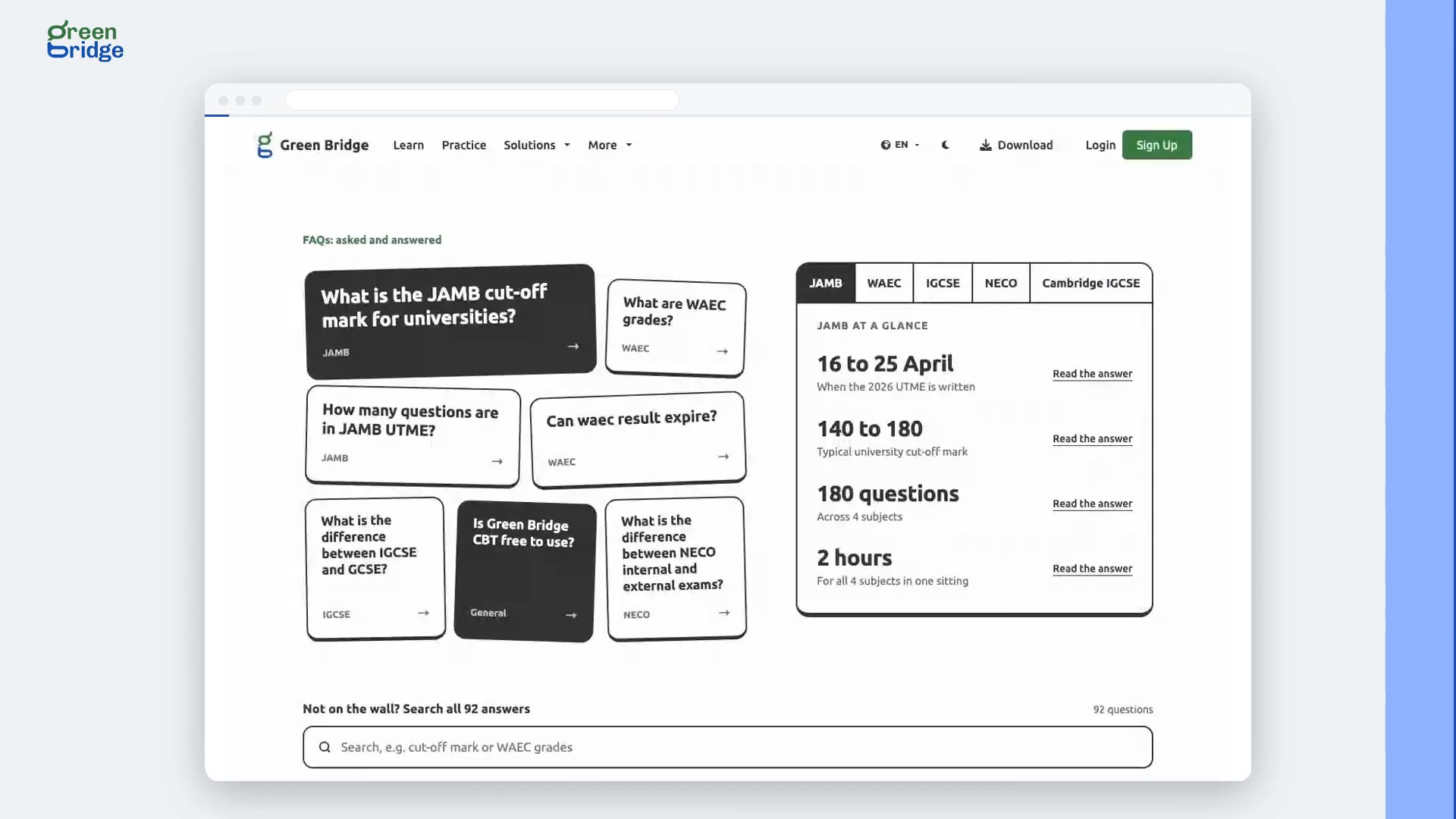
How to search the FAQs
Open FAQs from the menu at the top of the page. Type a word into the search box, for example centre or cut-off, and the list narrows as you type to the questions that mention it. If nothing matches, try a shorter word, or click Contact Us at the bottom of the page.
Questions fréquentes
-
 0:24
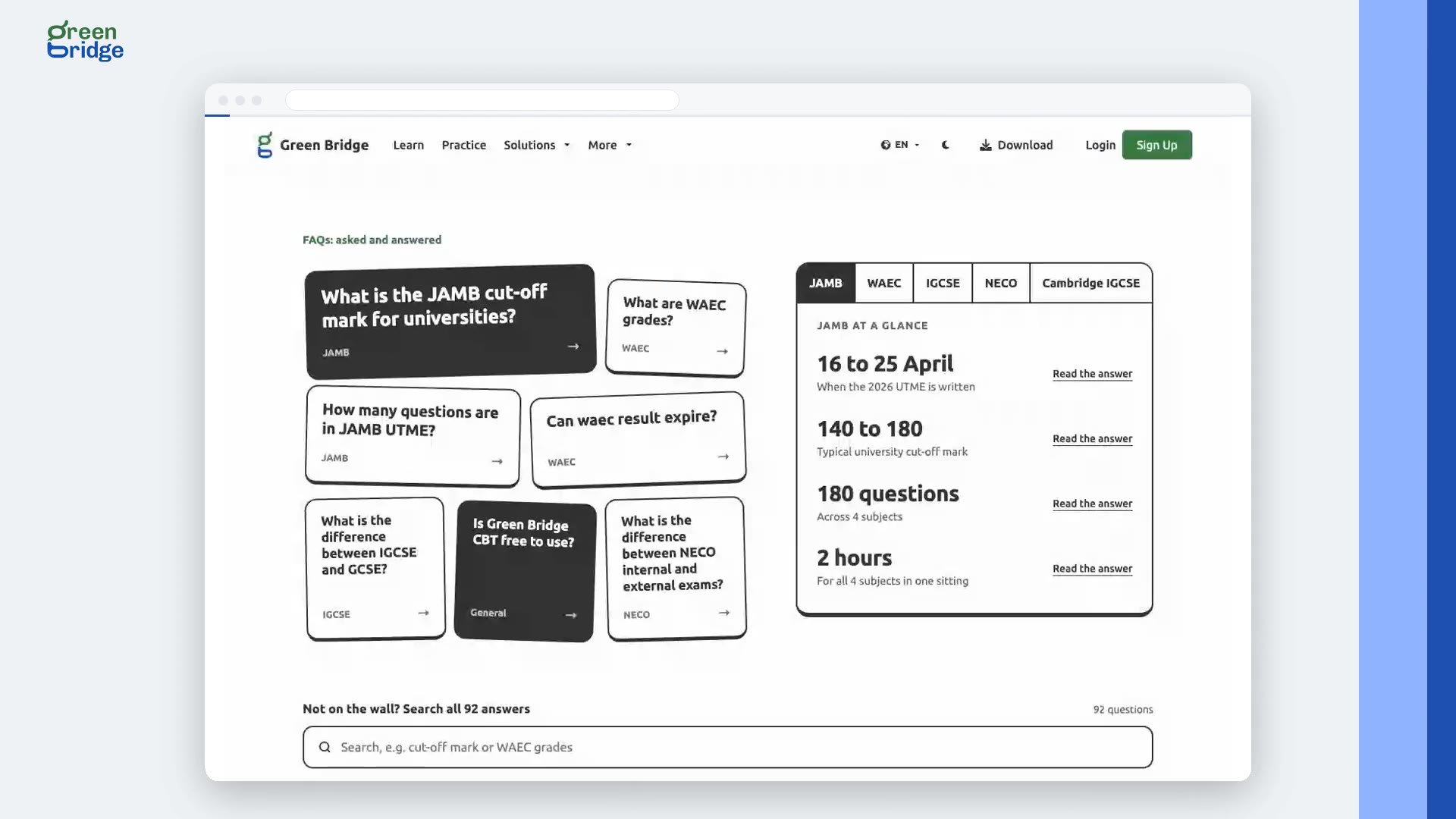
How to show the FAQs for one category
On the FAQs page, look at the Category list beside the questions. Choose a category and only its questions are shown, with a count of how many it holds. Choose All questions to see the full list again.
Questions fréquentes
-
 0:27
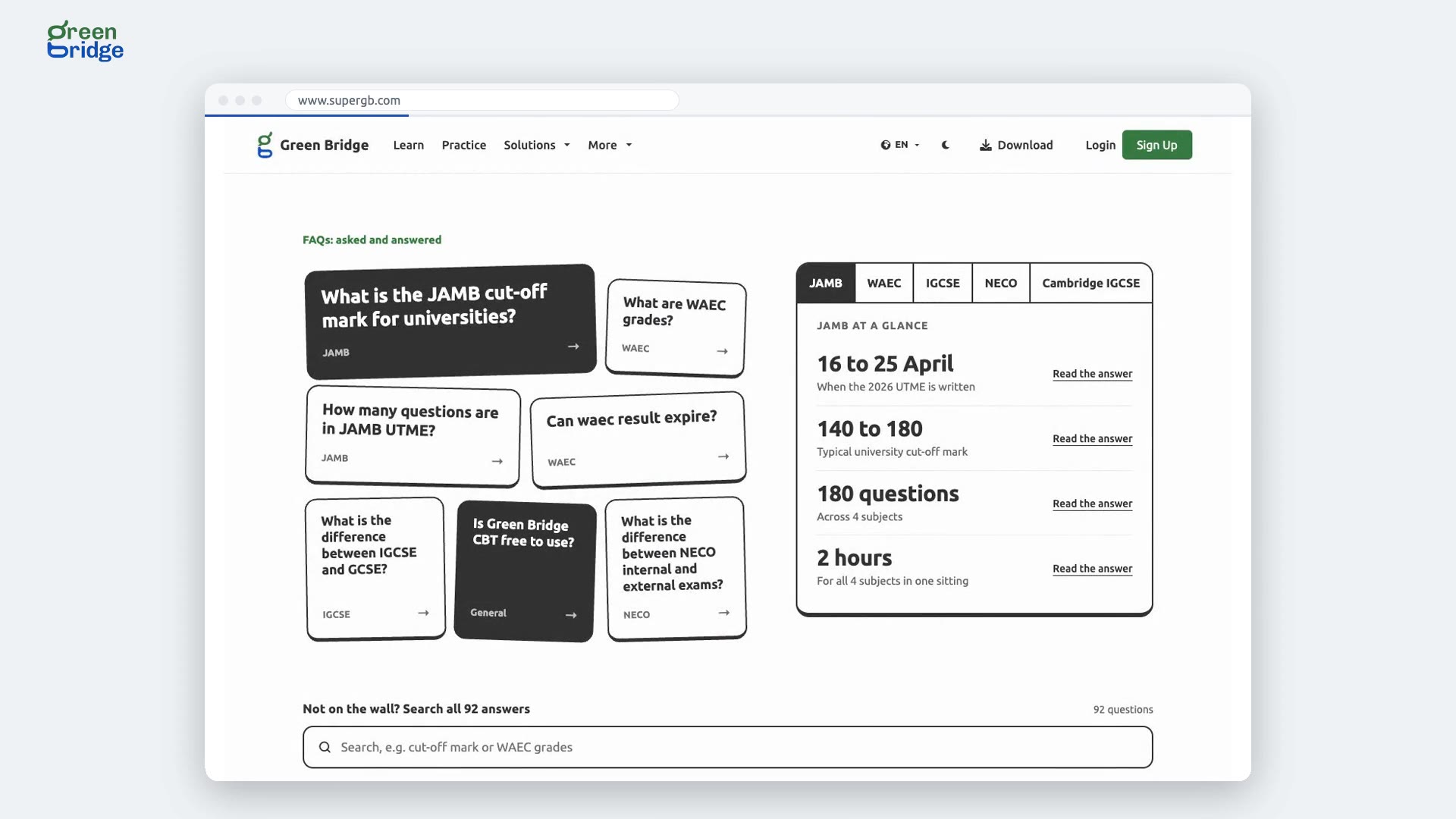
How to read an answer in the FAQs
The FAQs page opens with the first answer already showing. Click any other question and its answer opens underneath. If you still need help, Contact Us and Chat on WhatsApp are at the bottom of the page.
Questions fréquentes
-
 0:28
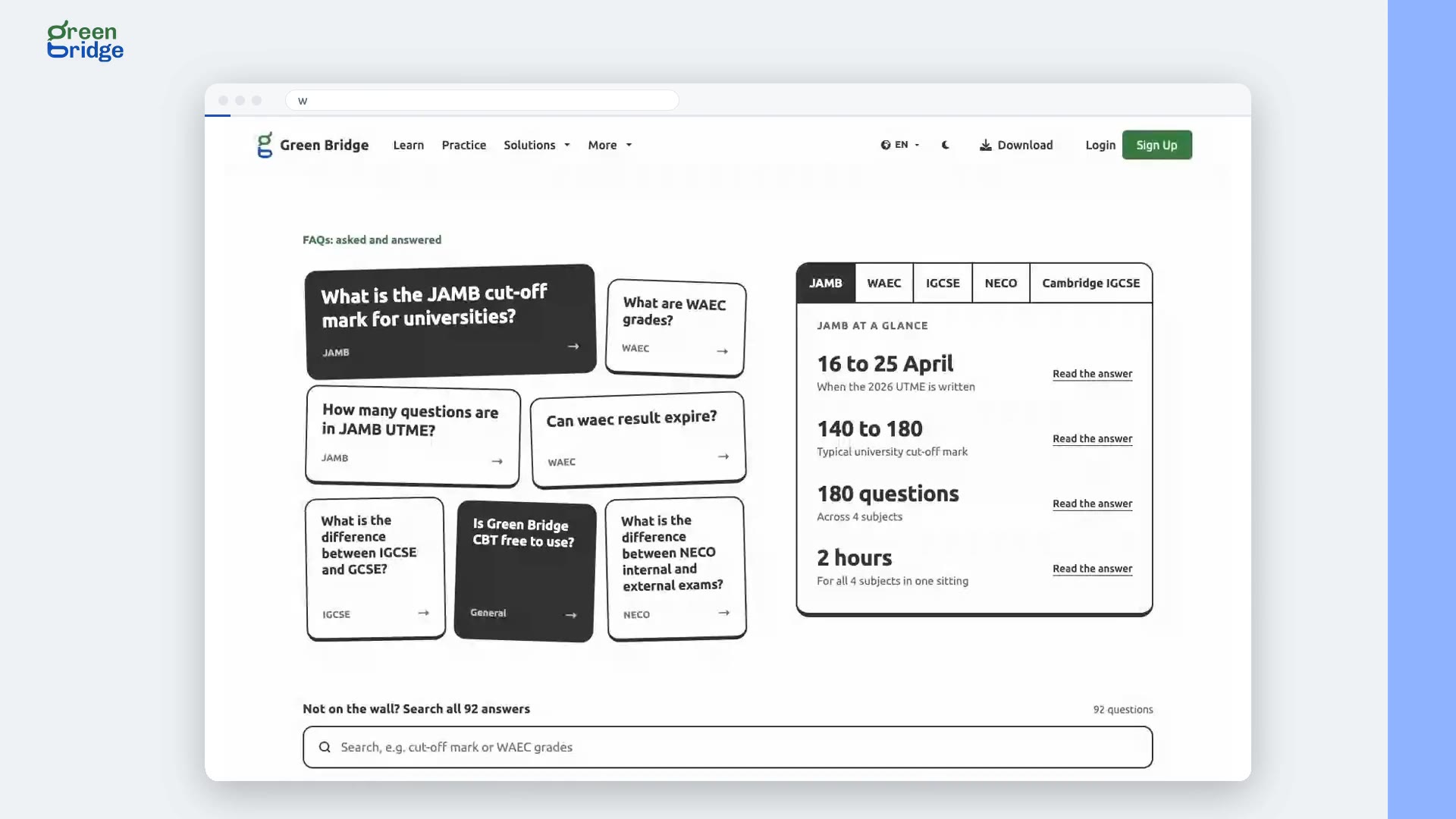
How to share a link to one FAQ answer
On the FAQs page, open the question you want to share. The address in your browser's address bar changes to point at that question, so copy it and send it on. Whoever opens the link lands on the FAQs with that answer already open.
Questions fréquentes
-
 0:39
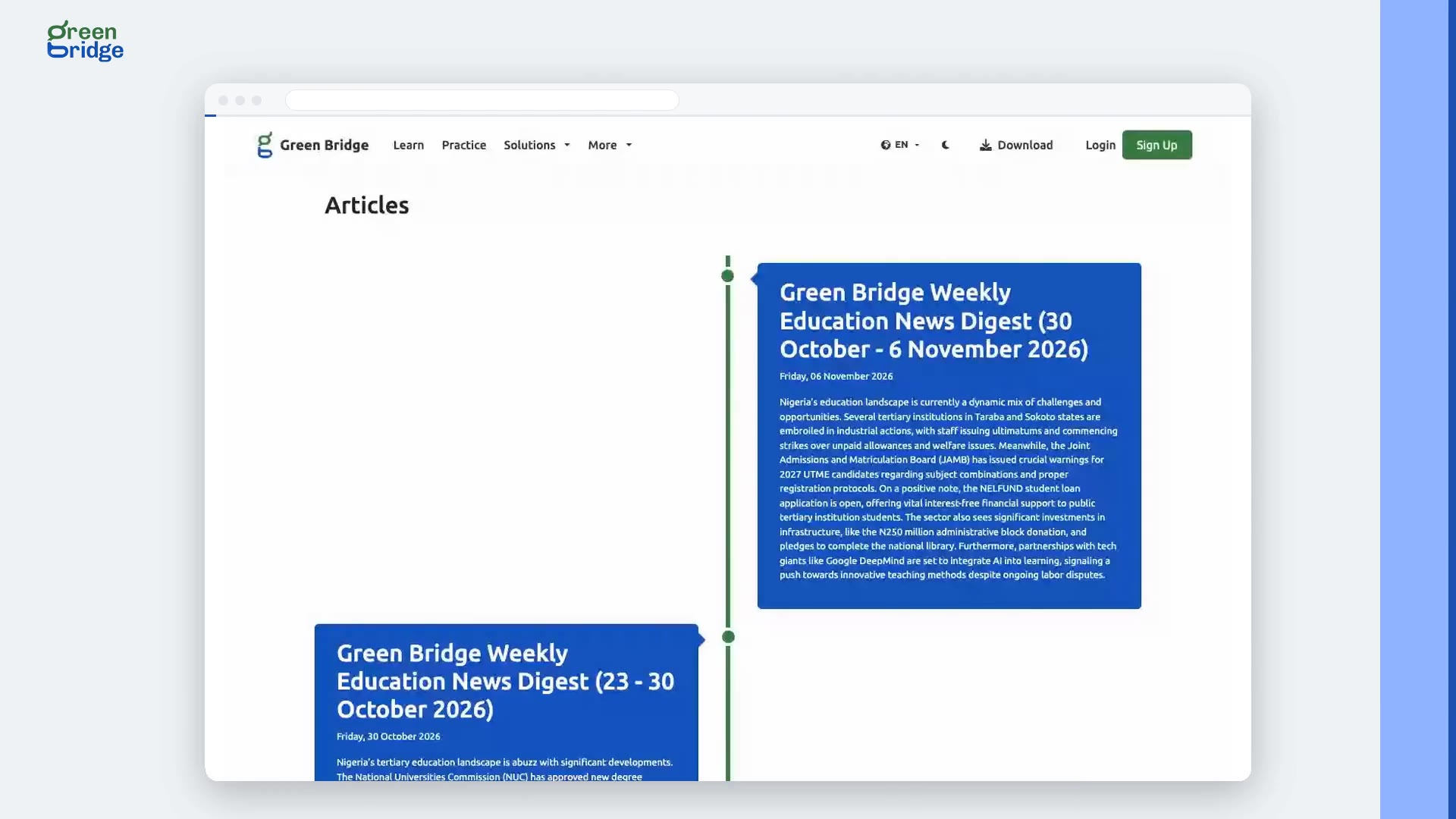
How to browse all Green Bridge articles
Click News in the menu at the top of the page, then See More Articles. The Articles page lists every article with how long it takes to read and the date. Click one to read it, or use the arrow at the bottom of the list to move to the next page.
Actualités et articles
-
 0:25
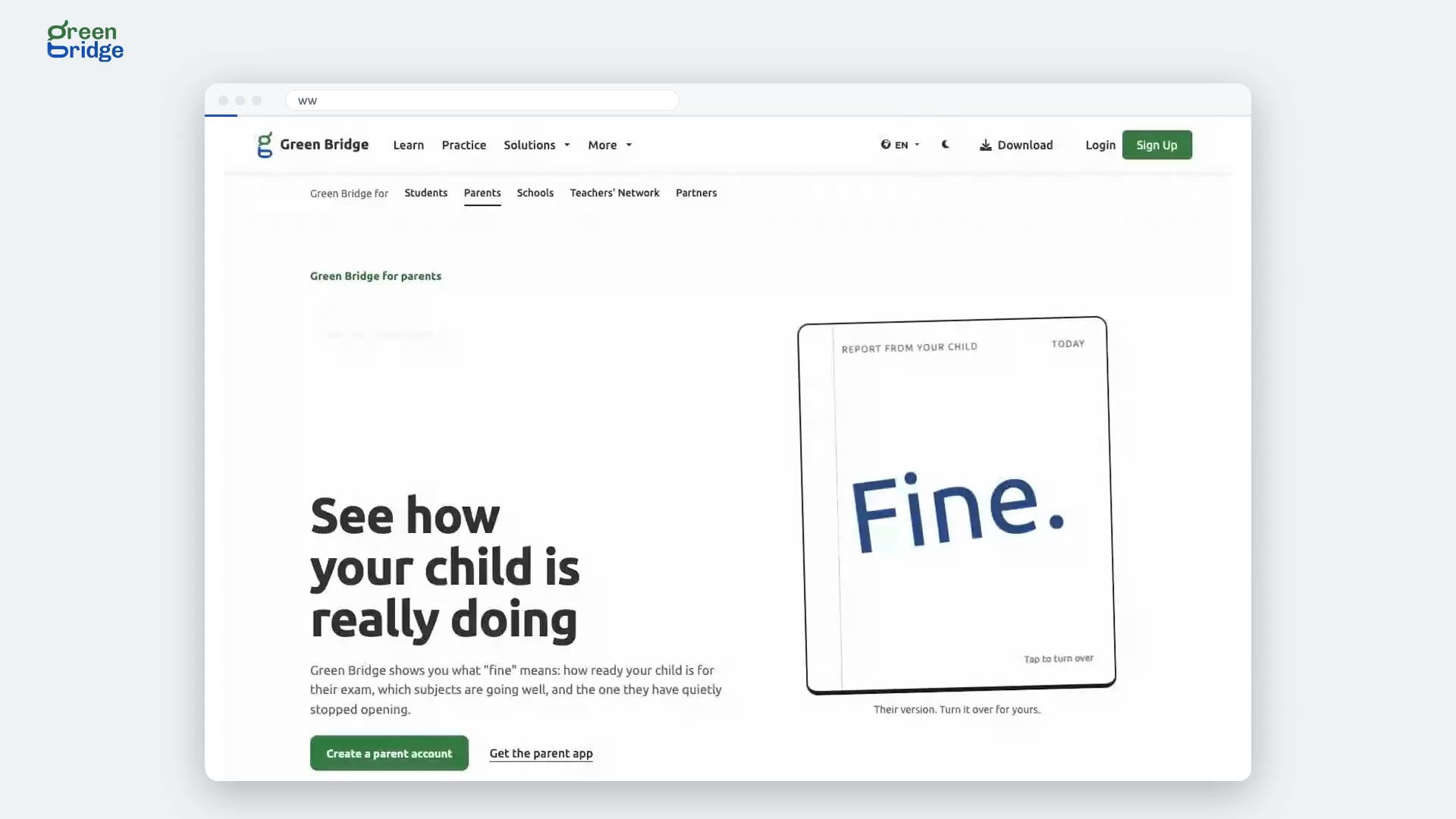
What can parents do on Green Bridge?
Open the Solutions menu at the top of the page and choose For parents (on a phone, tap Parents). The page shows how you connect with your child, see how they're really doing, set them a study plan and give a nudge when they need one. It also covers having school reports sent to you and approving lessons with verified teachers.
Green Bridge pour les parents
-
 0:25
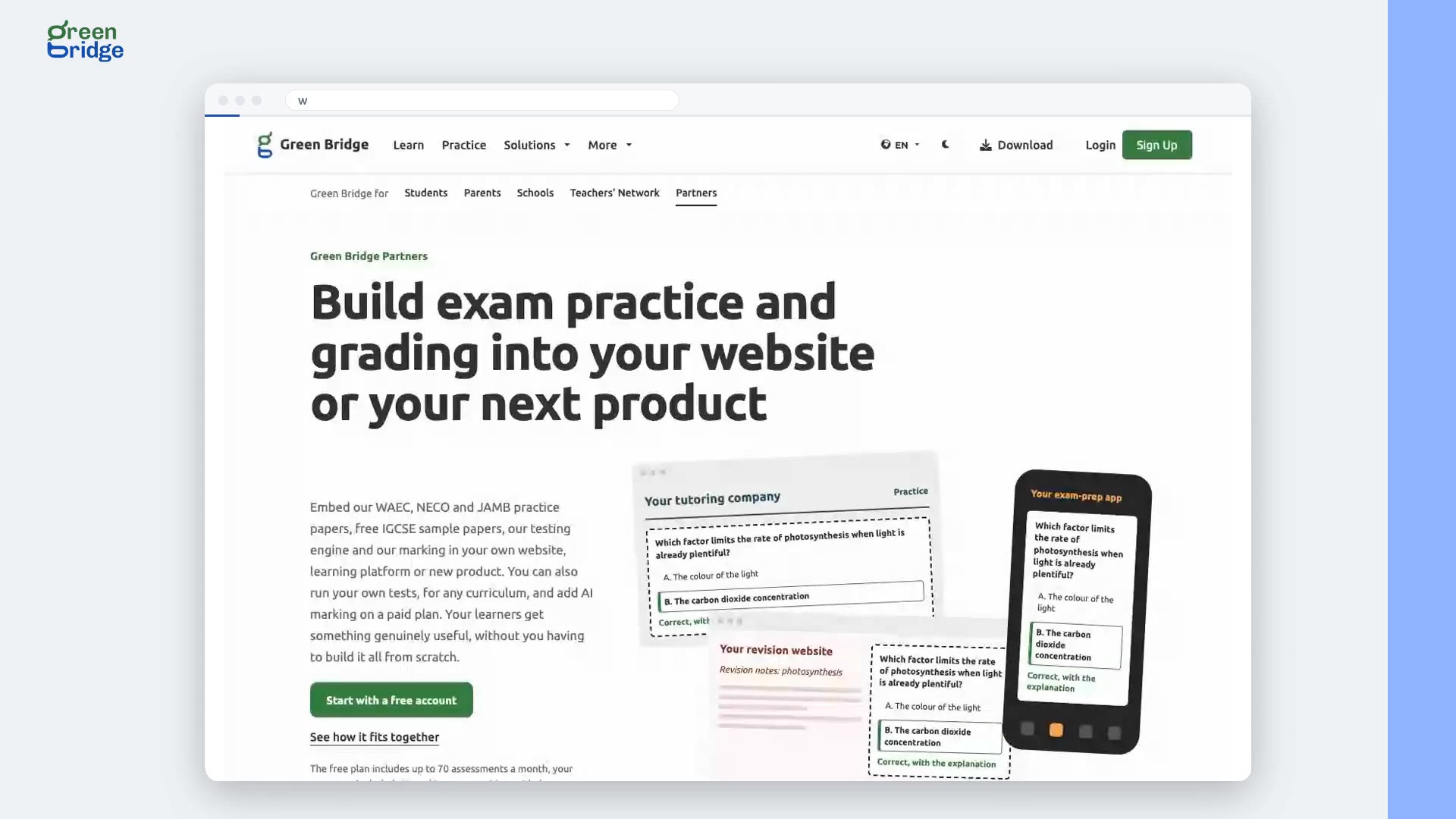
How can my organisation build Green Bridge into its own product?
Open the Solutions menu at the top of the page and choose For partners. The page is written for tutoring companies, exam-prep businesses, publishers and school groups. It explains the ready-made question library, how tests on your site are marked by Green Bridge and the results come back to you, who looks after what, the plans and how learners' information is handled. The last section is where you tell us what you want to build.
Green Bridge pour les partenaires
-
 0:27
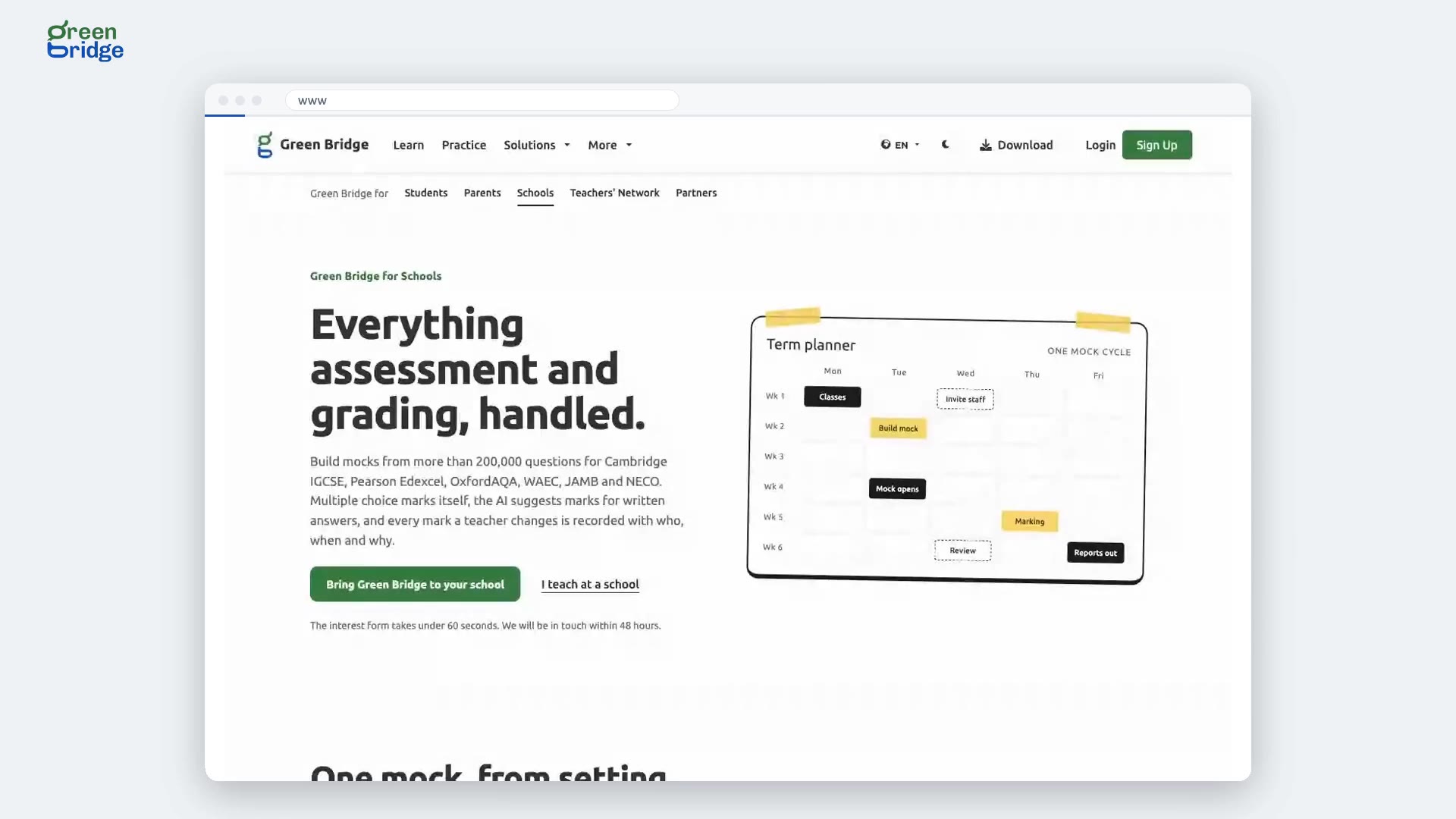
How does a school run its tests on Green Bridge?
Open the Solutions menu at the top of the page and choose For schools. The page follows one mock exam from start to finish: setting up the school, building the assessment, students sitting it, marking it and keeping the record, seeing where everyone stands and sending the reports. It also lists the tools Green Bridge works with.
Green Bridge pour les écoles
-
 0:24
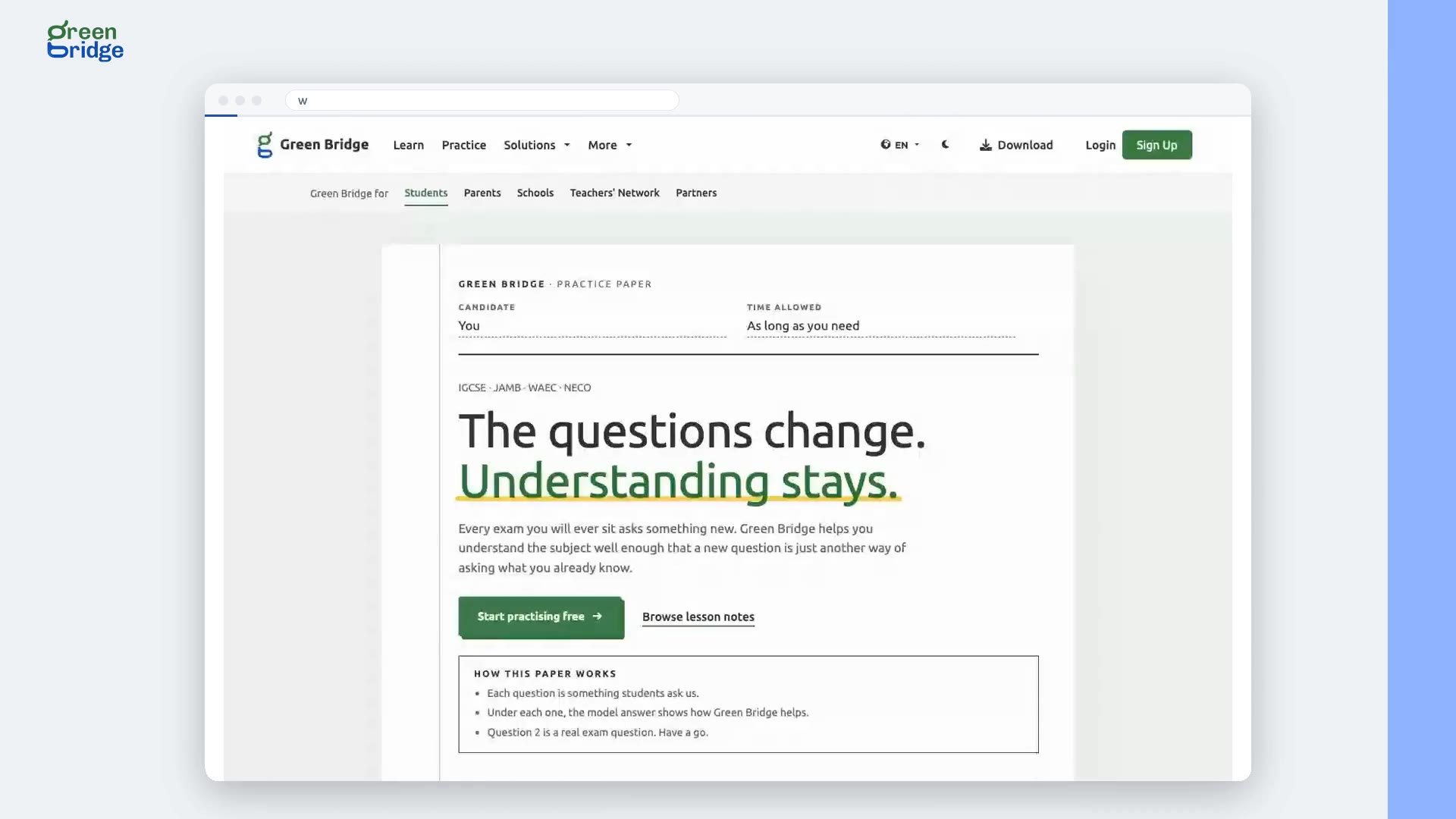
What does Green Bridge offer students?
The Green Bridge for Students page answers the questions students actually ask: where to begin a new topic, why an answer was wrong, how to remember what you read and how to know you're ready. It also covers studying with no internet and letting your parents see how you're doing. There's a practice question on the page to try for yourself.
Green Bridge pour les élèves
-
 0:22
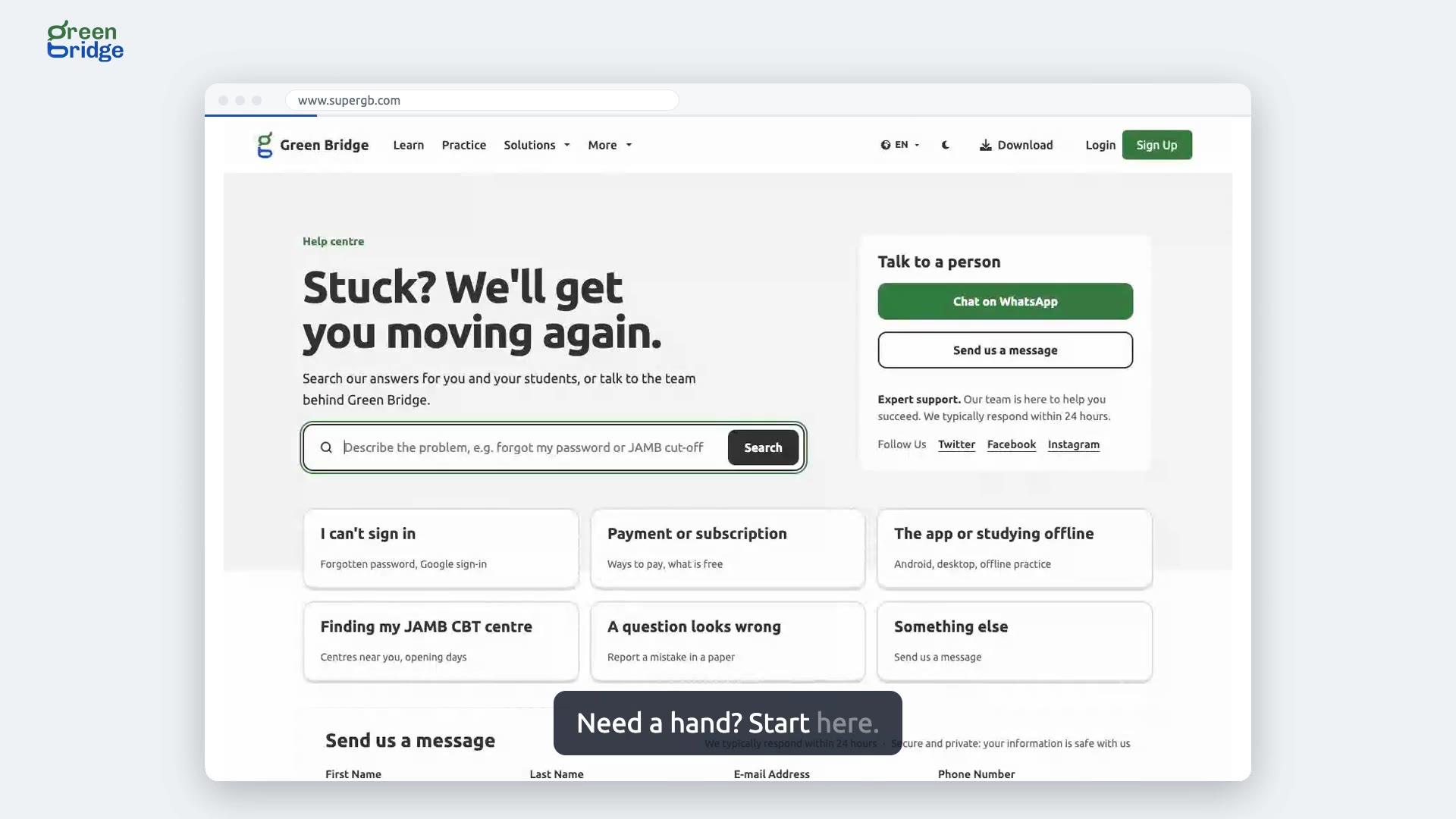
Where can I get help with Green Bridge?
Click Help at the top of any page to open the help centre. From there you can search for an answer, pick a topic such as I can't sign in, chat to a person on WhatsApp or send the team a message. For exam questions such as JAMB cut-off marks, look under Looking for exam facts?
Obtenir de l'aide
-
 0:49
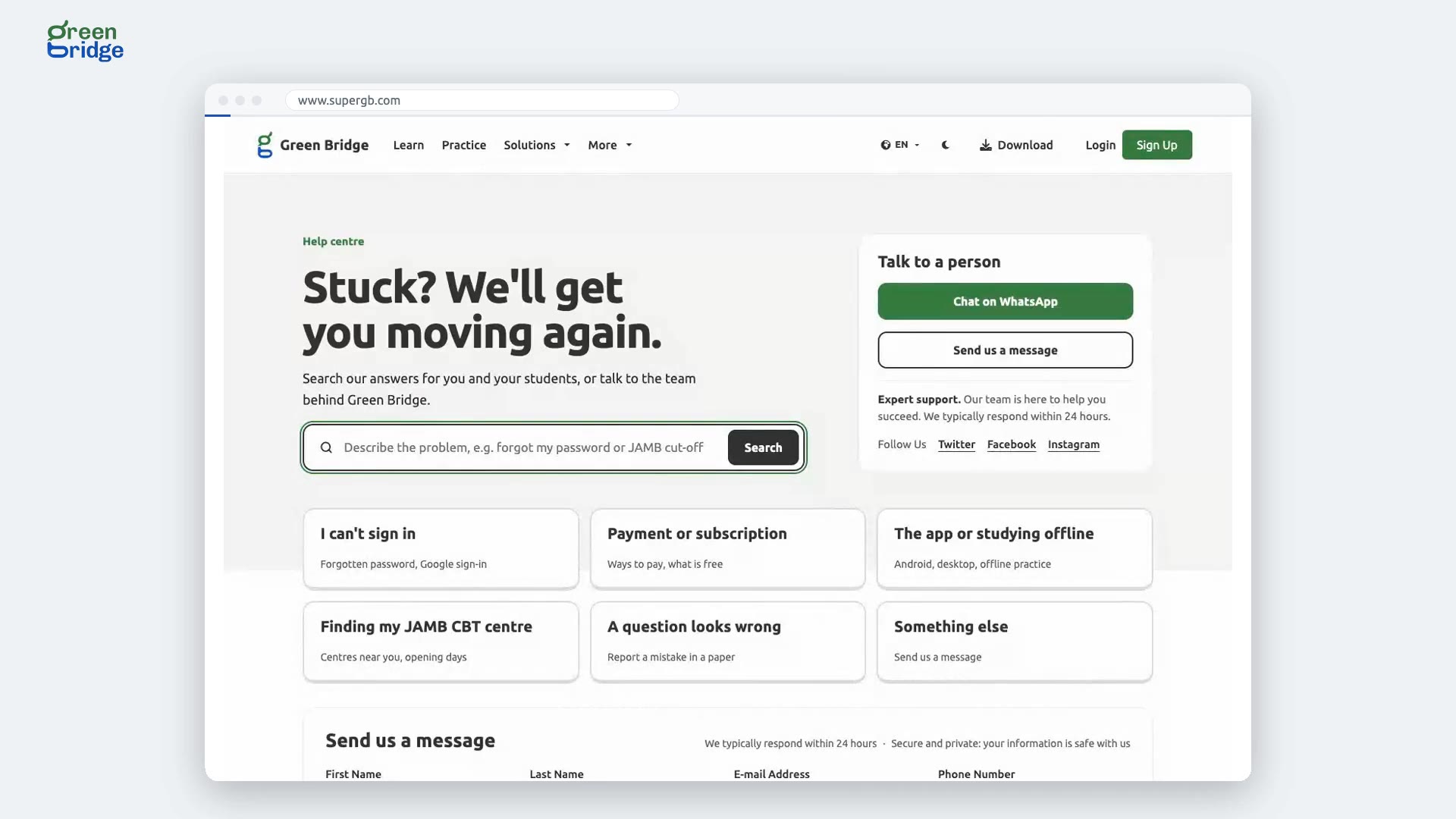
How to send a message to the help team
Click Help at the top of the page, then Send us a message. Fill in your first name, last name, email address and phone number, write the details of the problem and click Send. A message greeting you by name confirms it has arrived. The team replies to the email address you gave, usually within 24 hours.
Obtenir de l'aide
-
 0:28
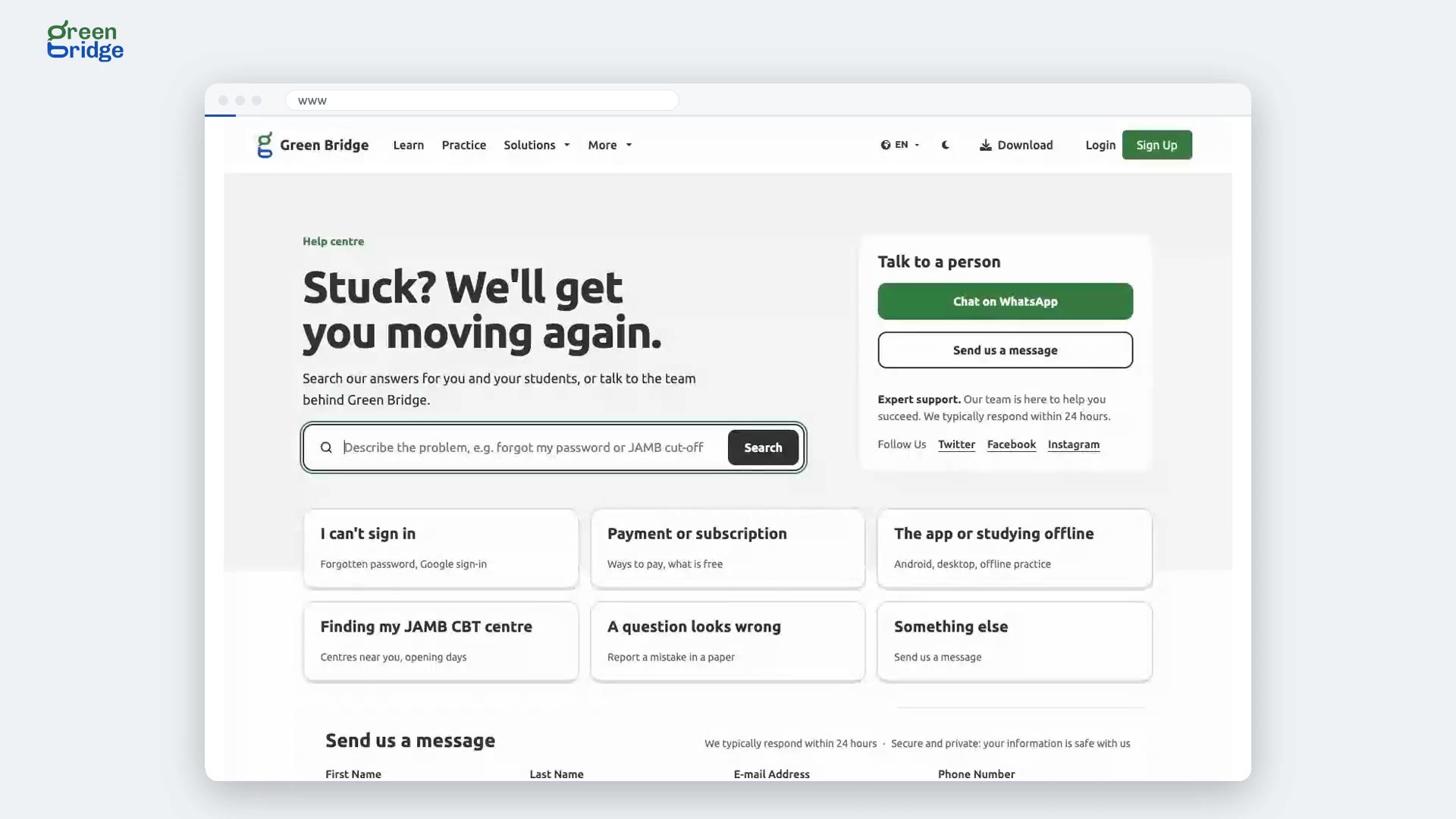
How to search the help centre
Click Help at the top of the page. Describe the problem in the search box, for example forgot my password, and click Search. Matching answers appear underneath. If none of them solves it, use Chat on WhatsApp or send the team a message from the same page.
Obtenir de l'aide
-
 0:26
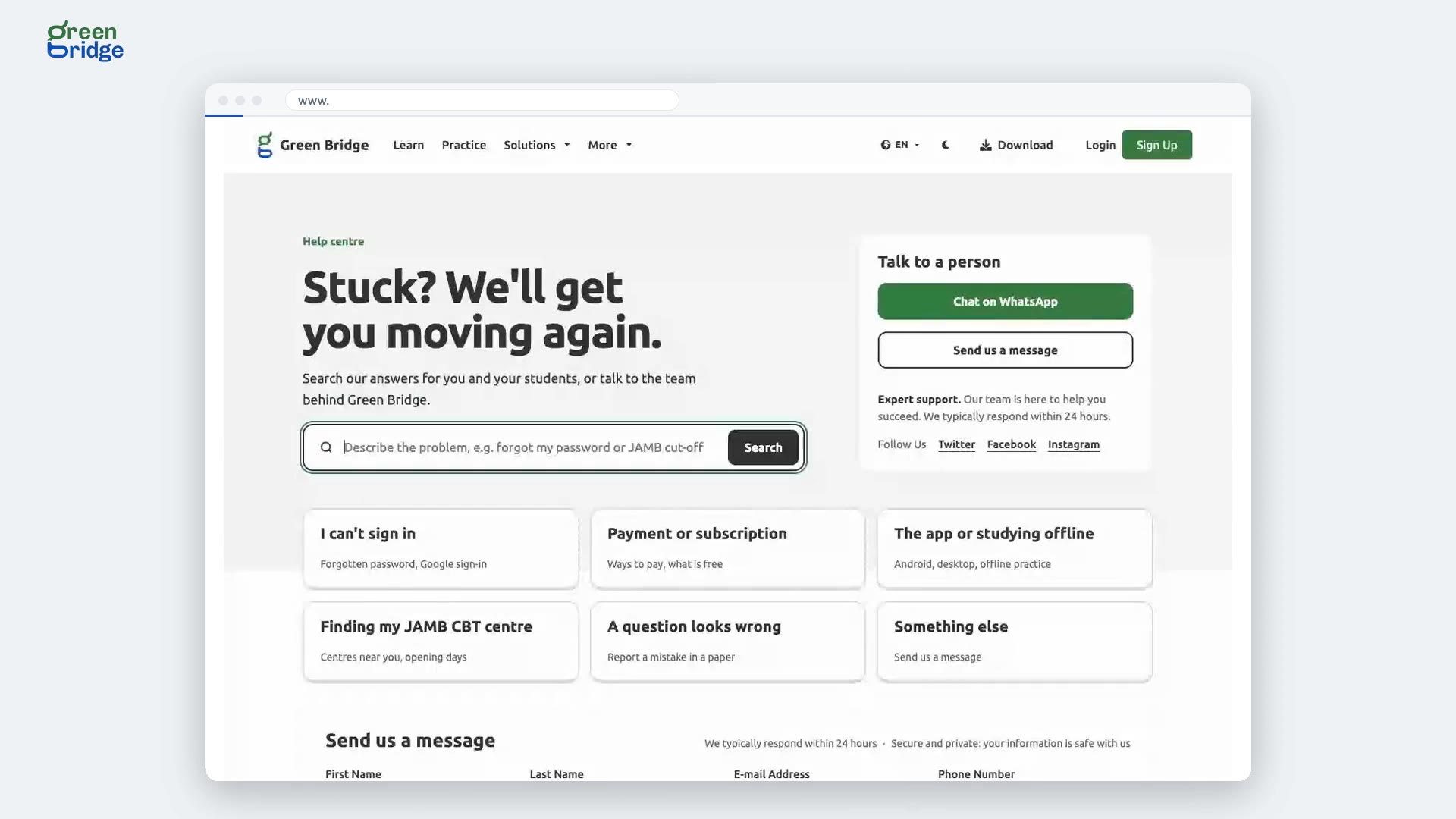
How to find answers by help topic
In the help centre, pick the topic closest to your problem: I can't sign in, Payment or subscription, The app or studying offline, Finding my JAMB CBT centre, A question looks wrong, or Something else. The answers for that topic appear below the list.
Obtenir de l'aide
-
 0:33
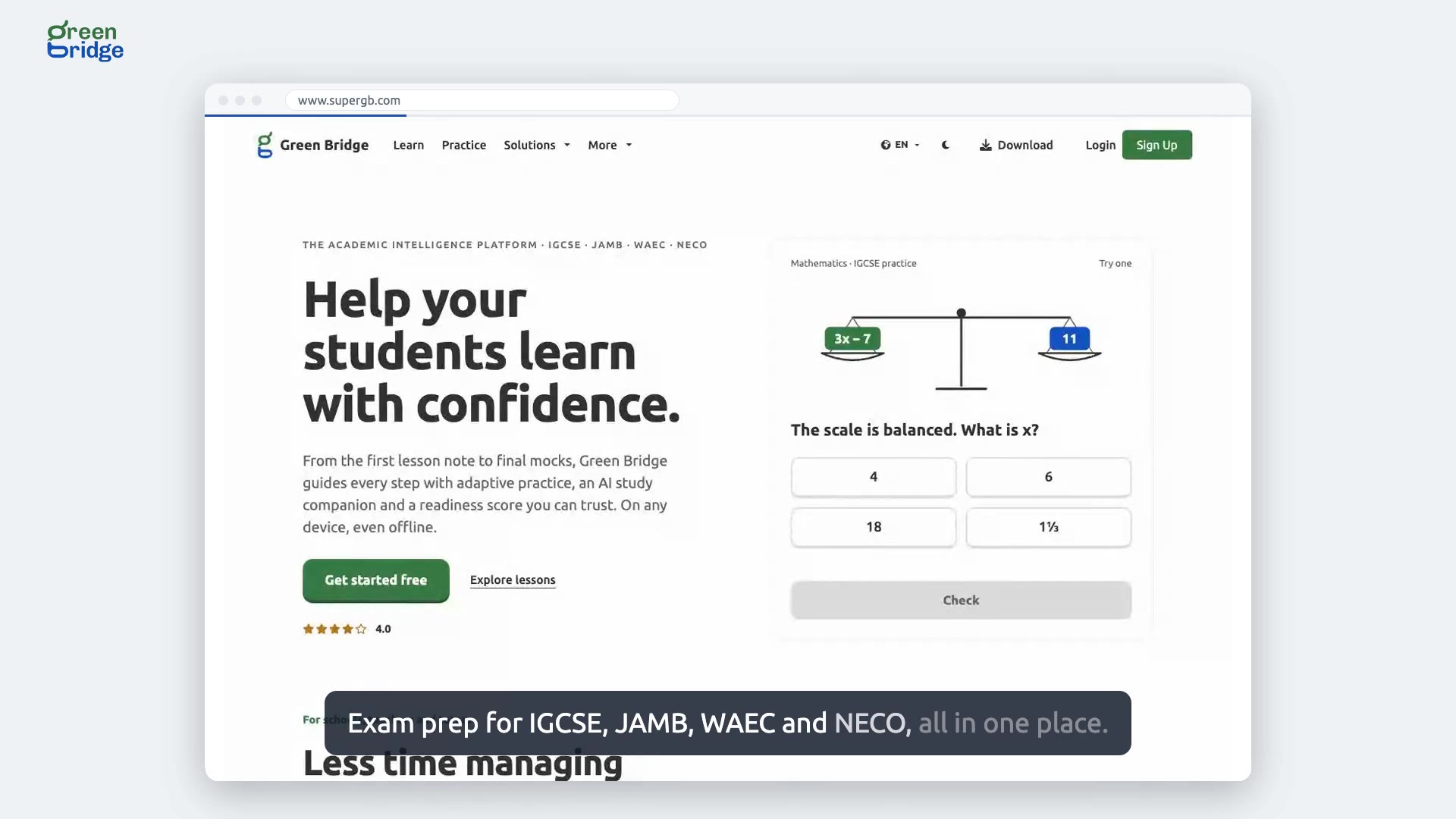
What's on the Green Bridge home page?
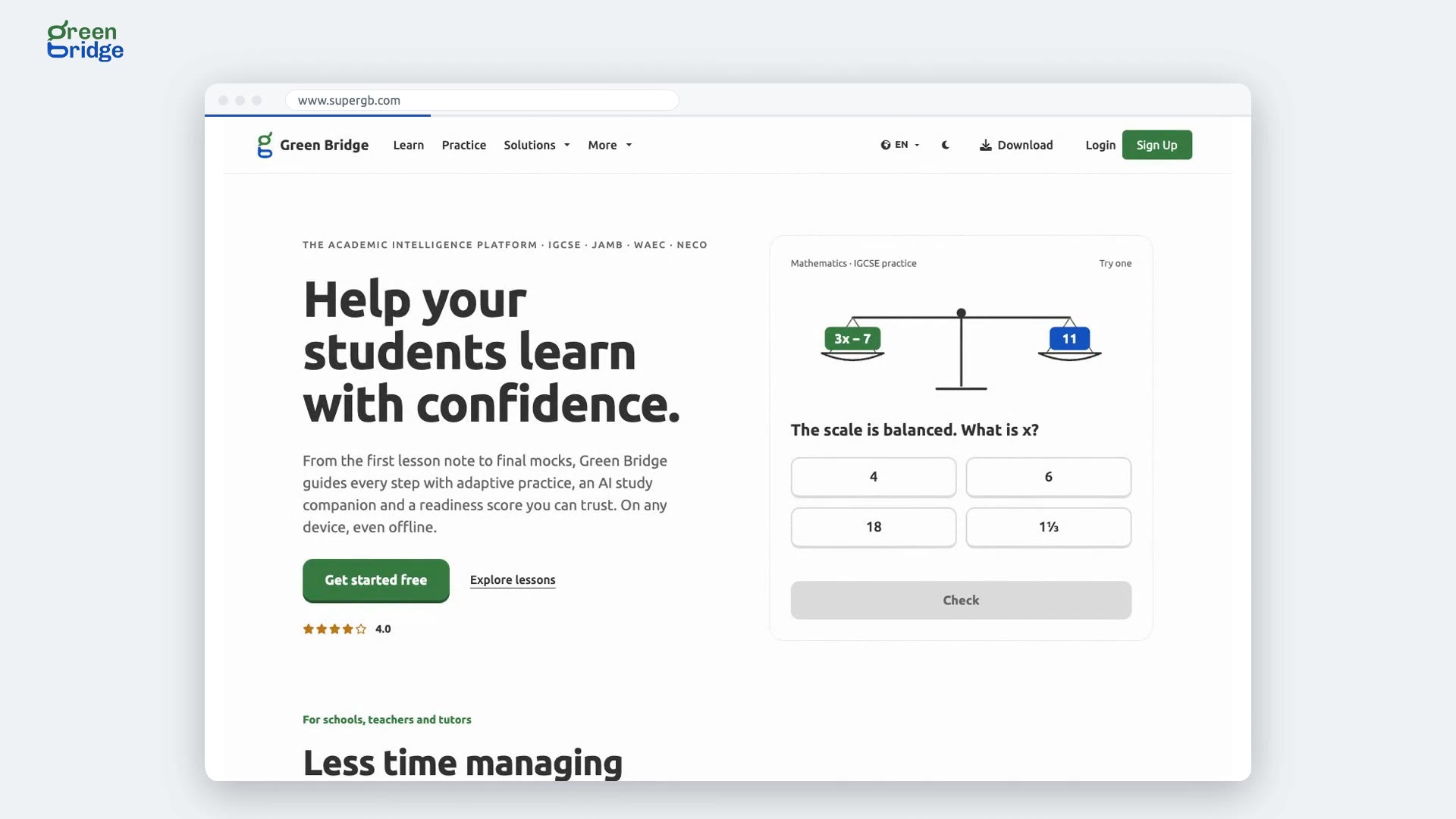
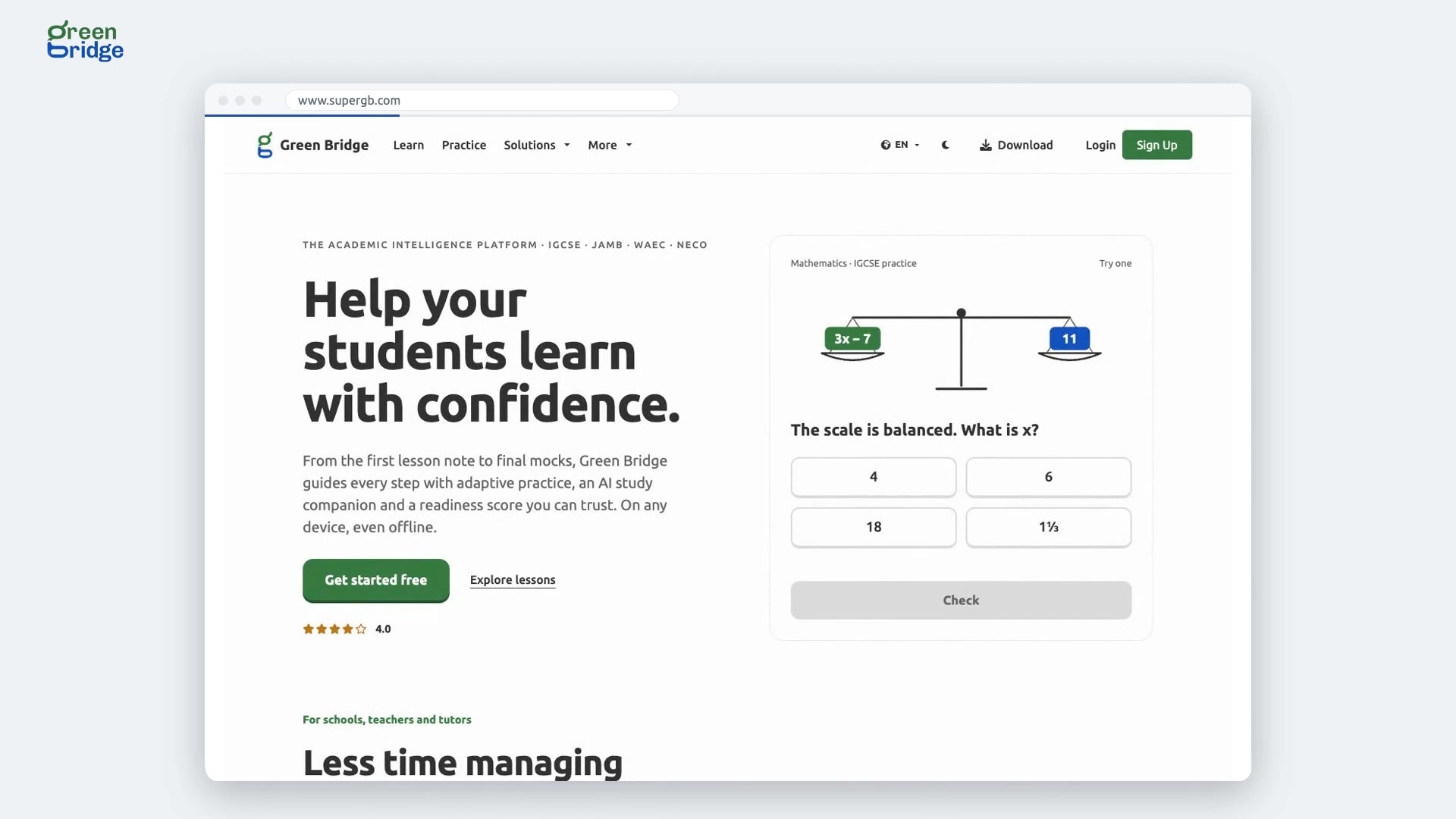
The home page covers exam preparation for IGCSE, JAMB, WAEC and NECO. It starts with the tools for schools and teachers, then shows what students get, with a practice question and a flashcard to try. Further down you can pick a subject, see the exam boards and results, get the apps for studying offline, find a tutor and read common questions.
La page d'accueil
-
 0:25
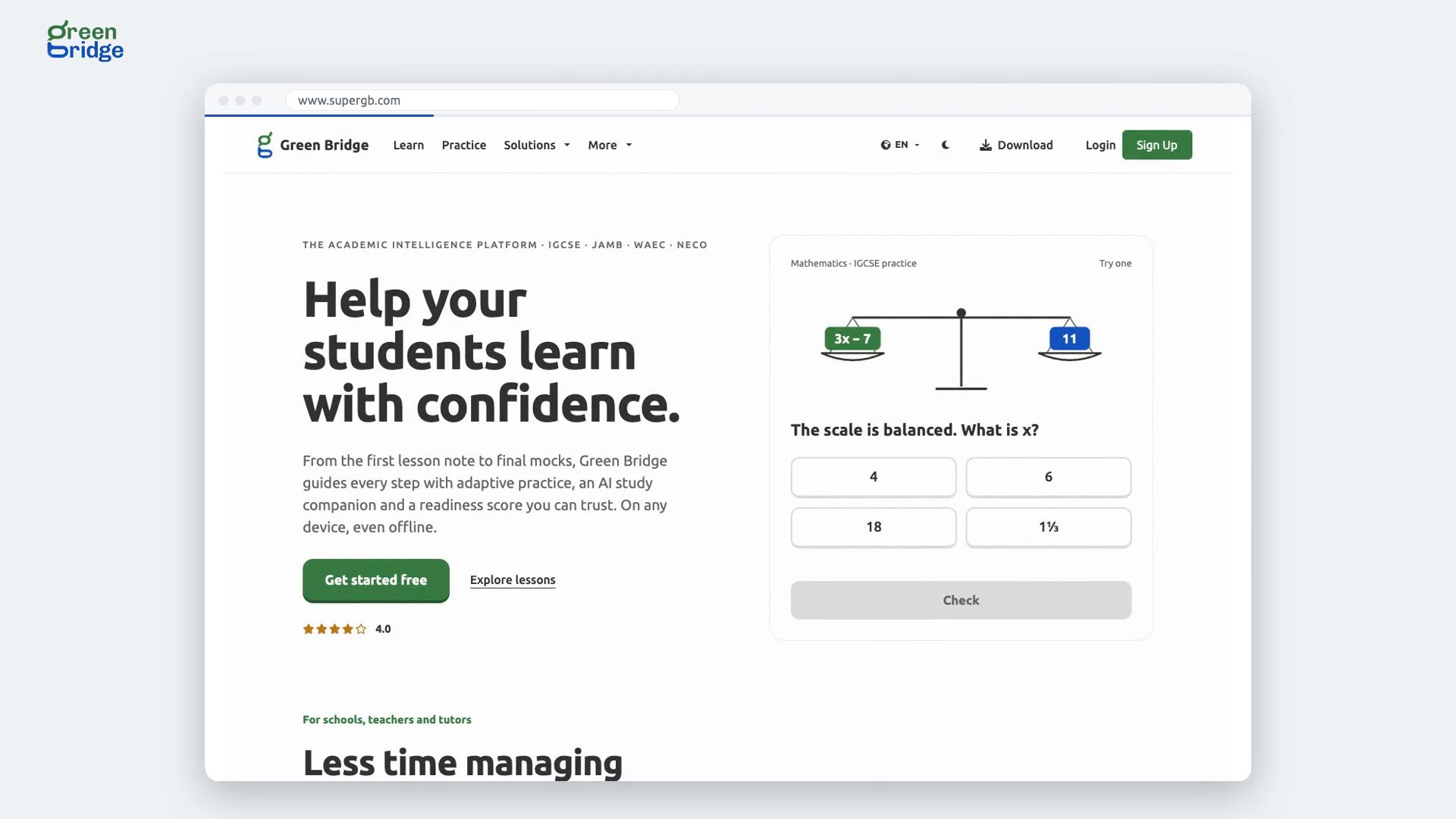
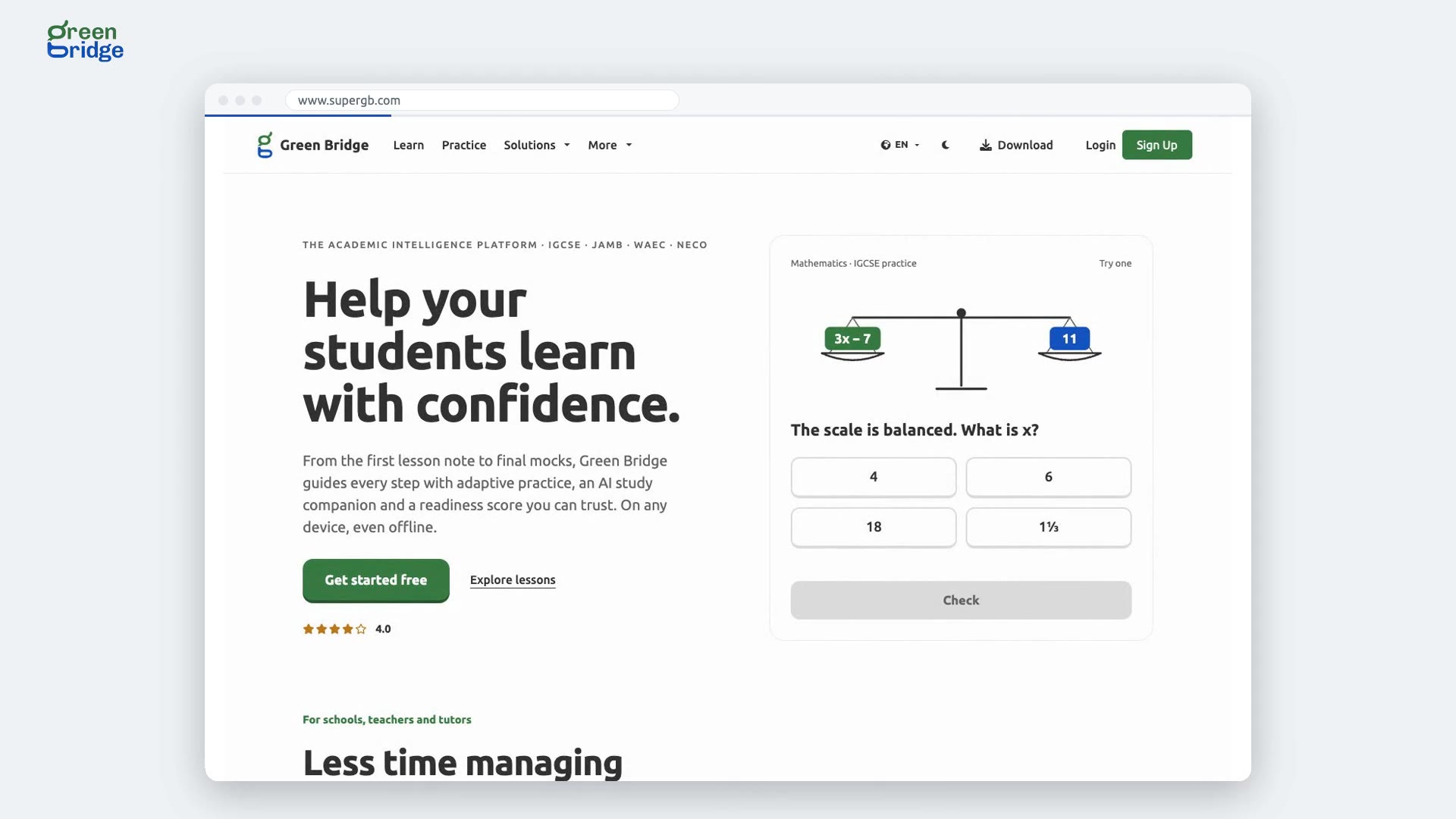
How to try the practice question on the home page
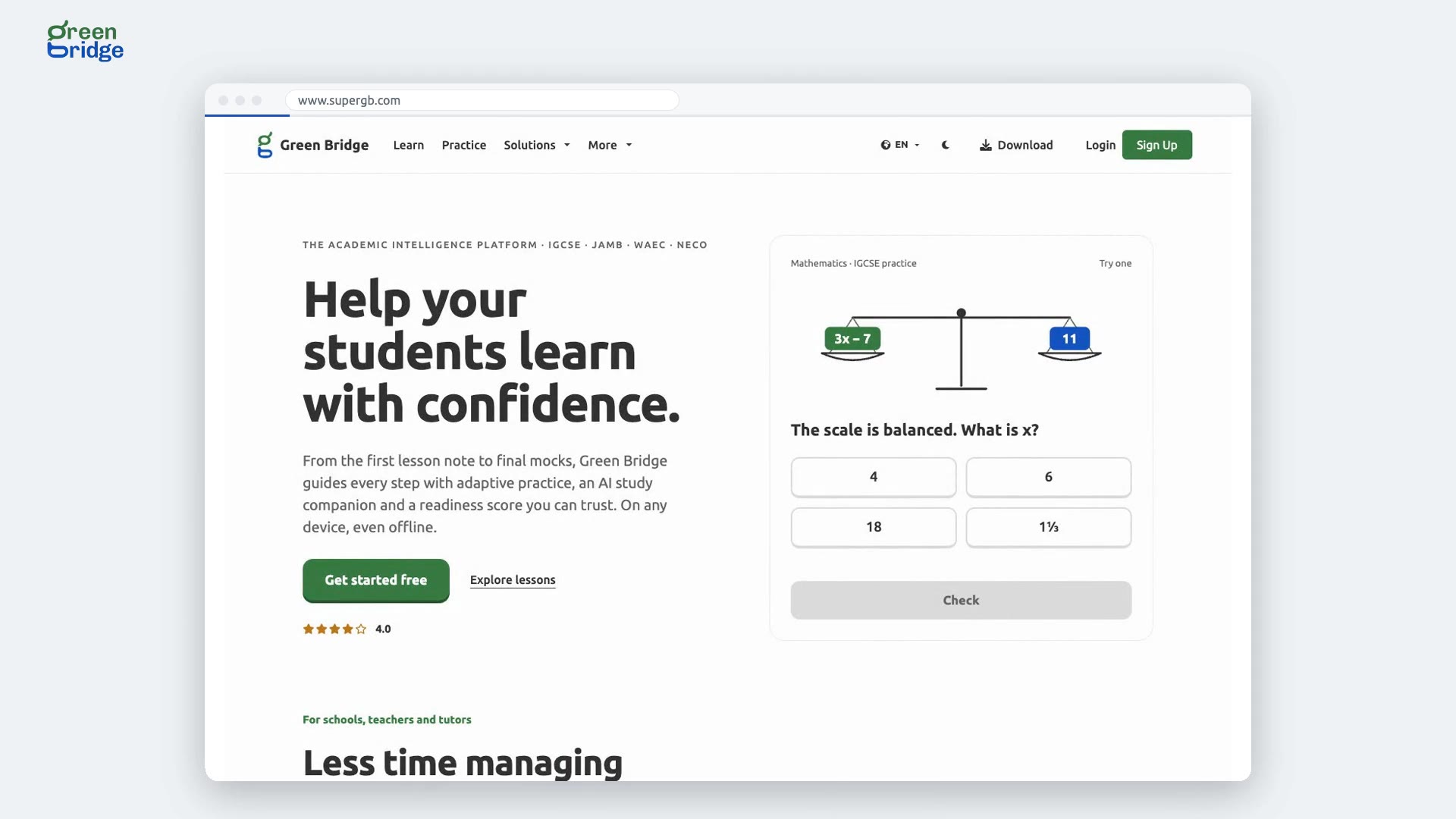
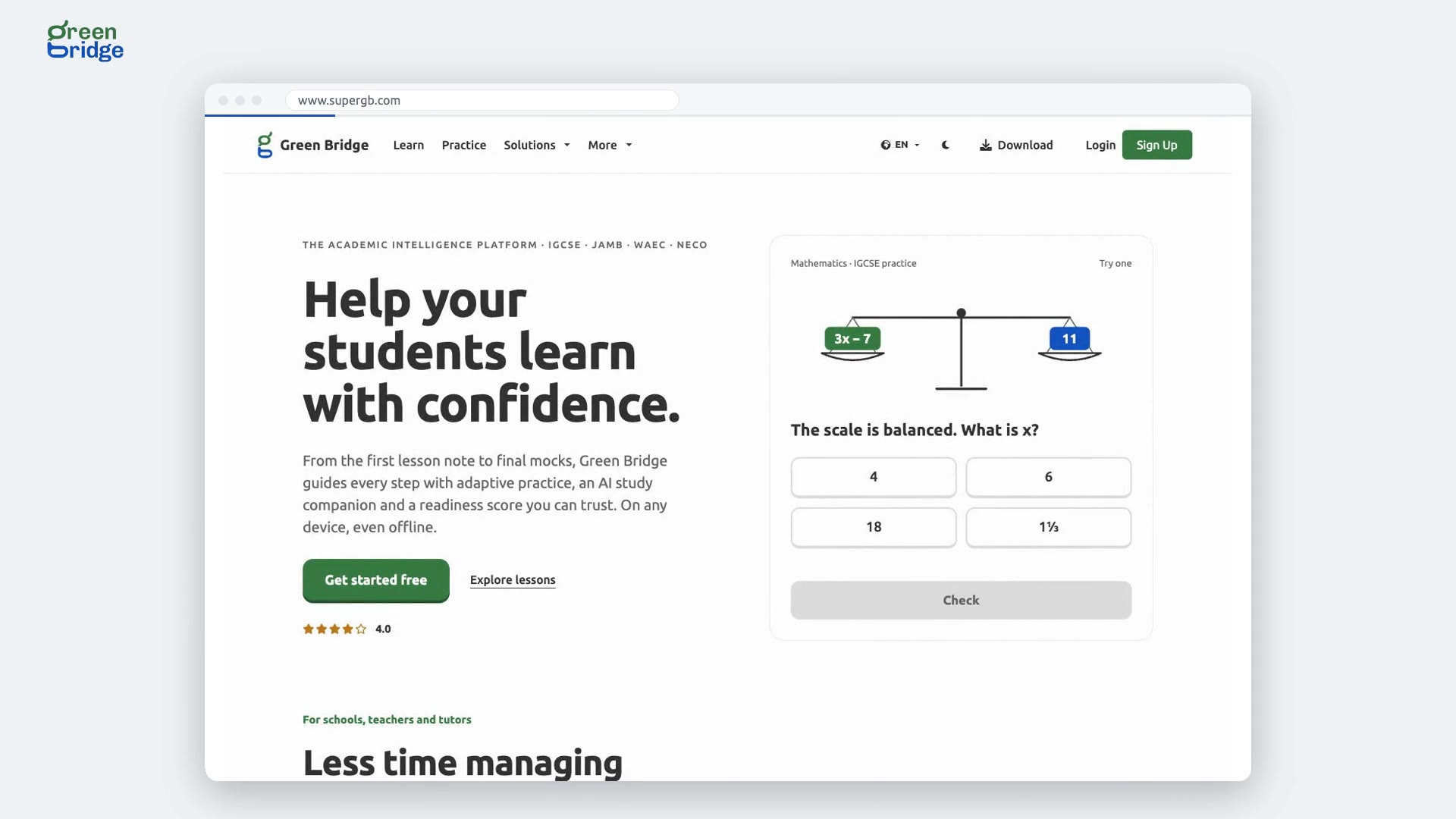
Near the top of the home page there's a maths question marked Try one. Pick one of the four answers and click Check. You'll see Correct. with the working, or Not quite. with a hint on where to start. For full past papers, click Practice at the top of the page.
La page d'accueil
-
 0:29
What does Green Bridge offer schools, teachers, parents and students?
Scroll down the home page to the section that begins "It takes more than one person to get a student across." Click who you are: School, Teacher, Independent tutor, Parent, Student or Partner organisation. The panel beside the buttons changes to show what Green Bridge offers you.
La page d'accueil
-
 0:44
How to switch the home page subjects between SSCE and IGCSE
Scroll to Start with a subject on the home page. Click SSCE for subjects such as Mathematics, English Language and Government, or IGCSE for subjects such as Mathematics (0580) and Biology (0610). This browser remembers your choice, so you see your own exam's subjects next time too.
La page d'accueil
-
 0:31
How to try a flashcard on the home page
Scroll to the Remember section of the home page. The flashcard shows a question first. Tap or click it to flip it over and see the answer, and tap it again to go back to the question. Click Learn at the top of the page to find more for your subjects.
La page d'accueil
-
 0:25
How to read the common questions on the home page
Scroll down the home page to Frequently Asked Questions and click a question to open its answer right there. For the full list, click See All FAQ's. If your question isn't covered, click Contact our Team.
La page d'accueil
-
 0:31
How to subscribe to the Green Bridge newsletter
Scroll to Never Miss an Update at the bottom of the home page. Type your email address and click Subscribe. You'll see "Thanks For Subscribing!", and from then on you'll get weekly exam preparation tips, study resources and early access to new features.
La page d'accueil
-
 0:36
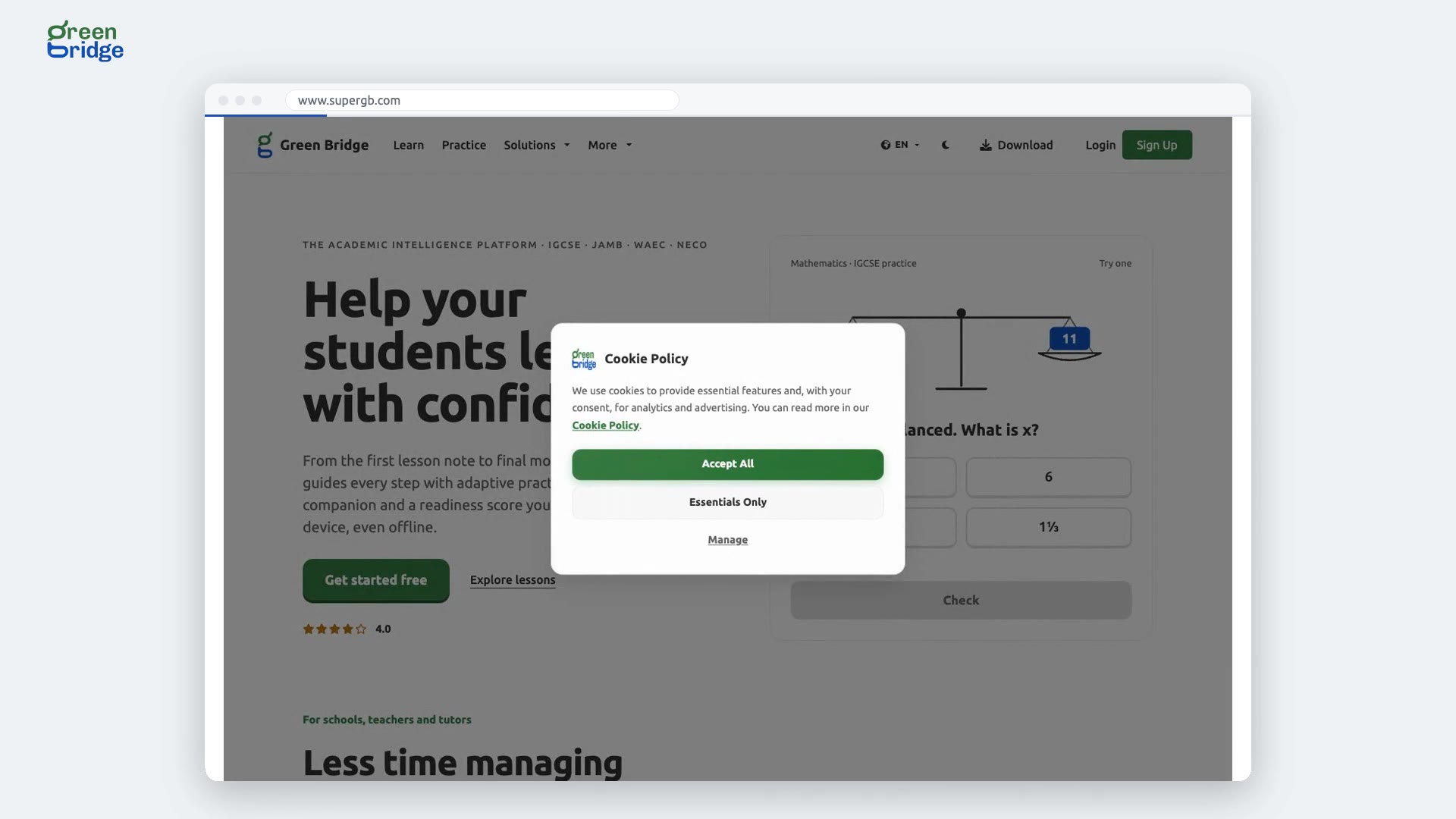
How to choose which cookies Green Bridge uses
When the cookie notice appears, click Manage. Essential cookies are always on. Use the switches to turn Analytics Cookies and Advertising Cookies on or off, then click Save Preferences. The notice closes and this browser remembers your choice. If you want everything or only the minimum, click Accept All or Essentials Only on the notice instead.
La page d'accueil
-
 0:27
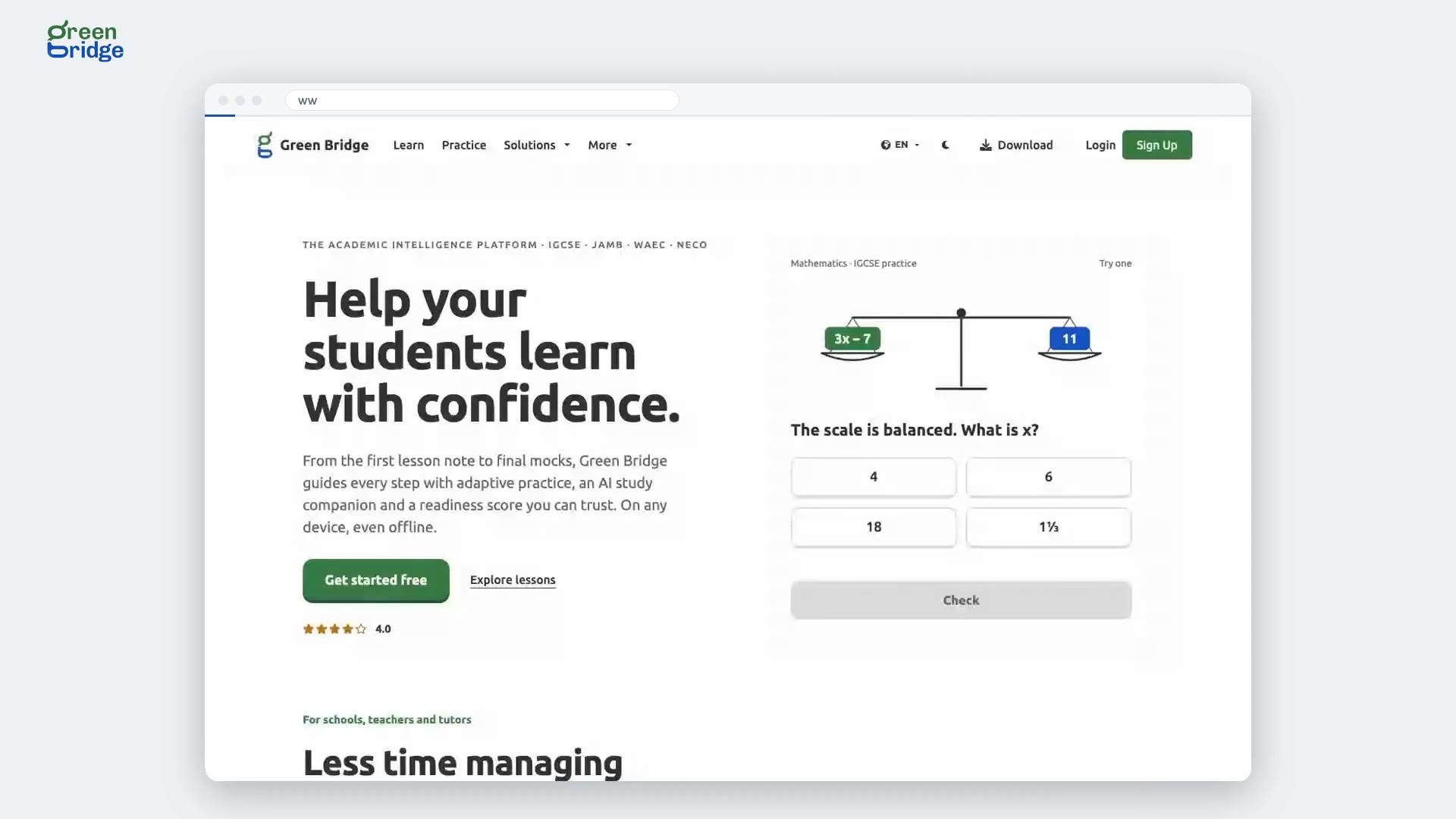
How to change the website's language
Click the globe button at the top of the page; it shows the language you're using, such as EN. Choose a language from the list, for example French (FR), and the page reloads in that language. Switch back the same way whenever you like.
Changer de langue