So funktioniert Green Bridge
Kurze, einfache Erklärungen dazu, was Sie mit Green Bridge tun können, viele mit Video. Wählen Sie, wer Sie sind und welche Plattform Sie nutzen, oder suchen Sie.
349 Anleitungen, 277 mit Video
Gefundene Anleitungen: 347 Filter zurücksetzen
-
 0:38
How to find students who aren't in any class
Open Students and choose Classless. The list shows only students who belong to your school but haven't been put in a class yet. Open Classes to add each one to the class they belong in.
Die Lernenden Ihrer Schule
-
 1:09
How to invite a student to your school
Open Students and click Invite. The Add to school page shows your school share code, which you can give to students to enter on their own dashboard. If a student already has their own share code, type its 7 characters under Invite by their share code and click Send invite. They're emailed, and they accept the invitation from their dashboard.
Die Lernenden Ihrer Schule
-
 0:38
Why can't I see every student in my school as a teacher?
Teachers see the students in the classes they teach, not the whole school. Inviting students, marking ex-students and the ex-students list belong to the school admin. If a student is missing from your list, ask your admin to add them to your class.
Die Lernenden Ihrer Schule
-
 0:25
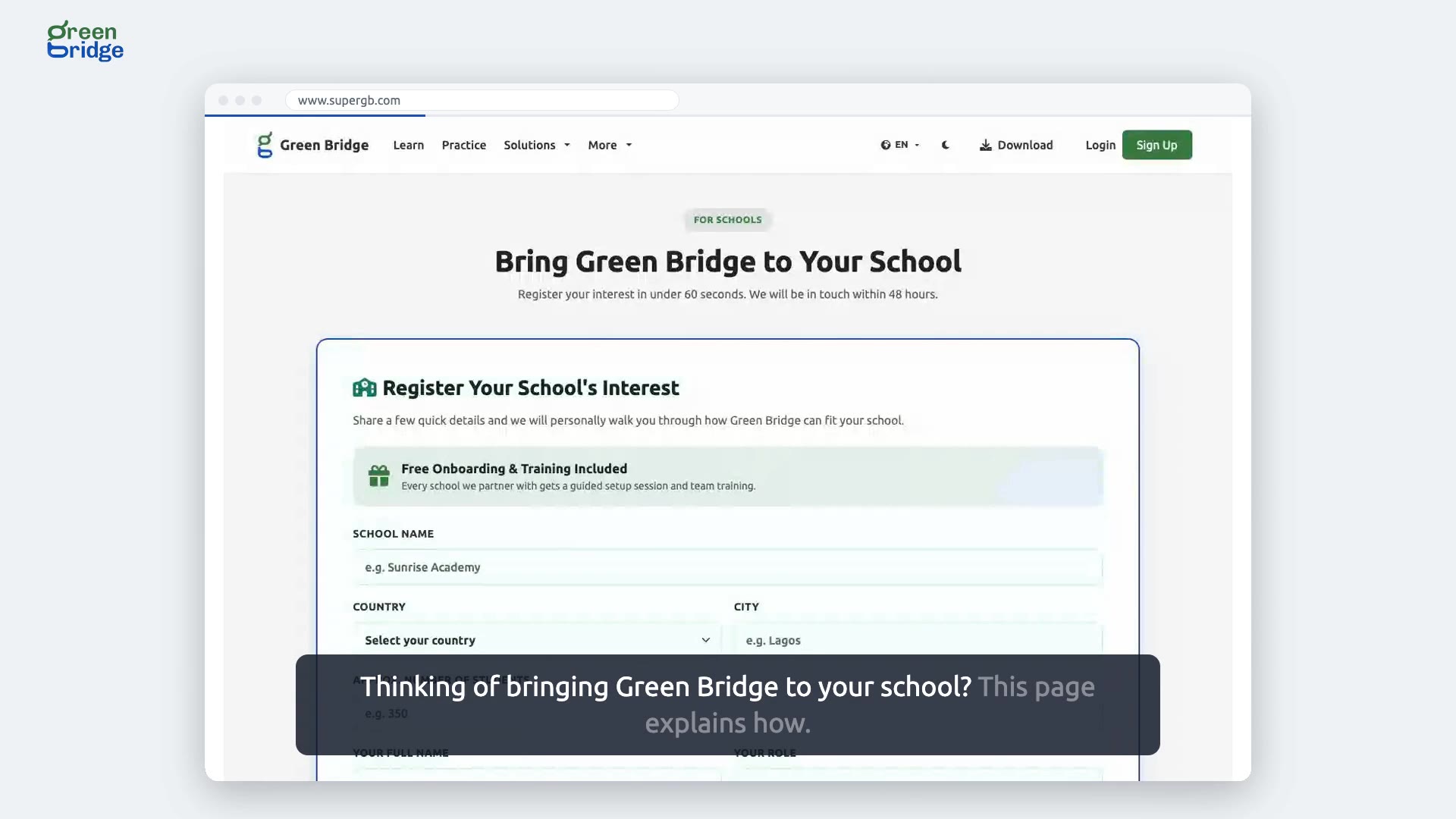
How can my school start using Green Bridge?
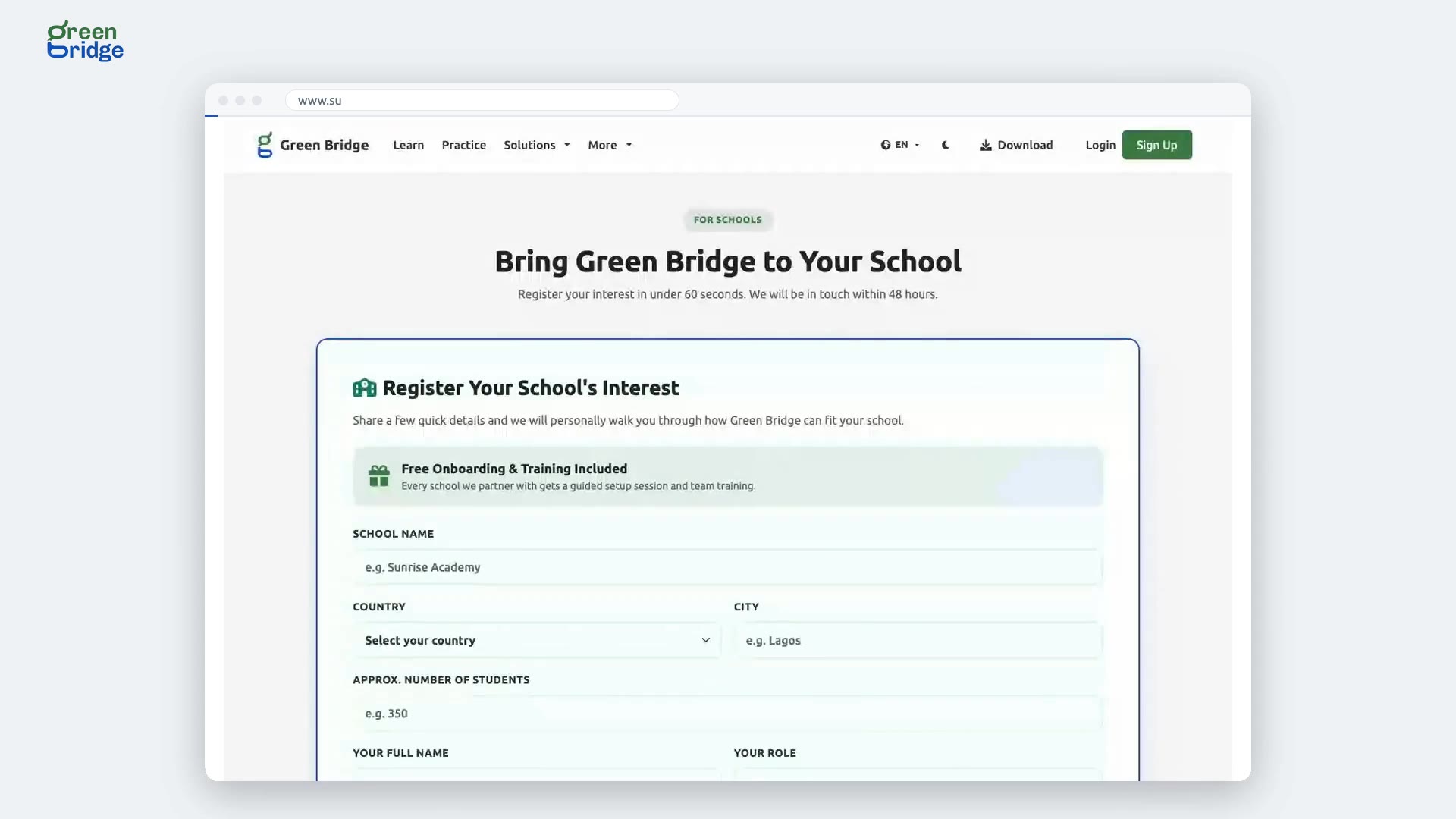
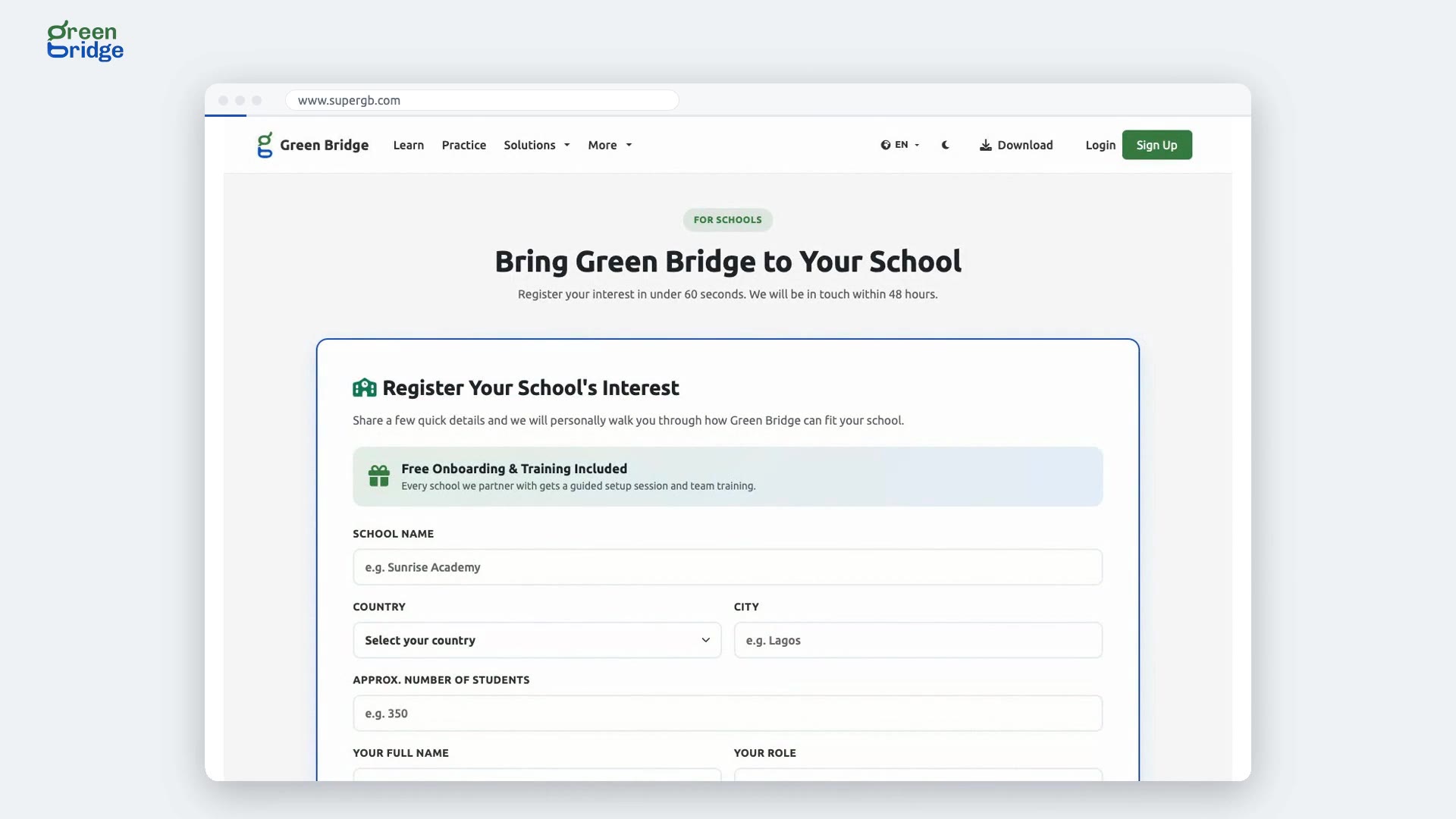
The Bring Green Bridge to Your School page explains what schools get and how to start, including free onboarding and training for your staff. At the bottom, the Register Your School's Interest form takes under a minute to fill in, and the team replies within 48 hours.
Green Bridge an Ihre Schule bringen
-
 0:58
How to register your school's interest in Green Bridge
Open the Bring Green Bridge to Your School page and fill in the form: your school's name, country, city and number of students, then your name, role, email and phone, and what you'd most like help with. Tick the box agreeing to be contacted and click Register My School's Interest. You'll see "Thank you!" and the team will be in touch within 48 hours.
Green Bridge an Ihre Schule bringen
-
 1:30
What if my school has already registered its interest?
If the form is sent again with an email that has already been used, you'll see Already registered with the note "A registration with this email already exists. We will be in touch shortly." Your first enquiry still stands, so there's nothing more to do. To register a different school, use a different email address.
Green Bridge an Ihre Schule bringen
-
 0:56
Why won't the school interest form send?
The form only sends once you tick the box at the bottom confirming your details are accurate and that you're happy for Green Bridge to contact you about the enquiry. If it's left unticked, you'll see Please confirm consent to proceed and nothing is sent. Tick it and click Register My School's Interest again.
Green Bridge an Ihre Schule bringen
-
 0:44
How to connect a learning platform with a registration link
Some learning platforms can register Green Bridge for themselves over LTI 1.3. Open Learning platforms, choose your platform where it offers One link, and click Make a registration link. Paste the link into your platform's tool registration settings. The link works once and only within the hour, so make it when you're ready to use it.
Eine Lernplattform verbinden
-
 1:53
How to connect a learning platform over LTI 1.3 step by step
Open Learning platforms and choose your platform where it offers Step by step. Copy the details from your platform's LTI 1.3 settings: its issuer, client ID and deployment ID, and the sign-in, token and key addresses. Click Connect platform and it's listed as Active. Click Disconnect to switch it off for a while, and Reconnect to turn it back on.
Eine Lernplattform verbinden
-
 0:46
How to send a mark again when your learning platform refused it
Open Learning platforms and scroll to Marks sent to gradebooks. A mark your platform turned away has a Send again button beside it. Click it and you'll see that the mark will be sent to the gradebook again within a minute. Nothing is lost while it waits.
Eine Lernplattform verbinden
-
 1:13
How to connect your school's Microsoft 365
In your school dashboard, open Learning platforms and choose Microsoft Teams. Click Connect Microsoft 365. Microsoft asks a Microsoft 365 admin for your school to approve it, then sends you back, where the page shows your school is connected. Teachers can now post tests to their Teams classes. To stop, click Disconnect and confirm.
Eine Lernplattform verbinden
-
 0:47
What's in the school admin menu?
The menu on the left is grouped by what you're doing. Teaching holds Classes, Assessments, Grading and the Lesson desk. Results holds Analytics and Reports, People holds Students and Staff, and School holds Learning platforms and Messages. Home brings you back to your school's overview.
Sich im Schul-Dashboard zurechtfinden
-
 0:44
How to find your way around the teacher dashboard
Your menu on the left holds everything you need as a teacher: Home, Classes, Students, Analytics, Assessments, Grading, Reports, Lesson desk and Messages. Home shows what needs your attention. Teachers' Network is at the end of the menu, if you also want to teach privately.
Sich im Schul-Dashboard zurechtfinden
-
 0:42
How to switch between the schools you run
If you're an admin of more than one school, your dashboard home shows Active School: with the current school's name next to it. Click the name and pick the other school from the list. The dashboard reloads with that school's classes, students and tests, and you stay signed in.
Sich im Schul-Dashboard zurechtfinden
-
 0:40
What can I use as a teacher before I join a school?
Your menu has the Lesson desk for writing lesson notes, Messages, and the Teachers' Network, where you can build a teacher profile and teach students of your own. Classes, Students, Assessments and Grading appear once a school adds you as a teacher.
Sich im Schul-Dashboard zurechtfinden
-
 0:46
How to find work waiting to be marked from your home page
Click Home in the menu. When students have handed in answers that need marking, Needs your attention shows how many submissions there are to grade. Click Grade to go to the marking list, then open a submission to mark it.
Sich im Schul-Dashboard zurechtfinden
-
 0:44
How to set up a new school from your home page
Click Home in the menu. Under Set up your school you'll see the steps still to do: Create a class, Add students, Set an assessment and, if you use one, Connect a learning platform. Click a step to go to the screen where you do it, and it's marked done once you have.
Sich im Schul-Dashboard zurechtfinden
-
 0:47
How to open this week's tests from your home page
Click Home in the menu and look under This week, which lists the assessments running or due this week. Click a test's name to open it with its questions, marks, class and instructions.
Sich im Schul-Dashboard zurechtfinden
-
 0:46
How to update your name and phone number
Click your name at the bottom of the menu on the left and choose Profile. Change your first name, last name or phone number and click Save. You'll see "Profile details changed successfully", and students, parents and colleagues see your new name from then on.
Sich im Schul-Dashboard zurechtfinden
-
 0:37
How to add a Green Bridge test tab in Microsoft Teams
Your school first needs to connect its Microsoft 365, and its Teams admin needs to add the Green Bridge app. Then, in your Teams class, add a tab and choose Green Bridge. Under Choose a Green Bridge assessment, pick the open test and save the tab. Students now sit the test right there in Teams.
Green Bridge in Microsoft Teams
-
 0:46
How to sit a school test inside Microsoft Teams
Open the Green Bridge tab your teacher added to your Teams class. You're signed in with your school's Microsoft account, so there's no separate password. The test starts in the tab. Answer each question and submit, and the tab thanks you and shows your score.
Green Bridge in Microsoft Teams
-
 0:55
What do teachers see when they open a Teams test tab?
Teachers aren't asked to sit the test. The tab says which test it opens for your students and gives you an Open Green Bridge to see the marks link, which takes you to the results in your dashboard.
Green Bridge in Microsoft Teams
-
 0:34
Why does the Teams tab say I'm not on the school's list?
A Teams test tab only opens for people on your school's Green Bridge list. Anyone else sees "Your account is not on this school's Green Bridge list. Ask your teacher to add you." and the test stays closed. If you're in the class, ask your teacher to add you.
Green Bridge in Microsoft Teams
-
 0:46
How to export a test's questions as a QTI file
In Assessments, click the test's name, open the menu at the top of the test and choose Export questions. A QTI 2.1 package downloads as a zip file. Many other test tools and learning platforms can import it, and it also works as a backup of your questions.
Einen Schultest verwalten